
You guys will already experience this Blue Tint On TV. The picture screening on your TV will appear in a blueish tint with a cool hue picture. This may occur due to many factors. Factors like picture settings, the age of TV, Poor image quality, and so on. Without an LED screen, the screen will look extremely dark. So you guys are wondering how to fix this Blue Tint On TV. This article will guide you on how to fix this Blue tint on TV.
Table of Contents
Why is there a Blue Tint on the TV screen?
There are several common reasons to have a blue tint on the TV screen. You can tune your TV by following the given guidelines in this article. The reasons for LG TV has a blue tint are given below. If you guys want to fix the problem just scroll the article. Reasons are,
- Age of the TV
- A defective HDMI cable or lost connections
- Incorrectly applied color settings on an external device.
- Loss of details
- Uneven light of your HD.
This issue is happening on many TV. This error will damage the color of the picture and visuals on your TV. If you guys have these issues, just fix the error by following the guidelines.
Also, read: How to Fix Orange Light on Firestick Remote?
How to Fix the Blue Tint On TV?
The LCD TV will have an LED backlight. The light helps ensure that the image of your TV looks bright and colorful. No matter, how much you tinker about with the settings, you won’t be able to remove the blue tint. Fixing this error is too easy. Some of the easiest and best solutions are listed below,
Change the settings
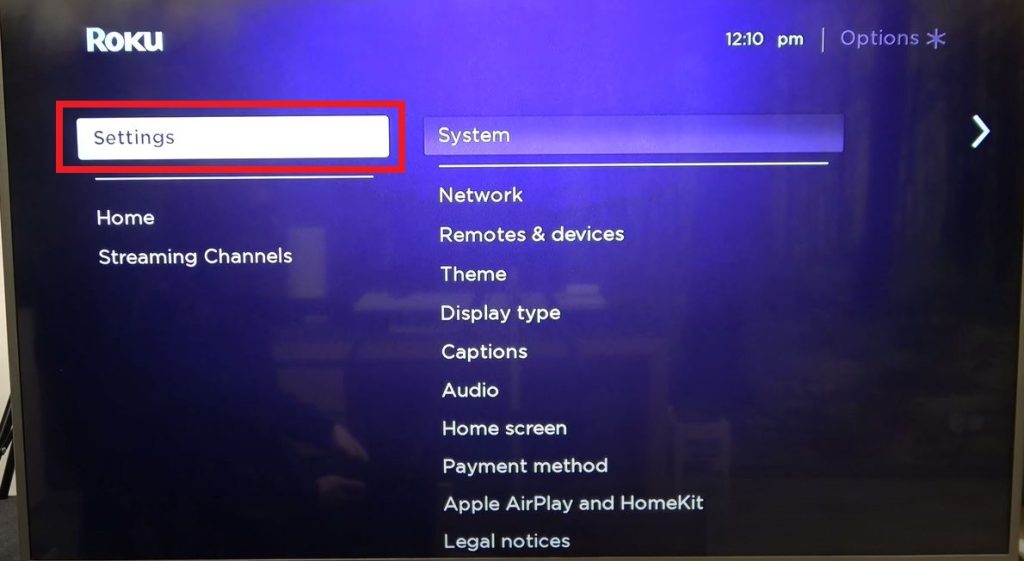
This method will be tried by every person, who is affected by this error. This is the simplest way to get rid of the Blue tint on TV. Here are guidelines,
- Turn on your TV
- Go to the settings and press on the picture settings.
- Adjust the color temperature, contrast, and brightness, and adjust the settings till the blue tint disappears.
- After completing these steps just save the changes, and get back the the normal screen.
Perform a factory reset

A factory reset will fix the issues, that occur on the software and save the original settings. So if you try this guideline, you can fix the error.
- Turn on your TV
- Go to settings
- Search for reset, and tap on that tab
- Click on the reset of the original settings.
- Check the instructions displayed on the screen and finish the reset.
This method will delete all the data on your device. So back up your data before you start this method. You may try this method to get rid of the Blue Tint On TV.
Also, read: 5 Ways to Use AI In Education
Swap out the Damaged cables
Still, you guys are facing issues or errors on your TV. Just try this method and enjoy the visuals or pictures on your TV. This error will caused by damaged cables, so if you rectify the damaged cable, you can enjoy the visuals on your TV. So, the guidelines are given below,
- Turn off your TV and off your switch have a connection to your TV.
- Just unplugged all the cables from your TV.
- Clean the dirt or damage to the cables.
- Then re-plug all the cables.
- Atlast, ensure that all the cables are connected correctly to your device.
After completing these steps, just turn on your switch. And check whether the error is cleared or not.
Disable HDR

HDR means High Dynamic Range. This adjusts the color of the visuals on your TV. If you people are noticing the blue tint or washed colors on your TV. Sometimes the settings may be varied automatically on many TV devices. So by changing automatically, you guys can get the blue tint color on your visuals or picture on your TV. To get rid of this error, just follow these simple steps. The steps are,
Turn on your tv >> Access the menu >> Navigate to settings >> Find HDR settings >> HDR mode >> Disable HDR >> Click on save changes. Thats it! you are done.
Run a Pixel refresh
Pixel refresh is done only if you have any issues related to image retention and screen burn-in. This is also known as screen refresh or panel refresh. You guys can use this option to clear the error of blue tint on your TV. To turn off the HDR, go to settings >> search for HDR >> Tap on the HDR tab >> Turn off the HDR. Yes! you are done. Just check the visuals on your TV. In addition, use the verified HDMI cable with a minimum of 18Gpbs. Now, you can enjoy your favorite film on your TV without any hesitation.
Call to a professional
Still, you aren’t able to fix the error. Even though, you tried many methods which are given in this article. Finally, hire a professional. Because they have the perfect tool for repairing the devices. So just make a call to the professional and enjoy the visuals on your TV. You dont know the phone number of the professional, just visit the TV shop near to your house and fill in the form with detailed issues for repairing the TV. So these are the basic methods to solve the issues on the TV screen.
Also, read: How to Fix LG TV Error Code 137? | 6 Easy Ways |
Conclusion
Throughout this article, we saw the reasons and ways to fix the blue tint error. If you have any problems related to this, just contact the TV shop service. Maximum the error will be solved simply by following the two steps. The guide is just to tap on the factory reset or plug all the switches on your TV. Still, facing issues? then contact the repairman or buy a New TV with lots of technology. Moreover, to know more about the technology articles, visit the Techthanos website.