
Many more video sharing and suitable entertainment applications are trending nowadays in our Universe. Likewise, TikTok is also an application that has become more trending to share short videos with everyone. You can relish video making, dubbing, and expressing your emotions through this app. So today, we came to explain How to watch TikTok on Roku?

Table of Contents
Brief about TikTok?
You can create videos with different genres such as tricks, stunts, emotions, movie dialogues, song lyrics, dance, pranks, jokes, and more entertainment content. TikTok was initially released in the Chinese market in September 2016 with an international version.
From outside of China, it was mainly launched for Android and iOS devices in 2017. Later, it became popular worldwide when it collaborated with other social media Musical.ly and was available everywhere throughout the Universe. But they have different features, but both interfaces are the same.
About Roku
Roku is a streaming device that accesses many streaming services to stream on your Smart TV using a Roku’s Flash Drive. It allows streaming our desired video content without cable or satellite TV network providers. If you have any streaming services, then you can easily watch any of your content through the Roku TV on your smart TV.
It has various additional features to relish your entertainment to make it more. You can record your favourite shows from Cloud DVR storage and can watch thousands of content to stream. In modern days, it is more advanced features, unlike your ordinary cable TV networks.
Many streaming devices, Dish, cable TV or Satellite TV networks are available in the United States, but Roku is also one of them and is popular among users. It delivers HD and UHD quality streaming with a good interface. You can watch many on-demand, live TV shows, sports, and Highlights from various streaming services that can be compatible with the Roku TV device.
Is TikTok does compatible with Roku TV?
Certainly not, because the Tiktok app doesn’t support the Roku TV, and it is not available in the Roku channel store. Dont lose hope because here we will let you know the possible ways to watch TikTok on your Roku TV from Android, iOS, and Windows. Let’s see the steps to follow to protect the eTiktok on your Roku device.
How to Cast TikTok on Roku from Android?
You can instantly make a screen mirroring option to stream the Tiktok on your Roku device. Here we see the steps involved in screencasting the TikTok app on your Roku TV with an Android device.
👉Step 1
First, turn on your Roku device and connect it to a network source.
👉Step 2
Next, go to the play store from your Android device and search for the TikTok application.
👉Step 3
Now navigate to the Roku’s Settings option from your Roku TV.
👉Step 4
Then tap to the Screen Mirroring tab and enable it by clicking.
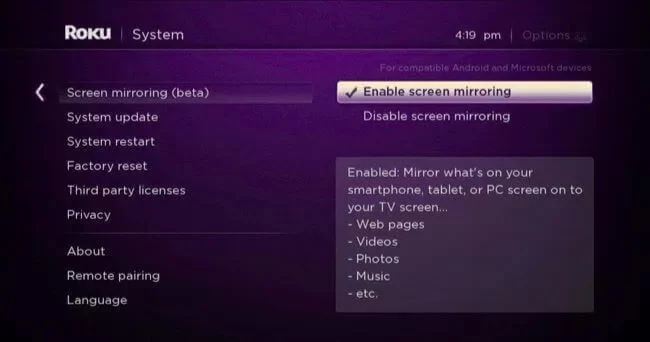
👉Step 5
Pick any of the options shown on the screen Prompt or Always allow.

👉Step 6
Now set up your Android device and Roku to the same network connectivity.
👉Step 7
Further, pull down the notification panel and tap the cast icon on your Android device.

👉Step 8
Furthermore, pick your Roku TV from the available list of menus on your screen board.
👉Step 9
Now open the TikTok app on your Android device and log in with your account credentials.
👉Step 10
Finally, start to play any TikTok video content on your Android device, and it will screen mirror your Roku connected smart TV.
How to Screen Mirroring TikTok on Roku from the iOS device?
First, enable the Airplay settings in your Roku TV for screen mirroring TikTok to your Apple devices. So here we let you know what procedures you should follow to stream TikTok on Roku device via Airplay are.
👉Step 1
Navigate to the Settings option from the Home page on your Roku TV device.
👉Step 2
Then choose the Apple Airplay and Homekit options from your Roku device.
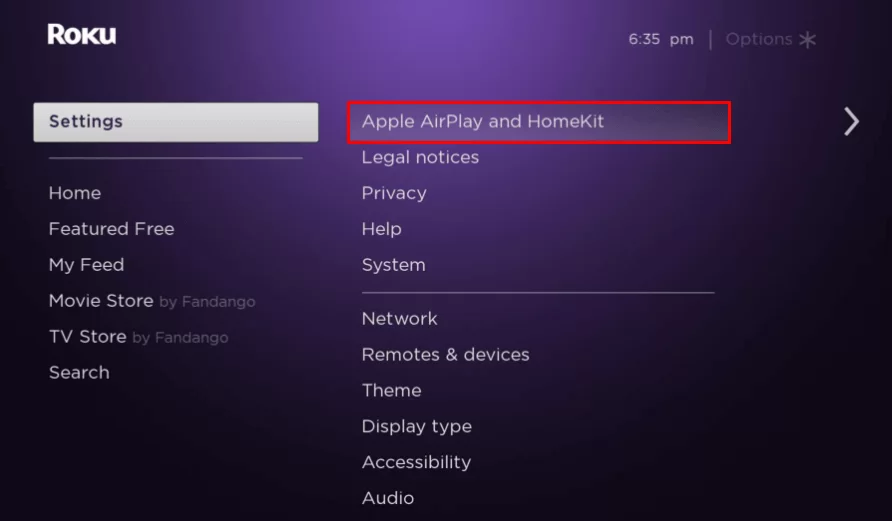
👉Step 3
Further, tap on the Airplay option and tap on the Require Code option under the Airplay Settings.
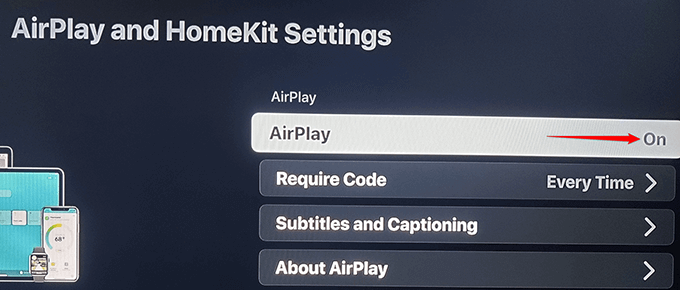
👉Step 4
After that, select the First Time only option on your Roku TV.
👉Step 5
Now install the TikTok app on your iOS device from the app store and launch it on the Home screen of your Apple device.
👉Step 6
Setup your Roku TV and iPhone to the same wifi network.
👉Step 7
Then pull down the control panel from your Apple device.
👉Step 8
Now select the Screen Mirroring option from it.
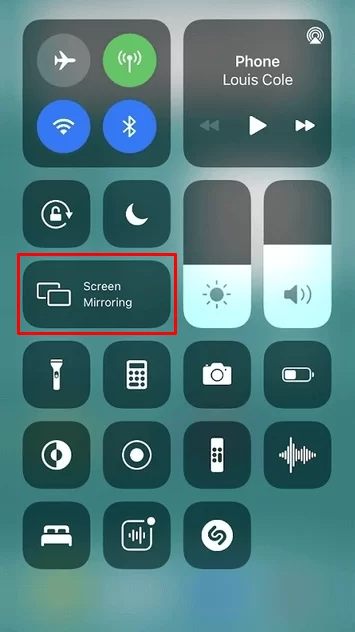
👉Step 9
Here choose your Roku TV from the available list menus.
👉Step 10
Now register the passcode which is displayed on your Roku connected TV screen.
👉Step 11
Finally, you can relish the joy of streaming your desired TikTok content from your Roku TV connected smart TV through iOS or iPad.
To cast TikTok on Roku from the Desktop
👉Step 1
Set up your Desktop and Roku TV to the same wifi network connectivity.
👉Step 2
Then open any web browser to your prior and visit the official website of TikTok URL.
👉Step 3
Now enter your login information with account credentials and click OK to go.
👉Step 4
Tap on the three vertical dotted icons and go down to the cast option from the Sources menu.

👉Step 5
Now choose your Roku devices from the list of devices.
👉Step 6
At last, you can stream the TikTok app on your Roku device by connecting smart TV via PC.
To Conclude:
Roku is the top most popular streaming device in the United States of America. TikTok is a social video app with a lot of entertainment for users. Using the screen mirroring option, you can watch the TikTok video on your Roku device with your Android, iPhone, Desktop, Mac, and iPad. There are various optional ways explained in this article. If you have any troubles watching TikTok on your Roku TV device by screen mirroring, mention them in the comment section.
FAQs:
1. Can I watch TikTok on Roku TV?
Unfortunately, you can’t stream the TikTok app directly on your Roku TV device. But can screen mirroring on Android, Apple devices, desktops to watch on Roku connected TV.
2. Is TikTok safe to use?
Certainly, TikTok doesn’t have any safe to use because there is not an end to end encryption, unlike other apps. So try to skip unknown users and specific links and block posts from an anonymous account.