
TNT is an American Basic Cable Television Channel. Discovery Network is the parental platform for the TNT Channel. So, you can watch some of the Discovery content on TNT. Along with that, you can watch Charmed, Supernatural, 2023 All Elite AEW Rampage, and more 2023 new releases on TNT Network. To watch all new content, you have to install the app on your device. If you have Roku, then check out this article and learn, How to Watch TNT on Roku.
![How to Get TNT on Roku [InstallActivateAlternate]](https://techthanos.com/wp-content/uploads/2021/10/How-to-Get-TNT-on-Roku-InstallActivateAlternate.jpg)
Also, the TNT Channel was available to Cable and Satellite TV Providers. If you are an active subscription user with any tv provider, check the channel number and switch to the TNT channel. Now, dive into the article below…
Table of Contents
Is TNT on Roku?
Yes, you can watch TNT on Roku. The TNT app can be downloaded on your device from the Roku Channel Store. With the help of your TV provider credentials, you can activate the app and watch your favorite TNT programs.
How to Get TNT on Roku?
As discussed before, you can search for the TNT app on the Roku channel store and add it to your Roku device. You can either directly add it to your Roku device from the Roku Channel Store on it or from The Roku App or the Roku Official Site. If this is your first time using Roku, follow the simple procedures you need to follow to get the TNT app on your device.
TNT on Roku from the Channel Store:
The TNT app is officially available in the Roku Channel Store. So, you can download it directly on your device. The installation method is given in the following section;
- First, associate the Roku device with your Smart TV HDMI gateway.

- Then, Turn On the Roku and Smart TV.
- Grab the Roku remote.
- And, click the Home button.

- Then, press the Left-Directional key on the remote.
- Next, click the Settings section.

- Now, Select the Network option.
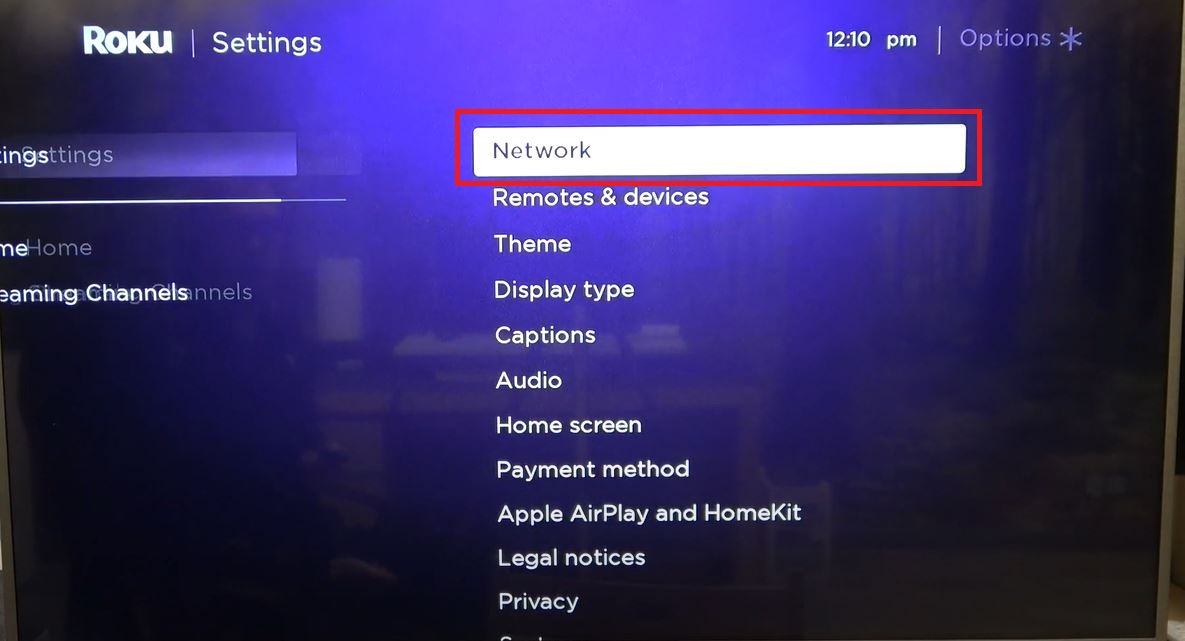
- Here, you have to select your Wi-Fi network.

- And then, enter the Wi-Fi Password using the Roku on-screen keyboard.
- Then, tap the Enter option.
- Now, stream any online content to check, that your Roku device has connected to the Internet.
- Then, click again the Home Button.
- And, press the Left-Directional Key.
- Then, Select the Streaming Channels button.

- Now, tap the Search Channels section.

- Type “TNT” in the given search panel.
- Discover and highlight the TNT app from the search result.
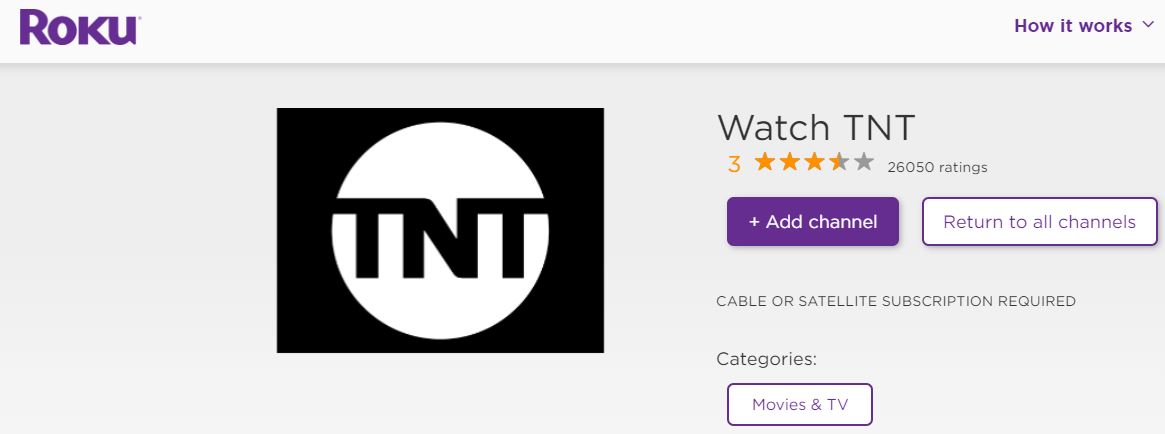
- And then click the Add Channel tab.
Wait until the TNT streaming service gets installed on your device. Once, the app gets installed, you have to activate it on your Roku device. The Instructions and guide for the activation process are given in the following section.
How to Activate TNT on Roku?
To watch all the content offered by the TNT app on your Roku device, activation is required. You can activate TNT on any device using TV provider credentials. Some of the TV provides credentials you can use to activate TNT are AT&T, Spectrum, Xfinity, Cox, DIRECTV, Dish, Optimum, Verizon, and more. The simple procedure to activate TNT on your device is as follows,
- Launch the TNT app on your Roku device.
- Go to its settings and tap on the Activation option.
- You will get the activation code on your Roku TV screen.
- Visit tntdrama.com/activate on any of your device’s web browsers.
- Choose your Roku as your device.
- Now select your TV provider and enter the credentials.
- Now enter the activation code and press Submit.
After a few seconds, the TNT app on your device will refresh and gives you access to watch all its contents.
Alternative Ways to Watch TNT on Roku:
If you dont have any TV provider credentials, you can go for Streaming Services, which has the TNT channel in its subscription channel lineup. You can get those streaming service apps on your Roku device and start streaming the TNT channel on your Roku TV. The streaming services app on Roku with access to the TNT channel are as follows,
- Sling TV
- Hulu+Live TV
- DIRECTV Stream
- YouTube TV
- Spectrum TV
You can easily add these apps to your Roku device and subscribe to their plans with the TNT channel in its channel lineup. After that, you can easily watch the TNT channel on your device.
TNT Not Working on Roku
Sometimes, the streaming services are not working properly on the device. Many TNT Streaming service has asked for the best possible solution to fix TNT Not Working on Roku. So, I have given them here;
- Check the Wi-Fi connection.
- Check the TNT Server outage.
- Reset the Wi-Fi Router.
- Restart the Roku device.
- Sign Out and Sign In again with TNT.
- Renew the Subscription plan.
- Uninstall and Reinstall TNT.
- Update the TNT app.
- Software update Roku.
- Factory Reset Roku device.
- Contact TNT Customer Service.
Follow all these methods one by one as listed. To check the TNT App server, you can use the Downdetector website. And, if the Wi-Fi connection is not stable on the device, first, take a look at the Ethernet cables. If the cables are connected to the Wi-Fi Router, the TNT app is not working on the Roku device. So, change the new cables and connect them to the Roku. Now, launch the TNT app and Stream.
THE END
You can now enjoy watching all of the TNT programs, originals, movies, and TV shows now live on your Roku device. If your Roku device is not supporting the TNT app, you can screencast it from other devices to your Roku TV screen. Since the TNT app uses Data to stream content, make sure to have a high-speed internet connection to have a buffer-free streaming experience.
Frequently Asked Questions:
Is the TNT app free?
You can download the TNT app for free on your device. If you have a TV provider subscription, then you can use those credentials to access the TNT app for free. To directly watch TNT, you need to subscribe to it, which costs $69.99 per month.
What are the devices that I can use to Stream TNT on?
FireStick, Chromecast, Roku, Apple TV, Andriod TV, Google TV, and other android and iOS devices.