
If you have a Waze for altering you from different sources. But it will not give the sound of notification. Are you wondering to know How to Fix the Sound Not Working on Waze? We will share the methods along with the steps. We hope the error will solved. But if you can’t retrieve it then you can contact the customer service center. You can contact them through email or using the toll-free number. They will help you to share the solution for your exact error. But before you have to try to solve it by yourself.
Table of Contents
How to Fix Sound Not Working on Waze?
Waze is a Communication application and you can get real-time notifications that will alter you from Different kinds of sources Such as Traffic, Crashes, Police, construction, Traffic-Avoiding reroutes, real-time safety, and More Updates. But now your Waze sound is not working, and we can’t get the notification at the right time. Then it will be affected due to some technical error. Here we will share the methods along with the steps to solve the problem from your Waze Application.
- Check your GPS.
- Check the Mute Settings.
- Unmute the Waze While in the Calls.
- Turn on Waze’s Sound ON.
- Clear Cache.
- Update your Device.
- Close the Cellular Network.
- Uninstall and Reinstall the Waze.
- Update the Waze App.
Check the Mute Settings
- Open the Waze.
- Move to the menu option.
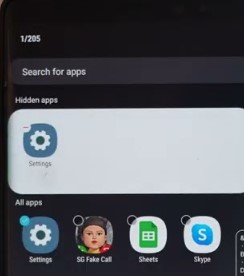
- Click the Gear icon.
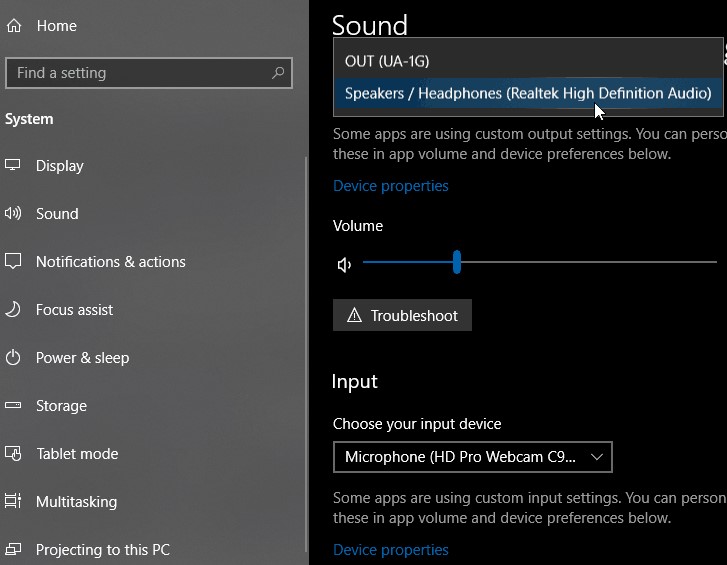
- Following this Select the Voice and Sound option.
- Turn off the “Mute Waze During Calls”.
Unmute the Waze While in the Calls
- Launch the Waze app on your Phone.
- Click the Setting option.
- After that, you have to Press the Sound and Voice option.
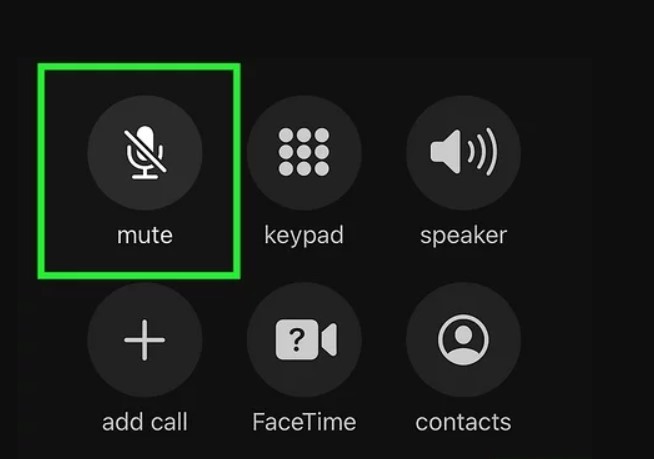
- Ensure that, you have to choose the Option like Mute Waze During Calls Option is Turned Off.
- At the same time, Turn on the Guidance Volume from the Sound Menu option. Raise to Maximum level.
Once you have done the process, you have to Relaunch the Waze App and check whether the Sound Not Working on Waze is Solved.
For More Info, How to Fix the STARZ App Not Working on Firestick
Turn on Waze’s Sound ON
- Open the Waze.
- Scroll right to the left side of the screen to get a menu option.
- Click the Gear icon.
- After that, you have to Tap the Voice & Sound option.
- Select the Sound Section to Toggle it to on.
Once the process is done, you can check Sound Not Working on Waze issues are cleared.
Clear Cache
- From the Home Page of your device.
- Go to the Setting option.
- Next, you have to click the Menu option and then choose the Apps again.
- Now you have to search for Waze and choose it.
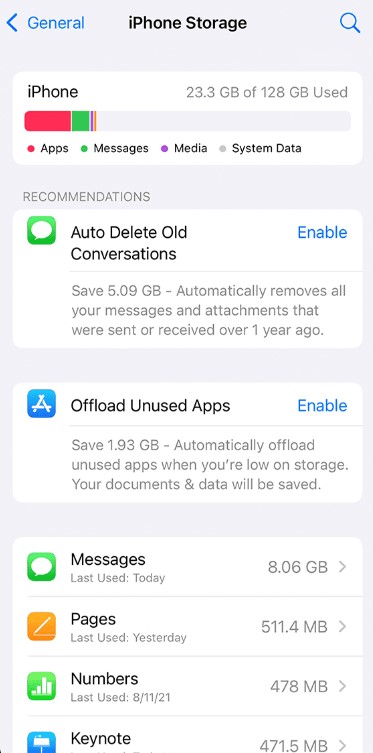
- Click the Storage option from the menu.
- Choose the Clear Cache option.
Update your Device
- Go to the Settings option.
- Next, you have to click the “System”.
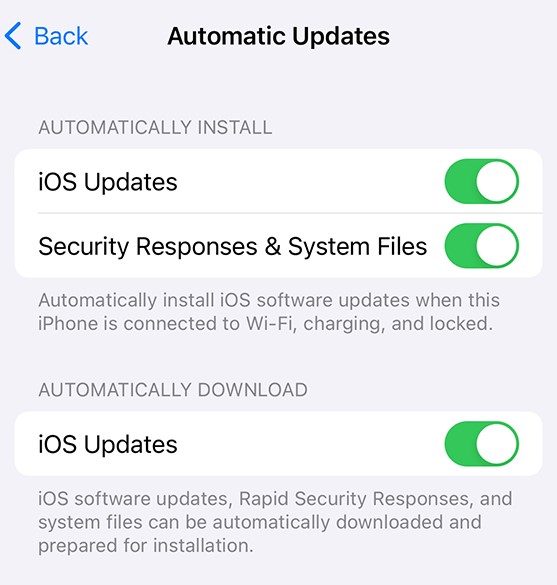
- Click the System Update option.
- Now you have to check if any update is available.
If it is then Press the Update option. Now your device is starting to update. Once it is completed you have to reopen the Waze and check that Sound Not Working on Waze is solved.
Waze sound not working on iPhone (Check Your GPS)
Here are the steps to fix your Waze Sound Not Working on your iPhone. First, you have to check the GPS tracking. If it is not fixed any error occurs on your device.
The Steps for: [iOS Devices]
- Go to the settings Option—> Click Privacy–> Location Services.
- Turn off the location Services.
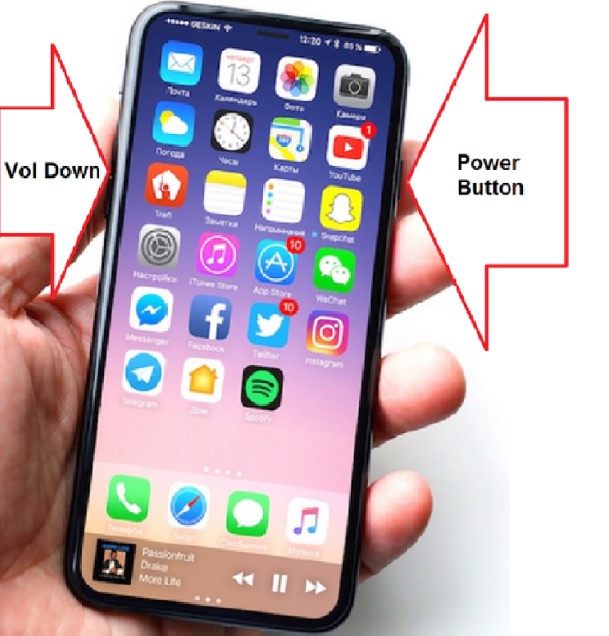
- Now it will hard reset your iPhone.
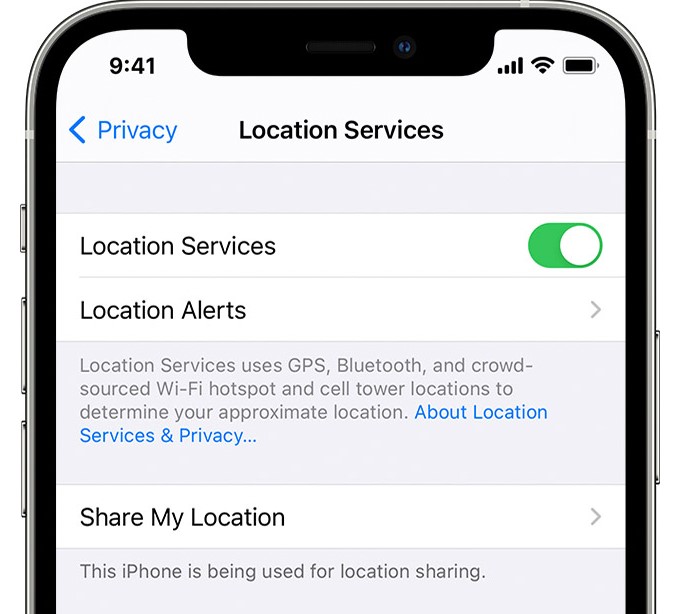
- After that, Move to the Settings option–> Privacy—> Location Services.
- Now it turns it back on.
Check the Post: How to Fix Steam Mobile App Not Working
Close the Cellular Network
It is an easy process to close the Cellular Network and it has a chance to recover our application from the error.
The Steps are: [iOS devices]
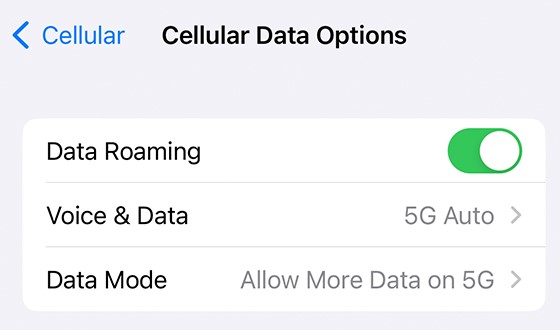
- Move to the Setting option–> Cellular—> Press Cellular Data option.
- Remove the 4G or LTE option.
- Now you have to restart your phone to start the Cellular network option from the Settings.
Update your Waze App
If your iPhone has this Waze application in an older version then you have to update it to the current and latest version to avoid all these kinds of issues such as Sound Not Working on Waze.
The Steps are: [For iOS]
- Move to the App Store.
- Click the profile icon Option. It will be available in the right corner of the Screen.
- Press the Update All button.
Once the process is done you can access the new and latest version of Waze.
I hope the Sound Not Working on Waze problem is solved.
If still not then you have to proceed with the upcoming method.
Check the Post: How to Fix Crunchyroll Subtitles Not Working
Uninstall and Reinstall the Waze
While in the process of uninstalling and reinstalling Waze has a Chance to delete the errors, bus, and Glitches from the application. Try out the Steps on your iPhone.
The Steps are: [iOS device]
- Click and hold the Waze.
- After that, it will show you the options like Uninstall or Remove Apps.

- Press the Uninstall option.
- Once it’s done then move to the App Store section and find the Waze app.
- Select the App from the list and Press the Get or Download option.
Still, if you can’t retrieve the application then you can try the upcoming steps.
Waze not working on Android Auto-(Check Your GPS)
Sometimes, The Waze app gives traffic, police, and location alerts, If your GPS is not working then, it will never give you the notification from Waze. Here are the steps to check and fix your GPS for Android.
The Steps are: [Android devices]
- Move to the Security and Location.
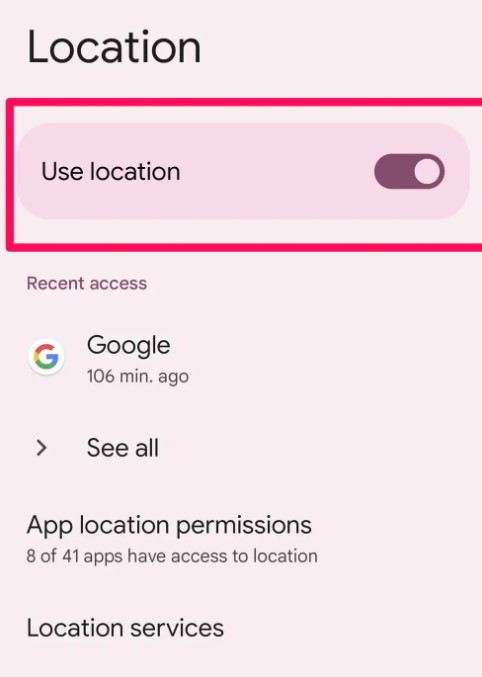
- Following this click the location option.
- Now turn on the Switch to Use the location.
- Navigate to the App-Level permission and switch to the Waze.
- Click on Advanced> Google Accuracy.
- Turn on to Increase the location level.
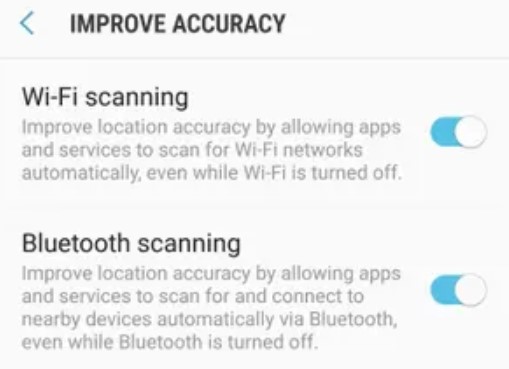
- After that, it will scan the code. For this process, it will turn on the Wi-Fi Scanning and Bluetooth Scanning.
- At last, it Permits us to choose the High Accuracy.
Uninstall and Reinstall the Waze
This is an amazing option to solve your application error on your device. While in the process of Uninstallation, there is a chance to delete all the bugs and glitches from your application. As well the older version of your app also gets destroyed. After that, you can again download the Waze from the Play Store. The New version of Waze will download. I guess now the Waze sound error will solved.
The Steps are: [Android]
- Click and Hold the Waze.
- Move the Application to the trash Bin icon and release it.
- Next, navigate to the Google Play Store.
- Then Download the Waze from it.
Update your Waze App
If you have your Waze in the older version then it will stop the sound while in the notification time. So you must update your Waze application to the Current version to disable the error from it. Here are the steps to update the Waze app on Android and iOS devices.
The Steps are: [For Android]
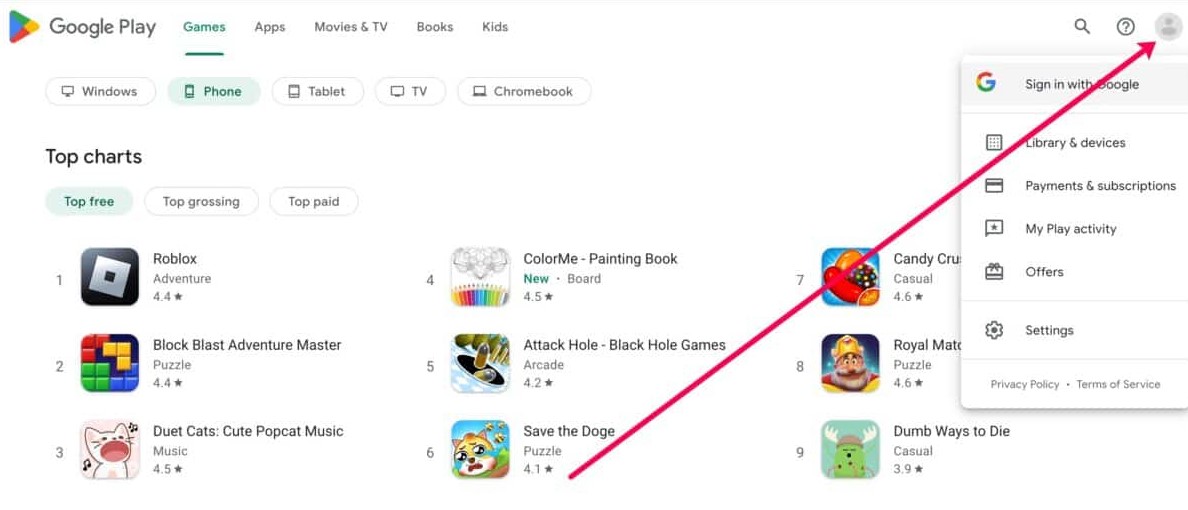
- On the upper right corner of the page click the profile icon on your Play Store.
- Choose the Manage Apps and Device option.
- Now you have to choose an app from the list.
- Click the Update option.
- If the Waze getting Updated
Close the Cellular Network
Sometimes it will destroy the Application usage so you can store or access anything from that respective application. So, you have to remove the Cellular network to access the Waze sound Notification.
The Steps are: [Android]
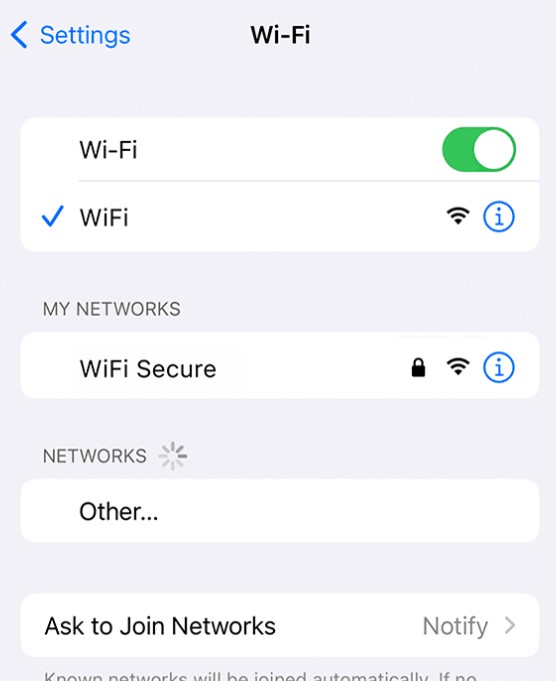
- Direct to the Setting option–> Wireless and Network option–> SIM Card and Mobile Network.
- Remove VoLTE.
- Now you have to enter the name of the internet Service to turn on it.
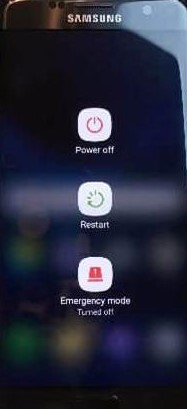
- Then Reboot your Phone and check that your Sound Not Working on Waze is solved.
The Final Words
From this article, you guys know How to Fix Sound Not Working on Waze. We have mentioned the Solution along with the steps to solve it. The App is getting errors due to some reasons such as old versions of apps and devices, caches, or any other technical error. It is solved by yourself. You have to try the methods and check whether they will work on your device. Suppose you tried all these methods but the error is still available on your device then you can contact customer support. They will be available 24/7 for you.