
Fubo TV is the popular American On-Demand and Live streaming service. You can Watch live or record the content using DVR features. If you can not able to watch the most awaited shows or the Fubo TV Not Working on Roku, I Know it’s frustrating. But you do not worry about it.
Spend some time fixing the error and watching your favorite content on the Fubo TV service. All you need to just take a look at the Methods given in the following and try them all on your Roku device. Let’s dive right into the content…
Table of Contents
How to Fix Fubo TV Not Working on Roku?
There is no clear identification what is the problem is exactly why the Fubo TV Not Working on Roku. So, we have to focus on both Roku and Fubo TV streaming services as well. We will start with a small issue. They are;
- Check Wi-Fi Connection on Roku.
- Power Cycle Wi-Fi Router.
- Check Fubo TV Outage.
- Clear Cache.
- Restart Roku Device.
- Check Fubo TV App Update.
- Check Roku System Update.
- Sign Out and Sign In to Fubo TV.
- Uninstall and Reinstall Fubo TV.
- Check Geo-Location.
So, you can try these ten possible methods to fix Fubo TV Not Working on Roku and the app smoothly on your streaming device. Let us discuss all these methods one by one in the following.
1). Check Wi-Fi Connection on Roku:
So, first, we have to focus on the Internet connection. If it is not connected properly or disconnected, you can not able to access the Fubo TV online content. So, check it by the following steps.
- Turn On the Smart TV and Roku device.
- Click the Home Button on Roku remote.

- Navigate to the Settings option and click on it.

- Select the Network button.

- Head Towards the Check Connection option.
There, check the Roku is connected to the Wi-Fi. If not, please select your Wi-Fi network and enter the valid Wi-Fi password in the required space. Now, launch the Fubo TV app and check the app is running smoothly. Also, check, if your Google TV Not Working properly.
2). Fubo TV Not Working on Roku | Power Cycle Router |:
If still the Fubo TV streaming service is not working properly after you have connected the Wi-Fi, so there is a problem with the Wi-Fi router. Try to power cycle it. Here are the steps;
- Switch Off the Router.
- Plug Out the power cables.

- Unplug the Cables Connected to the TV.
- And, remove all connected cables.
- Wait for 4 to 5 Minutes.
- And Reconnect All Cables back.
Also, check if there is any damage to the cables. Better if you can change the new cables and connect them to your Smart TV. Then Switch On the Wi-Fi Router. And Launch the Fubo TV app to check whether the problem of Fubo TV Not Working on Roku is fixed or not. If still no, move to the third method.
3). Check Fubo TV Outage:
Sometimes, the streaming service Server may be low. At that time, the app was slow, and you can not able to access the Fubo TV app smoothly. So, let us check how to analyze the Fubo TV Outage;
- Launch the Web Browser app on your device.
- Search for “Downdetector” in the given search space.
- Launch the Official Downdetector app from the search result.
- Navigate to the search panel.
- Type “Fubo TV” and search for it.
- You can see the Fubo TV server as a graph shown in the image below.
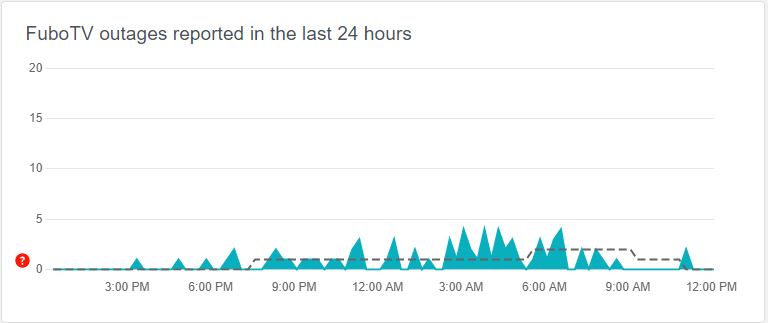
If the Server is slow, close the Fubo TV app on Roku. Just do not disturb it for a while. Relaunch the Fubo TV app after an hour or 30 minutes. The Fubo TV Not Working on Roku problem has been fixed. If you are using Netflix on Firestick and Netflix Not Working on Firestick, click this link to fix it.
4). Fubo TV Not Working on Roku | Clear Cache |:
The unwanted Cache Files on the Roku device or on the Fubo TV streaming service are also the struggle to watch Fubo TV on Roku.
- Click the Home Button on Roku remote.
- Tap the Home Button 5 Times.

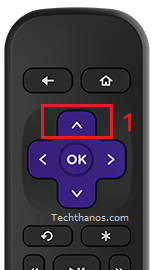
- Click the Up Button Once.
- Then, click on the Rewind Button Two Times.
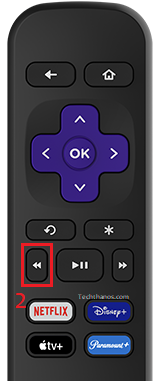
- After that, click the Fast Forward Button Two times.
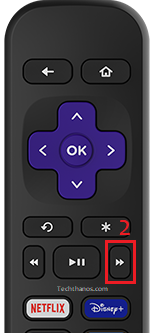
Do the same process correctly, then your Roku device Cache files are cleared. After the process, restart the Roku and open the Fubo TV app. If you want to know How to Restart the device, check the next topic.
5). Restart Roku Device:
Are there are any glitches that are updates pending on the Roku device, they will clear by restarting the device. So, come back with the steps mentioned below;
- Click the Home Button to return to the Roku home screen.
- Then, move to the menu section.
- And click the Settings option from the menu.
- Select the System button.
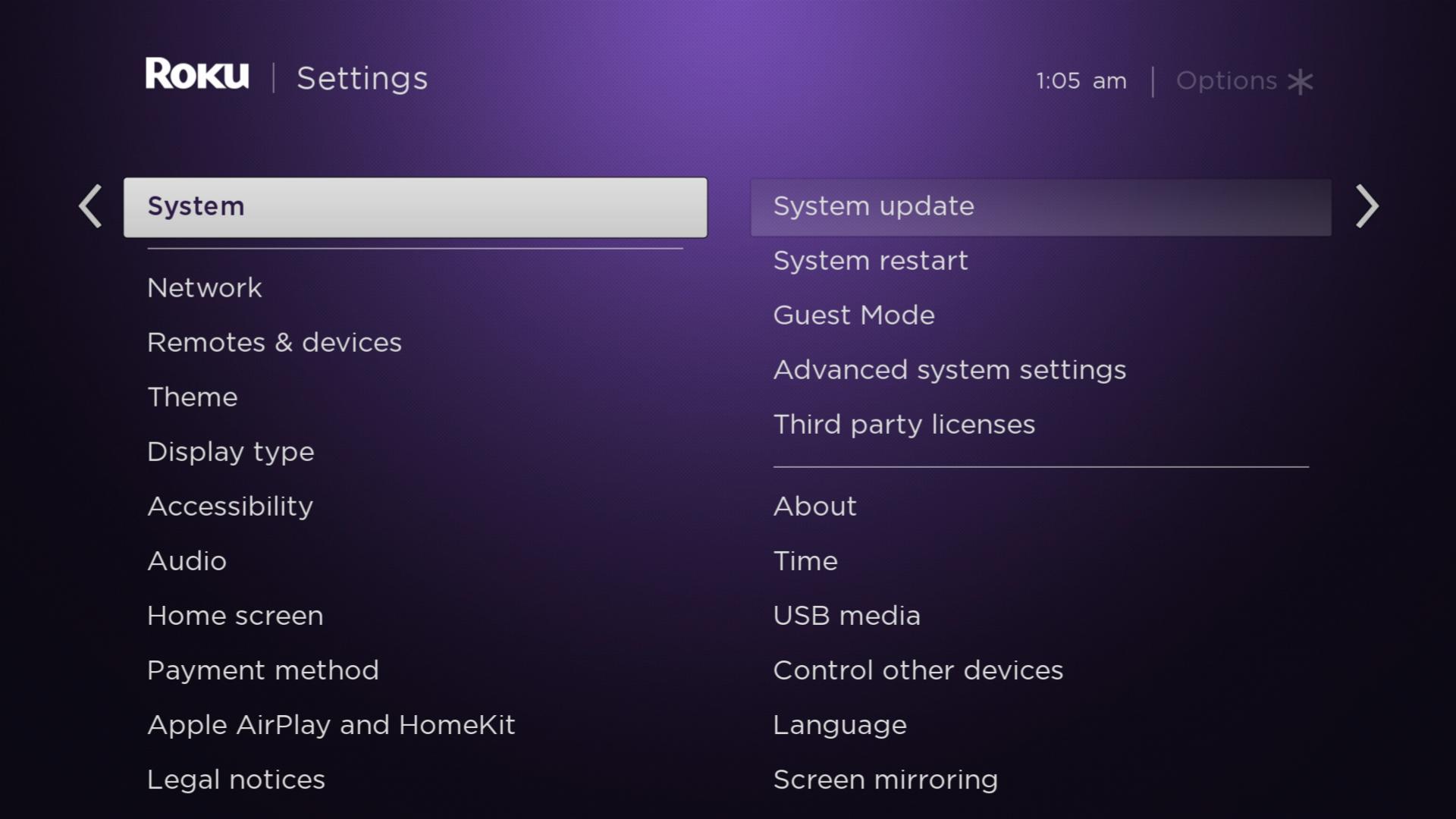
- Following that, click on the System Restart option.

- Then, tap the Restart option.
Now, the device is restarting automatically. Once, the Roku device is back On, Go to the Streaming Channels page. And launch the Fubo TV app. And start streaming exclusive on-demand content on the device. I hope it will fix the Fubo TV Not Working on Roku.
6). Check Fubo TV Update:
Along with that, you can also check the Fubo TV app software version. If the new version is released and you have using the older one, the app is not supported to run smoothly. Follow the steps to Update the Fubo TV app on Roku;
- Launch the Streaming Channels page on Roku.

- Navigate to the Fubo TV app from the list.
- Click the ( * ) Button on Roku remote.

- From the options menu, select the Check for Update option.

- Roku started scanning for the app update.
- If the app update requires, click Update Now/ Install Now button.
Once, the app gets updated, you will get a notification. Open the Fubo TV app Select the content and play it on the Roku device. Tap the link to fix if the MLB App Not Working on Firestick. You can also follow the same methods for Roku devices.
7). Fubo TV Not Working on Roku | Roku System Update |:
As well as the Roku System Update is also notable. If you are using the Roku device with an older version, not only the Fubo TV app but also all functions are slow and your device gets heat. It may also affect the screen color. So, update it right now by the steps below;
- If any screen is active on the Roku device,
- Click the Home Button to return to the Roku home screen.
- Select the Settings option.
- Then, tap on the System button.
- And, click on the System Update option.
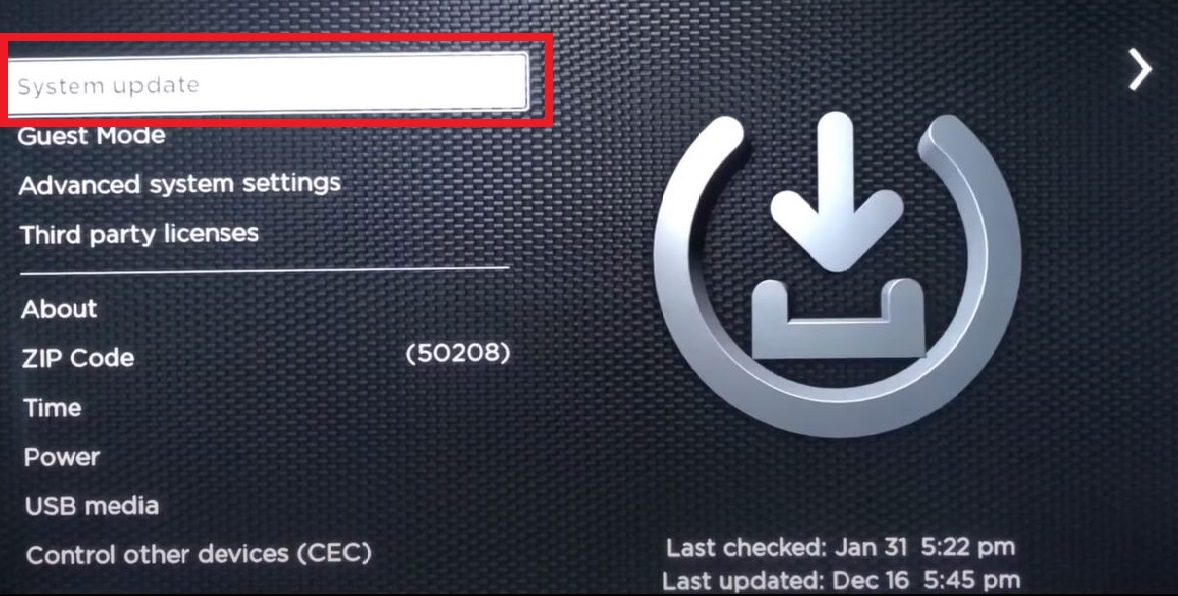
- After the Update scan, click the Update Now button.
It takes a few minutes to update the Roku device OS. Once the update is finished, the Roku device will restart automatically. Now, launch the Fubo TV app and start streaming it and fix the Fubo TV Not Working on Roku.
8). Sign Out and Sign in to Fubo:
Your Fubo TV user account may also be the issue for Fubo TV Not Working on Roku. So, just Sign out and Sign In again and check whether it is working properly or not.
- Go to the Streaming Channels page on Roku.
- Select and Launch the Fubo TV app.
- Click on the Profile Icon on the app.
- Scroll down and click the Sign Out option.
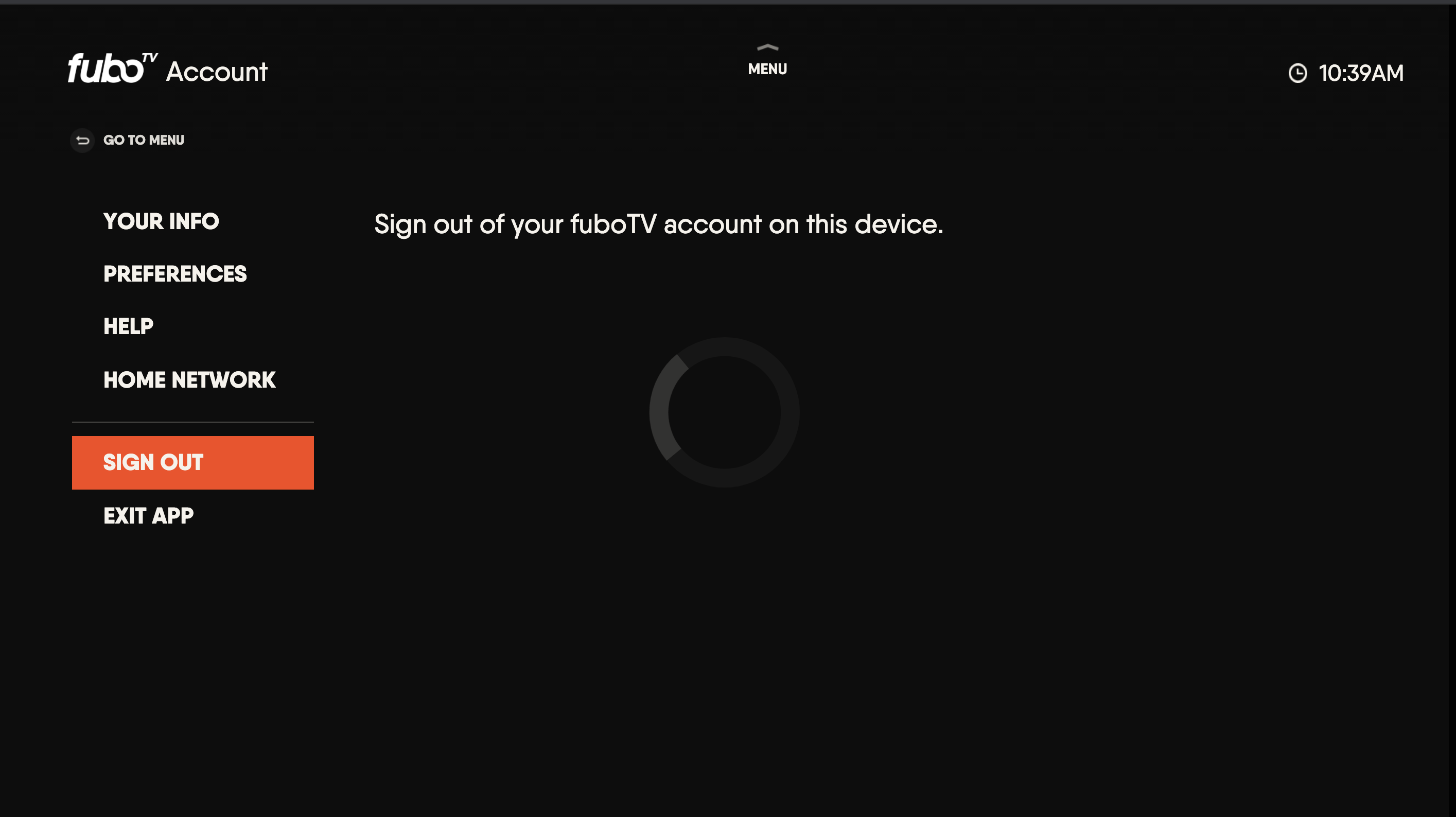
- Click the OK Button to confirm sign Out.
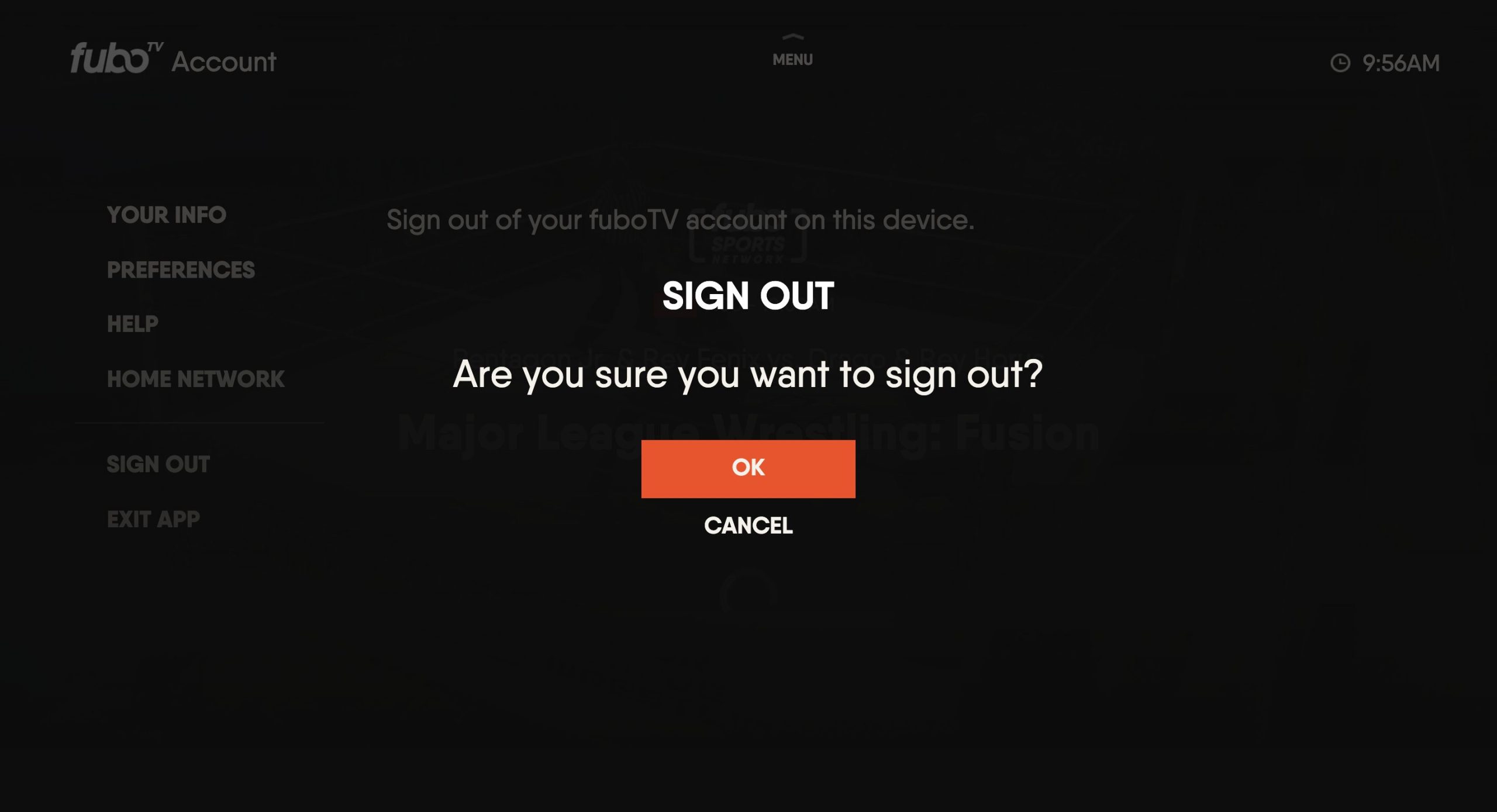
- Then, close the Fubo TV app.
- And Relaunch the Fubo TV on Roku.
- Click the Login section.
- And Sign In with your Fubo TV credentials.
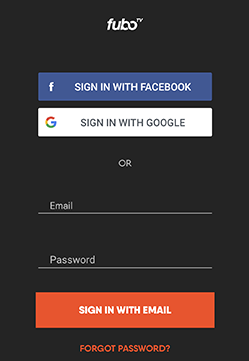
Move to the Live section or Content Library and play the video. Now, check the Fubo TV Not Working on Roku issue is fixed or not. Also, fix if Christmas Plus App Not Working.
9). Fubo TV Not Working on Roku | Uninstall and Reinstall Fubo |:
No, methods will help you to stream the Fubo TV smoothly on the Roku device. Please uninstall the Fubo TV app once and reinstall it. Here are the steps;
- Visit the Streaming Channels page.
- Navigate to the Fubo TV app.
- Click the ( * ) button on Roku remote.
- Select the Remove Channel option.

- Once, the app gets uninstalled,
- Get back to the Streaming Channels page again.
- Click the Search Channel button.

- Type “Fubo TV” in the given search space.
- Highlight the app from the search result.

- Click the Add Channel button.
- Launch the Fubo TV and Sign In with valid credentials.
Definitely, now the issue of Fubo TV Not Working on Roku has been fixed and hereafter you can watch your favorite content from the Fubo TV app on Roku.
10). Check Geo-Location:
Are you the outside of United States? Because Fubo TV is only accessible in the United States of America. If you are not in America right now, better you can use the best VPN service. And set the location to the United States. Now, check the Fubo TV content is available on the screen. Sling TV is also similar to Fubo TV. If the Fubo TV Not Working on Roku, click this link and fix it right now.
Conclusion:
Fix the Fubo TV Not Working on Roku by following the ten simple methods given. All steps are very easy and possible too. Many of them who are facing the same issue with Fubo TV not working on the Roku device may be got positive results while using the methods. If the above ten are not the problem, you can contact Fubo TV customer service. And they will guide you till it fixes.