
Get rid of HDCP errors on Roku by using an HDCP-supported TV or HDMI port; you can also change the HDMI cable and use different monitor and screen settings on Roku. To move out of the HDCP Error Detected message read the contents provided without skipping.
Table of Contents
What is HDCP?
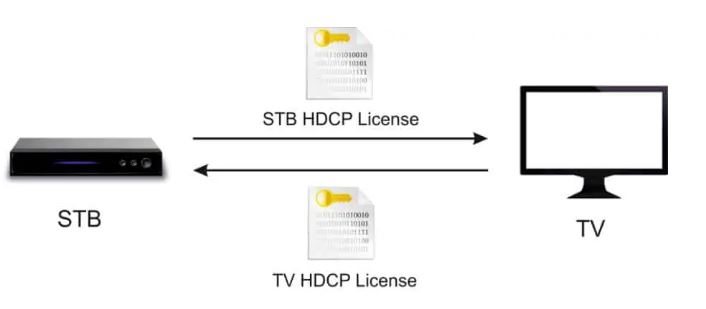
High-bandwidth Digital Copy Protection (HDCP) is used to protect your content from being copied and is widely used in theatres and by TV industries. If your TV is not HDCP supported, then you will get HDCP Error. Your Roku device is HDCP protected, and if your TV is not protected, then you will get the HDCP error detected screen.
What Causes HDCP Error to be on Roku?
The reasons for HDCP error to occur on your Roku device are as follows,
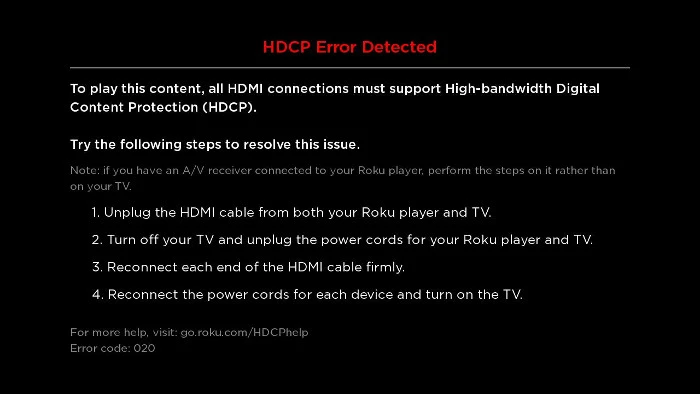
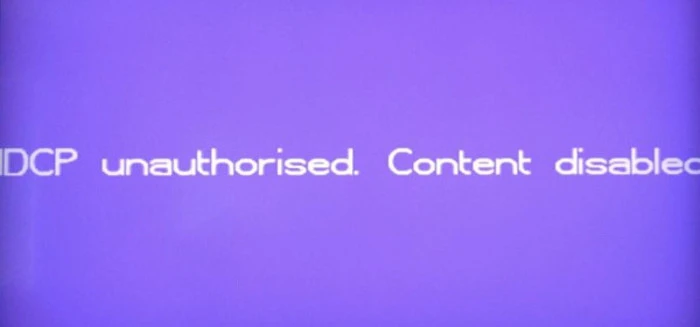
- Connecting the Roku device to the HDMI port of the TV, which does not support copy and content protection, then you will get the HDCP Error Detected message or a purple screen with “HDCP unauthorised Content Displayed.”
- Not using a recommended HDMI cable which has flaws, can sometimes cause this error.
- If the HDMI cable does not appropriately connect your Roku and TV to their HDMI Ports, then you will get the HDCP Error Detected message.
- If you are using an external monitor to watch the Roku channel and get then HDCP Error, then it may be due to your Monitor or HDMI cable not supporting HDCP.
- The “HDCP Error Detected” Message occurs when you try streaming in 4K UHD or HDR contents.
You can also read YouTube Not Working on Roku to know more.
How to Get Rid of HDCP Error?
To make sure the “HDCP Error Detected” or “HDCP unauthorised Content Detected” purple screen does not occur in the future, follow the steps to resolve this HDCP Error on your Roku device.
- Remove HDMI cable from Roku to other connected devices like TV, AVR and Soundbar.
- Cut the power supply for all the devices used.
- Now connect the HDMI cable back to your Roku and to other devices tightly.
- Reconnect the power cables to your devices.
- Turn on all the devices and try to play the content again.
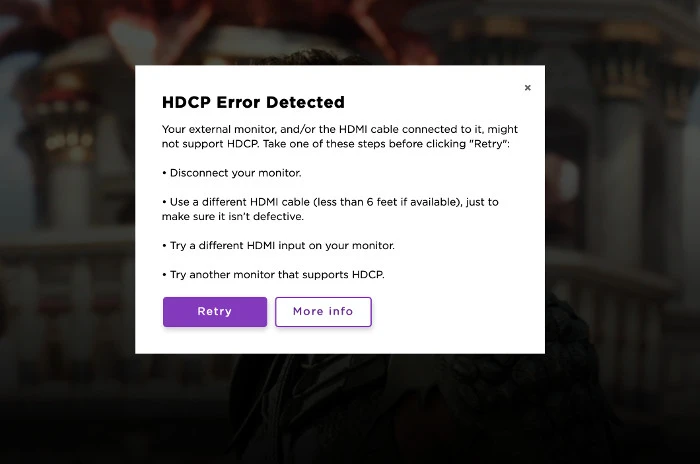
This will remove the error from your device. You can also read Hulu Not Working on Roku to know more.
How to Fix HDCP Error Found in The Roku Channel on your PC?
Using your Computer or PC monitor to access The Roku Channel and get HDCP Error Detected message, you can go through the following steps to remove the error,
- Remove the HDMI cable from your computer and try to access the same content on a different device screen.
- If it plays without any errors, then you have a problem on your device; try changing the computer screen and connecting it with an HDMI cable.
What to Do if the HDCP Error Still Exists?
If the error is still present, follow some of these additional methods,
- Try to replace your HDMI cable or connect to a different HDMI port on your device.
- If you are using your computer monitor, try using a TV with HDCP to exclude the error.
- Try to use different display types on Roku, which you can find under Settings and in the Display Type section.
If you still get the HDCP Error on Roku, then check the online documentation and then contact the manufacturer to get more details to rectify this error. You can also read HBO Max not Working on Roku to know more.
The End
You can Get rid of HDCP Error Detected or the Purple screen with the “HDCP unauthorised Content Detected” message by following the simple methods and the instructions given in this article. You can discuss any doubts about the contents provided in the comment section.
Frequently Asked Questions:
How to Fix HDCP Error 020 in Roku?
On your Roku device settings, go to advanced display settings and disable auto adjust to refresh the screen refresh rate. This will solve the HDCP 020 error.
What does HDCP stand for?
HDCP stands for High-bandwidth Digital Copy Protection.