
Netflix is one of the most famous streaming services which makes you to stream movies and TV shows on your device. It allows you to stream movies, TV show titles, genres, favorite actors, and directors. Netflix works on platforms such as Android, iOS, Windows, Firestick, Roku, and many more. The following article explains How to watch Netflix on Chromebook.

Chromebooks which Chrome OS directs, are for the betterment of people who spares much of their time getting information about web applications. You can stream Netflix on Chromebook in two different ways, one is that you can stream Netflix by downloading your favorite application from the Google play store, and the other one is you can browse through chrome to stream the Netflix movie. Let’s dive into knowing how to watch Netflix on Chromebook.
Also Read: How to Install NetFlix On Firestick?
Table of Contents
About Netflix:
Netflix is an American On-Demand Subscription Streaming Service. And it is an OTT platform. Also, Netflix is a Production Company, and it is located in California, Los Gatos. It has a Legal Agreement with the Parties to stream their TV Series and Movies on its platform. You can also watch its Own Production Content called Netflix Originals.

It started in 1997, and still it is running successfully. Marc Randolph and Reed Hastings are the Founders of the Netflix streaming service. And the Registration is Required for Netflix. It allows you to access the site through the Web Browser (Netflix Official Site) and Netflix App that can be installed on many devices.
You can Install the Netflix app on Smart TVs, Virtual Reality Headsets, Set-Top Boxes, Video Game Consoles, Tablets, Smartphones, Computers, and more devices like this. Now, In this article, we are going to discuss How to Install and Stream Netflix on Chromebook.
Is Netflix on Chromebook?
Yes. Netflix is a Worldwide famous streaming service. You can get the app at any App Store. That means the Netflix app is available on the Chromebook device. You can download it directly on your device from the Google Play Store. Everyone knows, How to download the app from the Google Play Store.
If it is an Android Smartphone or Tablet, you can install it easily. But for the Chromebook, the procedure is the same, but before that, you have some requirements to get the app from the Play Store. Check the following section to know what it is.
How to Install Netflix on Chromebook?
As we discussed in the above topic, we are going to Install and Stream the Netflix app on your Chromebook from the Google Play Store. But on the Chromebook, you have to do some requirements such as,
- Check Chromebook System Update.
- Enable Google Play Store.
- Install Netflix on Chromebook.
You have to follow these three methods one-by-one to Install and Stream Netflix on Chromebook. In the following topics, you can get the guidelines for these.
1). How to Check System Updates on Chromebook?
To start the procedure to Enable the Google Play Store and to install the Netflix app, you have to check whether the System Software is up to date or not. For that, Scroll down.
Follow the Steps to Check the System Update on Chromebook:
- First, you have to Open the Web Browser on your Chromebook.
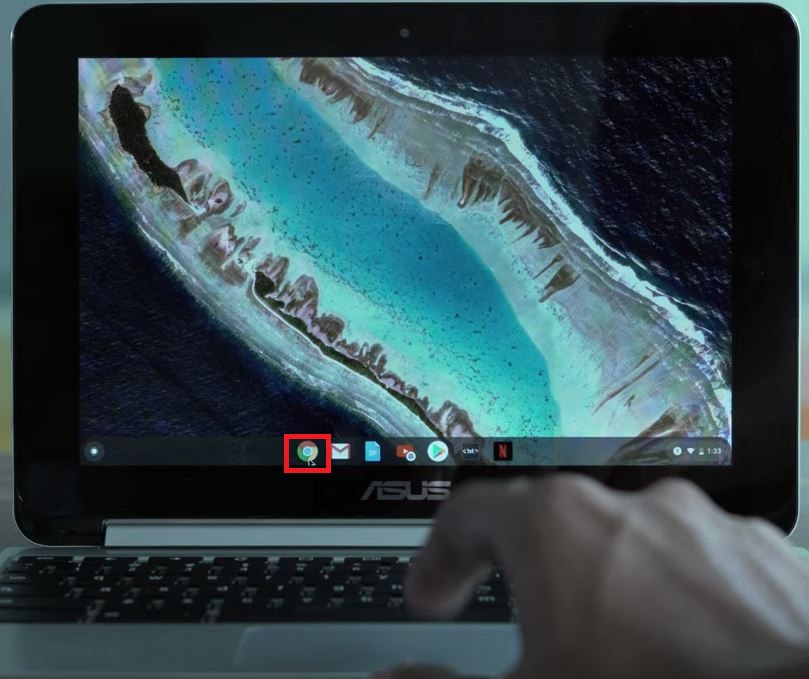
- Then, Navigate to the Three-Vertical Lines in the top-right corner.

- And select the Help tab from the menu list.
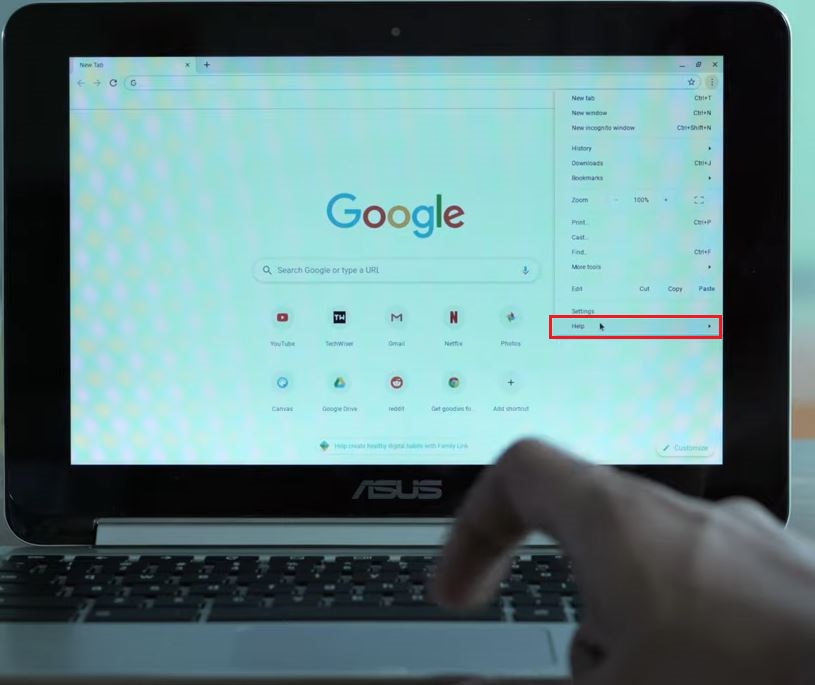
- Then, click on the About Chrome OS option from the sub-menu.

- Now, you have to click on the Check for Updates on the page.

- Following that, your Chromebook shows you the System Software Update details.
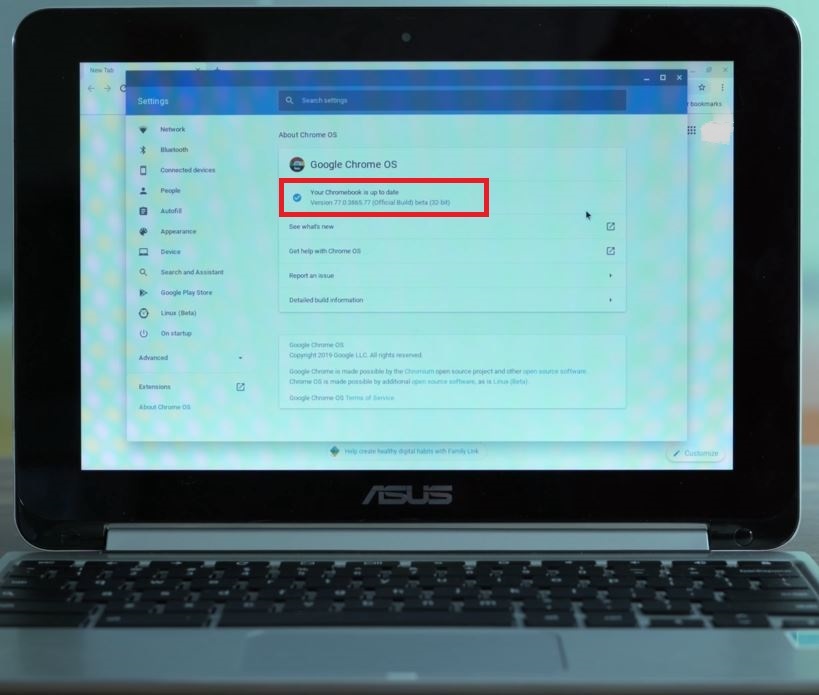
- If it is Up To Date, move to the next method.
- Or, If System Update is required, Update it Right Now.
After the Update process has been done, move to the next section to Enable the Google Play Store on your Chromebook device.
2). How to Enable Google Play Store on Chromebook?
Using Chromebook devices, you can download your favorite apps from the Google Play store. The following steps will help you to enable Google Play support,
- First, Turn On your Chromebook.
- And, Connect it with your home Wi-Fi router.
- Go to the Settings option from the menu at the bottom right corner of the screen.
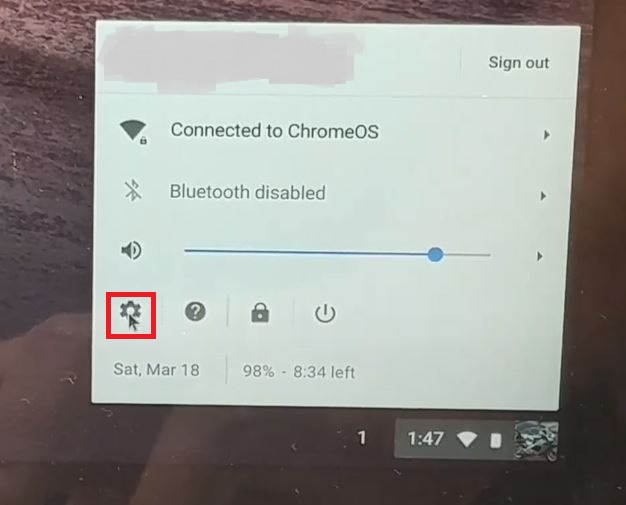
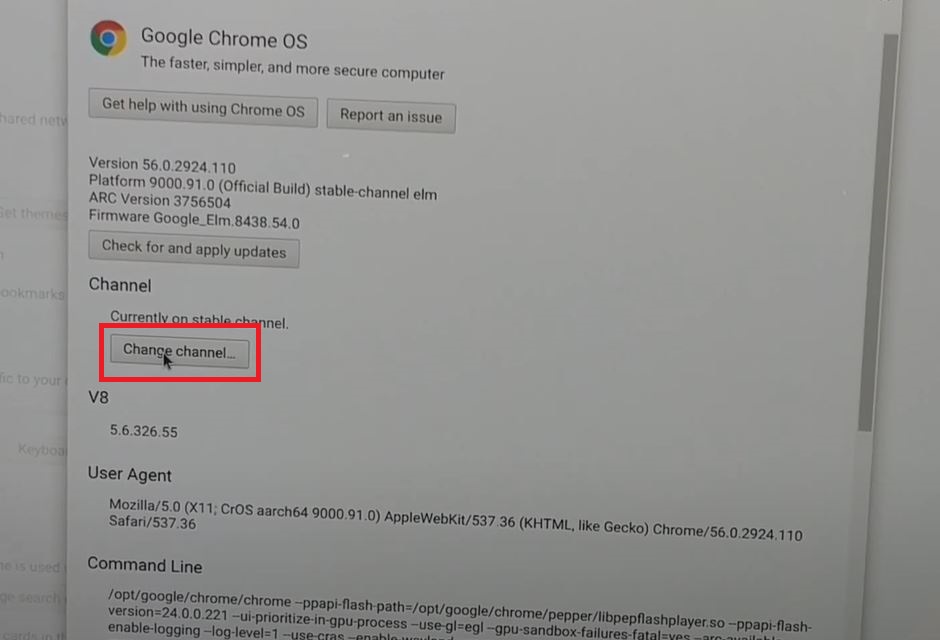
- Now, you have to Click on the About Chrome OS tab on the page.

- Scroll down and click on the More info button.

- Next, select and Click on the Change Channel.
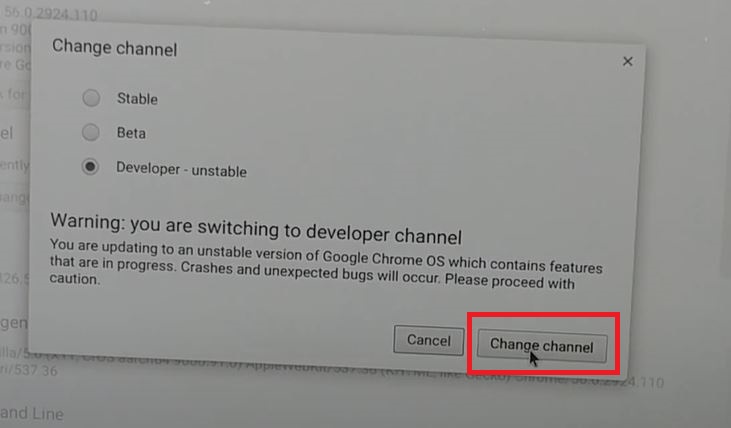
- Head towards the Developer – Unstable option from the pop-up screen.

- Then, tap on the Change Channel Tab to Confirm the changes.
- It takes a few minutes to download all the required apps.
- After it’s done, click on the Restart button that appears on the Google Chrome OS page.
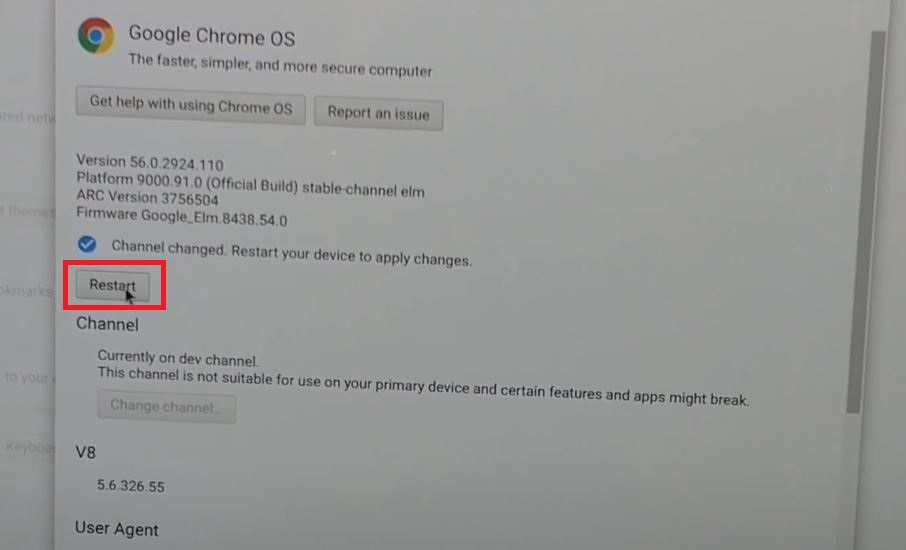
- Do not disturb and Do not touch any keys on your Chromebook.
- Once it gets restarted, Enter the Password to unlock your Chromebook device.
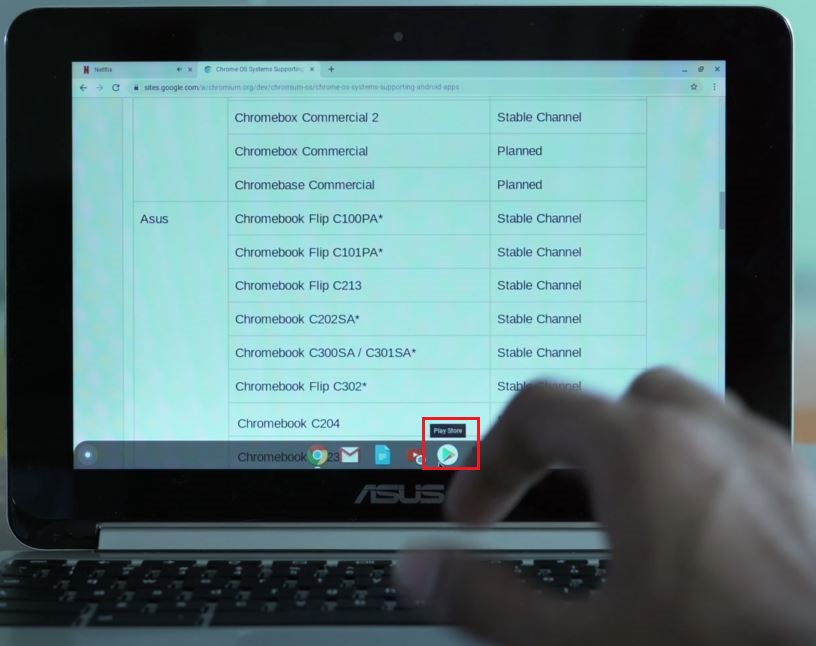
- On the Home Screen, Click on the Google Play Store in the toolbar.
Now, the Google Play Store app gets installed on your Chromebook device. After enabling the Play Store app, you can Install Netflix on Chromebook. If you need a guideline, check out the following sections.
3). How to Install Netflix on Chromebook?
So, we have updated the Chromebook System Software. And has Enabled the Google Play Store on your device. Now, it’s time to Install Netflix on Chromebook.
Follow the Instructions to Install Netflix on Chromebook:
- First, Unlock your Chromebook.
- And connect it with a High-Speed Wi-Fi connection.
- Then, navigate to the toolbar and click on the Google Play Store app.
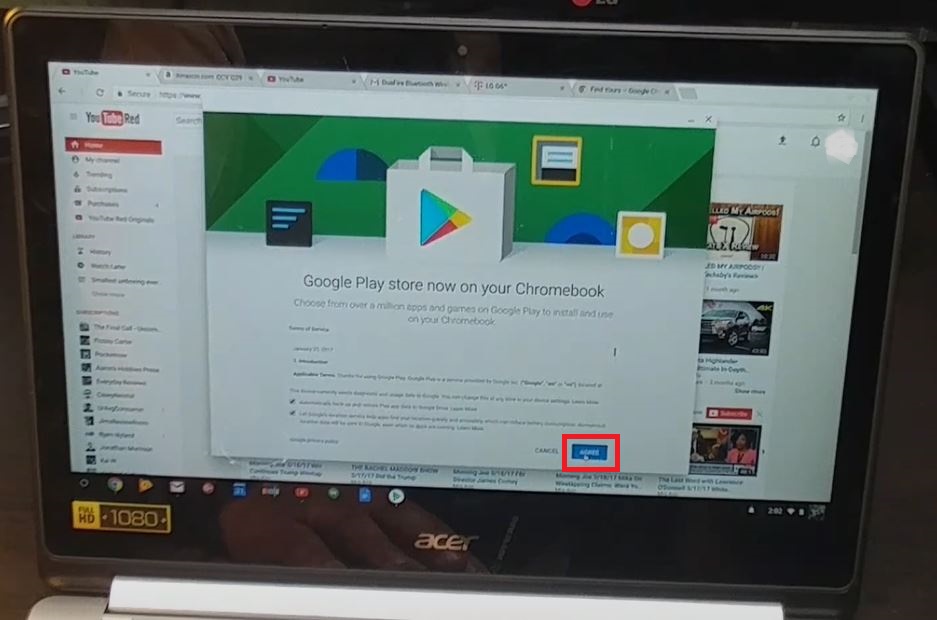
- Tap on the Accept tab after launching the Play Store app.
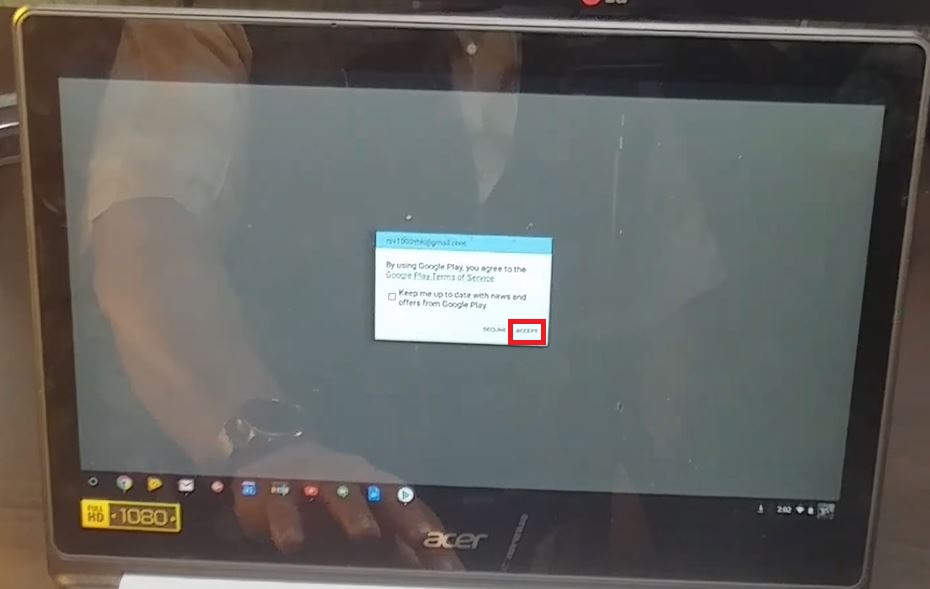
- Again, you have to click on the Accept option on the pop-up screen.
- Click the Search Icon on the Google Play Store app.
- Now, you have to type “Netflix” in the given search space.
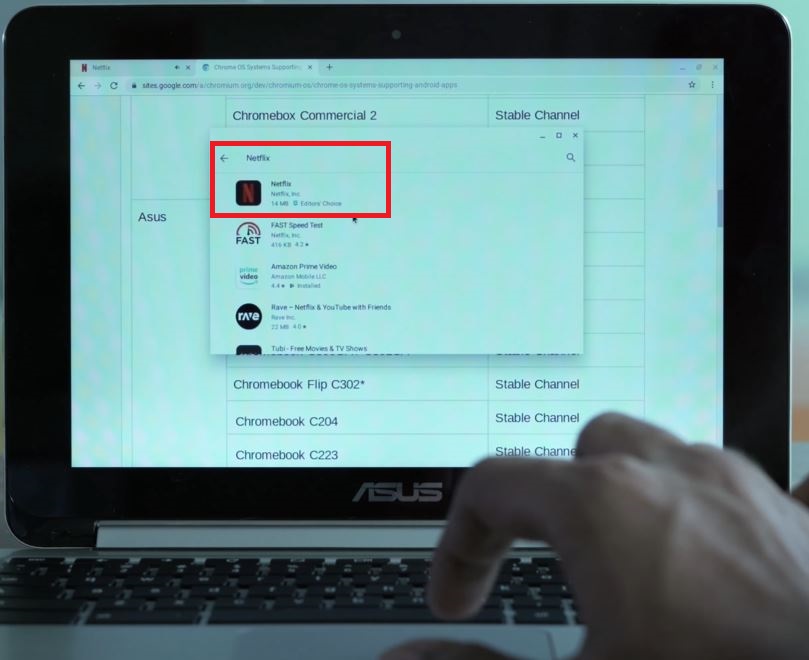
- Pick the Netflix app from the search result.
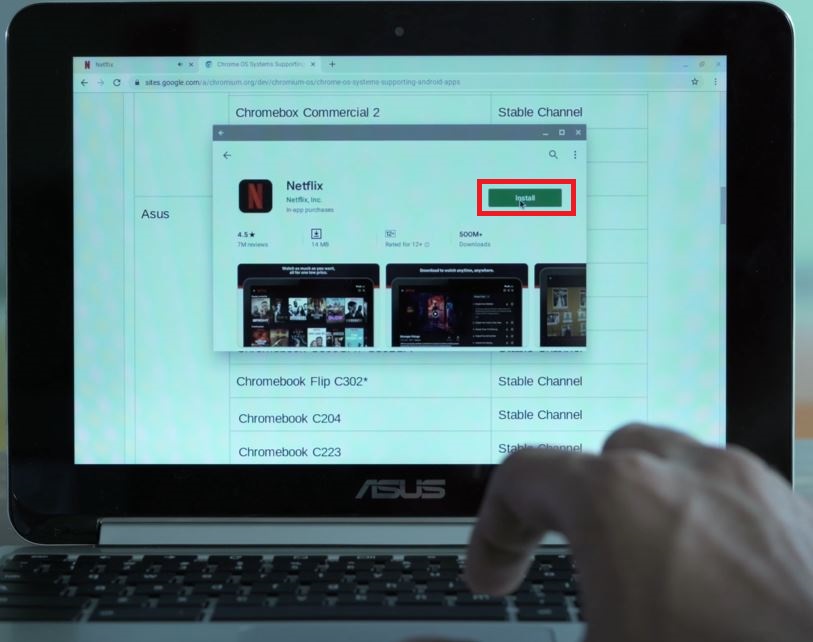
- And click on the Install tab to get the app.
- Once the Netflix app gets installed on your device, Launch it.

- On the Home Page, click on the Sign In tab at the top right corner.

- Sign In using your Netflix user account credentials.

- And then, move to the Library section of the Netflix app.
Then, choose the content and play it on your device. These are all the one-by-one procedures to get Netflix on Chromebook. Also, you can watch the content offline on your device. Check out the next section to learn how.
Steps to Stream Netflix on Chromebook using | Chrome Browser:
One of the easiest methods to stream Netflix on a Chromebook is by using the Chrome browser. Because you can search for anything at any time without even considering whether a Chromebook device is favored by Google play support.
- Open Chrome browser.

- Go to the official website of Netflix.
- Click sign in.
- Enter your login details.
- Choose the best subscription package and pay for it.
- Go to the home screen to stream your favorite movie.
Don’t miss this post: How to Log Out of HBO Max on TV?
How to Watch Netflix on Chromebook Offline?
We all know that Netflix is an Online On-Demand Content streaming service. You can only watch all the exclusive content online. But you have another way to watch Netflix content offline on your Chromebook device.
Instructions to Stream Netflix on Chromebook Offline:
- First, Launch the Netflix app on your Chromebook device.
- Do not forget to Connect your Chromebook to your home Wi-Fi connection.
- Then, navigate to the left corner of the screen.
- And click on the Three-Horizontal Lines on the Netflix app.

- Then, choose the Available for Download option.
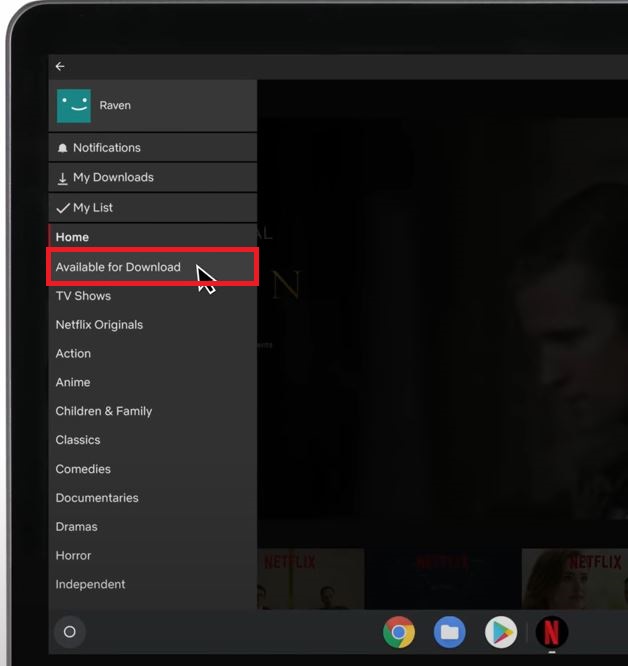
- Now, Select the Movie/ Show from the library.

- Head towards the Download Icon and click on it.

- Get back to the Menu Section on the Netflix app.
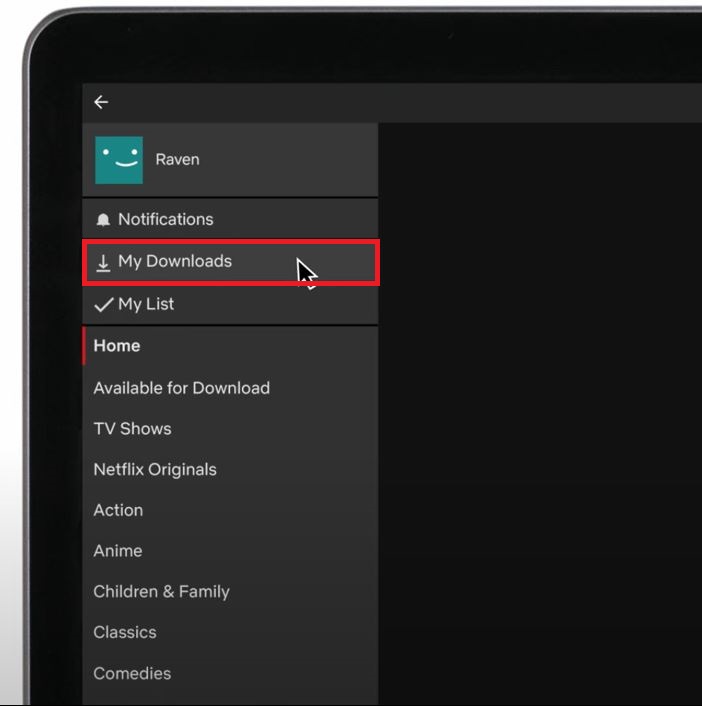
- Then, click on the My Downloads option from the menu.
Now, the selected content is located in the My Downloads section. Turn Off the Wi-Fi connection and stream Netflix on Chromebook Offline.
How to Fix Not Working on Chromebook?
If you come across the error code C7053-1803 on your Google Chromebook, then immediately you have to refresh. Only then it secured your saved information on your device. The following steps will help you to refresh the Google Chromebook,
- Type chrome:// settings in the Google Chromebook address bar.
- Click Enter > choose advanced > reset.
- Then attempt Netflix again.
Similar Post: How to Manually Update Chromebook
Conclusion
Install Netflix on Chromebook directly on your device. Netflix is now available on the Google Play Store. Enable the Google Play Store on your Google Chromebook device and follow the instructions I have given in the above section. Come back with the three methods one by one, as mentioned in the article. Apart from mentioning you have any doubts, please mention them in the comment section below.