
TV One is one of the amazing streaming services to watch the Throwback series, latest episodes, movies, and more on-demand content. You can access the TV One thorugh its dedicated app. And the app is now officially available on many streaming platforms. If you are searching for the installation and activation guide for TV One on Roku, then this article will let you know everything about it.

Are you traveling anywhere and going to your favorite TV Shows, Movie, and On-Demand content on the TV One Streaming service? Set the DVR and record the whole content. Yes, TV One offers all facilities to its users. Continue reading this article to know more about the TV One service and the installation on the Roku device…
Table of Contents
Is TV One on Roku?
Yes. Available. TV One is the best American On-Demand and Originals streaming service. As we discussed above, this app is available on many Streaming devices. As well it is Officially available on Roku Streaming devices. Just search for it in the Roku Channel store and install it immediately. The installation is entirely free, but you must need an active TV Provider subscription package to Activate the TV One app. Let us discuss more it in the following.
Like Roku, you can also install the TV One app on Firestick. Click to know further details.
How to Install TV One on Roku?
As we have discussed in the above section, the TV One streaming service is available on the Roku Channel Store. So, you can install it directly on your device within a minute.
Note: Set your home Wi-Fi Router and check the network connection speed. Also, take a look at the Roku device System update. If you no longer update your device software, you may face some glitches on Roku. So, better update the updated OS version and follow the steps below;
Install TV One on Roku
- Set the Roku with your Smart TV HDMI port.
- And Turn On your devices.

- Go to the Wireless Network section on Roku.
- And connect it to your home’s Stable Wi-Fi internet.
- Then, Click the Home Button on Roku remote.

- And, select the Streaming Channels tab from the menu.

- Type “TV One” in the given search space.
- Pick the Official TV One app from the Roku Channel Store search result.
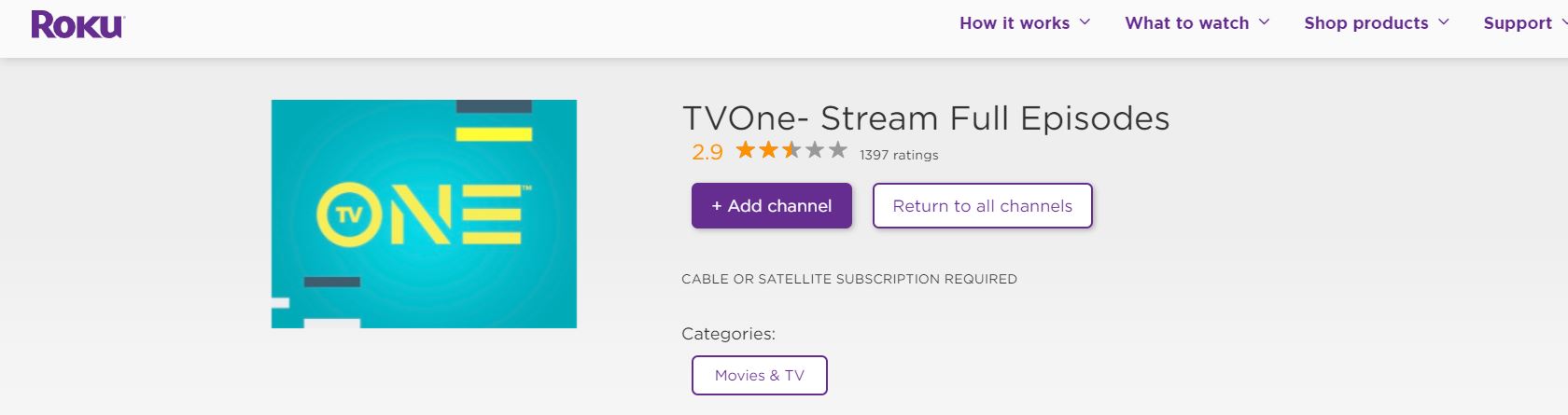
- And click the Add Channel tab.
Now, the TV One streaming service is added to the Roku Streaming Channels section. Once it’s successful, you can see the Open option on the screen. Move to the next topic to Activate the TV One on Roku.
How to Activate TV One on Roku?
So, go back to the Roku Home screen and launch the Roku Streaming Channels page. There, find the installed TV One app from the list. If it is not there, please restart the Roku device. And, install it again using the same way given above. After you got the TV One on Roku, follow these procedures;
- Launch the TV One app on the Roku device.
- Click the Login button on the app.
- Now, the Code is generated and you can see the Activation Code on Roku Screen.
- Note down the Activation Code.
- And, launch the Web Browser on your mobile or any other device.
- Tap the search panel and browse for https://tvone.tv/activate/ in the given space.
- Launch the official TV One activation website from the search result.
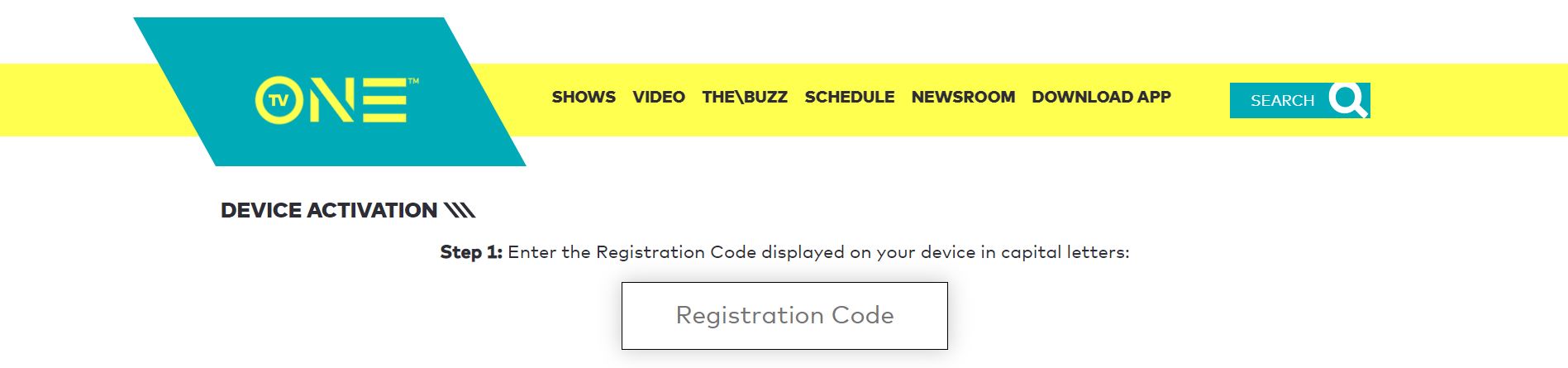
- There, Enter the Activation Code you have received.
- You have to type the Registration Code in Capital Letters.
- Next, Select your TV Provider from the options given.
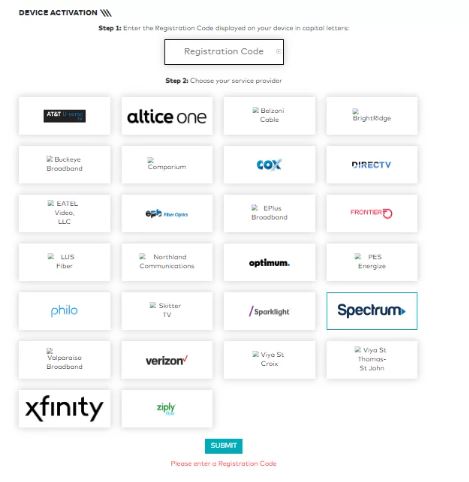
- Enter your TV Provider Credentials in the given space.
- It takes a few seconds or minutes to refer to your TV provider credentials.
- Once it is done, get back to the Roku device.
- And Relaunch the TV One app.
Now, the app gets activated and you can watch anything you like on the TV One streaming service. The activation is completed, but you can not see any content, you have to check your TV provider subscription. Visit the next section to know about the Subscription: Some External streaming services also stream the TV One channel on its subscription. For Example; TV One on YouTube TV.
How much is TV One on Roku?
Now, we know that you can only access all contents in the TV One streaming service using the Cable or Satellite TV Provider credentials. So, If your TV Provider subscription is expired or, you are a new user, here is the Subscription cost given below. Check it out and choose the best one.
| TV Provider | Subscription Cost | Validity |
| DirecTV | $64.99, $84.99, $109.99, $154.99 | Monthly |
| Dish Network | $79.99, $99.99, $109.99 | Monthly |
| Spectrum | $49.99 | Monthly |
| Optimum | $4.00 – $130.00 | Monthly |
| Xfinity | $46.95, $67.27, $69.99, $84.99 | Monthly |
| Verizon FiOS | $119, $99, $75, $75, $64.99 | Monthly |
Here, is the Cable and Satellite TV providers which are all broadcasting the TV One channel on its Subscription channel lineup. If you are an existing user, check the subscription cost and renew it. Or, choose the best and budget-friendly TV Provider and purchase the subscription plan. Then log in with the credentials to watch the TV One on Roku. Do you have Apple TV? If yes, check How to Install and Stream the TV One app on Apple TV.
Conclusion
In the Roku Channel Store, you can find the TV One app. Search for it and add the TV One on Roku. Then, use your Cable TV Provider credentials to Activate the TV One app. After the installation, if the TV One app is not working on the Roku device, you have to Check your Roku device OS update. Or, Delete the unused apps. You can also, Uninstall the TV One app and reinstall it from the Roku Channel Store.