
The Roku device is not supporting to Installation of the IPTV apps directly from the Roku Channel Store. But we have some tricks to get the IPTV Players and apps on the Roku device. Today we took, How to Install and Stream Tivimate on Roku. If you would like to learn how to check the topics given in this article.
All you need to do is, Check the Roku device System update and Install the updated version if required. Because you can not be allowed to install or stream any new apps on the Roku device. So, complete the update process and start referring to the methods given in the following.
Table of Contents
Is Tivimate on Roku?
Unfortunately, No. The Tivimate is unavailable on Roku. Not only the Tivimate Streaming service, but no Internet Protocol Television streaming services are not able to install directly on the Roku device. But using the IPTV Players app, you can easily access the Tivimate on Roku. Coming to the IPTV Players, we have many apps. To know which is best to stream the Tivimate app on the Roku device, move to the next topic. Also, you can Install and Stream TiviMate on Google TV. Click this link to grab the procedures.
How to Watch Tivimate on Roku?
As we have discussed in the above section, we need the IPTV Players app to stream the IPTV streaming service content. In that list, IPTV Smarters is the best choice to watch the Tivimate on Roku. First, you have to Install the IPTV Smarters app on your Roku device. Before that Enable the Developer Options on Roku. The procedures are;
1). Enable Developer Options on Roku:
To access the third-party apps on Roku, you have to Enable the Developer Options. It will support the system to run fast without any glitches. Here are the steps to Enable the Developer Options on the Roku device.
- First, Turn On the Roku device and Smart TV.
- Then, connect them to the same Wi-Fi network.
- Grab the Roku remote.
- And click the Home Button 3 Times.

- Then, tap the Up Button 2 Times.
- Now, click the Left Arrow Button 1 Time.
- Next, tap the Right Arrow 1 Time.
- If you have clicked these buttons correctly,
- The Developer Options Menu will appear on the Roku screen.
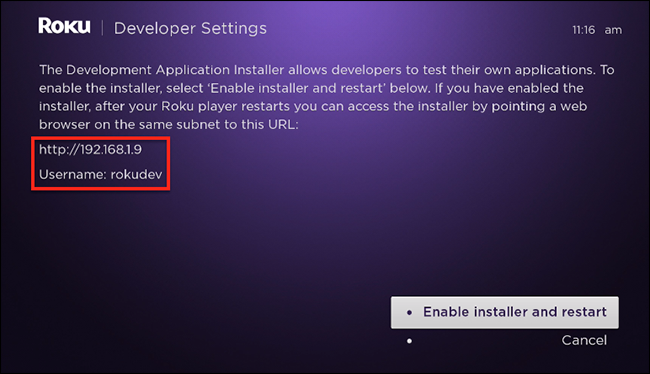
- Note Down the IP Address you can see on the screen.
- Then, select the Enable Installer and Restart options at the bottom.
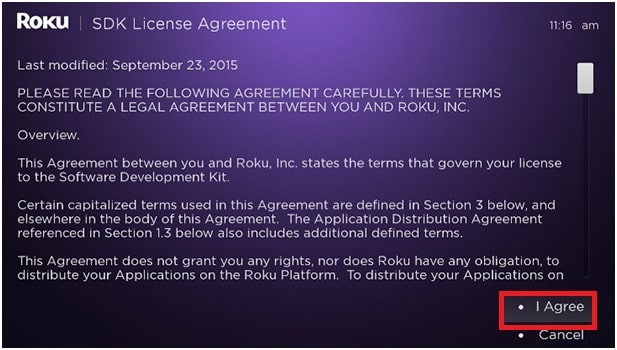
- Now, the Terms and Conditions option will show.
- Select the I Agree to the button.
- Then, you have to Create the Webserver Password.
- Use the Roku on-screen keyboard to type the password.
- Now, click the Set Password and Reboot option below.
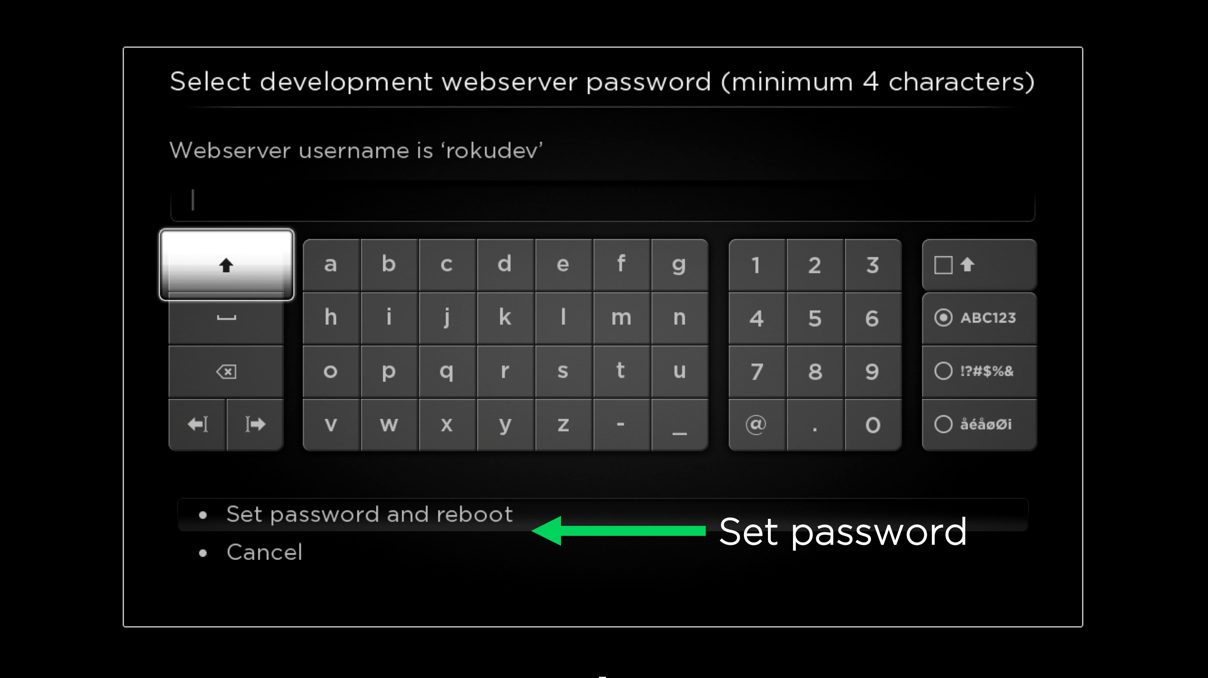
After clicking the Set Password and Reboot option, your Roku device has started rebooting. Once, the device has restarted, Move to the next method of streaming the Tivimate on Roku.
Also, read: Mom IPTV
2). Install IPTV Player on Roku:
Even, the IPTV Smarters is also not available on the Roku Channel Store. But you can get it using a different method. Follow each step given in the following;
Use your Smartphone, Laptop, PC, or any other Smart Device with the Web Browser app.
- Unlock your Smart Device.
- Turn On the Internal Data.
- Or, connect your device to the high-speed Wi-Fi network.
- Launch the Web Browser app on the Smart Device.
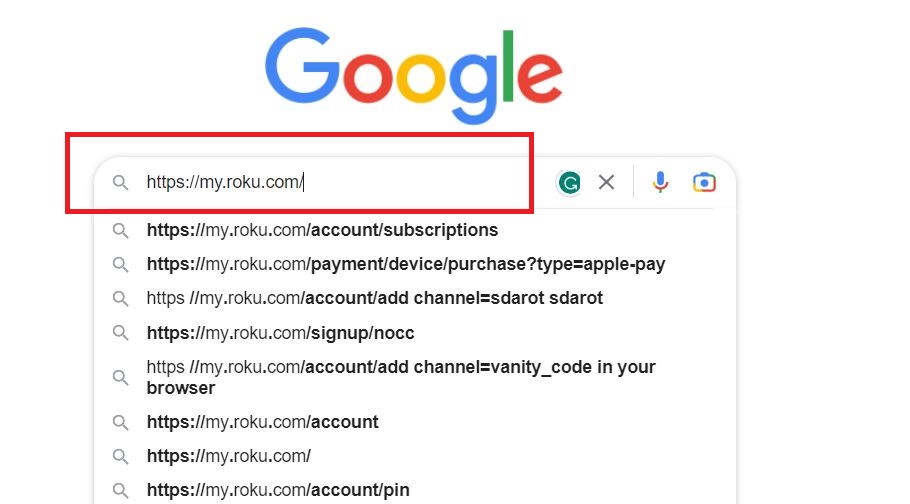
- Search for https://my.roku.com/ in the given search space.
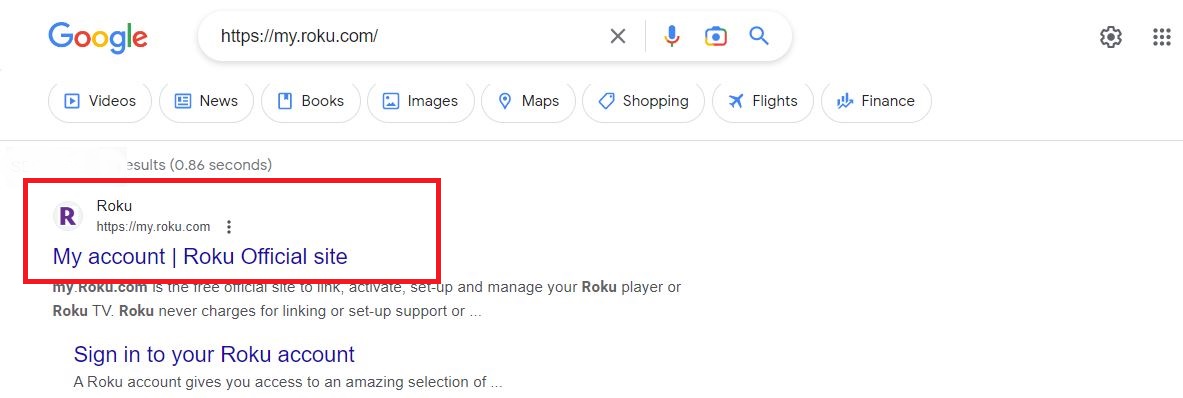
- Launch the Official Roku Website from the search result.
- Enter Your Roku User Account Credentials in the given space.
- You have to have the Roku credentials that you have used on the Smart TV.
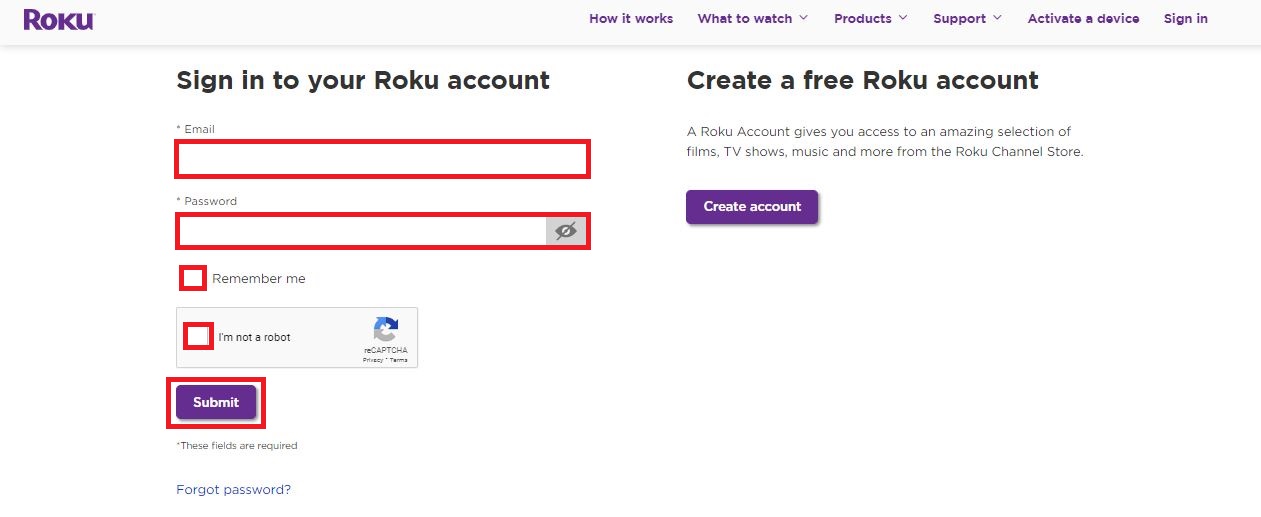
- Then, click the Submit button.
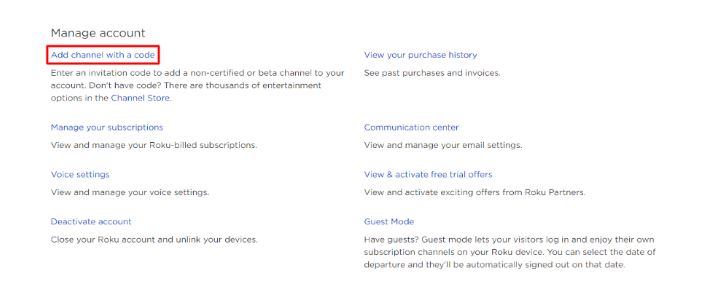
- Under the Manage Account option,
- Click on the Add Channel with a Code button.
- Now, the search panel is visible on the screen.
- Type “IPTV Smarters” in the given search space.
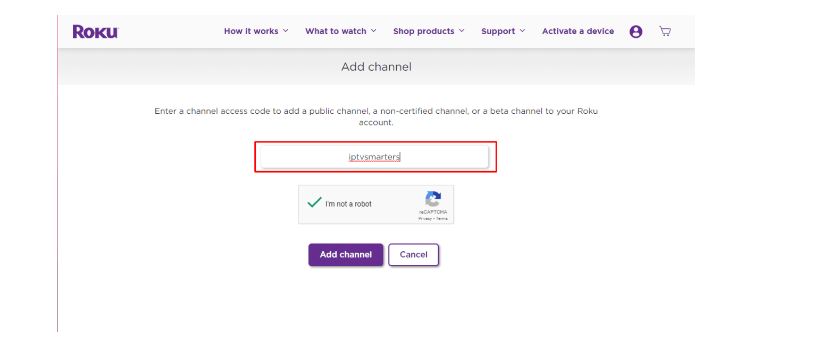
- Clear the I’m not a Robot option.
- Then, click the Add Channel button.
- Now, click the OK button.
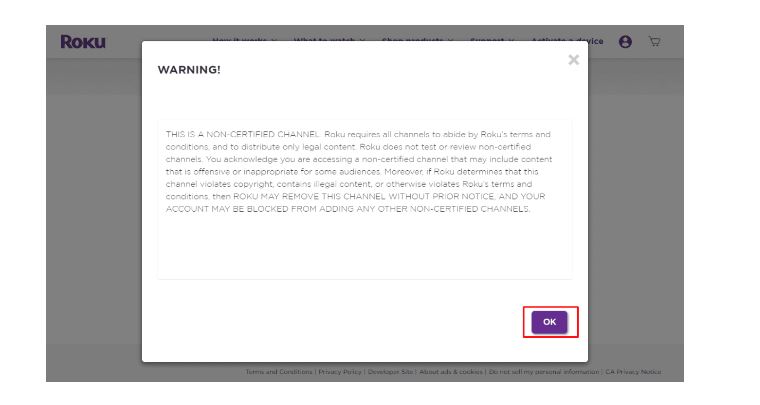
- And, tap on the Yes, Add Channel option in the pop-up screen.
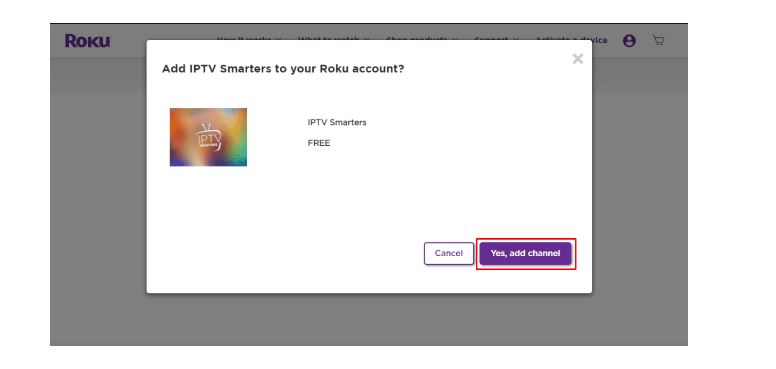
Now, the IPTV Smarters app gets added to your Roku device. Next, go to the method to Stream the Tivimate on Roku. Before that, you have to confirm that the IPTV Smarters has been installed on the Roku device. Do you know about Blerd Vision IPTV? If not, proceed to this link and learn about it.
3). Stream Tivimate on Roku:
To confirm, get back to the Smart TV. And click the Home Button on the Roku remote. Launch the Streaming Channels page. Search for the installed IPTV Smarters app. If you can see it, follow the upcoming steps. Or, restart the Roku device and check the app. If it is not installed, Clear the unwanted apps, and reinstall it using the steps given above.
- Go to the Streaming Channels page on Roku.

- Search for IPTV Smarters in the channel list.
- Launch the IPTV Smarters app on Roku.
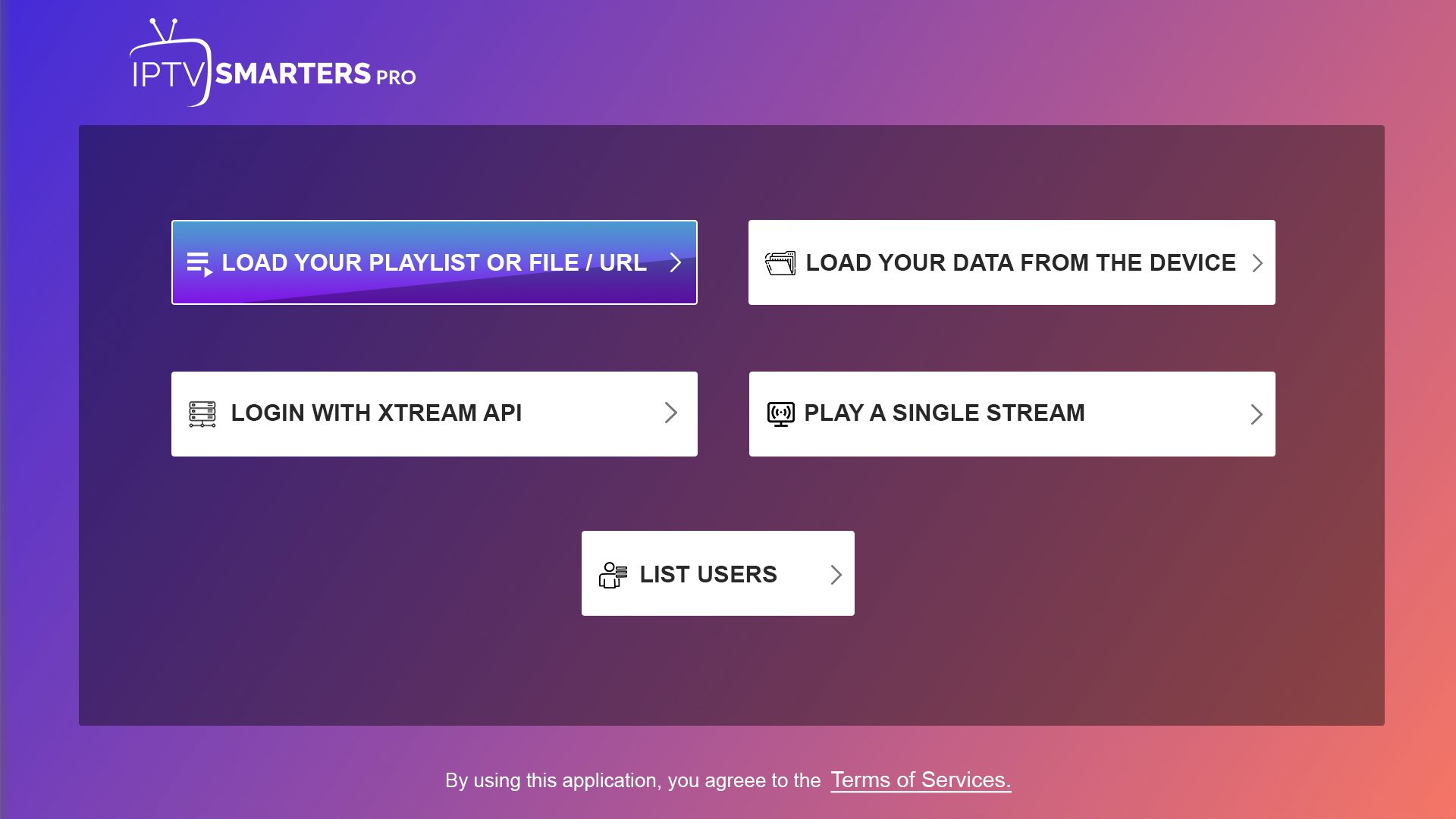
- Search for the Tivimate M3U Playlist.
- Enter the URL in the given space.
- Now, click the Add New Playlist option.

- Enter the Playlist Name in the required space.
- After it has been done, click the Add option.
- It takes a Few Minutes to load Movies, TV Channels, TV Shows, and more that are available on the playlist.
- Once, the Playlist has been added to the IPTV Smarters app,
- Restart the Roku device.
Wait, until the Roku device has been On the back. Then, go to the Roku home screen. Locate the Streaming Channels page. Launch the IPTV Smarters app. Select the Addes M3U Playlist and play the Tivimate on Roku device. The Honey Bee IPTV is also the best IPTV service player. Check how it works and the features to get the app on your streaming device.
Conclusion:
Use the best IPTV Player apps to watch the Tivimate on Roku. Before that, you have to turn on the Developer Options on the Roku device. If you feel it is unsafe, you can use the best VPN Services and set the location. And then start the installation process of the Internet Protocol Television service player on the Roku device. Then, add the Tivimate IPTV service playlist and stream it on the screen.