
Some IPTV apps are officially available on the default app store on the respective streaming device. But some are not available in the App Store. Today we are going to learn, How to Install TiviMate IPTV on Firestick.

Table of Contents
Is TiviMate IPTV on Firestick?
No. The TiviMate IPTV is a third-party streaming service. And it is not officially available on the App Store. So, the TiviMate IPTV is unavailable on the Amazon App Store. But you can stream the Tivimate IPTV content on your device. Want to know how? Scroll down and check the next topic to learn How to Install and Stream TiviMate IPTV on Firestick.
Also, check: Tivimate on Roku
How to Install TiviMate IPTV on Firestick?
To Install TiviMate on your FireStick, you should have signed up and enrolled for an account. Since this app is not available in the Amazon app store, you have to side-load it to install it on your FireStick. But if you want this app on your Android TV box, you can get this app from the Google Play Store directly. Follow the below-given steps to install TiviMate on FireStick.
Get Tivimate on Firestick with the Downloader App
Downloader is a famous Sideloading app for Firestick devices. You can sideload any apps from the Downloader app which is not available on the Amazon App Store. But, before sideloading, you have to set your Amazon Firestick. Come back with the methods given in the following section.
Turn On Apps from Unknown Sources on Firestick
The TiviMate app is a third-party app and it is not available on the Amazon App Store. So, it is a Unknown Source app. To access it, we need to enable the unknown sources on the Firestick device. Follow the steps given in the following…
- First, connect the Amazon Firestick with the Smart TV.

- Then, Turn On the Firestick and Smart TV.
- Click the Home Button on the Firestick remote.

- Go to the menu box and click on Settings.
- Select My FireTV.

- Select Developer options.

- Tap on Apps from Unknown Sources.

- Click Turn On.

Now, you have enabled the Unknown Sources on your Firestick device. Next, move to the upcoming section to Install the Downloader app on the device.
Install Downloader on Firestick
If you have already installed the downloader app on your Fire TV Stick, then skip this topic and go to the next. Or, follow the step-by-step instructions given in the upcoming section,
- Again, click the Home Button on the Firestick remote.
- Now, navigate to the Find option on the home screen.

- Then, move straight to the search panel.
- Type “Downloader” in the search bar.

- Select the official Downloader app from the search result.
- Click on the app.
- And, tap the Download button.
- Wait for a while until the Downloader app gets installed on Firestick.
Download the TiviMate IPTV APK URL File
If you have a Web Browser on your Amazon Firestick device, then you can install the APK file directly on your device. Or, you can use your Smartphones, Laptops, or computers. After that, come back with the instructions given here;
- Launch the Web Browser on Firestick or on your Smart device.
- Search for “TiviMate APK Download” in the required search space.
- Then, select the genuine website from the search results.
- And, click, the Download APK Button you can see on the page.

- Now, go to the downloads section on Web Browser.
- Copy the downloaded TiviMate IPTV Apk file to the clipboard.
If you are using the Laptop or PC to download the APK file, then insert the USB drive into the system. Copy the URL to Drive and transfer it to the Smart TV you have connected to the Firestick.
Also, read: Vavaview IPTV
- Open the Downloader App and Paste the Tivimate APK Link on the URL Field.

- Click on the Go Button and Install the App on your Firestick

Using this same method, you can install and stream any streaming services which is not available on the Amazon App Store like how now we installed the TiviMate IPTV on Firestick.
Screen Mirror TiviMate IPTV on Firestick
The TiviMate IPTV is only not available in the Amazon App Store . But, it is Officially Available on Android. You can download it directly from the Google Play Store. Here are the two methods to watch TiviMate IPTV on Firestick.
Enable Screen Mirroring on Firestick
- Turn On the Firestick and Smart TV.
- Click the Home Key on the remote.
- Then, select the Settings icon on the home page.
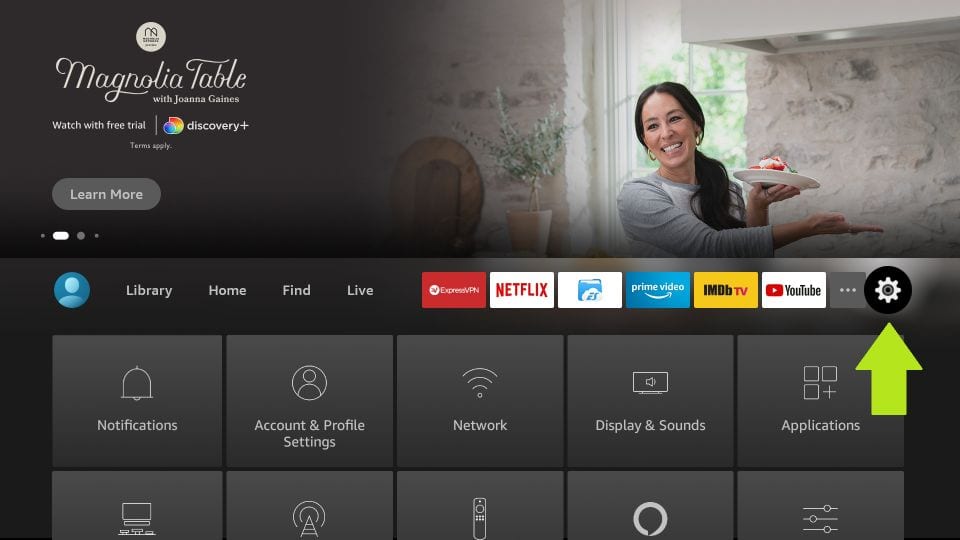
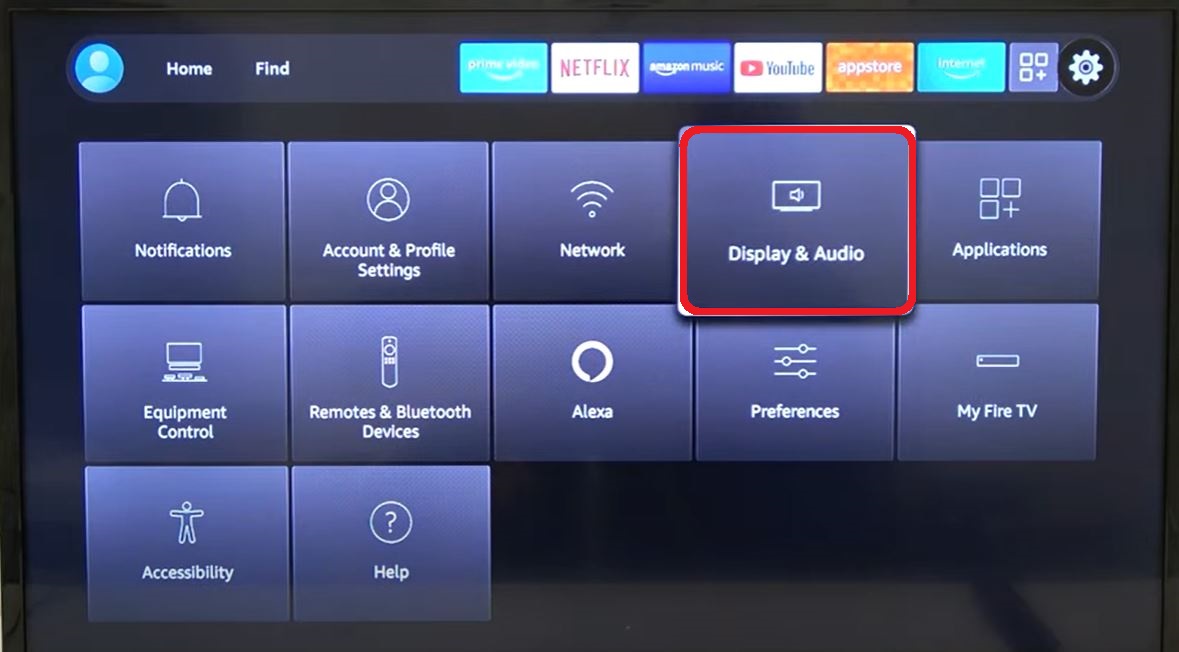
- Following that, click the Display and Audio option.
- Now, tap on the Enable Display Mirroring section.
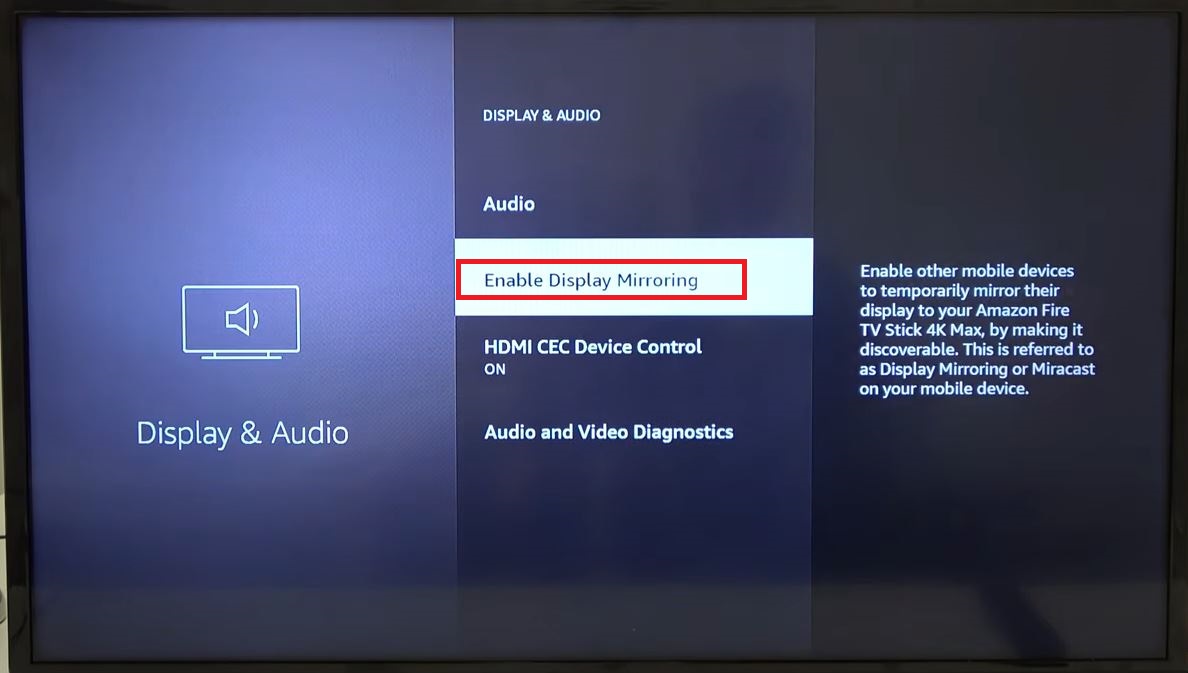
- Follow the on-screen instructions and Turn On / Enable the Screen Mirroring on the Firestick device.
Install TiviMate IPTV on Android
- First, Connect your Android and Firestick with the same Wi-Fi network.
- Then, launch the Google Play Store and Install TiviMate IPTV.

- Launch the TiviMate IPTV app on Android.
- Log in with your TiviMate player user credentials.
- Or, create a new user account.
- Then, go to the Control Centre of your Android device.
- And, click the Cast / Smart Cast / Smart View option based on your device model.

- Then, Select the Amazon Firestick on the pop-up window.
Within 20 – 30 seconds, your Android screen is mirroring your Firestick screen. If your Firestick asks you the permission, then click the OK / Allow tab.
Also, check: Top Dog IPTV
How to Stream TiviMate IPTV on Firestick?
Once the above-given installation process is over, open the application and allow an IPTV service to access it. Follow the below-given steps to combine IPTV service in TiviMate.
Follow the Steps to Setup TiviMate IPTV on Firestick:
- Now, you have to Launch the TiviMate app on your Firestick device.
- Then, click on the Add Playlist tab on the TiviMate app.
- Here the TiviMate asks you to Enter the M3U Playlist in the required space.

- Not only the M3U Playlist but also you can add the Xtream Code or the Stalker Portal playlist on the TiviMate app.
- Most of the Playlist URLs contain the Username and Password.
- Paste the URL in the given space and click the Next tab.
- Now, you have to Add a Playlist Name after tapping the Next option.
- After all, the process gets completed, click the Done option on the right side of the screen.

Within a minute, you can see the playlist now you have added on the TiviMate IPTV Player app page. And some of the IPTV services arrive with the in-built Electronic Program Guide (EPG) on its service. If the EPG is not enabled on the TiviMate app, you have to activate it. To Turn it On, check the next section.
Conclusion
TiviMate contains vast content where you can enjoy any content you want. Using TiviMate with free service will not provide many features. Install Tivimate Iptv Player on Firestick devices by following the above-given steps and experiencing joy. We hope this article will help you surely.