
You must have always heard that the Earth Revolves around the Sun, But have you heard of any Application that Revolves around the Streams all over the World ?! Well, There is this App that is 100% Out of the World in terms of its services but Inside the World in Streaming TV Shows, Movies, and Whatnot. So, If you are wanting to get the Swift Streamz on Firestick, then Keep Scrolling to Find your answers, not around the World but in the article.
Table of Contents
Does Firestick have Swift Streamz App?
Unfortunately, No. The Swift Streamz App is not available on Firestick and which means you cannot access it But directly. There are Though some Alternatives and Some Workarounds that can let you access the app on your Devices.
Which is Swift Streamz Latest APK?
The Latest Version of the app is Version v2.4 Which is Free to download and is a File Size of 21.4 MB.
Move on to the Next Section and Find out How can you Get the App on your Amazon Firestick Device. Also, You will love: Crunchyroll on Firestick
How to Get Swift Streamz on Firestick?
Inspite of the unavailability of the app on the Device, You can still try to Install and access it. As Amazon doesn’t include all of the Applications on its Official App Store, Due to some Privacy and Authorization.Although Amazon does provide a way to download the Unavailable apps as in Downloading it via the Third Party Apps.
In order to Install apps from a Third Party Source, You will need to make sure that the Permission for Installation is Turned ON by Enabling the Setting on your Amazon Firestick. To do that, You can follow the Steps given below and Turn ON the Install apps from unknown Sources to Get the Swift Streazmz App on your Firestick Device via Third Party Apps.
Steps to Enable-Install Apps from Unknown Sources :
In cases, Where you do not find your Desired Apps on the Official Amazon App store, You can choose to Download them from Other Sources, And to do that, This Step is Mandatory. So, Do Follow the Steps.
On your Firestick Home Screen, Go to the Settings.

Choose My Fire TV.

Click on the Developer Option under the MyFire TV menu.

From the Developer Options -Choose the Apps from Unknown Sources.

Turn ON the permission to enable access to Install apps on Firestick through the Third Party Unknown Sources.
Permission is done. But Who are these Third Party App Sources? There is Crowd Like Apps that Come under the Category but choose one that is Trustworthy for Devices Like Firestick are two as we Prefer and want you the Same.
- Downloader and
- ES File Explorer.
These Two Applications will help you to Install apps that are not Natively available on your Amazon Firestick Devices. So, Let us Straight Get into the Guide that will get you access to Swift Streamz with no Pressure Screamz.
Get your Internal Streaming Heart Satisfied with, Read: Eternal TV on Firestick
Install Swift Streamz on Firestick via DOWNLOADER :
To do this Method, Yiu will First need to Download the Downloader to download the App. Too Much Downloading of Confusions?! Ofcourse Not! The Steps are Pretty Easy to do. Come On!
Go to the Home screen on your Firestick and Press on Find.
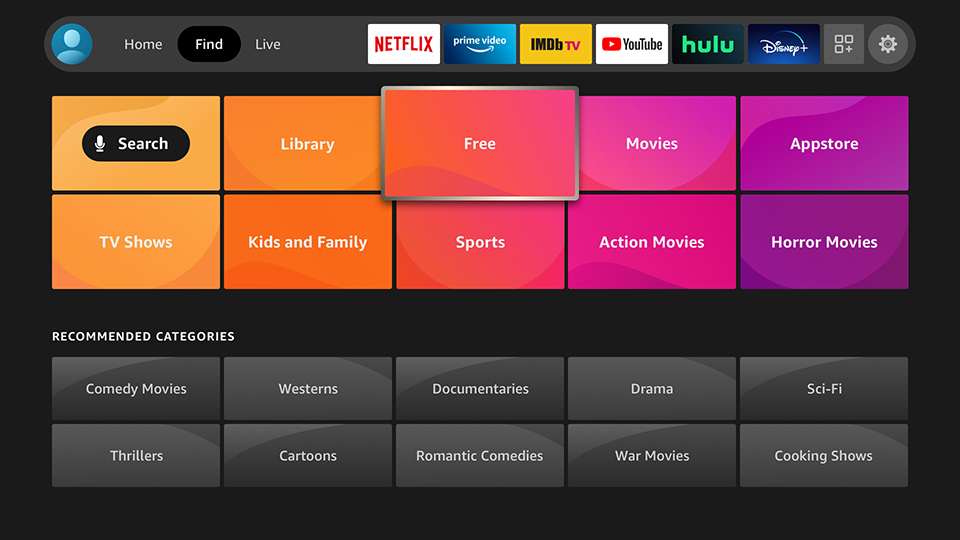
Select the Search option on your Screen.
Type DOWNLOADER using the Virtual Keyboard on your Screen.

You will find the Downloader app under the Apps & Games Section.
Click on Get /Download to Install the app on your Device.
Steps to Sideload Swift Streamz App :

Launch the Downloader app and Click on Allow for ll the Onscreen Prompts.
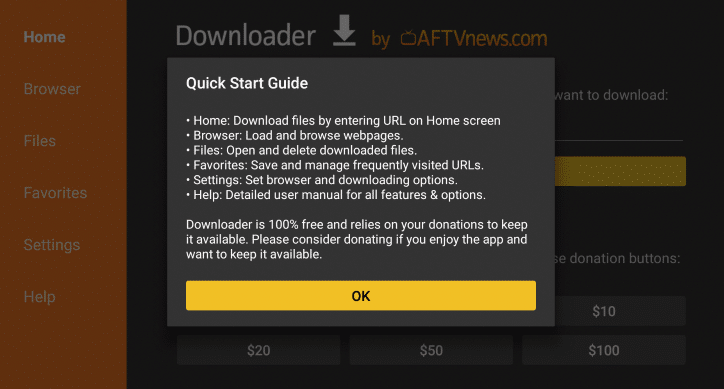
On the Downloader app, Click on Home and You will see an URL Field on your Screen.
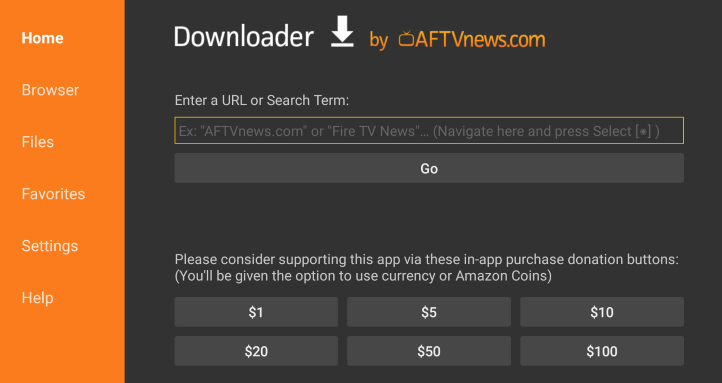
Now, On the Search Bar, Enter the URL of the Swift Streamz APK File.

Click on the GO Button.
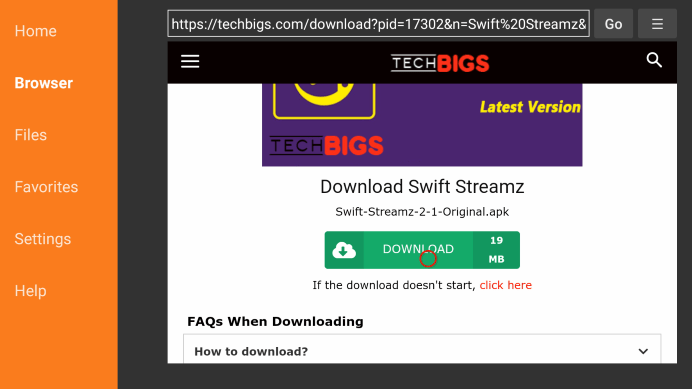
Once the URL File is downloaded, Click on the Install Button to access the App via the Downloaded APK File of the App.

Tap on the DONE, your Swift Streamz app is Now Installed on your Firestick via Downloader.

To get a Detailed Guide,Do Check Out: How to Use Downloader for Firestick
Get Swift Streamz App on Firestick Via ES FILE EXPLORER :
Just like Sideloading the App through Downloader, You can also do that via another app that is ES File Explorer. Follow the Steps given Below and Get the Access.
The Same Pre-Requisite should be done for this Method too.
On the Search bar, Type ES File Explorer and Search for the App under the results.

Tap on the Get Button to Download the App on your Amazon Firestick Device.
Open the app to Launch and Access the Home Tab.

Select the Tools Option from the Menu bar.
On the left Hand Side of the Menu, Choose the Download Manager.
Click on the + New option and Type the Swift Streamz Download Link and Name.
Tap on the Download Now button.
Wait until the Download is Completed.
Finally, Click on the Open File to access the Application file.
Click on Install, Next, and then again on Install to Download the app.
Atlast, Launch the app and Start Watching on your TV Screens.
To Know more: ES File Explorer on Firestick
Swift Streamz for Android :
Install Swift Streamz on Firestick Using Apps2Fire :
Another Substitute for Installing the app is using Apps2Fire on your Android Device and Then Sideloading the Swift Streamz App onto your Firestick Devices. Let us have a Look into the Steps to try this method.
On your Android Device, Go to Settings > Personal > Security > Device Administration > Turn ON the Unknown Sources Option.
Now, On your Firestick Device, Go to the Settings Option and then Select System.
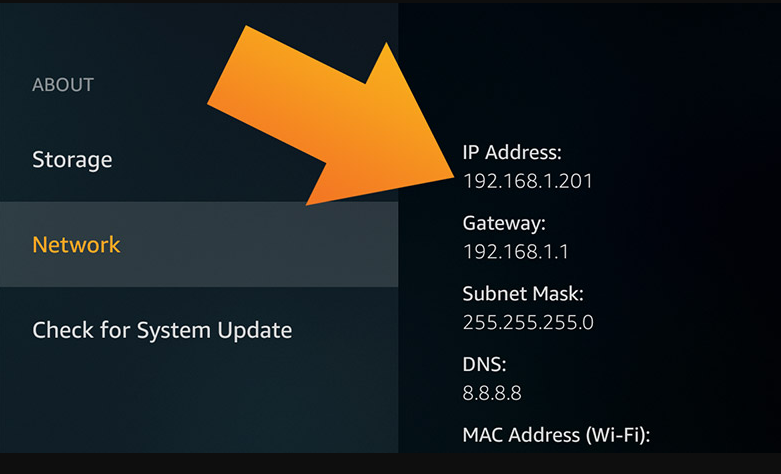
Click on the About and Select Network and Note down the IP Address.
Go to the Web Browser and Download the Swift Streamz Apk File from its Official Web Page.
Click on the Apk File to Install the app.
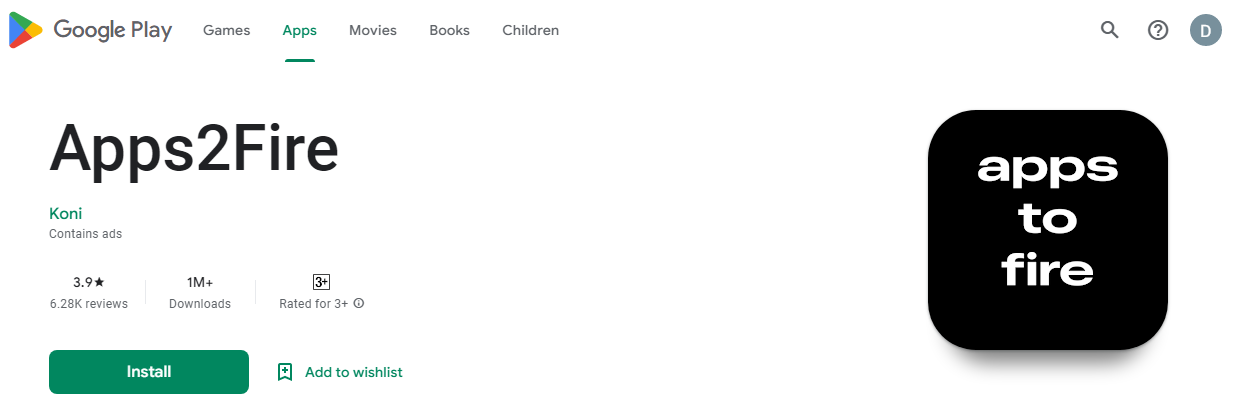
On your Android Devices, Navigate to the Play Store and Search for the Apps2Fire.
Tap on Install to Download the app on your Device.
Launch the Apps2Fire and Hover over the Set Up Tab.
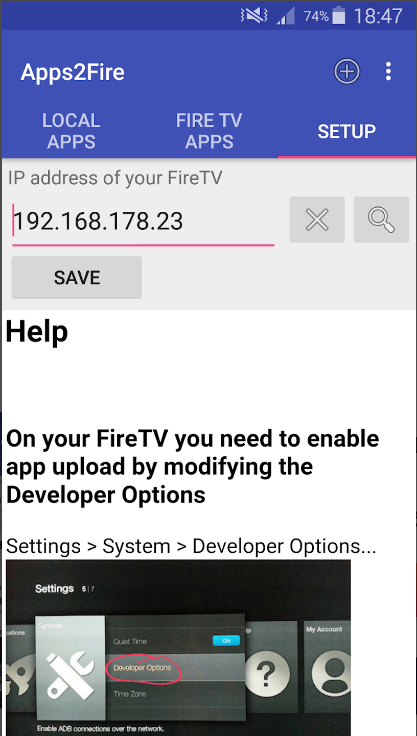
Enter the IP Address you have noted on your Firestick.
Tap on the Save Button and Click on the OK Button to Connect the App with your Firestick Device via the Noted IP Address.

Select the Local Apps Section and Look for the Swift Streamz App.
Tap on Install and Get the App on your Firestick Device.
How to use the Swift Streamz App on your Firestick?
Once you have Completed Installing the app, You will be Wondering How to use it. So, here we have got you covered with the Steps that will help you to use it and access it on your Amazon Firestick Device.
On the Home Screen of your Firestick, Click on the Apps Section.
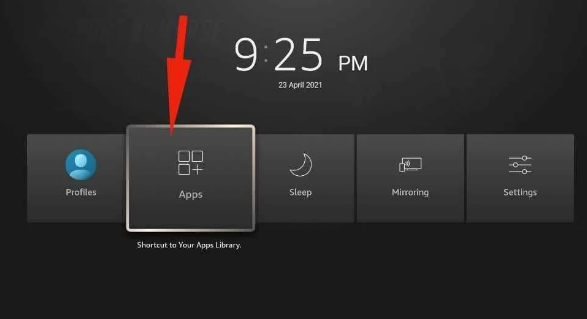
From Your Apps & Channels, Select the Swift Streamz.

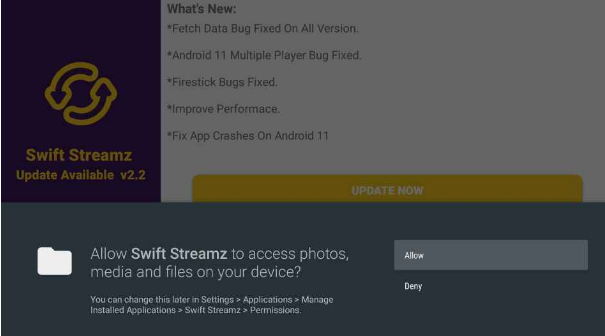
Allow Access to Permit the App to Access the Media on your Device.
From the Given List, Select your Country.
Choose Channels, TV Shows, Movies, and Anything you want to Stream with the App.
Be Safe than Sorry: Use VPN
One should always note that Installing apps from an unknown Source brings a lot of Risk Factors that are not always seeable. In that case, When you Install /Download an App that is not natively available but through a Third Party Source, It is always better to Keep yourself and your Device free of Such Troubles that CAN COME AROUND.
In the case of the Swift Streamz App, It is not Yet made Confirm -if the app deems it to be Legal or Illegal, So, It is Better to get an Ounce of Prevention that is Worth than a Pound of Cure.
How to use a VPN on Firestick?
From your Amazon App Store, Install any Good VPN App.
Open and Sign in to the App using your Credentials.
Choose a Server on VPN to which you want to connect.
Tap on the Connect Button and Launch the Swift Streamz App.
With VPN on your Firestick, You will stream Safely and Securely without getting any troubles regarding the IP Address and Other Possible Factors. Need a Web Browser? Visit: Google Chrome on FireStick
Conclusion :
To end up the article, we assure you that we have mentioned all the possible ways that will Straight away take you to the App you desire. Although these Straight ways are the Alternatives surely work. So, Pick a way up to make sure that your Device is well protected, and then move on to Get the Swift Streamz on your Firestick Device using this Simple Handy Guide Thank us later for the Exciting Content you are going to Enjoy.