
![How to Fix Snapchat Loading Screen? [6 Methods]](https://techthanos.com/wp-content/uploads/2022/05/How-to-Fix-Snapchat-Loading-Screen-6-Methods.jpg)
Snapchat is one of the best platforms to share your pictures, chat and send snaps. When you try to open snaps or go through the status uploaded by others, you might come across the “Tap to load” or the loading screen. There are many reasons that cause this error on your Snapchat app. If you are having this issue frequently, then read this article on How to fix the Snapchat loading screen issue? and get your answer.
Table of Contents
Snapchat:
With more than One Billion people using Snapchat, It is a top-rated app where you can share and send quick snaps. It helps you share your fun moments with your friends and family in one tap. Most Celebrities use it to interact with their fans. Available on Google Play Store for Android devices and App Store for iOS devices.
When you open your Snapchat app, it opens up with the front camera of your device on, by which you can take quick snaps. It has a lot of beautiful and fun filters that add more beauty to your pictures. Sometimes your Snapchat app stops with a screen saying tap to load screen; it is a significant problem when issues are with the app, Network, and device.
What is Snapchat Loading Screen “Tap to Load”?
Snapchat sometimes does not work and shows a screen saying, “Tap to load” screen. We are now going to see the causes and how to fix them.
What Causes Snapchat Loading Screen?
Several factors may make your Snapchat stuck with the “Tap to load” screen. By knowing the cause you can easily fix this issue on your Snapchat app. Some of their primary reasons are,
- When you don’t have a WiFi or Cellular Network connection.
- Lag due to large App Data and Cache files.
- Using an older version of Snapchat.
- Over usage of your device.
You may also like to read about How Snapchat Quick Add Works?
How to Fix Snapchat Loading Screen?
Now that you know what causes Snapchat Loading screen issues, you can easily fix it. Make sure to follow the methods in the given order to reduce your time in fixing this issue. The simple methods that can be used to fix your Snapchat app loading screen problem are as follows,
Check WiFi and Cellular Network Connection.
When you have a poor data connection for your device, the Snapchat app sometimes shows the “Tap to load” screen. To fix this,
- Connect to a good data connection service.
- Check your data subscription plan.
- Disconnect and Connect again to the Network.
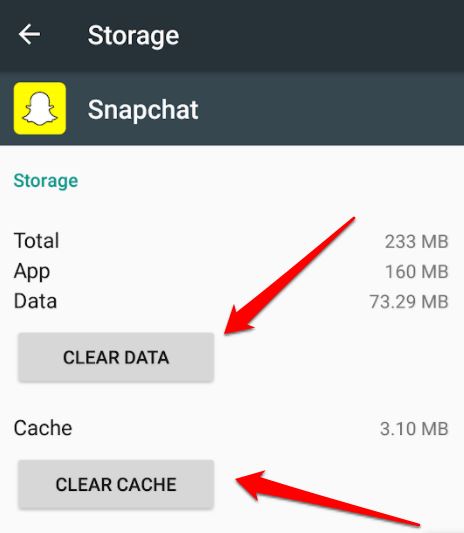
Clear Snapchat App Data and Cache.
Your app stores a lot of data and Cache, making your device work slow and sometimes crash your app. It is always better to clear your App Data and Cache files from your device. Follow these steps below to remove the Cache on Snapcht to eliminate the loading screen from appearing,
- Go to Setting on your Snapchat app.
- Tap on Apps and then Snapchat.
- You can find Clear Cache; tap on it.

- Relaunch the app.
Update your Snapchat App.
If you are using an older Snapchat app, there are likely many chances to get the “Tap to load” screen on your device. To stop this from happening,
- Go to App Store or Google Play Store
- Type “Snapchat” on the search tab and tap Go
- Tap on the Update button
- After completion, opens the app.

Most of the apps can be updated by following this method.
Uninstall and Reinstall Snapchat.
With this as the last option, you can make the Snapchat loading screen stop from occurring. Follow the steps to reinstall the app,
- Long press on the Snapchat app
- Tap on Uninstall
- Go to App Store or Google Play Store
- Type “Snapchat” on the search tab and click Go
- Tap on the Install button
- Enter your Snapchat user credentials and log in.
With these steps, you have reinstalled your Snapchat app. If you have any problems even after these methods, it is best to contact the developer for help from the official website. check out: Snapchat Quick Add.
Delete old Chat for Snapchat Loading Screen.
Sometimes clearing your Snapchat conversation helps to load Snaps without error. When you delete your chat other data are not lost. The steps to delete old chat are,
- Go to Snapchat
- Tap on Settings
- Now in the Privacy section select “Clear conversation”
- Click on cross mark net to the Snapchat connection.
- Tap on “Clear”.
Factory Reset for Snapchat Loading Screen.
If any of the methods did not work hard resetting your device is the only solution. Backup your data cause reset will delete all your data on your phone. After resetting, install the Snapchat app and use it without any errors.
You may also like to read about Snapchat’s Longest Snapchat Streak
THE END
We have provided you with the best solution for your Problem with the Snapchat loading screen issue. Follow these steps without skipping any and get the result of stopping the “Tap from loading more” screen from occurring.
I hope you can now use your Snapchat app without errors or issues; even if you have any, you can always get back to us through the comment section. Thank you for your precious time on my article.
Frequently Asked Questions:
What to do when Snaps are not loading?
If the snaps on your Snapchat application are not loading, you can just close and restart the app. You can also log out and log in again or just uninstall and reinstall the Snapchat app again on your device.
Why is my Snapchat app Slow?
You can sometimes find the Snapchat app slowing down or lagging. This is due to not enough storage space. If your SmartPhone runs out of storage space or has very less storage space, this error will occur. Try to clear out unwanted data and free up some space to make Snapchat app work faster.