

Discover how to find and change your Smart TV’s local IP address for Every device that connects to the internet has an Internet Protocol (IP) address. This includes your Smart TV. But why would you need to know your Smart TV’s IP address and change it? Let’s dive in.
What is an IP Address?
An IP address is a unique digital label for your device when it’s part of a network. Each time a device, like your Smart TV, connects to the network, it gets an IP address. This address tells online servers where to send the data you request. For your Smart TV, this means interacting with distant servers and nearby devices on your home network. That’s why your Smart TV has two IP addresses – local (private) and public IPs.
- A local (private) IP address is the unique address assigned to devices within your home network. It ensures that data packets are delivered to the correct device on your network.
- A public IP address is the address the outside world sees when any device from your home network connects to the internet. It’s assigned by your Internet Service Provider (ISP) and represents your entire home network. Websites and online services see this IP when you access them, giving them a general idea of your location.
Finding Local vs. Public IP Address
When discussing finding your Smart TV’s IP address, we usually talk about its local IP address. Why? Because finding the public IP address doesn’t require an article with instructions. Many websites can show you your public IP once you visit them from a device in your network.
That’s where the danger of public IPs lies. Any website and online service can see your public IP address. And if it’s leaked, anyone can use an IP lookup tool to discover more details about that address, including the location it originated from.
That’s also why you should hide your public IP address for security and privacy. The simplest way is using a virtual private network (VPN). A VPN changes your IP address and encrypts your data, keeping your online activity confidential.
How to Find Your Smart TV’s Local IP Address
Discovering the local IP address of your Smart TV is easy, too. You can use various methods:
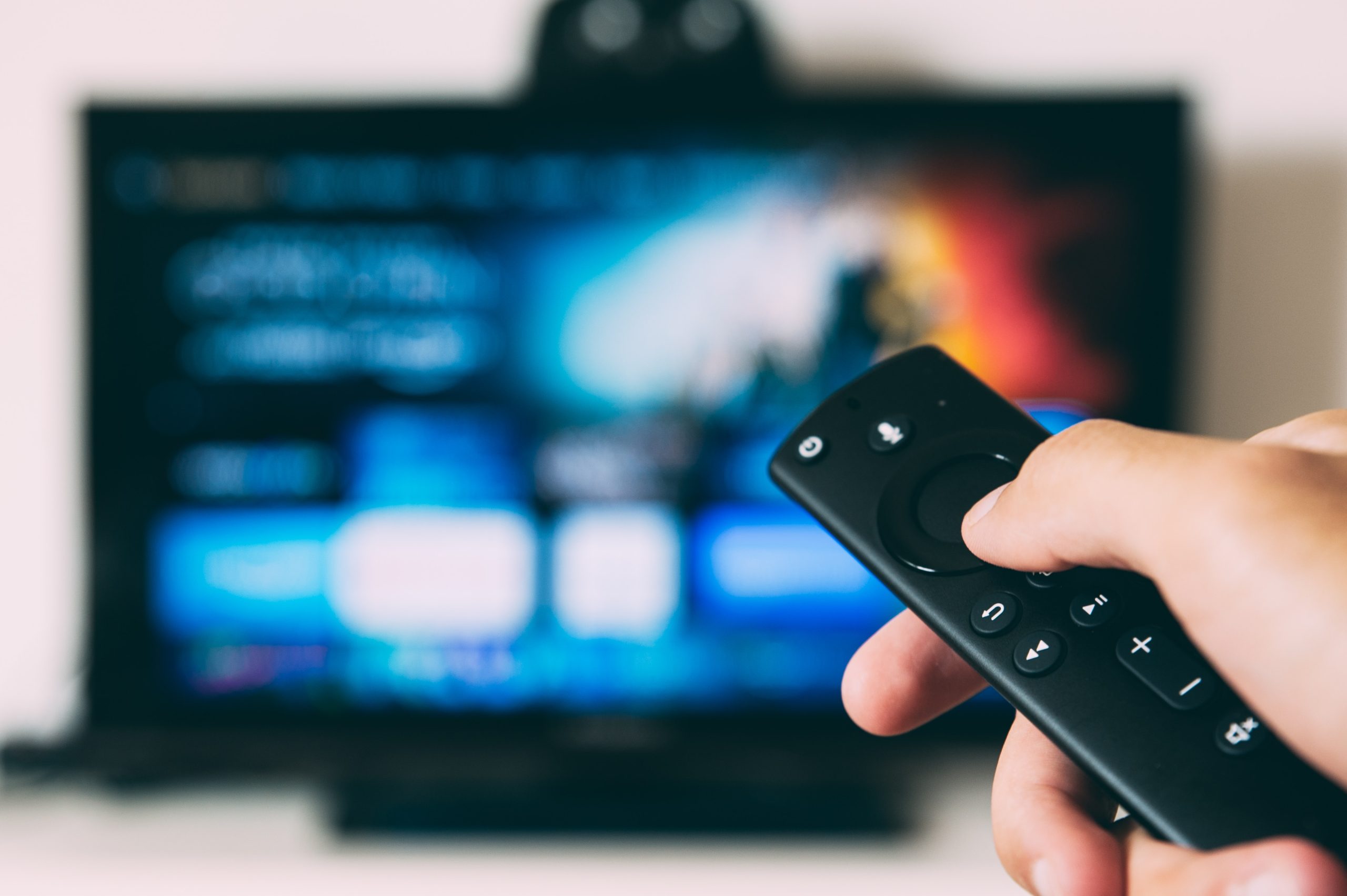
- Remote control. Many contemporary Smart TVs have a feature to view network details. Turn on your TV, hit the menu option on your remote, navigate to a section labeled “Network” or a similar term, and the local IP address should be listed within the “Network Settings.”
- Smart TV apps. Some Smart TVs have settings within apps where you can find the local IP address. For instance, the Paramount+ app provides this information.
- Third-party apps. If the first two options didn’t help, third-party tools like the Angry IP Scanner or Fing can help identify your Smart TV’s local IP address.
- Router. You can also access the router console to see a list of connected devices and their local IP addresses.
How to Change Your Smart TV’s Local IP Address
Unlike public IP addresses, changing the local IP address is not recommended unless you know what you’re doing. However, it can be helpful to change your smart TV’s local IP if you need to troubleshoot connectivity or other issues within your home network.
Instructions on changing the Smart TV’s local IP address differ by brand:
- Samsung: Go to “Network” and then “Network Settings.” Change the IP address settings from “obtain automatically” to “enter manually” and add your desired IP.
- Panasonic: Go to “Network,” select “Network settings,” and then “IP address/DNS settings.” Change your IP address to the new one.
- LG: Go to “Network,” “Wi-Fi connection,” “Advanced Wi-Fi settings,” and change the IP address.
Sony: Navigate to “Settings” and then “Network.” Under “Network setup,” choose “Set up network connection” and select “Custom.” Here, you can manually add the desired IP address.