
![How to Give Access to My Screen [Simple Guide 2022]](https://techthanos.com/wp-content/uploads/2022/08/How-to-Give-Access-to-My-Screen-Simple-Guide-2022-min.jpg)
Suppose you want to Give Access to My Screen, then read the entire article to get the method and the instructions on How to set it up on your device. I have given a straightforward method and the guide to set the Google Assistance to give permission to your Android device screen and also to the lock screen.
![How to Give Access to My Screen [Simple Guide 2022]](https://techthanos.com/wp-content/uploads/2022/08/How-to-Give-Access-to-My-Screen-Simple-Guide-2022-min-1024x576.jpg)
Do not skip any content in this article. You have to read the whole content to get access to Google Assistance on your Android Smartphone device. All topics will give you information about giving Access to your device screen.
Table of Contents
How to Give Access to My Screen?
Here you can learn how to Give Access to My Screen. I have given some procedures to Enable and Give Access to My Screen on your Android device. The guidelines in this article help you to give Access to Google Assistance to access your device screen. They are:
→ GOOGLE KEY ↓
- Tap the Google Source key on your Android device. Some devices have a Google Assistant key on the side of the device.
→ SAY HEY, GOOGLE ↓
- After the Google Assistant is opened, you have to say ” Hey Google ” note loudly until your Android device is reacted.
→ ASSISTANT SETTINGS ↓
- Now, you have to say Assistant Settings in the voice note. After, you can see the Google Assistance settings page on your Android screen.
→ ALL SETTINGS ↓
- There you have to click on the All Settings source page on your Android screen. And move to the next topic.
→ GENERAL ↓
- Following the All Settings page, you need to focus on and hit the General Settings page on your Android Google Assistance settings page.
→ TAP ON ↓
- There you can see the On or Off Toggle on the screen. Hit the toggle to Turn On the option and Give Access to My Screen.
→ CONFIRM ↓
- After tapping the option on your device, your Android device will ask you the confirmation on the page. You have to tap on the Ok or Confirm button to confirm the access status on your device.
So these are all the simple methods to Give Access to My Screen option on your Android device. Also, you can use Google Assistance on your device lock screen.
For your Reference: How To Do Video Playback Settings iphone
Use Google Assistant on Lock Screen? -[Give Access to My Screen]
Additional information in the Give Access to My Screen article. In the above topic, you have turned on Google Assistance to access your device screen. Now, in this topic, you are going to learn How to use the Google Assistance service on your device lock screen. The steps are:
- Initially, you need to Activate Apps Tray on your device.
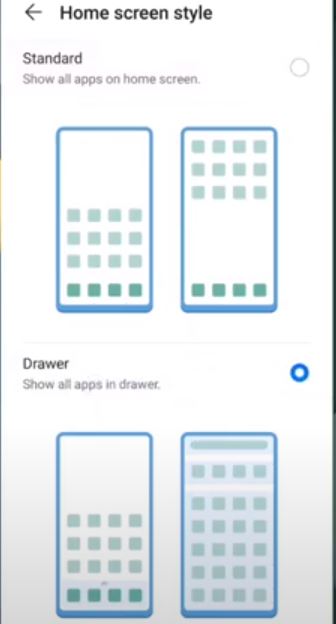
- Then, reveal the Google Application on your Computer gadget.
- On your computer screen, you need to tap the Three-Horizontal Line on the top screen.
- Now, select and click on the Settings option from the list.
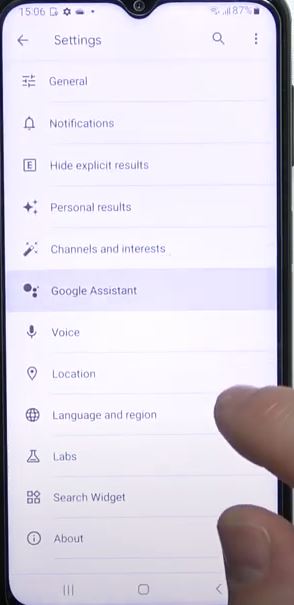
- Then, scroll down on the Settings screen on your device and click the Voice category.
- You have received some menu lineup on your device screen. Touch the Voice Match.
- On the Voice Match screen on your screen, you need to click the Switch On toggle.
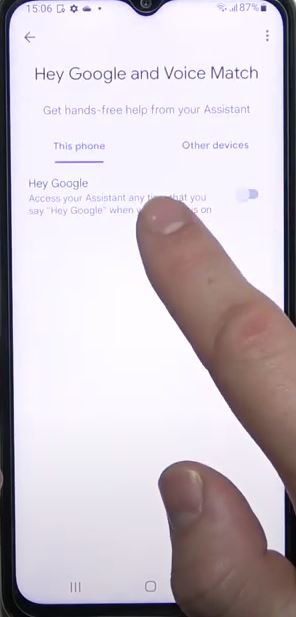
Here you will enable the permission or Give Access to My Screen [ Lock Screen ]. Now, you can able to use the Google Assistance service on your Android device lock screen if you want to connect and access your Android device on your Computer device.
Connect Phone to My Computer Screen [Give Access to My Screen ]
Another additional piece of information is the content Give Access to My Screen. You will successfully activate the Google Assistance service on your Smart Phone device lock screen. In this topic, I will guide you to connect your Smartphone with your Computer device screen. First, read the steps and then know what it is:
→ TURN ON THE DEVICE ↓
- Startup by turning on your Android Smartphone device and unlocking your device screen using the passcode.
→ SETTINGS ↓
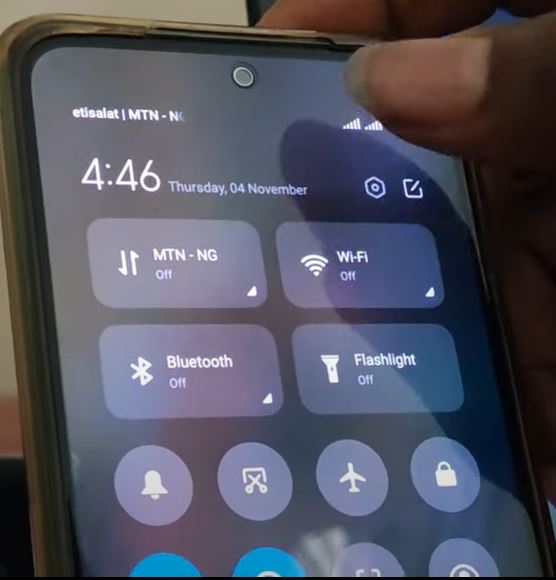
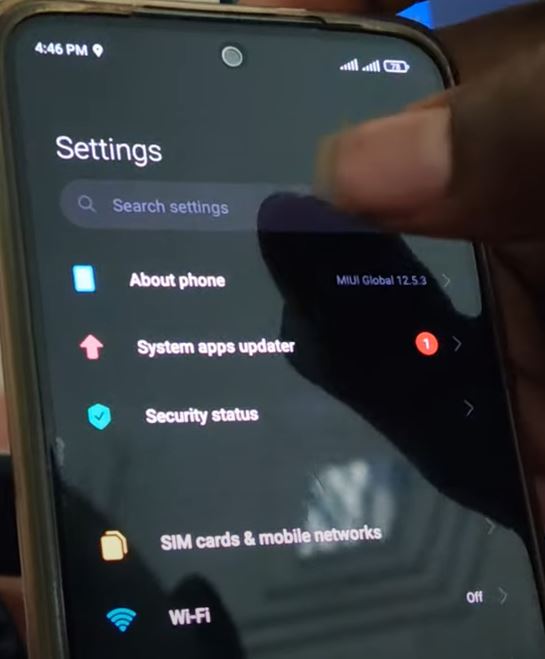
- Move to the Navigational board or tap the settings icon on your Android device screen.
→ ABOUT PHONE ↓
- After clicking on the Settings icon, tap on the About Phone option given first on the settings lineup.
→ MODEL VERSION ↓
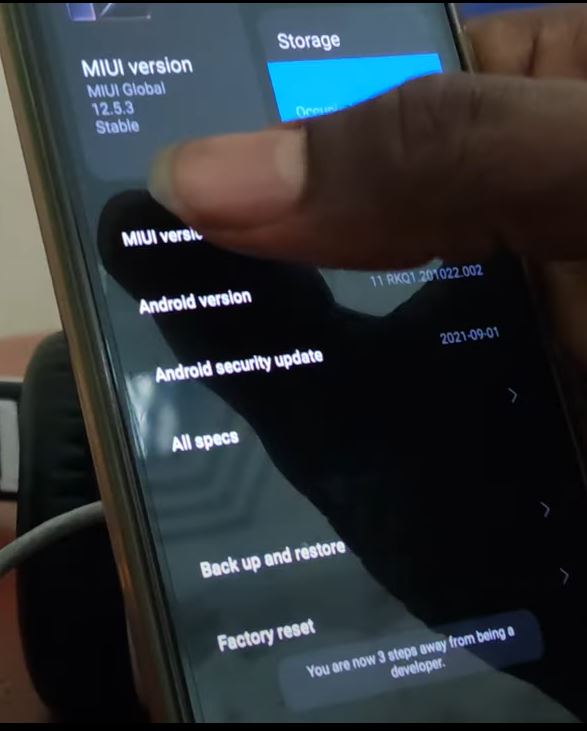
- On the About Phone screen, you will view the two version options. Select your device model version, which is given at the first of the list.
→ TAP SIMULTANEOUSLY ↓
- You have to click continuously on the version section of your Android device model. Until you can see the note ” Now you are a Developer ” on the bottom of the screen.
→ DEVELOPER OPTION ↓
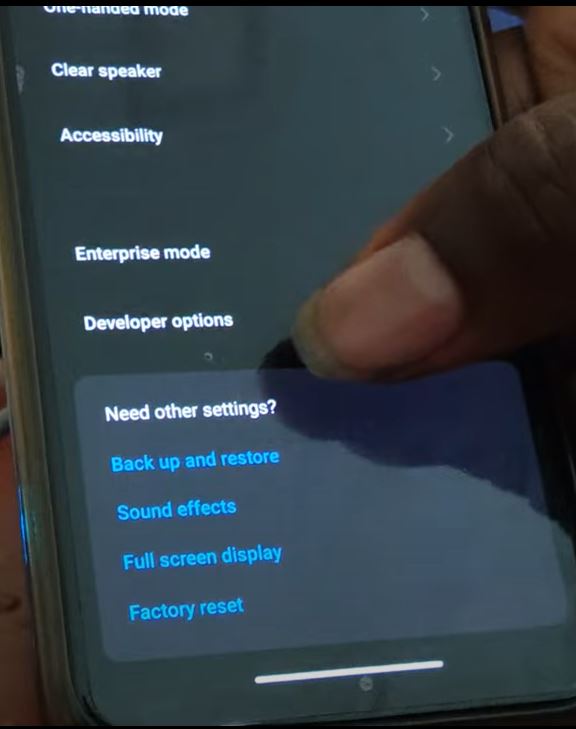
- After your Android device is Developed, you have to get into the Developer options page on the Android screen.
→ USB DEBUGGING ↓
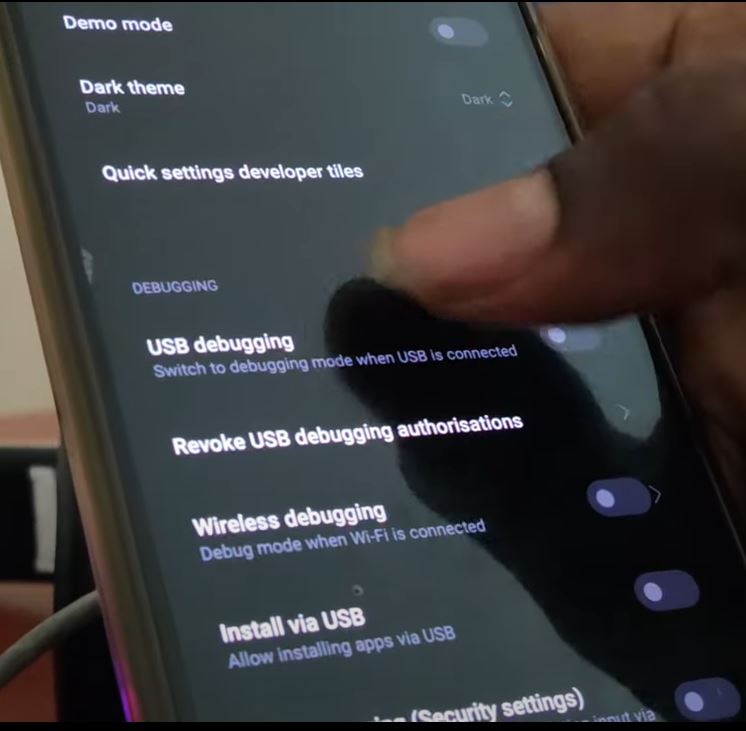
- On the Developer option, you have to click on the USB Debugging option on the screen. If you can’t view the option, then scroll down the page. Tap the toggle to enable.
Give Access to My Screen
→ OK TO ACCESS ↓
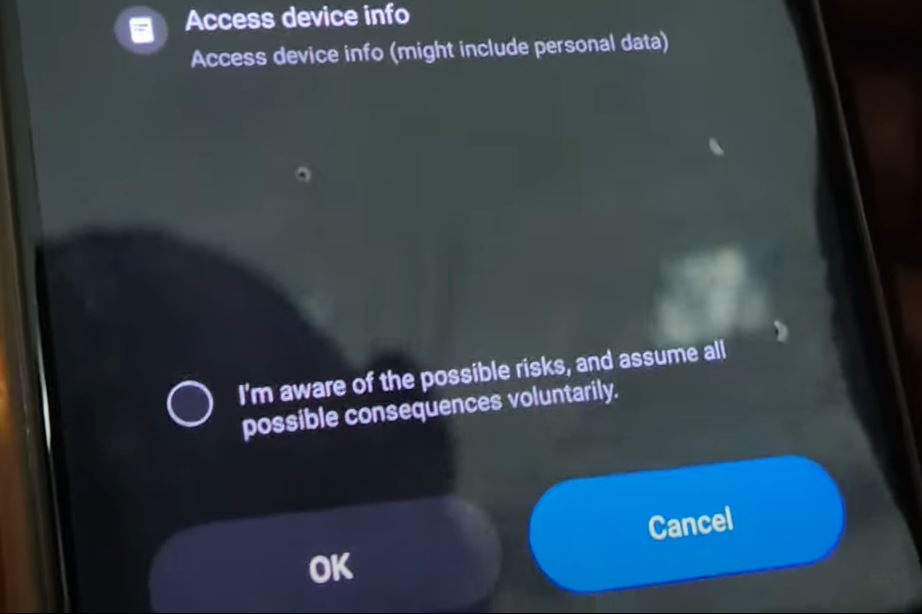
- After tapping the toggle, you have received the confirmation pop-up screen on your Android screen in the middle. There you need to tap the OK button to give access.
→ ALLOW AND TAP OK ↓
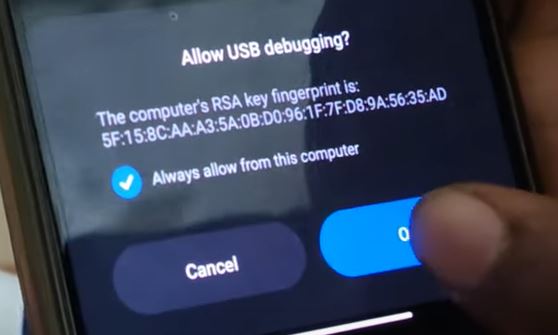
- Again your device asks you the permission to give your device access to your computer. Click the OK button to give double confirmation for the access.
FAQ:
How to Mirror My Phone Screen on TV?
Connect Phone with Same Wi-Fi >> Open the App >> Play Video >> Click Cast Icon >> Select TV name >> Connect >> Stream. You have to follow these steps to screen mirror your device screen on your TV display.
How to allow app permissions on My phone?
Go to the Settings >> Apps and Notification >> Advanced >> App Permission >> Choose App >> Select the required permission. Follow these steps on your Android device to give the app permission on your phone.
Our Final Notes:
If you need an answer for Give Access to My Screen, then scroll up and read all the topics I have given in this article. Each topic will give you the guidelines for the different types of access to your Android Phone device. You can give access to your phone screen, your Computer screen, and your phone lock screen.
I have clearly given the steps and the instructions to give access to your Android device. If you want more information, you have to ask the doubts in the comment section. I will reply to you as fast as fastly.