
![How to Fix FireStick Frozen on Home Screen? [Guide 2022]](https://techthanos.com/wp-content/uploads/2022/10/2.jpg)
Is it your first time seeing your FireStick Frozen on its Home Screen? You will be unable to do anything on your FireStick with the Frozen Home Screen. You can’t even reach the Settings menu of your FireStick? Dont feel down because there are some remedies you can try to make a way out of the Frozen Home Screen of your Fire TV. There are simple methods you can try out to un-freeze the Home Screen, which is provided in this article about How to Fix FireStick Frozen on Home Screen? Follow this simple Updated Fix Guide and make your FireStick Home Screen never freeze again.
Table of Contents
Why is FireStick Frozen on Home Screen?

There are not that many reasons for the frozen screen on FireStick; you can just count the reason with your fingers. The causes for this issue might be less, but having Frozen Home Screen Frozen hits hard. Some of the main reasons for these issues would be,
- Your FireStick device is not having an ample amount of power supply due to connecting directly to a TV.
- Running Heavy applications that require more memory space can lead to the Freezing of the Home Screen.
- Improper Software Updates on your FireStick device can be regarded as one of the most important factors for the FireStick
Frozen Home Screen.
- Not having a Proper HDMI cable connection can also be considered the main factor for Frozen Home Screen.
Since you cannot access your FireStick, you need to make some external changes to un-freeze the Frozen Fire TV Home Screen. To know the procedures and methods you can use, continue reading this article.
How To Fix FireStick Frozen on Home Screen?
Now, it is time for you to fix your FireStick device’s Frozen Home Screen. As mentioned earlier, it is useless to access the Settings menu with your Frozen Fire TV Home screen. You need to Fix this issue externally, and the things you need to do would be,
Change HDMI Ports:
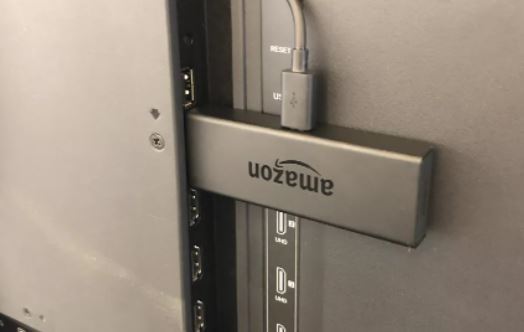
Having a defective HDMI port can cause your FireStick device to have a Frozen Home Screen. Since your Smart TV have many HDMI ports, you can connect your FireStick device to a different HDMI port. If changing HDMI ports on your TV is not solving this issue, then you have to check your Smart TV ports with the help of a professional.
Restart FireStick:
This is the simple and effective way for most of the FireStick errors, including Frozen Home Screen. If you have just now updated your FireStick and your Home Screen freezes, then this is the right method you need to work on. The following steps that you need to follow to restart your FireStick are as follows,
- Cut off the power supply to your FireStick and remove it from your Smart TV.
- Keep it for about 2-3 minutes.
- Now connect it back to your Smart TV and provide the power supply.
This will be a sure method to un-freeze your FireStick Home Screen. By using this method, you can save some Cache memory to make FireStick function properly.
Change FireStick connections:
Since your FireStick device can be connected directly to your Smart TV and get power from it, it is not sure if your FireStick can get the required power to work properly. In such cases, you can use the power adapter you got along with your FireStick device. You can neglect directly connecting the FireStick device to your Smart TV and use the HDMI adapter to connect FireStick and Smart TV.
The End
You can still wait for some time for the Home Screen on FireStick Un-Freezes. Even after trying out all the methods and still finding the Home Screen Frozen, then it is time that you change your FireStick devices or get them examined by a professional. If you have a warranty for your device, save money by claiming a new FireStick device.
Frequently Asked Questions:
How to Un-Freeze Amazon FireStick?
On your FireStick remote, press and hold the Select and Play/Pause button for five seconds to unfreeze your FireStick device.
Why Fire TV is Stuck on its Loading Screen?
This will be due to the internet connection being slow or no internet connection. Sometimes having defective HDMI ports or insufficient Power supply can cause the Loading Screen.
Which is the best FireStick?
Fire TV Stick 4K Max is currently the best FireStick you can use. You can have a smooth and hassle-free user experience with easy navigation through apps.