
The file link is an online application that helps you share files from one device to another. The file linked is also known as Droid admin. It helps you share your files like videos, photos, music, albums, and other files. You have to create and share the code with your family and friends to upload your files. The File Linked is considered the best sideloading tool for Android devices. It has some anti-virus, allowing you to scan files before downloading them.
Create the code and get the FFile linked application so that you can also activate the files. And to get the FFile linked application, get the code from the uploader, and make use of the code. There are two ways to install FFile linked applications on FireStick. You can get both downloader and ES file explorer from the Amazon app store.
- Via Downloader
- Via ES file explorer
Also, search TeaTV on Firestick
Table of Contents
Steps to follow:
- Go to the home screen of your fire stick and tap the settings option.
- Next, tap “Device option” or “My fire TV”.

- Choose “developer option”.
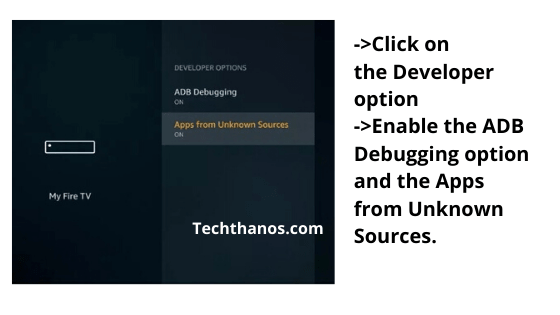
- Apps unknown sources -> Turn ON.
- Click the “turn on” option.
Also Read: WWE Network on Firestick: Quick Installation Guide
How to Install the FFile linked on FireStick by using the Downloader app?
1: Download and launch the downloader application.

2: Open your home screen with the home tab.
3: Tap the URL and enter its address.

4: After entering the link and hit the “Ok” button.
5: Next, tap the “Install” option to download the application.
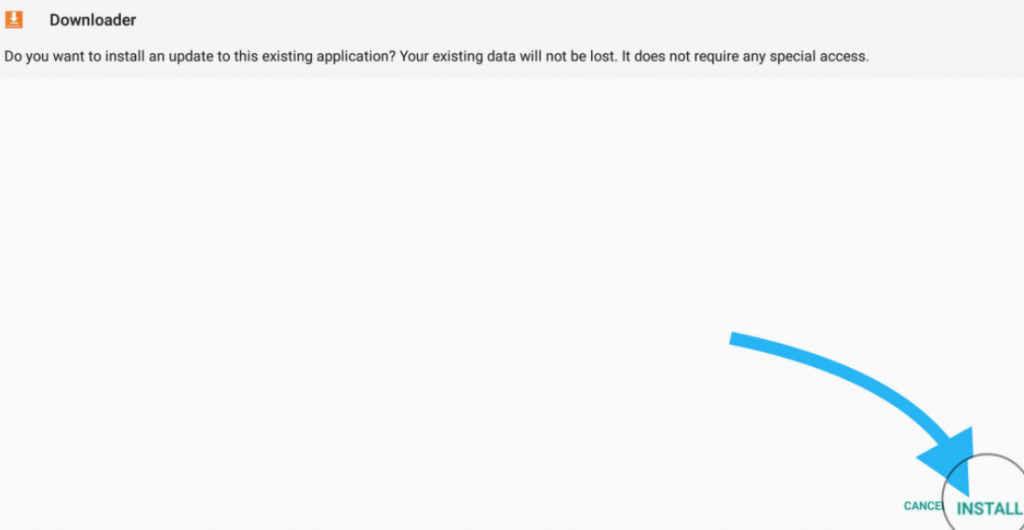
6: Once you have installed the application, you will get the app installed confirmation on your screen and tap the “open” option.
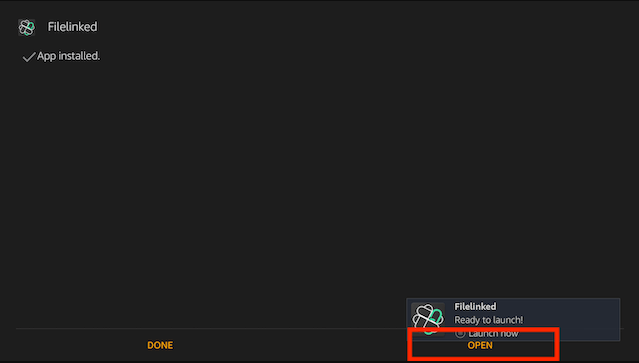
7: Tap on the “delete” option to remove the apk file.

8: You can launch and access your application from the My apps and channels section.
You may like, How to Install Apps on Firestick: Step by Step Guide
How to Install FileFlinked Applications by Using ES file explorer?
1: Access the “ES file explorer” app on your device.
2: In ES file explorer, go to the right side of the home screen. There you can see a bunch of icons.
3: Scroll down the screen to find “downloader”.
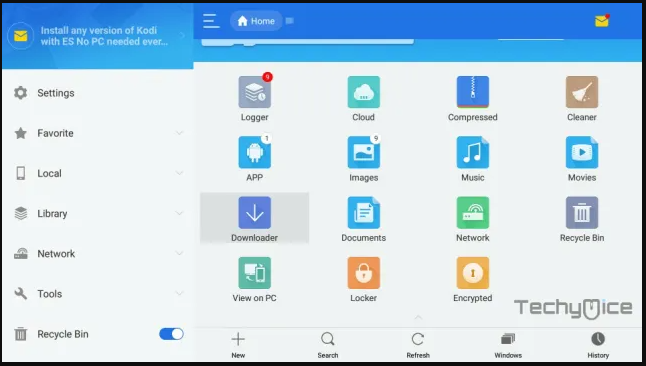
4: Next, move to the bottom of the screen to get the “+new” option.
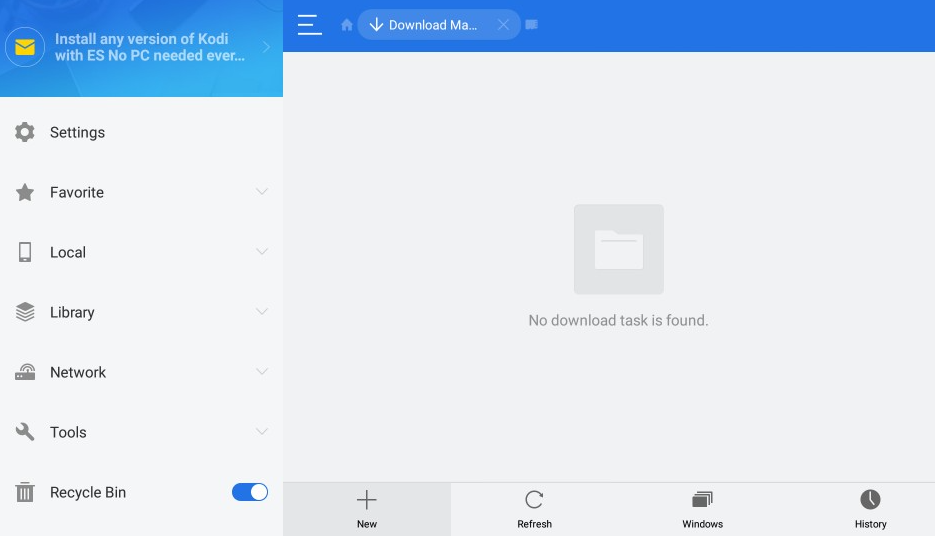
5: Go to the dialogue box. Enter the details in the options path and Name.

6: Tap the “download now” option.

7: Now, it will start to download the FileFlinked apk file.
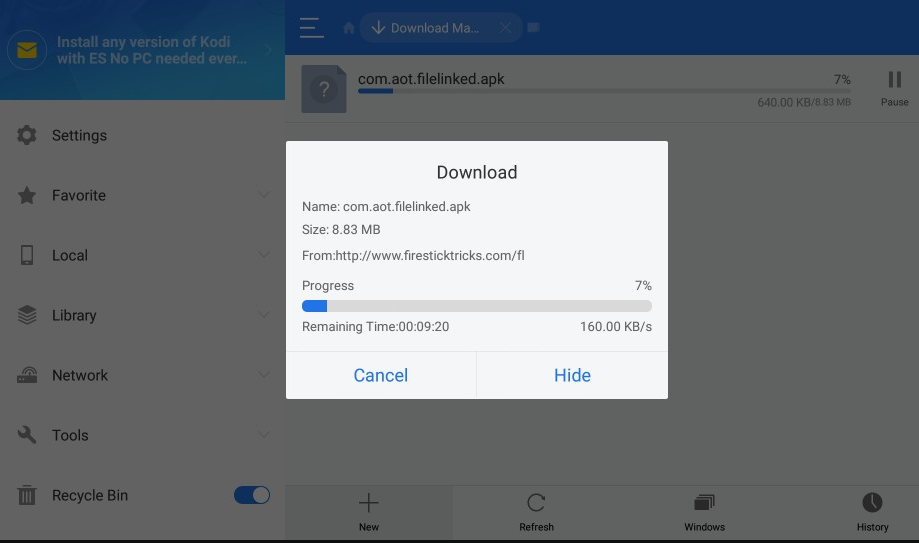
8: After the installation, tap “open file”.
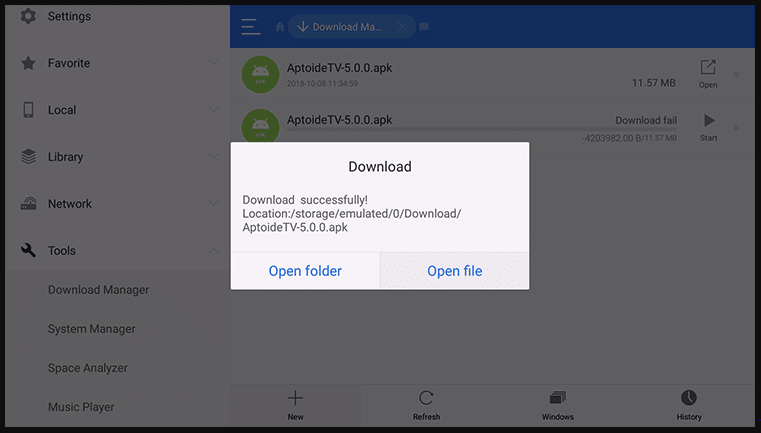
9: The page will take you to the installation process.
10: Tap “install” on the ES file explorer window.
11: You will receive a notification indicating that your application has been successfully installed.
Methods to use FileFlinked Application on your fire stick device:
- Install apk on your firestick
- Sign up for a linked account (only for uploaders)
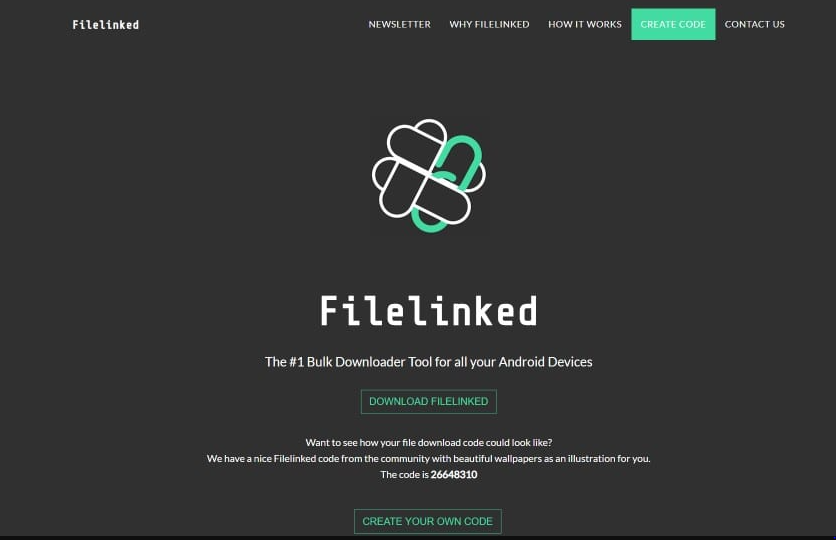
- Upload files and create code(for users)

Wrapping Up:
The above-given information and methods help you get the FileFlinked application on your firestick. You cannot get this application from the Amazon app store or Google play store. To use this application, sideload the app on your firestick device.
Similar post, Zoom App on FireStick