
![How to Change Firestick Name [Amazon AppSite]](https://techthanos.com/wp-content/uploads/2022/12/How-to-Change-Firestick-Name-Amazon-AppSite.jpg)
When you first buy your FireStick, the name of it will be default set by the producers while testing it. You can change the name of your FireStick device to any name you want. It only takes up to 2 minutes to change the FireStick name. The unique name can be helpful in the place of multiple FireStick device users to easily find your device. It can also be help full when you do a screen mirror for easy recognition. Follow this article and get your FireStick device’s name to your liking.
Table of Contents
How to Change FireStick Name?

The name that you will be given to your FireStick must be unique and easily recognizable. You can check on the current name of your FireStick to find out whether you need to change it or not. After you have found the current name, you can change it, quickly with the official Amazon app or site. To know the process in detail, you can follow the simple steps provided here.
How to Find the FireStick Name?
To find the current name of your FireStick device and to get a better idea of how to change it, follow the steps provided here.
- On the FireStick home page, tap on the Settings Icon and open My Fire TV.

- Navigate to About and select your FireStick devices.

- Here you can find all the information about your FireStick, and it comes under the heading Devices Name.
By knowing the current name of your FireStick, you can now come to a conclusion on whether to change it or not. If you are thinking of changing it, you can continue with this article.
How to Change FireStick Name using Amazon?
Your Amazon account connects all your Amazon devices and platforms. You can easily use the Amazon App or its official site to change the FireStick Name. If you have not yet created an account on Amazon, you can simply download the application and provide your email ID or phone number to create an account. Now to change the Amazon Device Name, follow the steps given here.
NOTE: Make sure have you have signed in to your FireStick usign your Amazon Account credentials.
- Open the Amazon app on your SmartPhone and tap on the Profile icon.
- Select the Your Account option and choose the Manage content and Devices option.
- On the Devices section, you can find your FireStick under Amazon Devices.
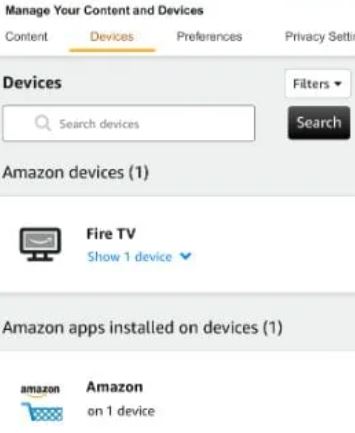
- Tap on your FireStick device and select the Edit option.
- Enter the name you want to change your device and select Save.
You can also change the name on your Amazon device by visiting the official site on your device’s web browser. On your PC, open the web browser and go to Amazon’s official site and sign in with your credentials. Here the procedure is similar to the steps discussed above. You can check on your FireStick device if the name has been changed or not. If you also want to change the WiFi network on your FireStick without using a remote, you can read Change Wi-Fi on FireStick without Remote.
THE END
Now you can find the name of your FireStick device and change it from your Amazon App and site using the information provided here. Using the methods given here, you can change the name of any Amazon device to your liking. The name you will be changing should be easily recognizable on networks while connecting.
Frequently Asked Questions:
How to Change Amazon Devices Name using Alexa?
This is the least favored method among FireStick users to change its name. You must get the Alexa app and sign in; after that, go to the Devices option. Tap on All Devices and select your FireStick device. Now select Edit Name and type in the new name for that device.
What are the Suggestions for choosing a name for FireStick?
The FireStick device name must not be too small or too short. It must be different and easy to remember. Make sure the FireStick device name is customized to your liking.