
Are you curious to know how to Chromecast Virgin Media Go on your Smart TV? You will get your answer from this article by reading continuously. If you are boring without doing anything, Virgin Media Player is the best entertainment to stream. It never lets you get bored with this service because they have many programs, original shows, movies to watch.
Table of Contents
What is Virgin TV Go?
Virgin TV is a UK’s online subscription-based TV service, and it is owned by Liberty Global and Telefonica in the 1:1 partnership. It is a cable TV network in the United Kingdom and linked its business to become Virgin Media Oxygen. This is the United Kingdom’s largest cable TV network, and it is combined with the origins of NTL and Telewest operators in 2006 March.
It is an app that comes along with the Virgin TV package, so you don’t need to pay an additional cost for the app. You can stream your desired on-demand lives, soaps, sports, and originals on your app from anywhere you want.
Features of Virgin TV Go:
- Stream 100+ live TV included in the app
- Watch on-demand content everywhere you want.
- Download it to watch later.
- Stream up to four devices simultaneously.
- Add your desired content to your bookmark for watching later.
- Even though Kids can watch this app.
- stream various contents such as entertainment, Martial arts, Adventure, Drama, Kids, Comedies, Education, Animated cartoons, etc.
- Watch without any commercial interruption.
Does Virgin TV Go compatible with Chromecast?
Unfortunately, Chromecast doesn’t support Virgin TV Go app because it doesn’t in-built with the Chromecast feature. So we should go on another method on your Smart TV with the help of screen mirroring or casting.
How to Chromecast Virgin TV Go?
In this article, we will explain the available devices for Chromecast by using devices such as Android, iOS, Mac, Desktop to screen mirroring.
- Chromecast Virgin TV Go on Android
- Casting Virgin TV Go on iOS/ Apple device
- Chromecast Virgin TV Go on Desktop/PC
- Casting Virgin TV Go app on Mac device.
Chromecast Virgin TV Go with Android:
Step 1
Connect your Smart TV to the Chromecast HDMI port.
Step 2
Initially, set up the Chromecast and your Android device to the same wifi network connectivity.
Step 3
Further, download the app on your Android device.
Step 4
After that, launch it and sign in with your account credentials.
Step 5
Go to the notification panel by swiping down the screen.
Step 6
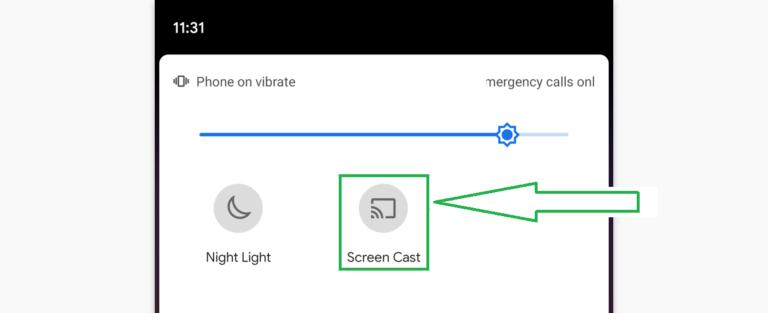
Now tap the screen mirroring or casting icon on your Android screen.
Step 7
Then choose your Chromecast device from the available device list.
Step 8
Now play any of the Virgin TV Go content on your Android phone and it will be screen mirroring on your Smart TV by using Chromecast device.
Casting Virgin TV Go on iOS/iPad:
To cast Virgin TV Go on Chromecast device by Apple device. Follow the given steps to screen mirroring the Virgin TV Go on Chromecast.
Step 1
Link the Google Chromecast device to your Smart TV.
Step 2
Then link your Chromecast and iPhone to the same network connectivity.
Step 3
Now get the Virgin TV Go app on your iPhone device from the app store.
Step 4
Thereafter, log into your account credentials.
Step 5
Now tap the screen mirroring icon on your screen.
Step 6
Play any content from the Virgin TV Go based on your choice and your iPhone or iPad will start screen mirroring to your Smart TV.
Chromecast Virgin TV Go on Desktop/PC:
Step 1
Make sure to connect the Chromecast and PC are in the same network.
Step 2
Connect your Chromecast dongle to your Smart TV.
Step 3
Visit the official website of Virgin TV Go on your preferred web browser.
Step 4
Afterthat, log in to your account info. and then tap on the three-dotted icons on the upper right corner of your Desktop screen.
Step 5
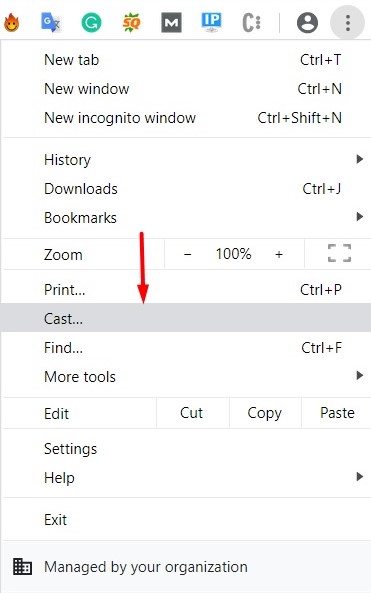
Further, Tap the cast icon on the menu list.
Step 6
Now start to play any of the content and it will be cast on your Smart TV using Chromecast device.
Casting Virgin TV Go app on Mac device:
Step 1
Merge the Chromecast dongle on your Smart TV.
Step 2
Set up the Mac device and Chromecast to the Strong wi-fi network connectivity.
Step 3
Then, visit the official URL of the Virgin TV Go from a browser such as Safari, chrome, and so on.
Step 4
Further, proceed to sign in with your Virgin TV Go account credentials.
Step 5
Now tap the cast icon on the Mac screen and your device will start scanning.
Step 6
Choose your Chromecast device from the nearby device list.
Step 7
Finally, start playing your video content on Virgin TV Go and it will be screen mirroring on your Smart TV with the help of Chromecast.
Final Note:
Virgin TV Go is an app that offers to watch its content anywhere without any additional subscription. Chromecast is a streaming device that doesn’t include Virgin TV Go app in their apps store and it doesn’t have a feature in-built with this app. So we explain the alternative methods to Chromecast on Virgin TV Go by screen mirroring. If you can’t get the Chromecast on Virgin TV Go let me know in the comment section.
Frequently Asked Questions:
1. Does Virgin TV Go supports Chromecast?
The answer is NO, Chromecast doesn’t compatible with Virgin TV Go and it doesn’t in-built with their features. You can screen mirroring to get the Virgin TV Go app on your Chromecast devices.
2. Is Virgin TV Go app free to watch?
Yes, you can watch without any additional subscription if you have subscribed to the Virgin TV cable channel.
RELATED POST
Chromecast Tiktok: How to do it
How to Chromecast Steam Link to TV
How to Chromecast Funimation to Tv