
Nowadays, most people are Working from Home using a Laptop or Desktop Computer. While working, if the Monitor Blinking On and Off, I Know how it is frustrating. If your Monitor also keeps Flickering On and Off, here is an easy guide for you.
Refer to the topics given in the following and Fix the Flickering problem in your Monitor. Do not harm your device, it may affect bigger issues on your PC or Laptop. So, follow the proper solution. Start driving into the article…
Table of Contents
Why is Monitor keeps Blinking On and Off?
One of the main things the Monitor Keeps Flickering On and Off is the Refreshing rate. And another one is the Contrast and Brightness level on your PC. It also makes the Monitor Keeps Blinking On and Off. Also, it has many reasons such as;
- Damaged Monitor Cable
- Damaged Power Cable
- Drive Update
- Monitor Crash
- Windows Settings
- Graphics Card
- Display Software
- Video Card
These are all the major reasons for the Monitor Flickering On and Off frequently. To fix this issue, take a look at the upcoming sections. After your Monitor has been fixed, you can Use Laptop Monitor as PS4. Tap this link to learn how.
How to Fix Monitor Blinking On and Off?
As given in the above section, these are all the major problems for the Monitor is keeps Flickering On and Off on your System. So, do follow the problem-solving methods listed in the following. Come back with one by one as given.
Check the Monitor Cable
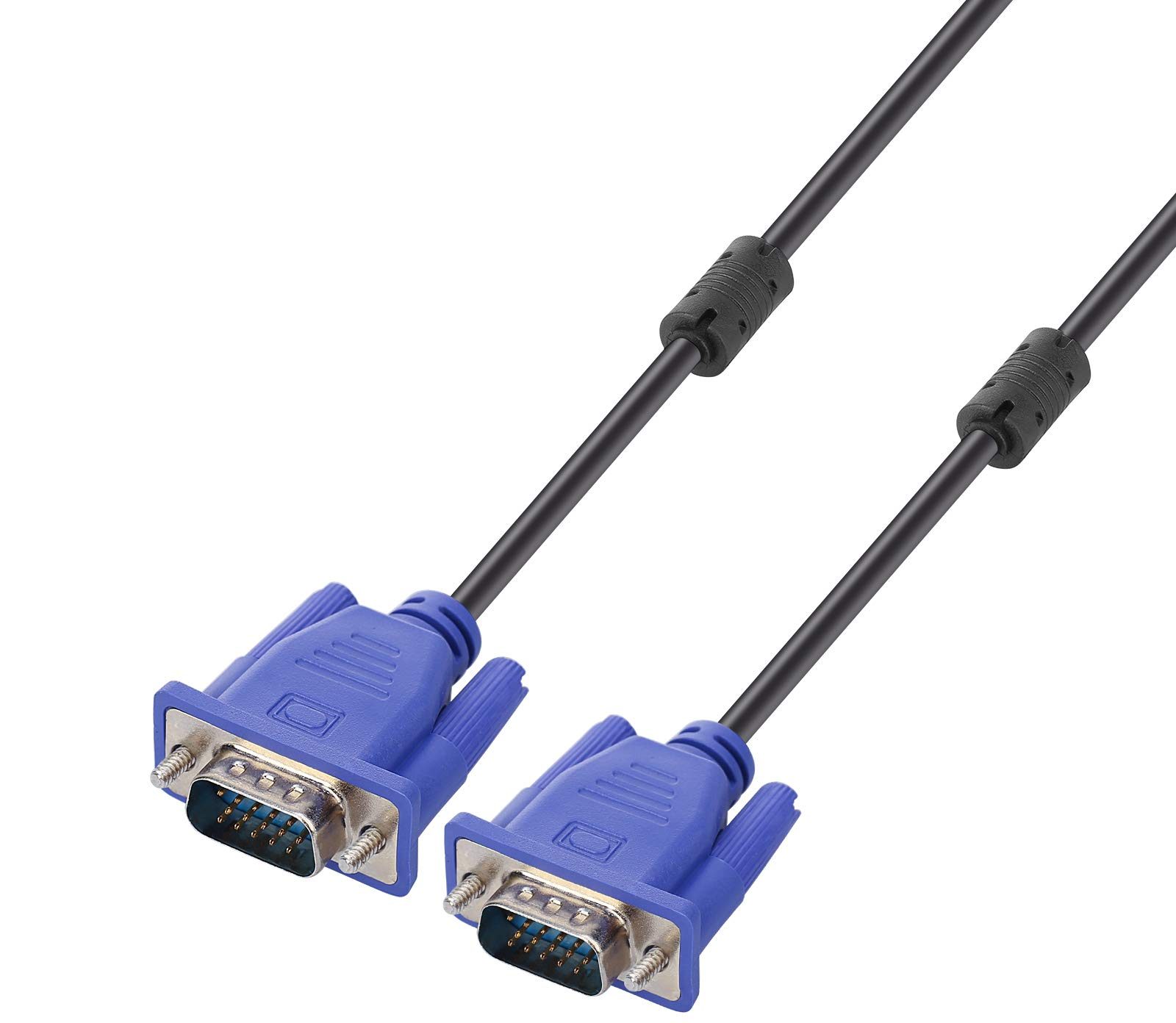
First, you have to start with the Monitor Cable. First, Switch Off the System. And then Plug Out the Monitor Cable connected to your System. Then, check whether it is damaged or not. If not, connect it back and go to the next process. Or, if the Monitor cable is damaged, please change the new cable. And connect it to your PC. Then, Turn On the system and check if the Monitor Blinking On and Off issue persists.
Check the Power Cable
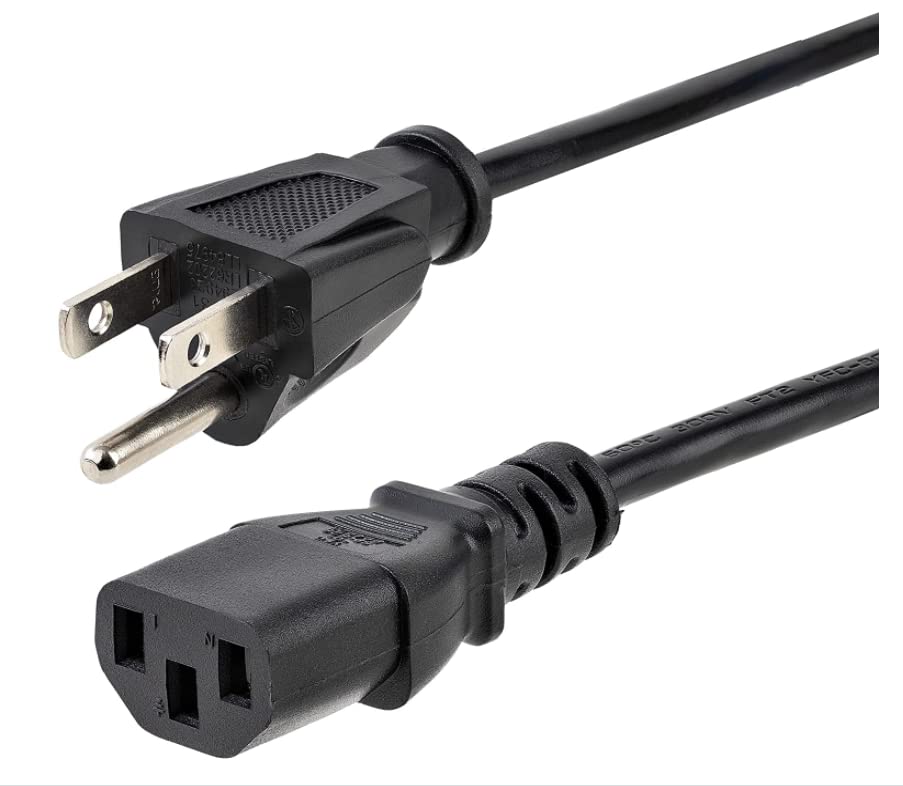
Have a Look at the power cable and check it is fixed properly. Or, it may be connected loosely. Check it out and Fix the cable tightly. Still, the flickering is not stopped, then rotate the cable and check all the parts if there is any damage. If you have seen any damage, change the new Power cable immediately. I hope, now the Monitor is stopped blinking and the screen is working properly.
Are you using the Peleton on your Device? Then you can connect your AirPods to Peloton easily within a while.
Update Drive to Fix Monitor Blinking On and Off
If your System Drive is not updated, it may affect the screen quickly. So, update the drive immediately. Follow the steps given in the following section;
- First, Turn On your system.
- Click the Start menu.
- Tap on the Device Manager page.
- Navigate to the Display Adapters option and tap on it.
- Click Your Display Adapter and Right Click on it.
- Tap on the Properties from the sub-menu.
- Select the Drive tab from the Properties page.
- Tap the Update Driver tab.
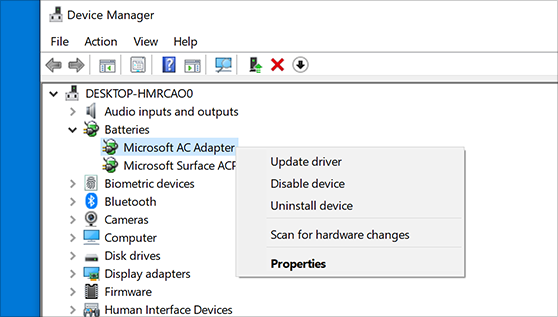
- Head to the Search Automatically for Driver Software tab.
- Now, the Drive is started downloading.
- Do not press any keys on the keyboard.
- Or, do not try to Switch Off the PC.
- Once the update gets installed,
- Click the Search for Updated Drivers on Windows Update.
- Press the Check for Updates tab.
- Your System starts checking for the update.
- Wait until it shows the result.
So, there you can not see any Update requires. If still the Monitor Blinking On and Off, restart your system once.
Uninstall and Reinstall Display Driver on Windows
If still, the Monitor Keeps Flickering On and Off on your Windows, Just uninstall the driver and reinstall it. The below steps will clearly guide you to uninstall and reinstall it on your windows.
Uninstall Display Driver from a Windows
- Unlock your Computer.
- Go to the Settings section.
- Click on the Device Manager option.
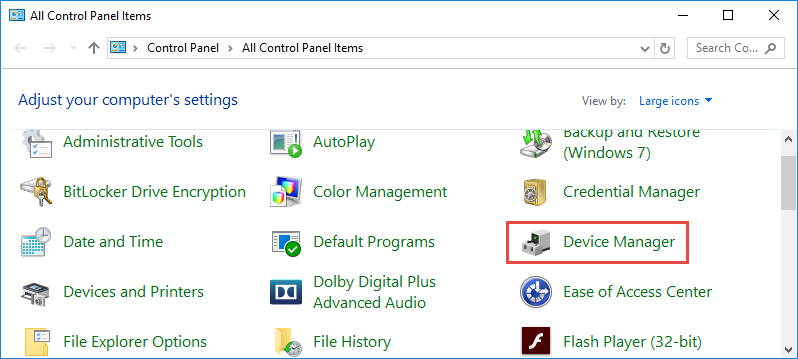
- Tap on the Display Adapter tab.
- Here, you can see your Graphic card from the list.
- Navigate to the Graphic Card.
- Right Click on it.
- Tap on the Uninstall button.
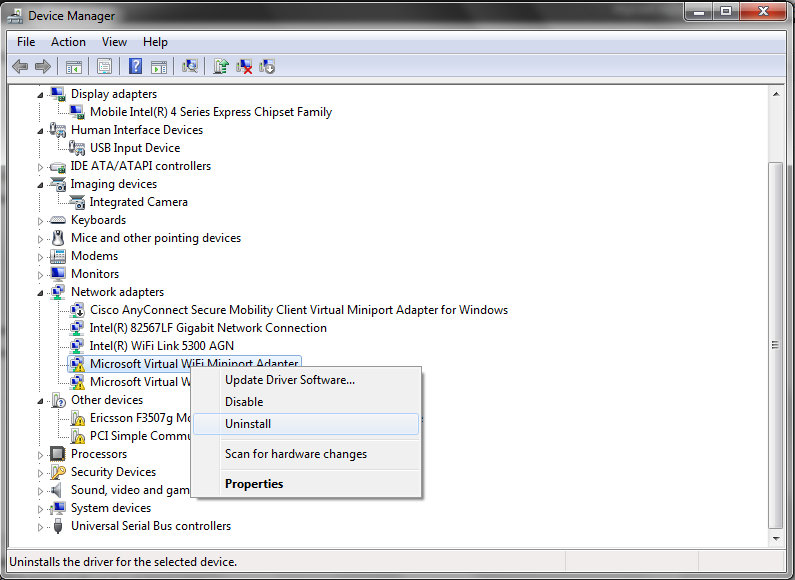
- Click on the tab which shows Delete the Driver Software.
- Tap on the OK tab.
- Restart your Computer.
Wait until the System gets restarted. Once it gets restarted, Follow the steps below to reinstall it.
If you are a PlayStation user, then fix your PS4 Controller Flashing White Light immediately with a few simple steps.
Install Display Driver on Windows
- Go to the System File Manager section.
- And, there search for your Display Driver.
- If it is not shown, Copy the Drive file to the System.
- Unzip the Zip file.
- click on the unzipped file like igxpin.exe.
- Tap the Yes option.
- Now, it is redirected to the Permission from the User Account Control page.
- Follow the on-screen instructions.
- Once, the display driver gets installed, click the OK button
That’s all. Now, Restart your Device after the installation gets completed. Now, check whether the Monitor Blinking On and Off issue is still on your System. If yes, then go to the next method.
Check Video Card is Fixed Firmly to Fix the Monitor Blinking On and Off
And one of the main reasons the Monitor Keeps Blinking On and Off, the Video Card is not fixed correctly on the Motherboard. So, check it and fix it firmly immediately.
- Power Off your Computer.
- Open the Monitor Case.
- Take Off the Motherboard.
- Remove the Video Card from the Motherboard.
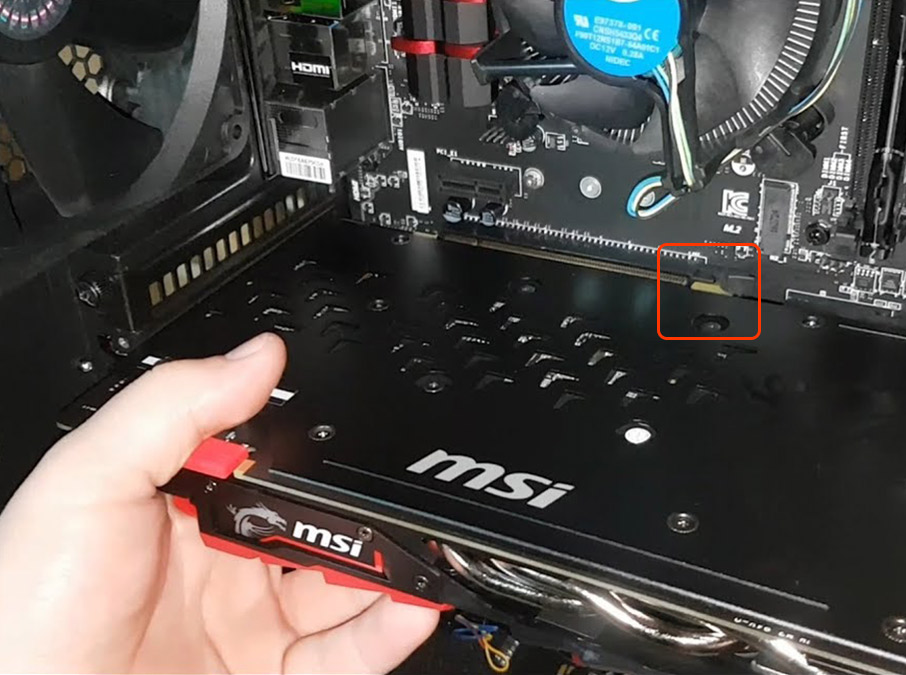
- Check if there is any dirt or dust sitting on the video card.
- If yes, Clean all the dust and dirt completely.
- Slowly fix the Video Card back to the Motherboard.
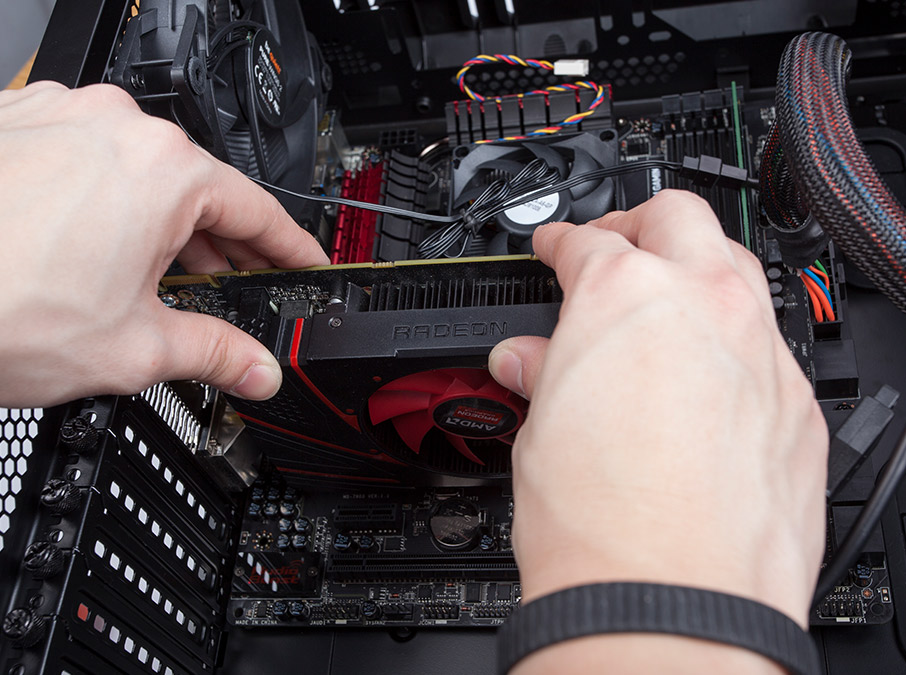
- Fix the Card firmly.
- Fix the Motherboard back to the Monitor.
- Fit the Case into the system correctly.
- Turn On the Computer.
Now, check the Monitor is still keep Flickering On and Off. If still it is not working, then you have to contact your Computer Company Customer service.
Also, you can listen to your favorite music playlist from Amazon Music on your Apple Watch. Want to know how? Then, proceed to this article.
Conclusion
Fix the Monitor Blinking On and Off by updating your System Software and Fixing the Graphics Card. The step-by-step guide is given in this article. Check it out and follow each and every step as given. For more details, drop your queries about Monitor Flickering On and Off in the comment section.