
People often say to LET GO as it gives you Peace ( Yeah, After Thousands of distress). But Let Go is better than Holding on. Wait, But Do you Know What is Much Better than the LET GO, is the VID GO Cause with this on your TV Screens, You will not have any Distress and Only Joy of Steaming. So, If you are just tired of Letting Go, Try Some Vid- Go Now, Learn How to Add Vidgo on Roku, and Experience happiness.
Table of Contents
Outline on Vidgo TV App
An American Pay Television Streaming Service that Offers You to Stream More than 100 Live TV Channels. Vidgo is available in two Languages such as English and Spanish – in which you can watch – Sports, News, Movies, Entertainment, On Demand Videos, and a lot more Content. A Cloud-based Digital Video Recorder and Unlimited hours of programming are what the service promises.

VIDGO IS ONE OF THE BEST ALTERNATIVES FOR ALL THE CORD CUTTERS TO STREAM WHAT THEY LOVE.
On Roku, Vidgo Provides the Best Live TV Streaming experience. You can Watch anything that your Heart Craves. From Streaming Live TV Shows to, Latest On Demand Movies, Live Sports Events, and From ESPN to Disney, You can look at all that on your TV.
The App is thus so Simple and Portable that is available on the majority of Devices where you can Stream and Enjoy.
Can you Add Vidgo on Roku?
YES, It is possible to add Vidgo on Roku as it is available on the Official Roku Channel Stores. You can Add and Stream on the Live TV Streaming Service on your Device. Since it is a Paid Streaming Service App, You will need to Subscribe to its Packages to access the Streaming.
How to Add Vidgo on Roku?
Right After you have Subscribed and Signed up for the Vidgo Service, You can move forward to adding it to your Roku Streaming Service. Follow the Below Instrcutions and Add them to your Device Right now.
Steps to Add Vidgo Streaming App
- First of all, Make sure your Roku Streaming Device is Connected to your TV Via the HDMI Cable to the HDMI Port.
- Ensure you have a Stable, Common, and Reliable Internet / Wifi Connection on all your Connected Devices.

- Turn ON your Roku TV and Press the Home Button on your Remote.

- Access the Home Screen and On the Left-hand side Panel, Click on the Streaming Channels Option.

- Scroll and Select the Search Channels option.
- Use the On Screen Keyboard and Type VIDGO App to Search for it.
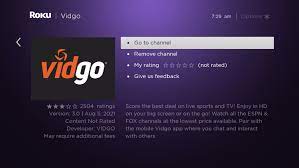
- From the Results, Find the App Click on the ADD CHANNEL, and Install the App on your Roku.
- Press OK on the Prompt and Click on the GO TO CHANNEL to Launch the Vidgo App on your Roku Device.
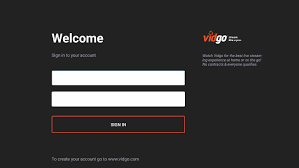
- Sign in to the App using your Vidgo Account Credentials and Finally, You can Start Streaming your Favourite Movies and Live TV Shows on your Roku.
Watch Some Tennis Matches on your Big Screens with Tennis TV on Roku
Alternatives to Get Vidgo on Roku
Other than the Direct Installation Method, You also have Alternatives that can let you access the Streaming Online Content on your Device.
Via Roku Website
Since the App is available on the Official Roku Channel Stores, It is also available on the Official Websites. You can download the Vidgo App Via the Website and then Access it on your Roku Streaming Devices.
- Firstly, Go to the Official Roku Website using the Web browser on your PC or Smartphone.
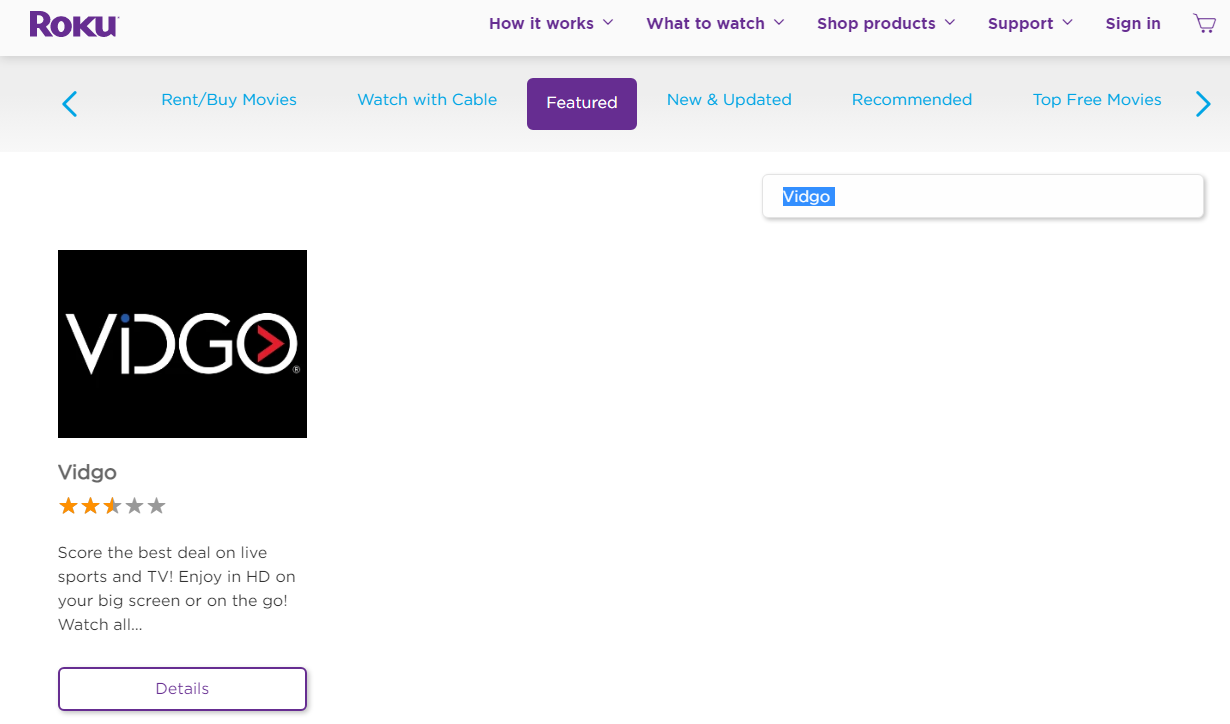
- On the Search bar, Type Vidgo and Select the App on the Screen.
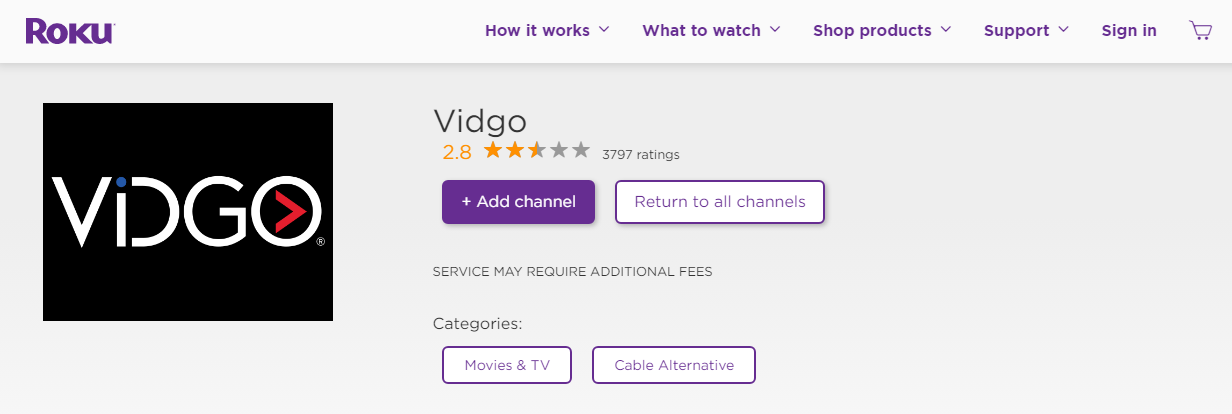
- Click on the Add Channel tab and then you will be navigated to the Roku Sign Up page.
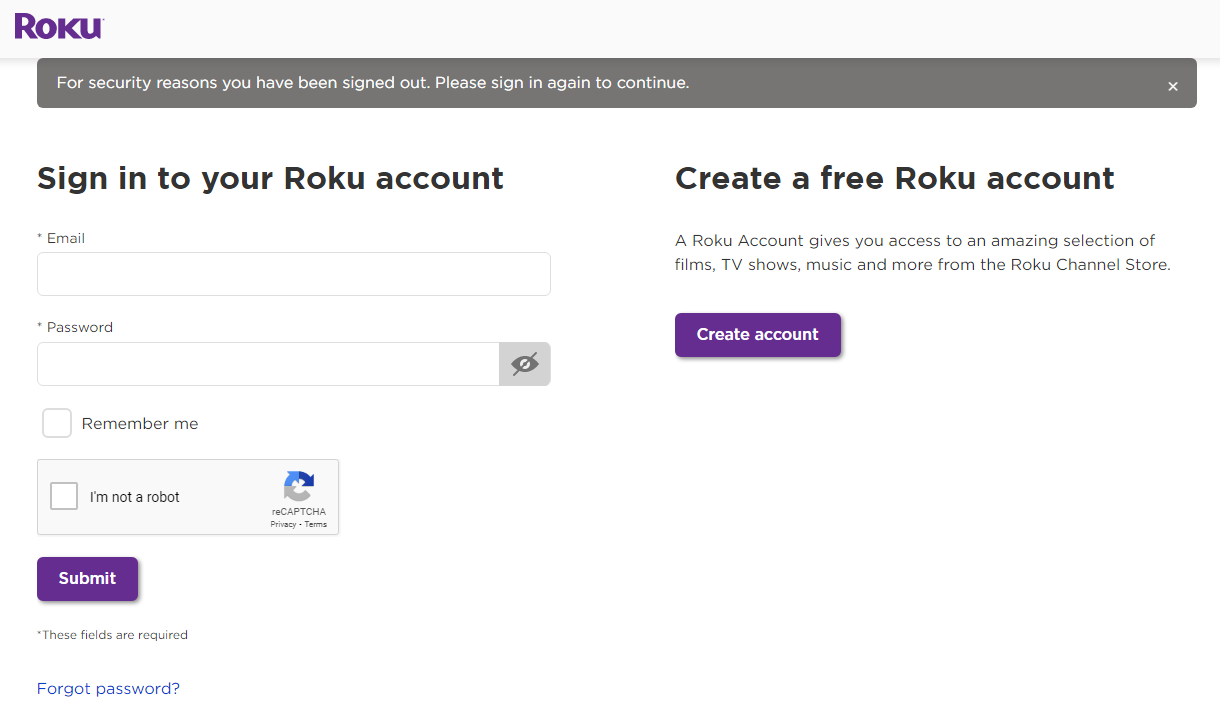
- Enter the Credentials of your Roku Account and Sign in to the Adding the App.
- Refresh your Roku Device and Go to the Apps Section, Look for the Vidgo App and Start Streaming it as it will be available on your Device.
Screen Mirror Vidgo on Roku: Via Android Devices
>>On your Roku Device – Enable the Screen Mirroring by following these steps :

Press the Home Button > Go to Settings > Click on the System > Select Screen Mirroring > Choose Screen Mirroring Mode > Tap OK and Enable it on your Roku Device.
Cast the Vidgo TV App
- Ensure you have the Same Internet /Wifi Connection on Your Android and Roku Devices.
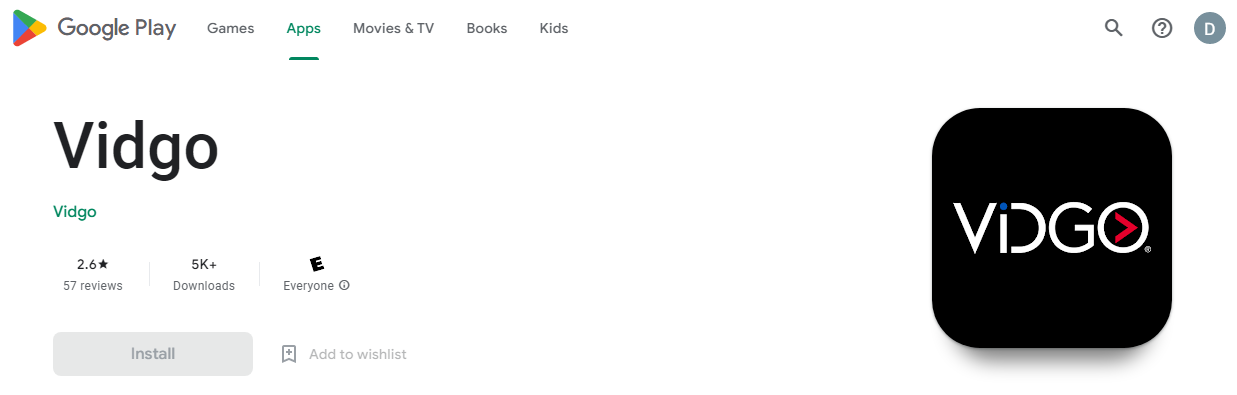
- On your Android Smartphone, Go to the Google Play Store.
- Install the Vidgo TV App on your Android Devices.

- Access the Notification Panel and Click on the Cast icon.
- Choose your Roku Device name under the available devices list.
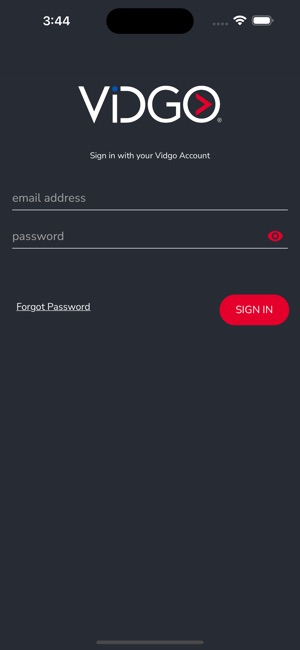
- Launch the app and Sign in to your Account.
- Select any Video Content to Play and You can watch the Screen Mirroring of Vidgo on Roku Via Casting.
Be Friendly with the Streaming by Visting: Frndly TV
AirPlay Vidgo TV App on Roku
If you have a Device, That is AirPlay Supported, You can also use AirPlay to Stream Vidgo on your Roku. Make sure that you turn ON the AirPlay on your Streaming Device.
Press the Home Button on Roku Remote > Choose Settings > Select AirPlay and Homekit > Click on the Homekit > Now, Tap on the Set Up > Scan the Code on your TV Screen with your iOS Devices.
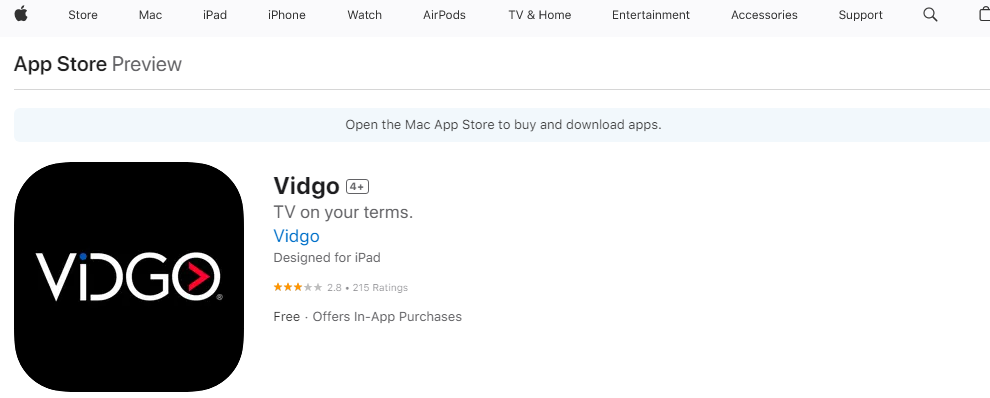
- On your iOS Smartphone, Go to the App Store and Install the Vidgo App.
- Swipe down the Control Center and Tap on the Screen Mirroring Icon.

- Select your Roku Device under the available devices list.
- Open the Vidgo App and Sign in using your App’s Account Credentials.
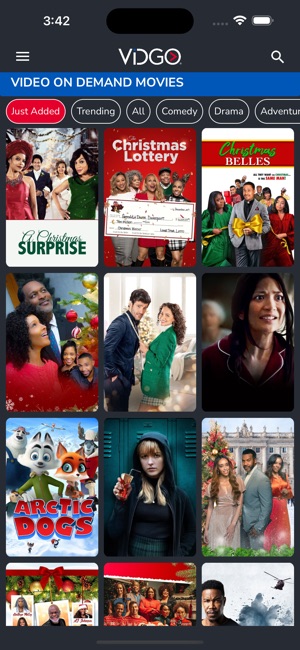
- Choose any of your Favourite Movies /Shows to Play from the App and Watch the Mirroring on your Roku.
How to Subscribe to Vidgo App?
To Stream, You need to Subscribe and to Subscribe, You will need to Follow the Steps below :
- Access any Web Browser on your Smartphone or your PC.
- Go to the Official Vidgo Website right now.
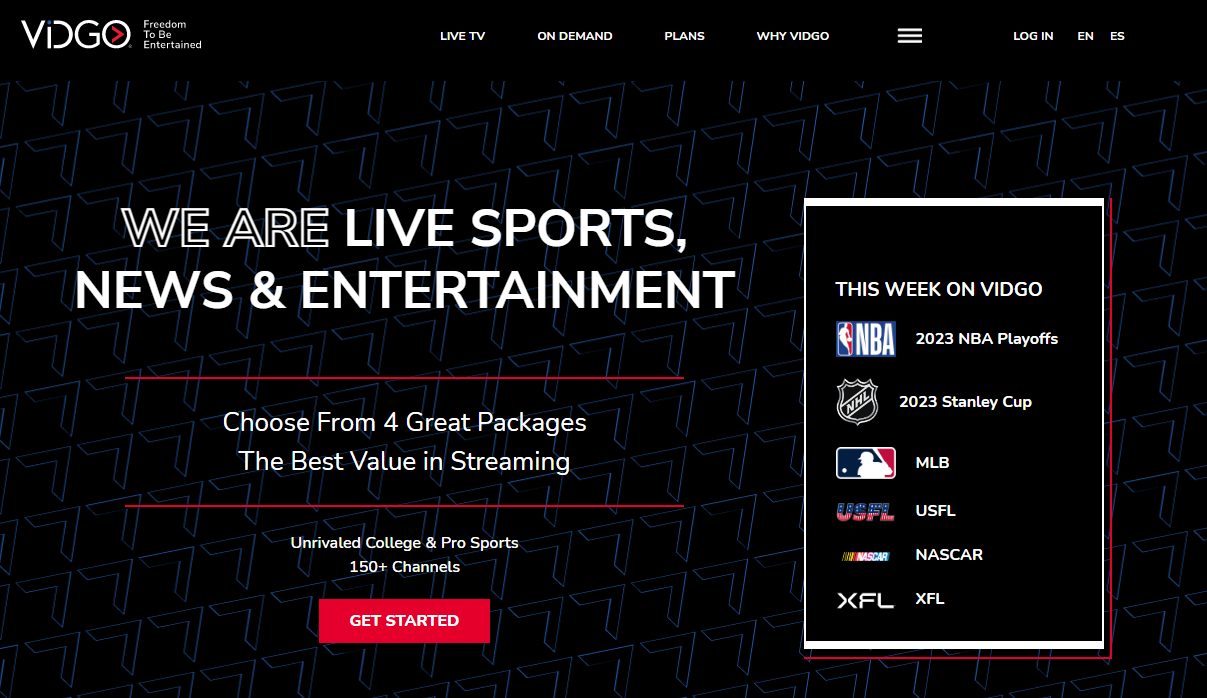
- On the Home Screen of the Web page, Click on Plans Option.
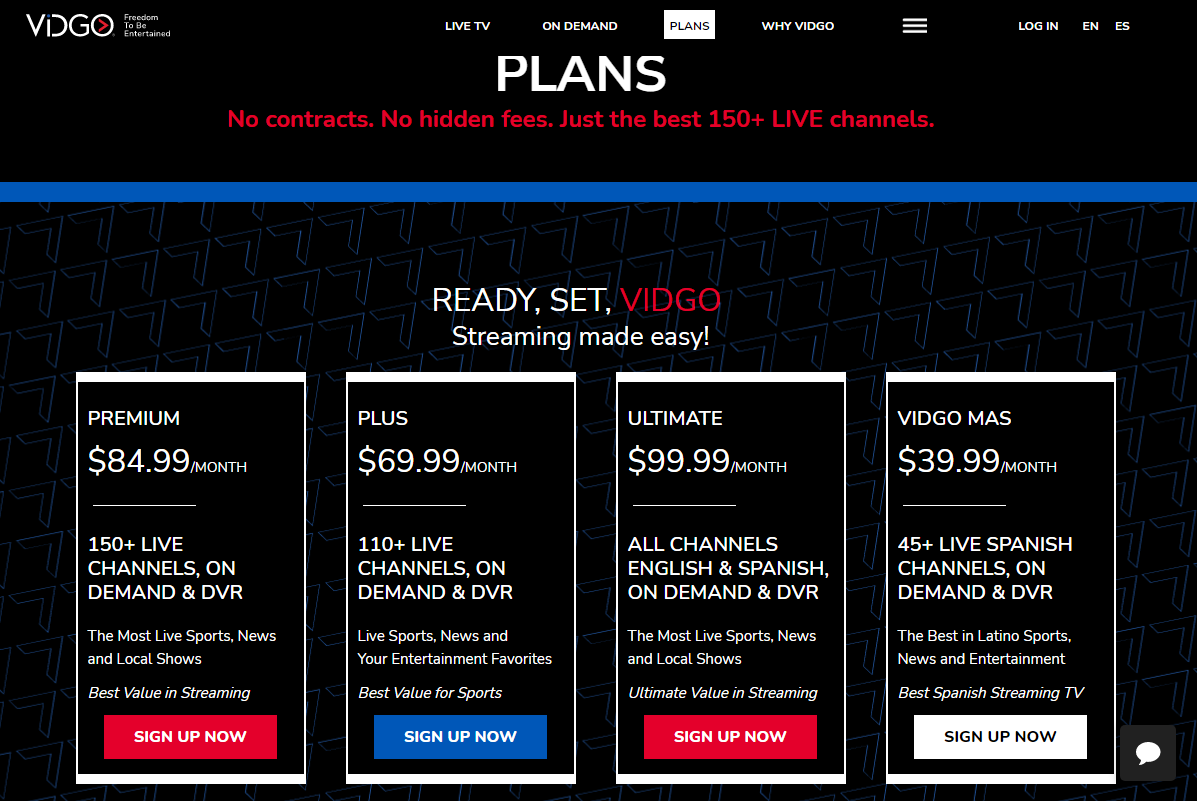
- Choose any of the Subscription Plans of your Choice and Click on the Sign Up Now Button.
- You can choose to Click on the Free Trial ( If it is available ).
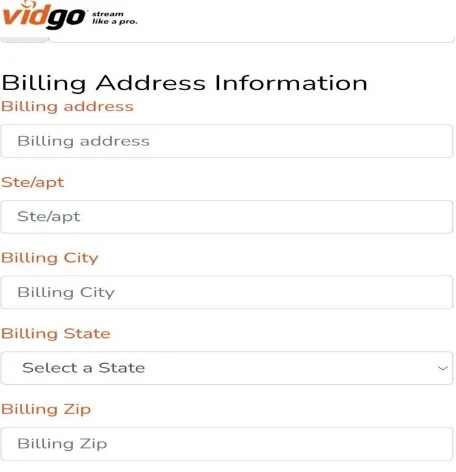
- Enter all your Required Information on the Subscription page.
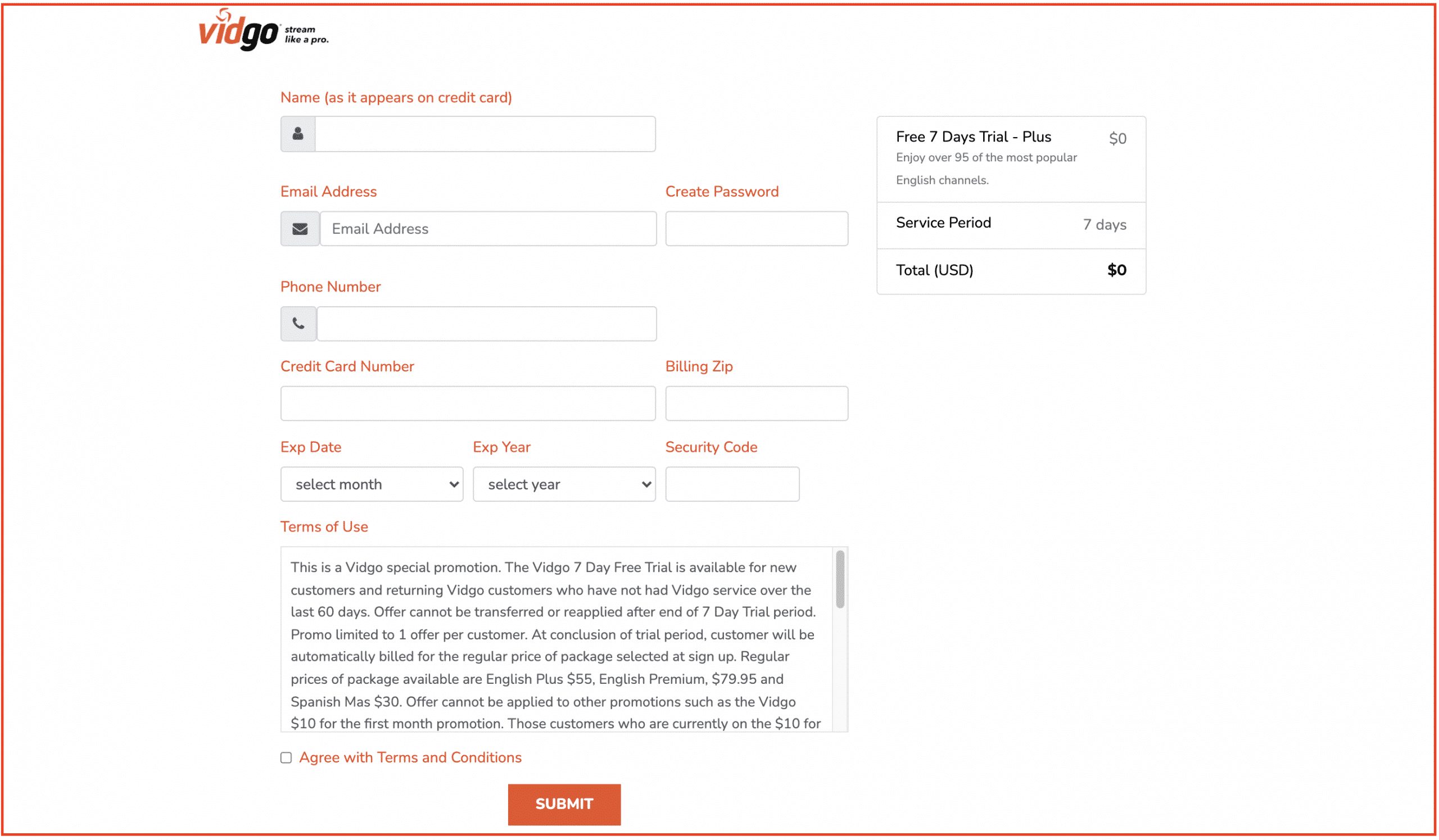
- Complete the Billing process and Click on the SUBMIT Button to Complete Subscribing to the App.
- Once you are done, You can access the Streaming by Signing up with the Credentials you have registered with.
Enjoy Watching Amazing Movies on your TV With the Cinemax App on Roku
Subscription Plans of Vidgo
Vidgo Offers you Four Different Subscription Plans with Amazing deals that you cannot resist. With the Plans, You get access to a wide range of Live TV Channels and the Latest On Demand Channels.

In Addition to that, You can also Subscribe and get English and Spanish Channels on your Roku. And With that, You also get Cloud DVR Storage Feature available on Each Pack of the Service.
For More Detailed Information on the Plans and What it Includes, Have a Look at the Picture below for Reference.
Also, Do not forget to grab Some Pop Corns and Watch the Popcorn Time
Final Words
In the Ending Words, Keep in mind to Not Forget to Sign up and Subscribe for the App. If you do, You may have to Experience a Little DISTRESS OF ACCESS. So, Grab any Subscription that you want, Sign up for the App, Install the App, and Access the Streaming on your Roku. This is all that you need to get a Happy and the Best Streaming at your Home with Comfort.