
Disney Plus is the best streaming service for watching movies, TV Shows, and more entertainment films, and The Shows are from Pixar, National Geographic, Star Wars, Marvel, and Disney. By using the Roku streaming device, Disney Plus service is available, and it offers the Show in Other languages. With the help of Subtitles, you can understand other languages’ movies, or TV Shows. Here in this article, we are going to share the information to Turn on Subtitles on Disney Plus Roku. Keep reading…
Table of Contents
How to Turn on the Subtitles on Disney Plus on Roku?
If you want to change the subtitles language, then you have to click the Asterisk Button (*). After that, you have to select any one subtitle language according to your wish. In the same way, it can be used to turn on the HBO Max subtitles on roku.
In case if you don’t have a Disney Plus application, then you have to download it from the Roku channel store. It has various entertainment platforms and gives various languages. Subtitles will help you to understand the programs and movies. Here we are going to share the steps to turn on the subtitles on Roku.
- Open the Disney Plus application on your Roku device.
- Then you have to sign in with the subscription details.
- Choose your favorite video content.
- Direct to the Content Description page and click the options on Audio and Subtitles.
- Suppose you have an older version of roku. Then you have to click the up or down arrow button to open the Subtitles setting.
- From this option, you should choose any one of the audio languages.
- Next, choose the subtitles or closed captioning option and select any language and click to turn on the button.
- Click the On option to enable the Subtitles on disney plus on roku.
Also, read Rose Bowl on Roku
Alternate Way:
Turn on the subtitles on Disney Plus from the Roku setting:
 By using the roku setting to turn on the subtitles on disney plus.
- Click the Home button and open the Roku home display screen.
- Then you have to swipe down and hit the setting option.
- Select the Accessibility option from the setting menu.
- Next, you have to search for the caption mode, Preferred language, and captions Styles.
- Press the captions Mode and click the Menu button on your remote control.
- At this stage, you have to choose the one always or the On replay option and turn on the caption on the roku device.
- Now, you have to select the Language option and select the default language for the subtitles.
- From the Captions style menu, You can edit the size of the font and style for the Subtitles.
By Using Roku Remote:
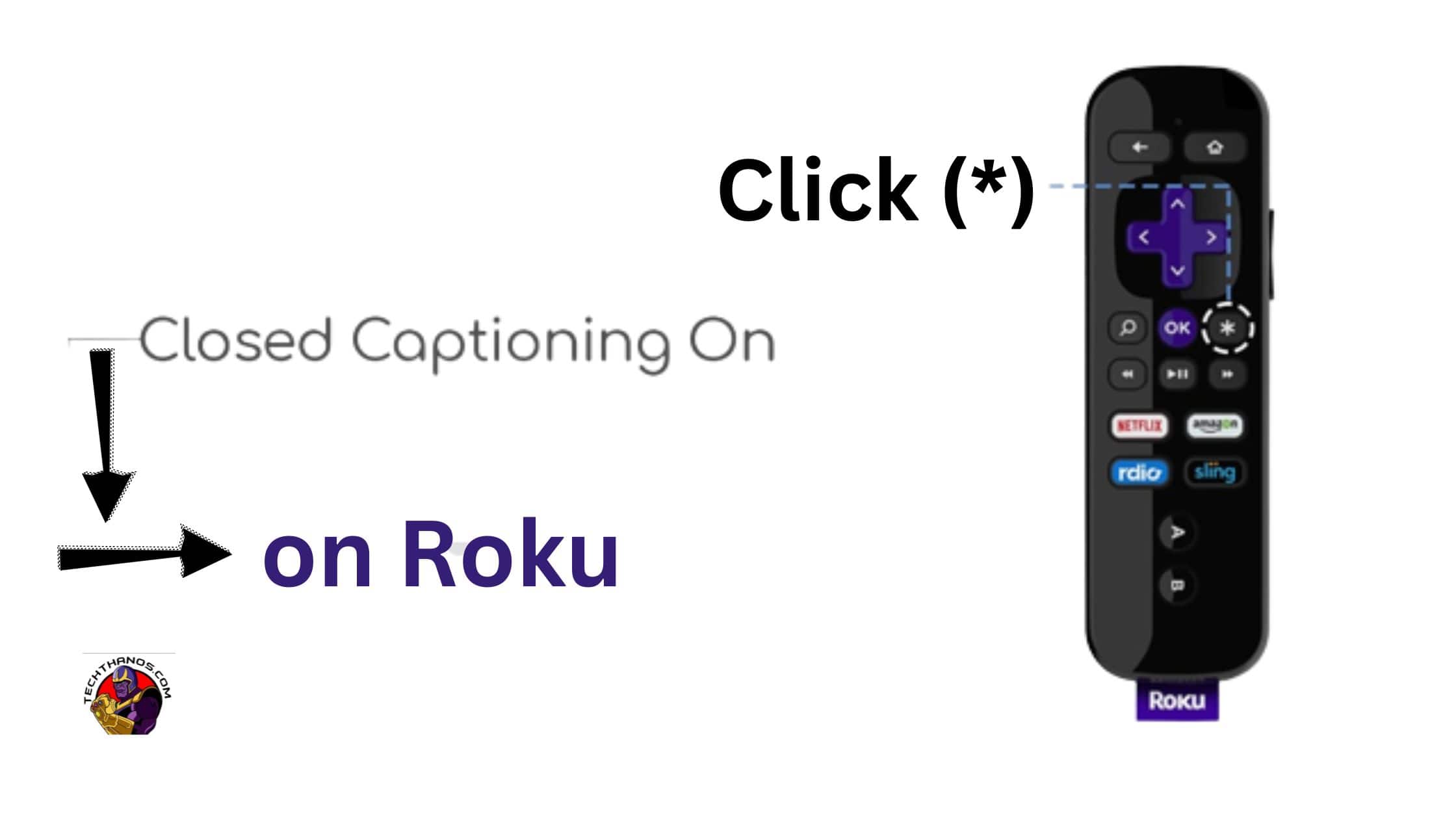
You can use the Roku Remote controller.
- Move to the Content Description button and press the up or down button on the Roku Remote.
- Click the Audio and subtitles.
- After that, choose the subtitles from the following list.
- Now, Roku will give a permit to access the subtitle during Playback.
To Get More Info, VidAngel on Roku
How to Set the Disney Subtitles on an Android or iPhone:
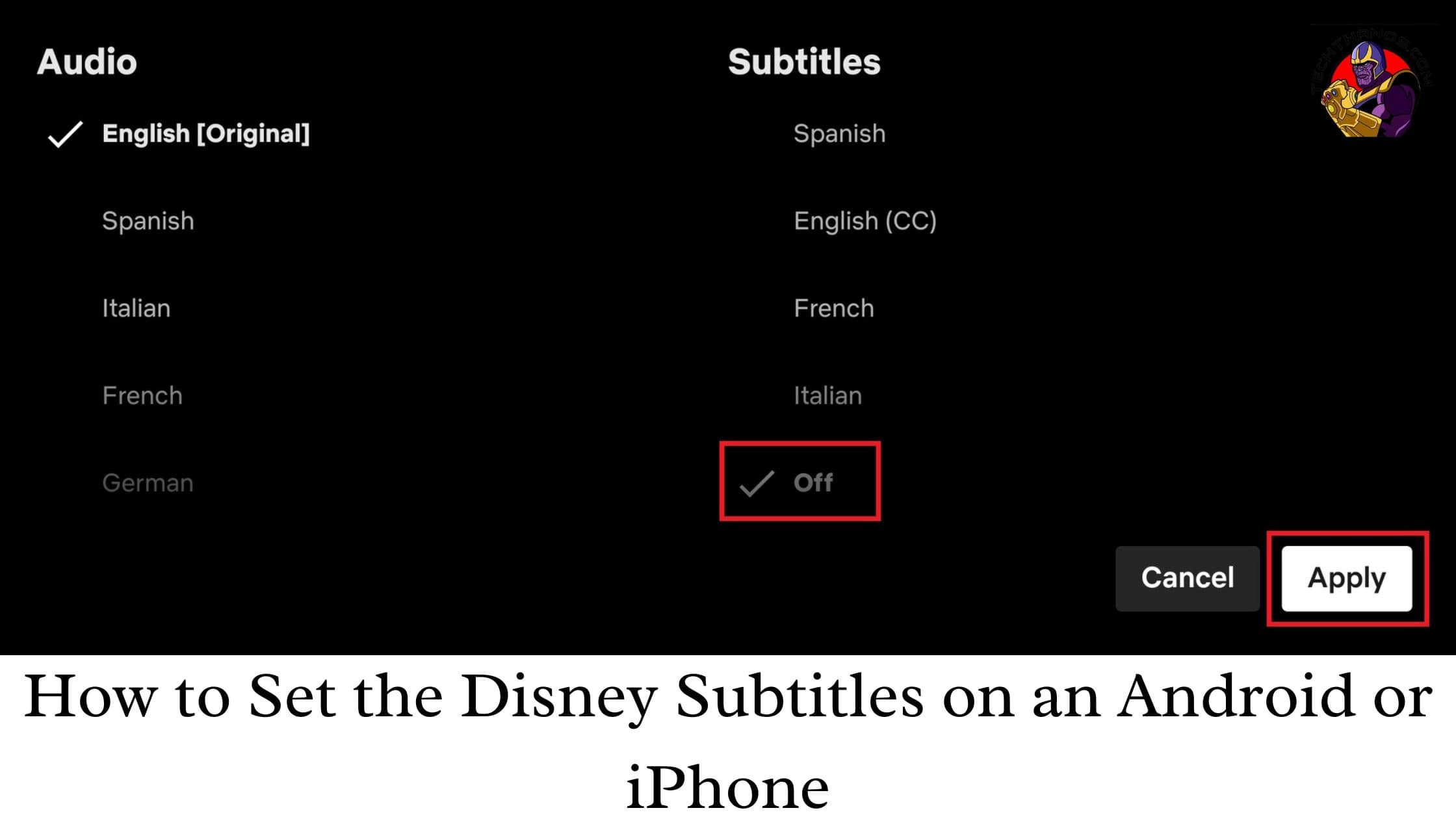
- Run a Movie or show and click the device display and step to apply to all Android and iOS devices, iPad included.
- Next, Hit the Chat Bubble icon. Choose the Subtitle and Audio button, Click the Menu on Subtitle and turn it on.
- Tap the X from the upper right part of the screen and return back to the Playback option.
By using a PC:
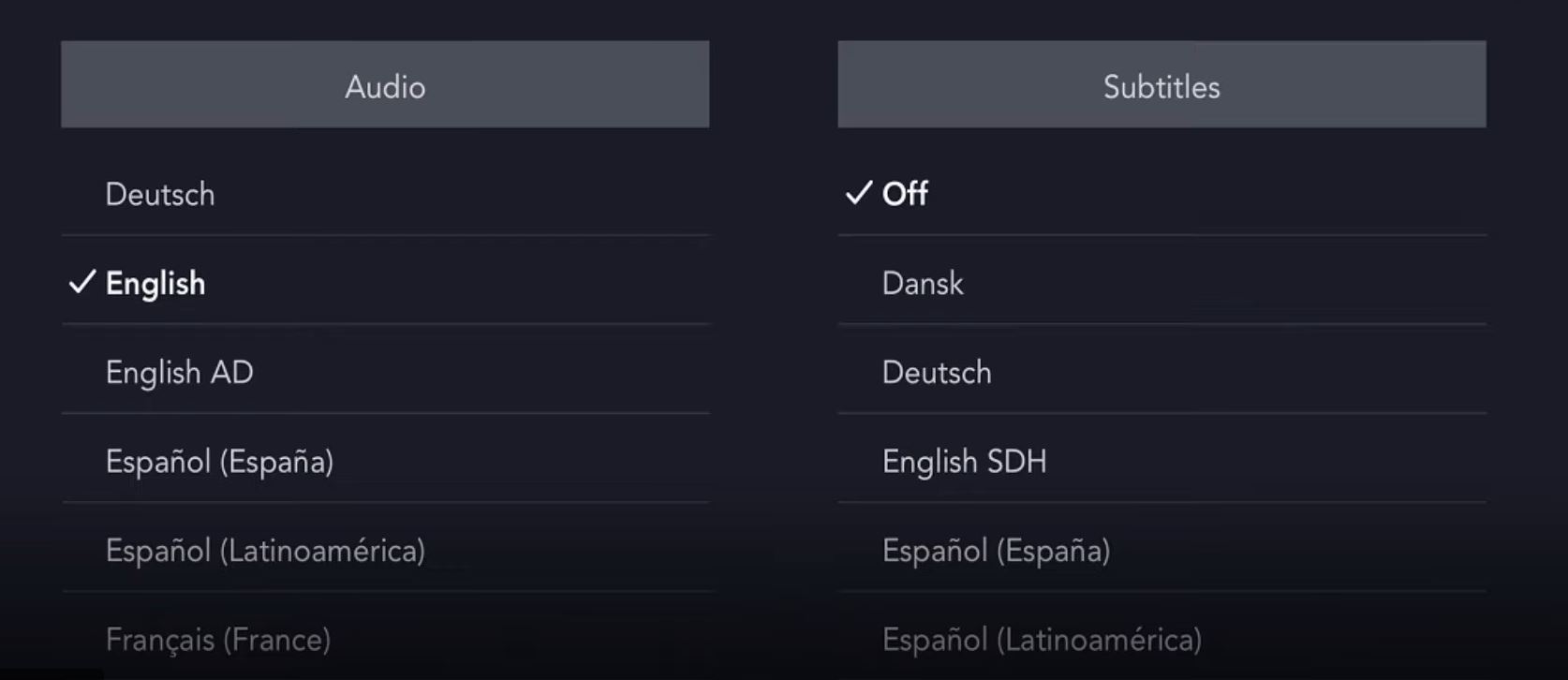
You can access Disney Plus through Browser. The streaming service has the same interface based on the operating system of the system of use.
- If you want to enable the subtitles, then click the menu button on the upper right side of the display screen.
- The Next screen will bring you the Audio and subtitle menu, and you will choose the language based on your wish.
- Click the ok button to turn on the subtitles.
Turn on the Subtitles on Smart TV:
This is the easy way to turn on the subtitles on Disney Plus directly on the Smart TVs. We mention some brands of smart TVs and the tricks to turn on the Subtitles.
LG:
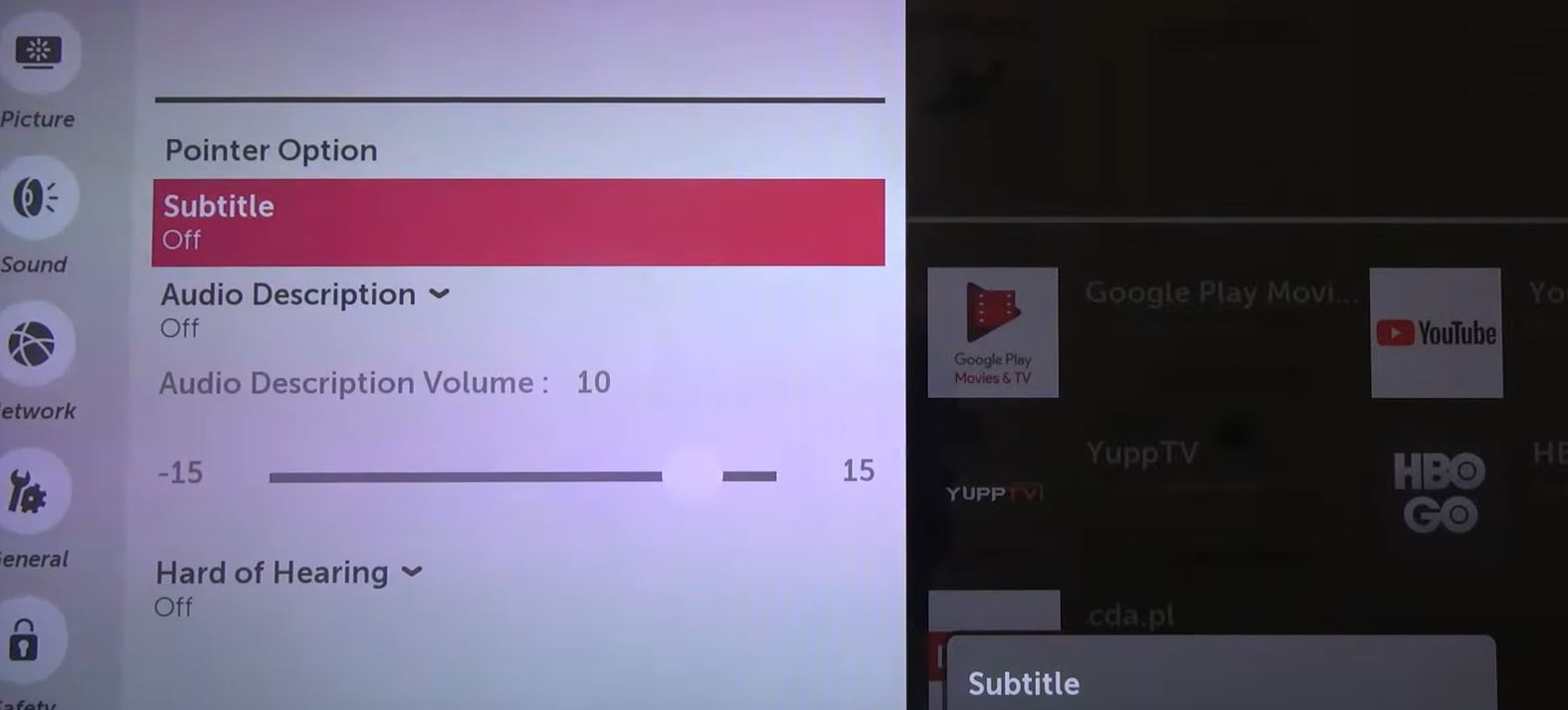
- Enter the LG remote and Tap the Home Button.
- Then from the setting Cog, it will be located at the upper-right corner of the screen, and click it to continue the process and to access choose the subtitles.
- From the subtitles part, you have to select the enable subtitle option. You have to switch on the subtitle for the television.
- Atlast, You have to open the application for the concept you want to stream and repeat the steps.
Samsung:
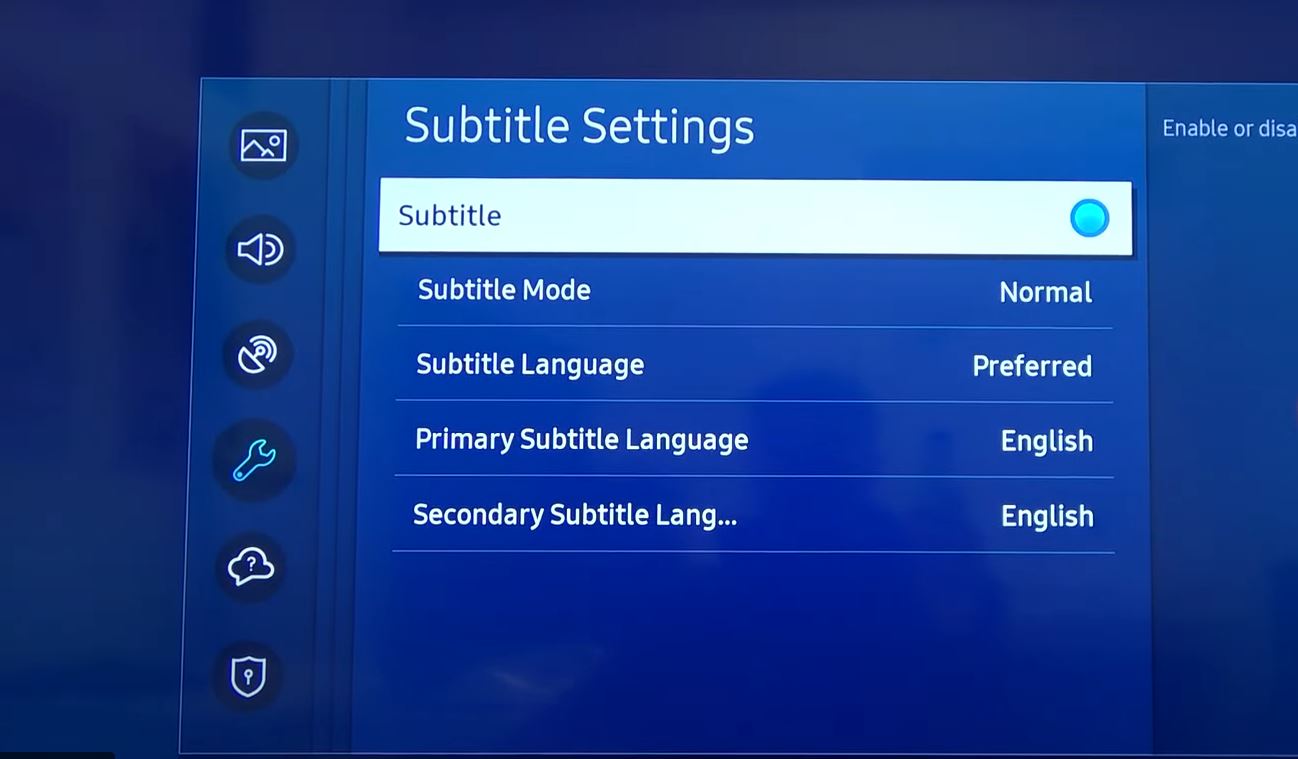
- Open the Disney Plus application and click the content of your favorite, and tap the play button.
- Next, You have to click the Up arrow two times and launch the language box from the Right corner of the display.
- Then, press the Select button and move to the option of Audio and subtitles menu.
- Inside the option, you have to select the Off or On button and choose the language you want to watch, Then click ok.
More Info, Dick Clark New Year on Roku
Sony:
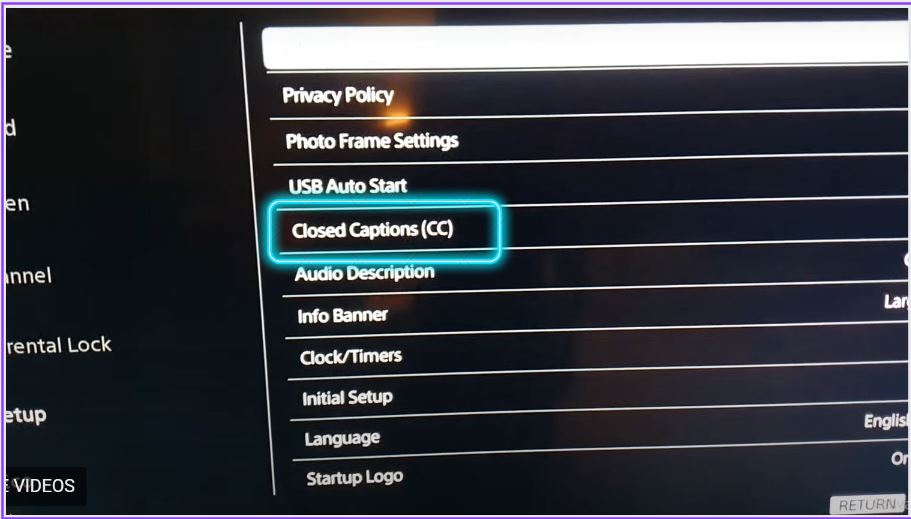
- Use the Remote to tap the Home button and click the setting option.
- The Subtitle option will appear on the screen. In some cases, Sony prefers to use the briefcase icon replacement for Standard Cog.
- In the digital setup option, click the central button to confirm it.
- Move to the Subtitle setup and click the central button once again.
- According to your wish, set the subtitles for the smart tv and do it same on the Disney Plus.
- Clicking the Home button two times and return back to the last content and watch the movie or show with subtitles.
Closing Words
In short, The above article shared all the required information to turn on subtitles on Disney plus Roku. We mentioned various methods and tricks. Refer to this article, and collect valid information. Use the above article information and try the methods with your Roku streaming device to turn on the subtitles and watch your other language’s favorite content and understand by using subtitles. We conclude this article here. If you have any doubts related to this article, let me know in this comment part.