

Adding your FireStick device to your TV and converting it to Fire TV, subscribing to the Paramount Plus subscription. Now download the Paramount Plus application on FireStick and Sign in with your Credentials, activating your Paramount Plus account on Fire TV. Watching your favorite shows from the Parmaount+ app on your Fire TV would be ideal. But sometimes, there is some wall you may face, like, Pramount Plus not working on FireStick.
There are a lot of factors that can make the Paramount Plus app not work on your FireStick devices. If it is not working, there are ways to fix it, and to make Paramount Plus work again on your Fire TV; you need to know the methods to fix it. In this article, I will give you the easiest methods you can try to make the application work again on your FireStick.
Table of Contents
Why is Paramount Plus not Working on FireStick?

The causes for Paramount Plus not working on FireStick might be errors within the Paramount Plus application, FireStick, or on your Internet service-providing devices. It is hard to tell which causes this problem. But over time, there have been some Common thing that causes your Paramount Plus application to not work on your FireStick have been found. They are,
- Paramount Plus server problems.
- The application version not being Up to date.
- Bugs, Cache and App Data.
- Fire OS is out of date.
- Network issues or modem and router problems.
If you can solve these problems, you might get to stream Paramount plus on FireStick
How to Fix Paramount Plus not Working on FireStick?

Now that you know the causes for Paramount Plus Not Working on FireStick, it is time to fix it and start streaming. The changes we will discuss will be divided into the changes to be down on the Paramount Plus App, your FireStick device, and the Network providing devices. The methods that you need to go through would be as follows,
Method 1: Check Internet Speed:
If the Internet Speed is low, you can not be able to stream the Paramount Plus app on your Firestick device. So, you have to check the Internet Speed of your home Wi-Fi connection. If you do not know how to check it, follow the steps I have given in the following:
- If you have the Amazon Silk Browser on your device, Launch it.
- Or, go to the home page of your Firestick.
- And Click on the Find button on the home screen.
- Then, type Amazon Silk Browser in the given search field.

- Now, select the Amazon Silk Browser app from the search result.
- And click on the Download button to get the app on your device.
- Then Launch the Amazon Silk Browser on your Firestick device.
- Click the Bing option on the Silk Browser.

- Then, find Fast.com in the given search field.
- Select the website from the search result.
- Now, your home wi-fi speed is started scanning on your Firestick device.
- Check out the image I have given below.
- You have received the status like this on your device.
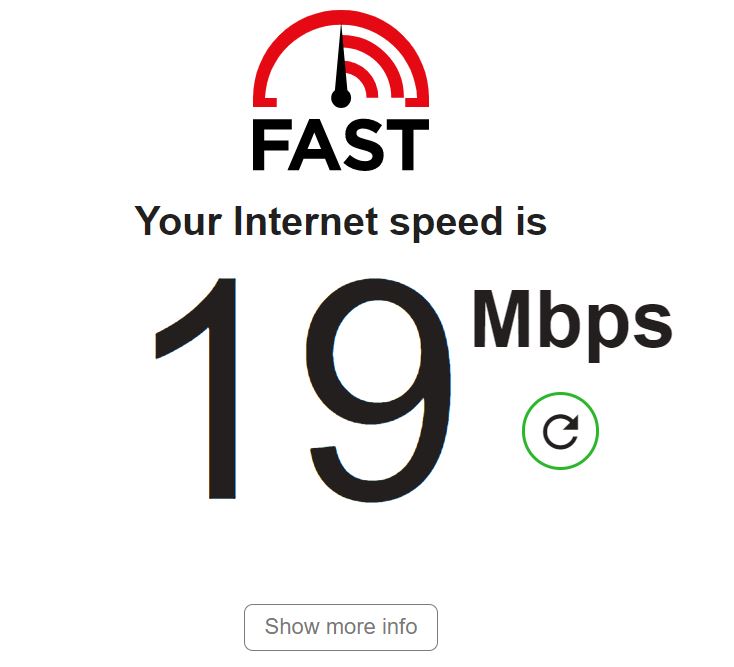
If your Internet speed is low, please wait calmly for some time until it recovers. Or, you can plug out your router and turn it on back. Then check the Internet speed. And open the Paramount Plus app. Select the content and play it on your device. You can stream it without any interruption.
Method 1: Check Paramount Plus Server.
- There might be a problem with your Pramount Plus server, which is going through an update, or other problems that may cause your app not to work.
- To check if the issue is on the Pramount+ server, you need to contact other Paramount Plus users and check if they are also having the same problem as you.
- If that’s the case, then there is nothing we can do but wait for the professionals at Paramount Plus to solve this problem.
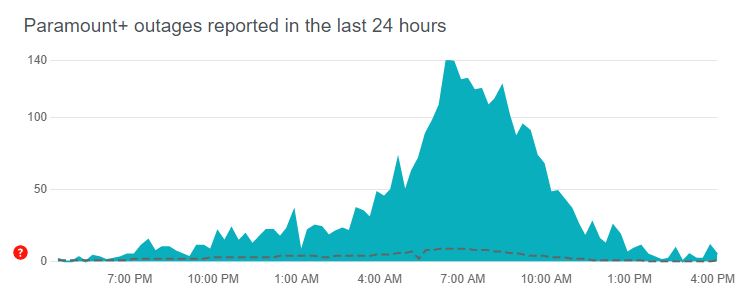
Or you can use the Downdetector Website to check the server of Paramount Plus. First, Open the Web Browser on your Smart Device. And search for “Downdetector” in the required search space. Then, launch the Downdetector official site from the search result. And type as Paramount Plus in the given space. Then you will get the result as you have seen in the image below.
Method 2: Check your Paramount Plus Sign In information.
- Carelessness or misclicking your password many times during the login process can stop your Paramount Plus application from working on your FireStick.
- It is advisable to restart the application or re-install the app by clearing the cache and app data. You can learn the methods later on in this article.
Method 3: Update Amazon Firestick OS:
If the Amazon Firestick device has been running on an older Operating System for a long, it may collaborate in streaming the streaming services as well as other functions. So, we have to update the device OS up to date. Check the steps to learn How to Update the Firestick device.
- Turn On your Firestick device.
- And click the Home Button on your device remotely.
- Then, select the Settings icon on the home page.

- Now, you have to click on the My Fire TV from the menu.

- Head Towards the About tab.

- Select and click on the Check for System Update option.
- Now, your Firestick device shows you the status of the OS.
- If the System Update is required, Update Now.
Wait until the System Update of your Firestick device is updated. It will Automatically restart once it gets updated. After it restarts, launch the Paramount Plus app. And check how it works. If your device doesn’t need a System Update or after the update, the app is not working well, move to the next method to fix it.
Method 4: Update Paramount Plus:
If you have using the older version of Paramount Plus, you may face the issue of streaming the app on your device. So, you have to check the update of the Paramount Plus app.
- Move to the Home Screen of your Amazon Firestick device.
- Click on the Settings icon.

- On the Settings page, click the My Fire TV option.

- Next, you have to tap on the About tab.
- Scroll down and find the Paramount Plus app from the list.
- Go for the Options and click on the Update option.
- If the Paramount Plus app needs an Update,
- Click the Update Now button.
Once the Paramount Plus app updates, Power Off the Firestick device. And then turn it on back. Then, move to the Apps section. And Launch the Paramount Plus app and check how it is running on your Firestick. I hope you will get the solution for Paramount Plus Not Working on Firestick. If not, then the following section will give you the hands to fix it.
Automatic Update:
- Move to your FireStick Settings menu by pressing the Gear icon from the Home screen.
- Here select Applications and choose the App Store option.
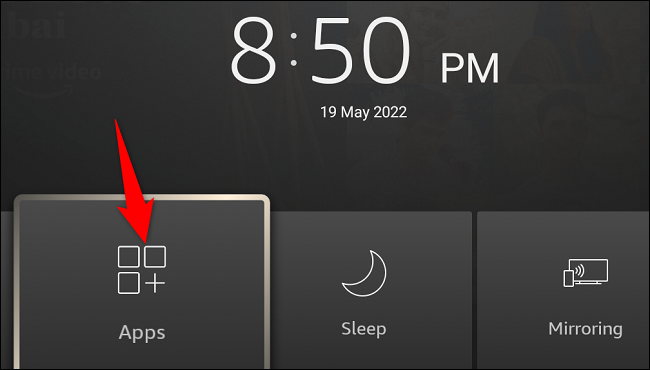
- Highlight the Automatic Update option.
- Toggle it by pressing the OK button on your remote to turn it ON.
- Whenever a new version of any app, including Paramount+, is released on your FireStick App Store, it will get automatically updated.
Method 4: Clear Paramount+ Cache on FireStick.
- Your FireStick device does not have unlimited memory storage. You need to clear your cache memory frequently to stop any application from slowing down or stopping working.
- This applies same to the Paramount Plus app on your Fire TV.
To clear your Paramount Plus application, Cache memory on your FireStick device and get rid of bugs present in this memory. Follow the steps carefully,
- Go to FireStick Home Screen by pressing the Home button on your FireStick remote.
- Now move on to the Settings Menu
- Choose the Application option here.
- Select Manage Installed Application.

- Navigate to find the Paramount Plus application here.
- Highlight the app and Press OK on your FireStick Remote.
- Now select the Clear Cache option to clear the Paramount Plus Cache Memory from your FireStick.
Method 5: Re-Install Paramount Plus:
You can uninstall and install the Paramount Plus app again on your FireStick to solve your Paramount Plus not working on FireStick problem. Move along with the steps provided here to re-install the Paramount Plus app on your FireStick.
Uninstall Paramount+ on FireStick:
It is the same as the clearing cache method that we discussed earlier. Follow the steps on it until you reach the Paramount+ application in the Manage Installed Application section.
- From here, highlight the Uninstall option and press OK.
- At the confirmation pop-up, again select the Uninstall option to remove Paramount Plus app.
Re-Install Parmount+ on FireStick:
- Find the Paramount Plus app on your FireStick App Store.
- Get into the Paramount+ application information page and select Get.
- Now the Paramount plus app will get downloaded and installed on your FireStick device.
Once re-installed, you need to provide your credentials once again to Sign In to your Paramount Plus account on FireStick.
Method 6: Restart your Network Devices.
All of your internet services providing devices issues can be solved by simply restarting the devices like modem and router. To Restart any device, follow the simple steps provided here,
- Remove the router power cable from the power socket.
- Leave it as it is for about 5-10 minutes.
- Reconnect all the reconnected cables back to their places and turn on the device.
Connect your FireStick again to the WiFi network and try to access the Paramount+ app on it. If you are still facing Paramount Plus not working on the FireStick issue, then it is better if you reset your FireStick device to its factory settings.
Method 7: Factory Reset FireStick.
Having more unwanted applications that take up space and bugs on your FireStick can be one of the causes for your Paramount Plus application not working on your FireStick device. The only way clear all the bugs, glitched, and unwanted data from your FireStick is by resetting your FireStick device to its Factory Settings.
After the Factory reset, you need to install all the apps again from the App store; this includes the Paramount plus app too. Follow the steps to factory reset your FireStick,
- Get to your FireStick Settings menu.
- Now select Device on the latest version
- For old versions, select System.
- Go to the “Reset to Factory Settings” option, and select it.
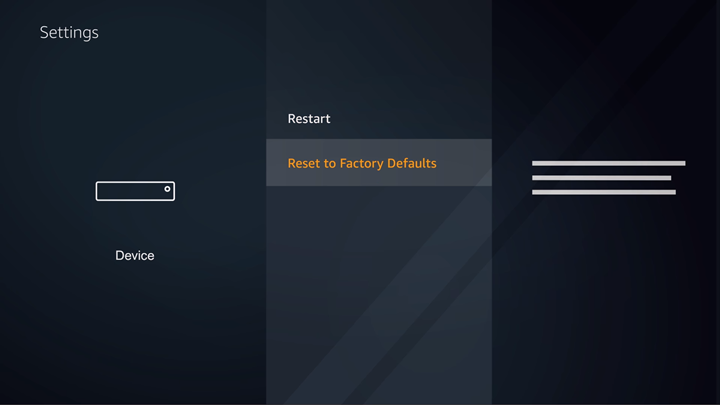
- Enter the PIN if asked.
- Now choose Reset in the Pop-up screen.
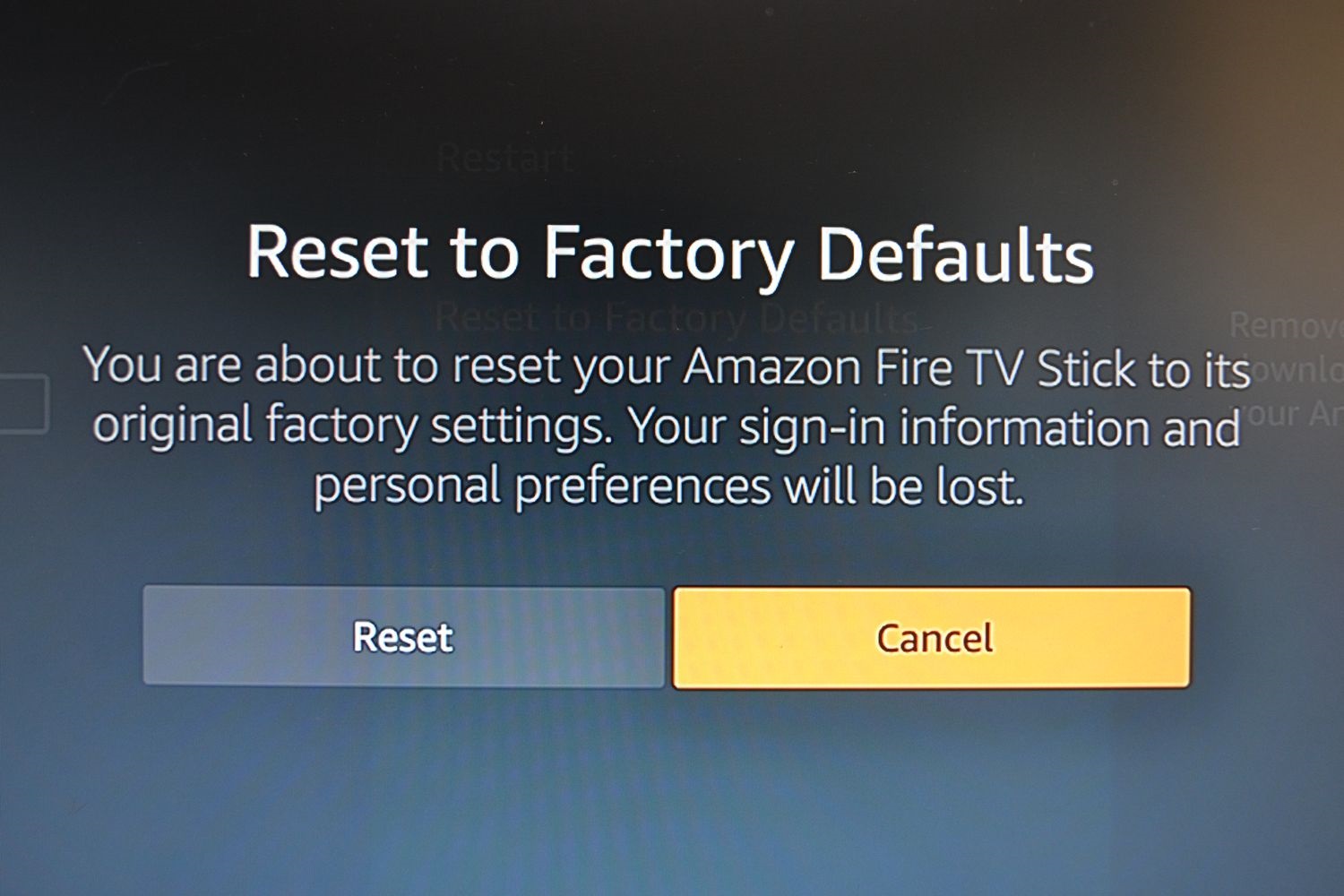
This will take your FireStick device to how it was when you first purchased it.
Final Words
Still Paramount Plus is not working on FireStick, then it is time that you take your FireStick device to a professional for a checkup. Kindly check if you have paid for your internet and Paramount Plus subscription before contacting the help center. Following the methods provided in this article can make your Paramount Plus app work on FireStick.
Most Common Questions:
Is Paramount+ Free on Amazon Prime Video?
Paramount Plus is not completely free on Amazon Prime Video, but you can get a 7-day free trial on your first-time subscription.
Can I Watch Paramount Plus on Hulu?
You can watch Paramount Plus on Hulu for just $4.99 per month.