
TeaTV is a Third-Party Streaming Service. So, Sometimes it will not support streaming the Content Properly. But you can fix the issue within a while by a few simple methods. If you are installed the TeaTV service on Firestick, then this article will let you know, How to Fix TeaTV Not Working on Friestick.
You can check more than five methods to fix the TeaTV streaming service not working properly on the Firestick device. We Will see what are the methods and how to fix them in the following section with step-by-step instructions…
Table of Contents
How to TeaTV Not Working on Firestick?
Not only the TeaTV app but also most of the Third-Party Streaming services are sometimes not performing well on Streaming devices. So, the below-listed methods help us to fix the problem and stream the app smoothly on the device. Here it is;
- Check Wi-Fi Connection.
- Power Cycle Firestick.
- Restart the Friestck device.
- Update System Software.
- Use VPN Services.
- Uninstall and Reinstall TeaTV on Firestick.
- Go for Alternatives.
So, we have seven best and simple methods to fix TeaTV Not Working on Friestick. Walkthrough the topics given in the following. And do follow the step-by-step instructions as given. If you want to Install the TeaTV for Windows PC, click this link and grab the details.
1). Check Wi-Fi Connection
When the Streaming Service is not working properly, first you have to focus on the Internet Connection. Now, we going to inspect the Wi-Fi connection to the Firestick to fix TeaTV Not Working on Friestick.
- Turn On the Firestick and Smart TV.
- Grab the Firestick remote.
- Click the Home Button on Firestick remote.

- Select the Settings icon on the homepage.

- Now, tap on the Network option.

- Then, press the Pause/ Play Button on the remote.
- Firestick has shown the Internet Connection Status on the screen.
There you can find whether the Wi-Fi connection on your device is stable or unstable. If the Firestick is not connected to the network, Please select your Wi-Fi and connect with it.
2). Fix TeaTV Not Working on Friestick | Power Cycle Firestick
If the TeaTV Not Working on Friestick after troubleshooting the Wi-Fi connection, Power Recycle the device. And check, the app is working properly.
- First, Power Off the Firestick and Smart TV.
- Then, unplug all Cables which is connected to the Firestick and Smart TV.
- Also, move to the Wi-Fi Router.
- And, disconnect the cables connected with Router to Smart TV.

- Then, wait for a few minutes.
- After 5 to 10 minutes, Reconnect the Firestick with Smart TV.
- And, reconnect the Router with Smart TV.
- Once, check the Firestick is connected to the Internet.
- Then, go to the Home Screen.
- And, launch the Apps and Games page.
- Find and launch the TeaTV app on Firestick.
Then, go to the Content Library on the TeaTV streaming service. And, select the Shows, Movies, or any of your favorite programming from the library. And play it on the device.
3). Restart Firestick Device
Sometimes, there is a glitch on the Streaming device too. So, better if you can restart your device. Here are the steps to Restart and Fix TeaTV Not Working on Friestick.
- Click the Return button or Home Button to return to the home screen.
- Now, select the Settings icon from the menu.
- Then, click on the Device and Software option.
- If the Device & Software option is showing on your Firestick device,
- Select the My Fire TV option on the Settings menu.
- And then, click the Restart button.

- Again, the Firestick device asks you the Confirmation to Restart,
- Click Restart again on the pop-up screen.
Now, the Amazon Firestick device gets Restarting. Do not click any buttons on Firestick remote. Or, do not Power off the Firestick and Smart TV. Wait until the Amazon Firestick device gets restarted. Once, the Firestick Turn On back, Launch the TeaTV app and check the TeaTV Not Working on Friestick issue has been fixed. If you have uninstalled the TeaTV app, click this link to learn, How to Install TeaTV on FireStick.
4). Update System Software
The older version of Firestick also not supports to run the apps smoothly. So, check your Friestick device system os update and Install the latest version. Here are the steps to follow;
- Click the Home Button on Friestick remote.
- Navigate to the Settings option and click it.
- Then, click on the My Fire TV button.

- And, tap About from the sub-menu.
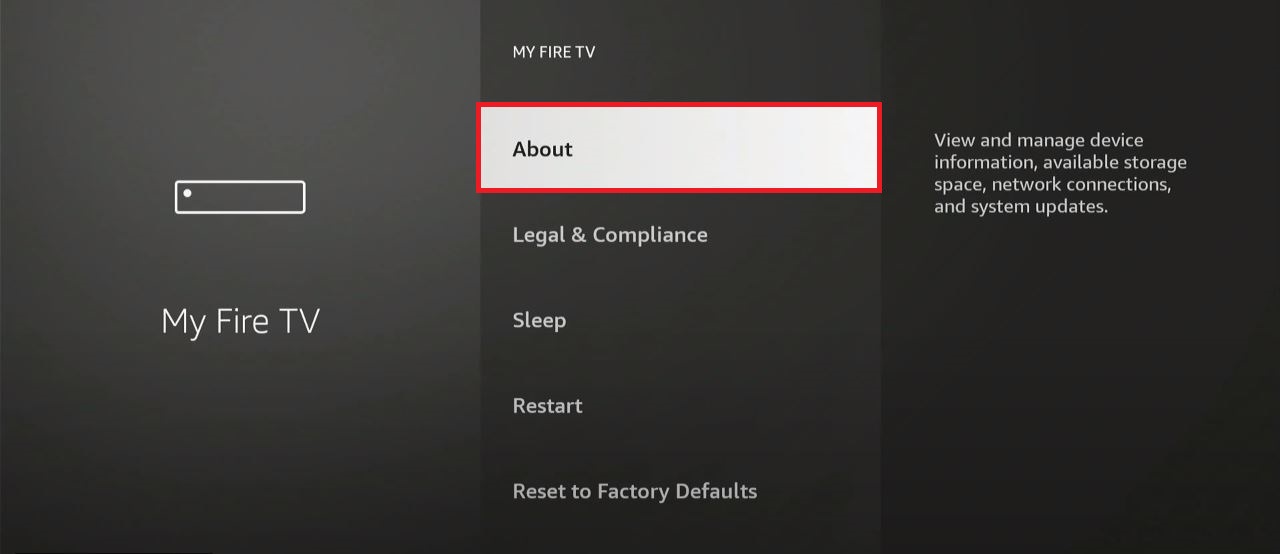
- Following that, select the Check for System Update option.
Within a while, you can see the Update status on the screen. If your Firestick requires an update, Install the latest OS version of Firestick. Now, launch the TeaTV IPTV service on Firestick and start streaming your favorite content.
5). Fix TeaTV Not Working on Friestick | Use VPN Services
If you are using the TeaTV IPTV service without the VPN Service, please Install the best VPN for your Firestick device. And set the server to the best location. And then launch the TeaTV service on Firestick. Then, check the TeaTV Not Working on Friestick issue has been fixed.
6). Uninstall and Reinstall TeaTV on Firestick
The last method to fix the issue of TeaTV not working on the Firestick device is uninstalling the app and reinstalling it on your device.
Uninstall TeaTV on Firestick
- Locate the Firestick Home Screen.
- Select the Settings icon on the home page.
- From the Settings menu, click the Applications option.

- And, tap the Managed Applications tab.

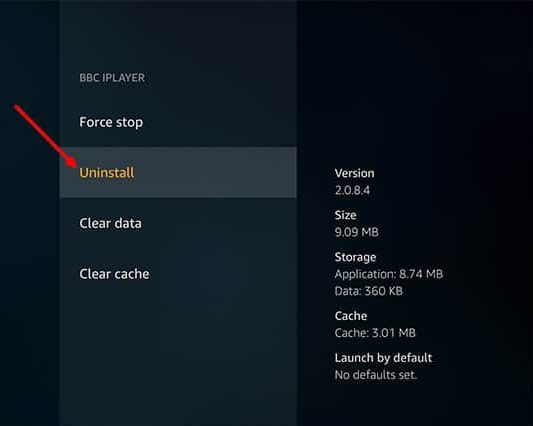
- Scroll down on the screen, and select the TeaTV app.
- Now, tap the Uninstall button.
Install TeaTV on Firestick
- Go to the Firestick Settings page.
- And, Enable the Apps from Unknown Sources on Firestick.

- Then, Downloader App on Firestick from the Amazon App Store.
- Go to the Web Browser.
- Search for TeaTV Apk Download in the given search space.
- Select the trusted website from the search result and launch the website.
- Tap the Download Apk button.
- Copy the TeaTV download URL to the clipboard.
- And Launch the Downloader app.
- Visit the URL section on the app.
- Then, Paste the download URL.
- And click the GO button.
- Then, a pop-up screen appeared on the display.
- Now, click the Install option.
The TeaTV app gets installed on the Firestick. Visit the Apps and Games page and launch the TeaTV app. Login with the credentials. And watch the exclusive content. Ted Lasso on Firestick is the best Show. All Football Lovers can like the Ted Lasso show.
7). Go for TeaTV Alternatives
If no any above methods will help to fix TeaTV Not Working on Friestick, Go to the best TeaTV Alternatives. Here, I have given the list of Alternatives for the TeaTV streaming service.
- Kodi
- Cinema HD
- Tubi TV
- Stremio
- Pluto TV
- Nova TV
- MediaBox HD
- FilmPlus
- Cyberflix TV
- Ocean Streamz
- Netflix
- HBO Max
- Putlocker. to
- CloudStream
- LeonFlix
- DuckieTV
- YTS.rs
- Roku
- NewMovies Online
- Panda Movie
- Filmgan
- MovieRill
- Moviegan
- Shaanig
- Watch new movies
- SteramTopMovies
- Putlocker
- PrimeWire
- SolarMovie
- Hubmovie
- ZMovies
- Admit Me
- Movie4u.live
- WatchMoviesFree
- JustWatch
- Flixoid
- Viva TV
- Morpheus TV
- Bee TV
- Nova TV Apk
Also, we have many streaming Internet Protocol Television services as an alternative to TeaTV. Choose anyone and Install the app using the Downloader app. Apollo Group TV on FireStick is also an best IPTV Streaming service for the Firestick device.
Conclusion
The TeaTV Not Working on Firestick is due to the Glitches on Firestick or TeaTV app. Restart your Firestick or Uninstall and Reinstall the app to fix the app. If you do not want to go for the Alternatives, Factory Reset the Firestick device. And reinstall the apps you want.