

Peacock TV is one of the few on-demand and live-streaming applications supported on many devices. FireStick is a standard streaming device found on Smart TVs in America. The NBC television network channels shows, events, sports, news, and other entertainment can be watched on the Peacock TV app. You can download the Peacock TV app on FireStick from the app store and subscribe to the Peacock Premium plan to watch Live Programs from NBC with ads. Many have enjoyed the Peacock Premium Plus subscription, which is ad-free on Fire TVs for its vast content library. You might sometimes find that Peacock is not working on FireStick. If you follow this article, it will only take a few minutes to fix the Peacock not working on FireStick issues with ease.
Table of Contents
Why is Peacock Not Working on FireStick?

It’s no joke when your favorite streaming service, Peacock, stops working on your FireStick device. There is a way to fix this issue, but without knowing the causes, it consumes more time. To cut down the extra minutes on fixing it, you need to know why Peacock is not working on FireStick. Here are the different causes for this error to occur on Fire TV.
- Having many active apps or Overloading the Cache Memory on FireStick can make the Peacock app stop working on Fire TV.
- If the location of your device is not in the Peacock TV territory, it stops working.
- Server breakdown and Server Updates can be one of the reasons.
- Using an older version of OS on FireStick or the Peacock App can also be the cause.
- Slow internet connection or errors on Internet devies will stop the Peacock TV app from working correctly on FireStick.
- Sometimes glitches and bugs can completely freeze the Peacock App on FireStick.
Similarly, you can also check on ITV Hub Not Working on Firestick
How To Fix Peacock Not Working on FireStick?

Now that you know what causes the Peacock TV app to not work on your FireStick device, it is time to fix this error. Let’s move on with the simple fix methods first and gradually go to the time-consuming methods. If you are not able to find the cause, there is no need to worry; you can follow the methods in the given order to make Peacock work again on FireStick. The Methods and steps to Fix Peacock not working on the FireStick issue are as follows,
Check FireStick Location and Model:
FireStick Location:
Did you forget to turn off your VPN after using it? If the server location does not have access to Peacock TV, then it will not work on your Fire TV. Vise versa, you can use a VPN on locations that have no access to Peacock TV and use a suitable service to watch Peacock on FireStick. The territories that have access to Peacock TV services are as follows.
- United States of America
- United Kingdom
- Ireland
- Germany
- Austria
- Switzerland
- Italy
FireStick Model:
Moreover, your FireStick device model must be compatible with the Peacock TV app. Find the device model name by following the simple steps provided here,
- Go to the FireStick Settings menu and choose the My Fire TV option.
- Click on the About option and select Fire TV Stick to find the Model Name, Generation, version, and other details.
FireStick, Fire TV, and Fire Tablet Devices must have Fire OS6 or higher to access the Peacock TV app. This also included FireStick 4K, FireStick Lite, and Fire TV Cube.
Check Internet Connection and Restart FireStick:
Check the Internet on FireStick:
Without a stable internet connection, you cannot watch Peacock TV on FireStick. If you are confident about the Internet Service Provider, you have to check the Internet connection on your FireStick device. Try to use different apps like YouTube or Google Chrome with the same internet connection on a SmartPhone to find the quality of the internet connection.
If the video is playing without buffers, then the error must be within your FireStick devices. But if there is a lag on the apps, then you need to fix your modem by restarting it or call the ISP for further instructions. To restart your modem, press the restart button on it and wait for it to start again. Connect your FireStick again to the network and try to open Peacock. Move on to the next method if this fails.
Restart FireStick:
The common solution for most of the errors that occur on your FireStick app is Restarting. When you Restart or Power Cycle your FireStick device, you can cut down some of the bugs that cause Peacock to not work on FireStick. The simple procedure to restart any FireStick device model is as follows,
- You need to unplug your FireStick device from your Smart TV and from the Power Port.
- Leave the device for some time, and meanwhile, press the select button on your FireStick remote.
- Connect your FireStick back to a power source and to your Smart TV.
If this simple method cannot solve the Peacock Not Working on FireStick issue, you have to move on and try other methods. Similarly, you can also check on Paramount Plus not Working on FireStick.
Clear Peacock App Cache on FireStick:
The Peacock App on your FireStick can use only a limited Cache Memory, and when it is flooded, your app can crash anytime. You can clear the App Cache on your FireStick device easily, but doing so will delete some of your saved information and bookmarks along with the bugs. The steps to be followed to clear Peacock App Cache on FireStick are as follows,
- From the FireStick Settings menu, select Application and tap on Manage Installed Apps.
- Find and highlight the Peacock App on your FireStick.
- Press the Menu button on FireStick remote and choose the Clear Cache option.
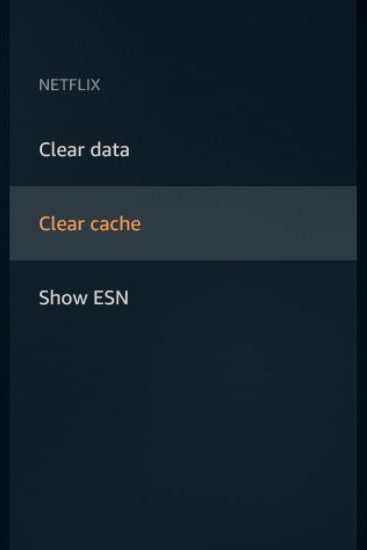
- Tap on Clear Data to delete the cache memory of the Peacock App on FireStick.
If this does not solve your Peacock not Working on FireStick issue, then go to the next method.
Update Peacock on FireStick:
Peacock app developers are always moving a step ahead and giving out updates frequently. If you are using an old version of the Peacock App on FireStick, it will cause lags, and sometimes it might stop working. You can update the Peacock app to its latest version on FireStick by following the simple steps provided here,
Automatic Update:
- Tap on the Setting Icon on your Fire TV home screen.
- Go to Applications and select Appstore.
- Highlight the Automatic Update option and press Ok to toggle it between ON or OFF.
- Turn ON the Automatic Updates option to update the apps to their latest version when released automatically. (applicable for Peacock App)
Manual Update:
- Find and Highlight the Peacock TV app on your FireStick device.
- Now press the Menu button on your FireStick remote, which has three horizontal lines.
- Choose the More Info option and tap on Update.
By following any of the methods given above, you can update the app to its latest version and solve Peacock Not Working on FireStick issues easily.
Reinstall Peacock TV on FireStick Device:
This method can be used when none of the methods are helping you to solve the Peacock Not Working on FireStick issue. You can delete the Peacock app and install it again on your FireStick. When you do any reinstallation process, the app data will get erased, including your login information. After reinstallation, you need to provide Peacock TV credentials again to sign in to your account on FireStick. The Reinstallation process for Peacock on FireStick is as follows,
Delete Peacock TV on FireStick:
- At your Fire TV device Settings menu, tap on the Applications option.
- Under the Manage Installed Application menu, select the Peacock TV app.
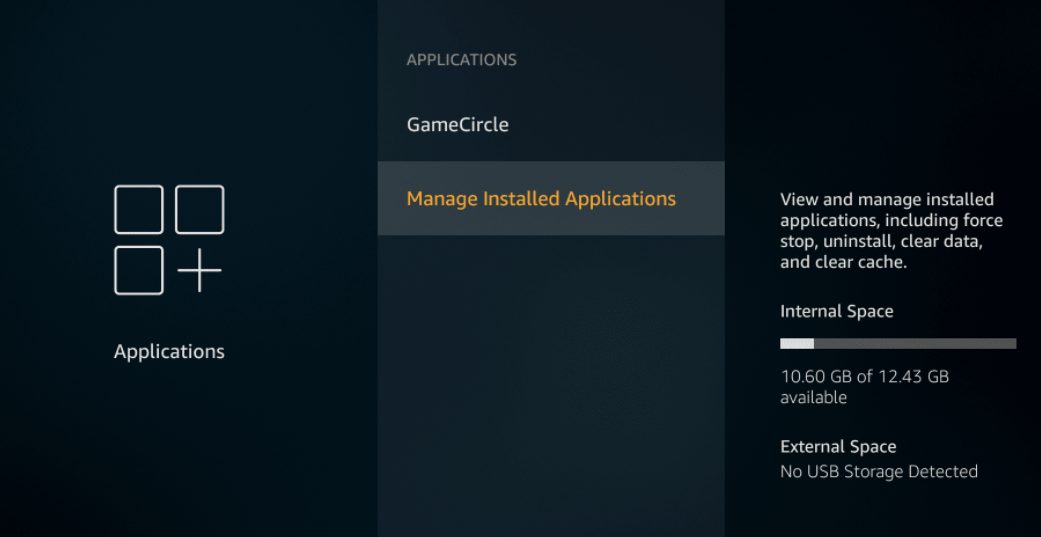
- Tap on the Uninstall option and follow the On-Screen instructions.
After completing the instruction, the Peacock TV app will get deleted from your Fire TV along with its data, which cannot be recovered by any means.
Reinstall Peacock TV on FireStick:

- Use Voice Button on your Alexa Voice Remote to find the Peacock TV app.
- On the App information page, tap on the Get icon to start the download and installation process.
- Click on Open and provide your Peacock TV credentials to start using it on FireStick.
Make sure to take screenshots or photos of the setting you had previously on the Peacock TV app and change them again to your liking. Similarly, you can also check on Netflix Not Working on Firestick.
THE END
Do you still find Peacock not Working on FireStick? The last option is to do a Factory reset to your FireStick. Use this if you have similar problems with other apps on your FireStick device. Press and hold the Back and Right Side of the Navigation circle for 10 seconds. Select Continue to start the Factory reset process. Download the Peacock TV app again on FireStick and Sing In to enjoy your favorite program on it.
Frequently Asked Questions:
Is a Subscription Needed for Peacock TV?
You can use the Peacock TV app for free with limited content to stream. But to watch live programs and access to the full library, you need to subscribe. To stream with ads on Peacock TV with ads go to Peacock Premium ($4.99/month) and for ad-free service, go to Peacock Premium Plus subscription ($9.99/month).
How to Watch NBC on FireStick?
With the Peacock TV app on FireStick, you can watch all the NBC programs live on your Fire TV. If you have TV provider credentials, you can download the NBC app on your FireStick and start streaming live programs on your Fire TV without any subscriptions for free.