
Get Discord on Xbox One by registering for the Xbox Insider Programme. If you are not lucky enough to get into the program, then you can wait for the official release of the app on your Xbox App Store.
With Discord linked to your Xbox, you can now stream your games live easily to your Discord community. You can also access the Discord Voice Channel to chat with your friends over voice while playing games and having fun. Grow your Discord community more and get more followers through the content provided in this article.
Table of Contents
Is Discord on Xbox One?
Discord has not yet been released on Xbox One and is still in testing. If you want to access Discord on your console, you must sign up for the Insider Programme. You can also wait for Discord to get Officially released.
What is Xbox Insider Programme?
The Xbox Insider Programme allows Xbox users to give feedback on the latest Xbox Updates, features offered and games. This is available on both Xbox Console and Windows 10 &11 devices. You can also get access to yet-to-be-released apps like Discord and give feedback. To get the Xbox Insider Programme on your Xbox, the steps to follow are,
- Go to the Store on your Xbox.
- Select Search and type Insider in the search box.
- Now select Xbox Insider under and tap on getting or Install.
This will downlaod and install Xbox Insider Hub and Report a problem App on your Xbox Console. To know the eligibility requirements go to the Info tab on the Xbox Insider details page.
How to Link Discord and Xbox Accounts?

Hey, gamers, do you know? You can now connect your Xbox and Discord accounts. This is a dream for gamers which has now come into reality. To link or connect your accounts, go through the steps provided,
- Go to your Discord account and tap on the gear icon present at the bottom left corner near the username.
- Now move to the connections section and tap on the Xbox icon.
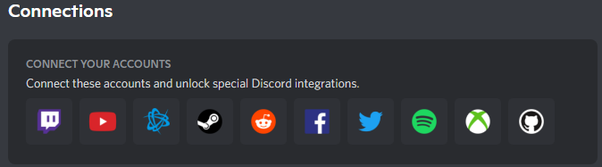
- Use Xbox account sign-in credentials to connect.
If you want to connect the accounts using the respective apps, then the steps you need to go through are,
- Download the Xbox app on your Smartphone and sign in using your Xbox account credentials.
- Select your avatar and tap on the cob wheel at the top right corner.
- Now tap on the “Linked Accounts” option and select Discord.
- When prompted, sign in with your Discord credentials.
Read Google Chrome on Xbox One to know more about it.
How to Use Discord on Xbox One?
If you have signed up for the Xbox Insider Programme and are lucky to be selected as a tester, then you can use Discord on your console. To Use this on Xbox, you need to have the following,
- Xbox and Discord app on your SmartPhone.
- Sign in to your Xbox and Discord accounts.
- Xbox Console is connected to the Xbox app on your SmartPhone.
If you have done the following mentioned, then you can move on to the steps to get Discord on your console. The Steps to go through are,
- Go to the Parties & Chats section.
- Here you can tap on the “Try Discord Voice on Xbox Today!” option.
- You will get a QR code on your Xbox One console.
- On your, Smartphone opens the Discord app and scan the QR code.
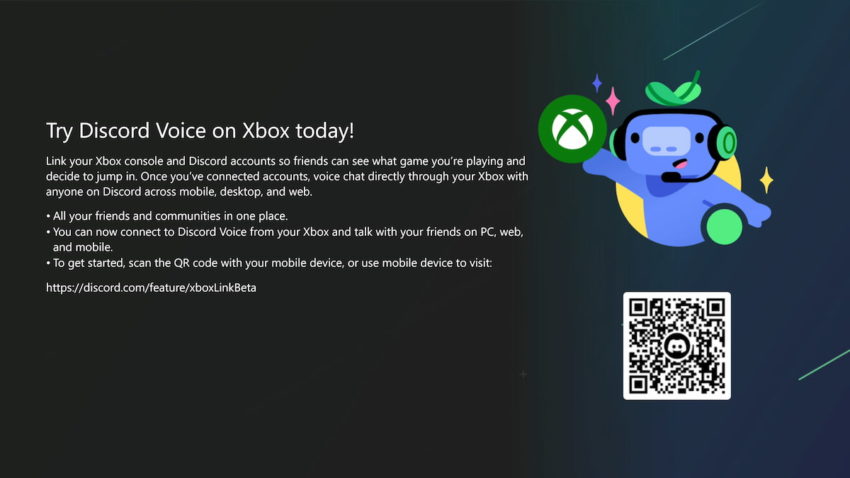
- Now you can get a message “Discord is now on Xbox.”
- You can now select Get Started and sign in if prompted.
Read Sky Go on Xbox One to know more about it.
How to Add Discord Voice on Xbox One Console?
A group of friends playing a game together on an Xbox console can now chat with each other like they are near you using the Voice channel. To add the Discord Voice Channel and enjoy the feature of chatting through voice,
You need to have Discord and Xbox apps on your SmartPhone. Now join the voice channel on your SmartPhone and then go to Xbox app to transfer audio from your Console. The steps you need to go through are as follows,
- On your Discord app on your SmartPhone, connect to a voice channel.
- Now swipe up to go to many and tap on Join on Xbox bets button.
- You get directed to the Xbox app, where you need to link your Discord account by following the instructions on the screen.
- Now select the console you want to transfer audio to and tap on the Transfer Audio option.
Now you can use the Discord Voice Channel on your Console. This process seems to be a little bit confusing. You can try using it after the official release, and you may find it easy to use because this app on Xbox is still in the testing stage, and there may be solutions to get the Voice channel on your console. Read Watch HBO Max on Xbox One to know more about it.
The End
Enjoy using Discord on your Xbox One console and grow your Discord Community by live streaming the game from your console. You can also engage in live chats with your friends and fans and listen to music with friends over your Discord groups. If you want to enjoy using Discord on your console, then you can sign up for the Xbox Insider Programme.
Frequently Asked Questions:
Is Discord Voice Available on Xbox One?
Discord Voice can be accessed on your Xbox One console by connecting your Discord and Xbox app on your mobile phone. And then, connect the Xbox App to your Xbox console. This way, you can use Voice on Xbox One.
Do I Need Xbox Insider Programme to Access Discord on Xbox?
To use this app on your Xbox, you need Xbox Insider Programme because it has not yet been released for Xbox users and is currently at the testing stage. To take part in this test, you need to have the Xbox Insider Programme on your Xbox Console.