
You can download any app using the Applinked Code. Now it is similar to the FileLinked. Just Enter the Code and Install the app on your streaming device. To download your favorite app from AppLinked, first, you need an Applinked app on your device. Today we are going to learn How to Install Applinked on Firestick?
Also, you can learn how to access the Applinked app and install the app by entering the code. To know the answer to this all questions, you have to read the topics mentioned in this article…
Table of Contents
About Applinked
Applinked is an app it works evenly with FileLinked, which means it allows you to download the apps using the Applinked Code. And now, the Applinked app is updated, and the newest version is working similarly to your Streaming devices. Once you have downloaded the Applinked app on the Amazon Firestick device or on your Android device, you have to Enter the Applinked Code to install the app on your device. Now, check the next section to learn How to Get the Applinked on Firestick streaming devices.
Is Applinked Safe and Legal?
Many people researched whether the Applinked app is safe or not by using Virus Total Antivirus. They told, me that the result is 8 Security Vendors and no Sandboxes Flagged this File as Malicious. And till now, I don’t get the right answer whether the Applinked is safe or not. If suppose you are downloading any Third-Party App/ Unknown Source App from the AppLinked, your Device may get into trouble. But don’t worry about it. Go to the Amazon App Store. And search for the best VPN App. Install it on your device. And, Turn On the Server. Now, it is safe to use.
Is Applinked on Firestick?
No. The Applinked app is not available on Firestick. That means the Amazon App Store does not contain the Applinked app on its app list. So, we have to move to alternative methods. For the Amazon Firestick device, Sideloading and Screen Mirroring is the best way to access the Applinked app on your Firestick device. Check the next topic to know How to Get Applinked on Firestick.
How to Get Applinked on Firestick?
This Replacement app for the file-linked app is not available on the Amazon App Store. So, we choose the sideloading method to access this app on your device. In the following section, I have given the method of sideloading we are going to try on your Firestick devices. Here they are:
- Downloader App.
We have many ways to sideload on the Amazon Firestick device. But the Downloader app is the best one to sideload the streaming services, which is not available on the Amazon App Store. Now, we are also using this app to sideload the Applinked on Firestick.
Turn on Apps from Unknown Sources on Firestick
Our first method is to enable the Apps from Unknown Sources on your Firestick. Then only we can easily install the Applinked app on the Firestick device. Here are the steps:
- Turn on your Fire Stick device.
- And move to the Home Screen of your Firestick device.
- Then, click on the Settings icon on the home page.

- Now, tap the System option from the menu list.
- Following that hit Developer Options.

- Now, select and click on “Apps from Unknown Sources” on the page.

- Toggle it to Turn On the Unknown Sources option on your device.
Get the Downloader App on Firestick
Now, we are going to download the Downloader app on your Amazon Firestick device. Follow the procedures mentioned below:
- Go back to the Firestick home screen.
- You can tap the Home button to jump quickly to the home page.
- There, click on the Find button.
- Type “Downloader” in the given search section.
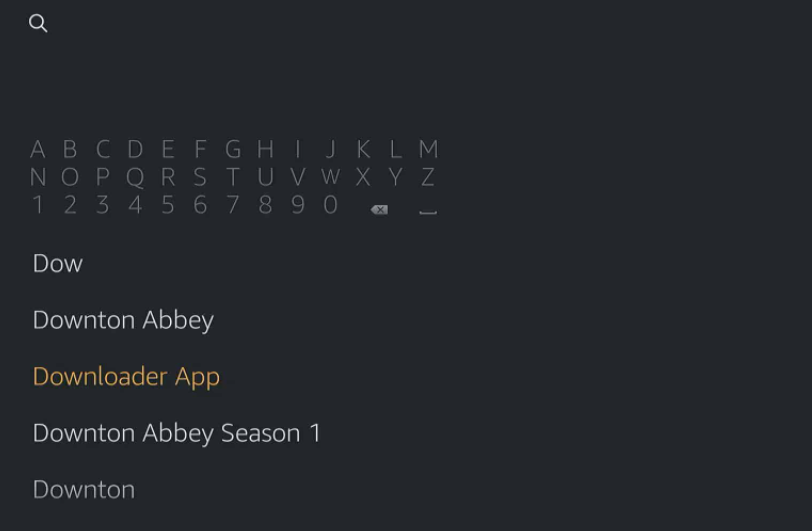
- Pick the Downloader app from the Amazon App Store search result.
- And hit the Download button to get the app on the device.

Sideload Applinked on Firestick
This is the final process to access the Applinked app on your Amazon Firestick device. Here are the one-by-one guidelines.
- Go to the Web Browser on your Firestick device.
- And search for “Applinked Apk File Download” in the given space.
- Launch the trusted website from the drop-down browser search result.
- And tap the Download Applinked Apk file tab.
- Go to the downloads section and Copy the Download link to your device clipboard.
- And Open the Downloader app on your Firestick device.
- Tap the URL section on the Downloader app home screen.
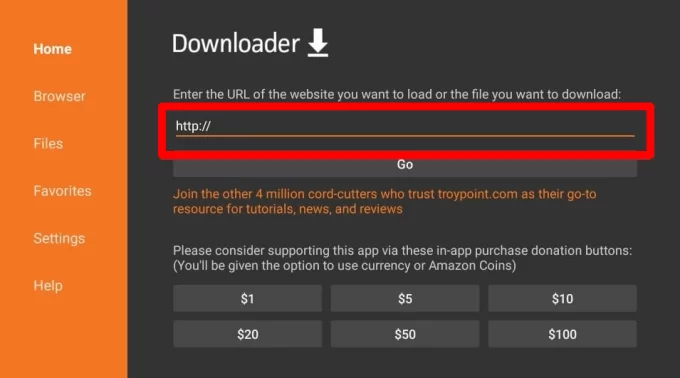
- Then, Paste the copied Applinked download link in the given space.
- Click on the Go tab to initiate downloading the app.
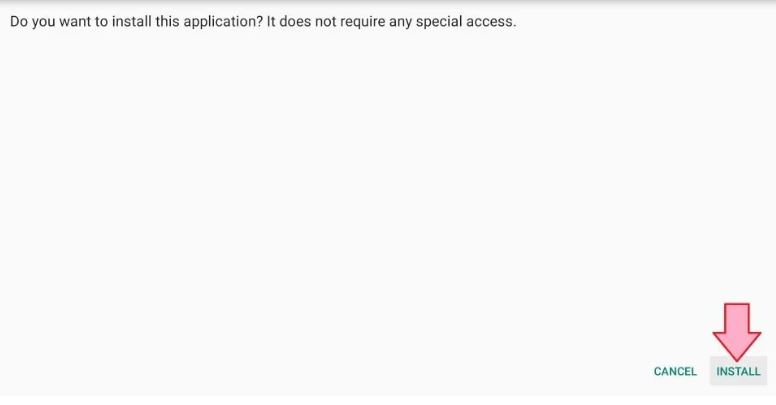
- Now, you have to click the Install tab.
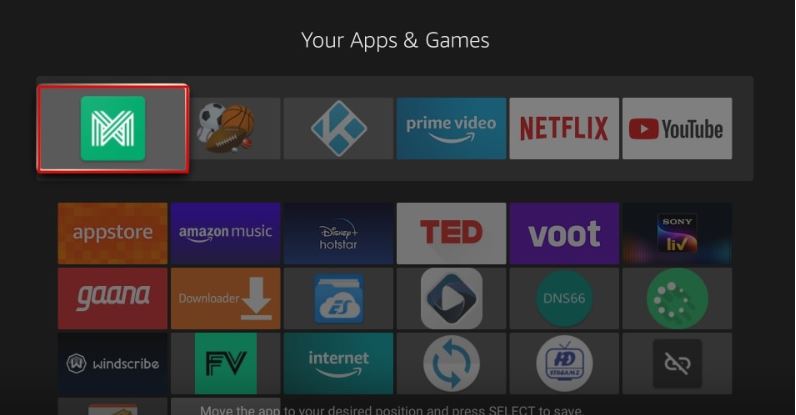
- Go to the Apps and Games section on your Firestick device.
- And click on the downloaded Applinked app.
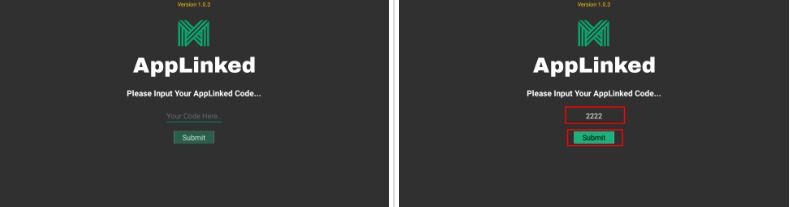
- Now, enter the Valid Applinked Code on the page.
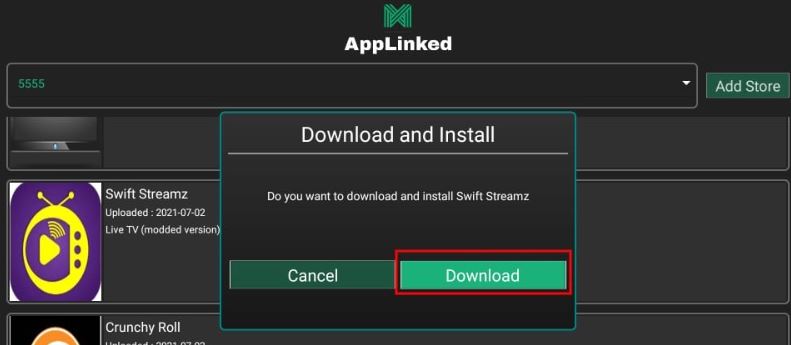
- Select the app from the result.
- And click on the Download tab to get the required app on your device.
Start using the Applinked on Firestick device. You have to follow all the steps given in the above sections. Now, you can install any app on your Amazon Fire Stick device.
How to Add Applinked to Firestick Home Screen?
The installed Apps are saved in the Apps and Games section on Firestick. If you would like to add the Applinked app on the Firestick home screen, then follow the steps given here.
- First, go to the Firestick Home Screen.
- And, click the Apps Icon on the home page.
- Or, click the three-title Icons you can see in the image.
- On the Apps page, scroll down and navigate to the Applinked app.
- And, Click the Menu Button on the Firestick remote.
- Now, tap the Move option from the menu.
- Use the Directional Buttons on the Firestik remote.
- And move the Applinked app to the top.
- Then, click the Select Button.
- Now, select the Home Button on the remote.
Here, you can see the Applinked app located on the home page.
How to Enter Code on Applinked?
If you do not know, How to Enter the Code on the Applinked app, just follow the steps given in the following.
- Click the Home Button on Firestick remote.
- And, go to the Apps and Games section on Firestiock.
- Search for the Applinked app and launch it.
- Tap the Allow button to give permission.
- Now, you can see the Applinked homepage.
- There, it will ask you to enter the Applinked Code in the box.
- For each category, Applink has different codes.
- Select one and Enter the Applinked Code in the given box.
- Once, you have entered the code, click the Submit button.
- Now, it will show you the list of apps in the following.
- Select anyone from the result.
- Then, tap the Download / Install option.
- If you want to add a multiple store,
- Click on the Add Store button once.
Now, the app will add to the store. Go to the store section and click on the app now you have installed. Sign In and start streaming your favorite content on your TV.
How to Register and Create an Applinked Code?
Also, you can register and create an Applinked Code on the app. To Create your own store code, come back with the guidelines mentioned below;
- First, Launch the Web Browser on your Smart Device.
- Connect the fastest Internet server to your device.
- Browse for, “https://i4studio.co.uk/applinked” on the browser page.
- Then, launch the official app from the search result.
- Now, enter the Desired Store Code in the box given.
- Next, Enter the Username, Email Address, and Password in the given space.
- And, click on the Sign Up / Register button.
- Now, you will receive the mail from Applinked.
- Just open the mail and Click the Link on the mail.
- Now, Enter the Store Code on the Login Page.
- Then, enter the Username and Password in the following boxes.
- Now, click the Login button.
- When it gets to the home page,
- Tap on the Add Application option.
- Now, provide the App Title, APK External Link, and App Description in the box.
That’s all. Now you have registered successfully and created a new Applink Store Code. If you can’t create it. Once again follow the steps given here one by one as followed.
Our Final Notes:
You can access Applinked on Firestick but not directly. The Applinked is unavailable on the Firestick device. You have to Sideload or Screen Mirror the Applinked on your Amazon Fire Stick device. In the above section, I have given the steps to get the Applinked app on your device. If you need any more methods and their instructions, you may proceed on the comment portion given in the below section of this page.