
Generally, all streaming devices do not support third-party apps to download directly on its device. Because many apps are harms the device. But some are legal and safe to use. Today we are going to the third-party app we took is safe or not. In this whole article, you are going to learn, How to Download CyberFlix on Firestick.

Before that, we have to know whether the CyberFlix app is available on Amazon Firestick or not. To know it, refer to the content below…
Table of Contents
Is CyberFlix Safe?
As we have discussed, it is a third-party app. Till now, we don’t know whether the CyberFlix service is safe to use or not. Till now, no one will assure that CyberFlix is Completely Safe. So, better you can use the VPN service when you streaming it on your streaming device.
Is CyberFlix on Firestick?
Unfortunately, NO. The CyberFlix is a Third-Party App. Firestick does not allow its users to download third-party apps directly from the Amazon App Store. But it allows you to sideload the apps which are not available in the app store. Yes, today we are going to sideload the CyberFlix on Firestick.
How to Get CyberFlix TV on Firestick?
Not only the CyberFlix app but also you can download apps that are not available on the Amazon App Store by following these three methods;
- Downloader app method.
- ES File Explorer app method.
- Using Apps2Fire app.
CyberFlix TV has discontinued its built-in video player. So, you need an external video player, i.e. MX Player, that works well with the CyberFlix TV app.
Also, read: 12 Best Cyberflix Alternatives
Download CyberFlix on Firestick using ( Downloader )
To install the CyberFlix TV APK on your Firestick, you have to set the device to access unknown sources. So, first, you have to enable the Apps from the Unknown Sources option. Here are the Steps;
Enable Apps from Unknown Sources on Firestick
- Go to Firestick Home.

- Tap on the Settings icon.

- Select My Fire TV.
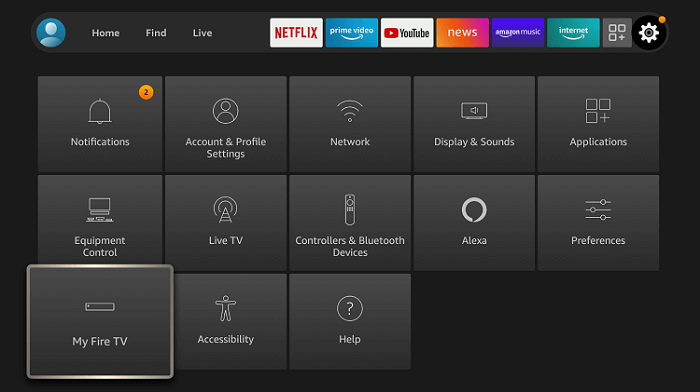
- Tap on Developers Options.

- Choose Apps from Unknown Sources.
- “Turn On” click on it.
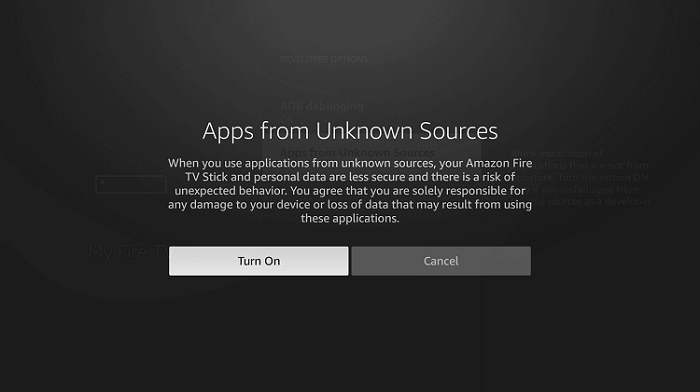 Once the process has been done, move to the next method.
Install Downloader on Firestick
- Go back to the home page.
- Select Find.
- Click on the Search option.

- Type “Downloader” using the on-screen keyboard and click on it.

- Select the Downloader icon.
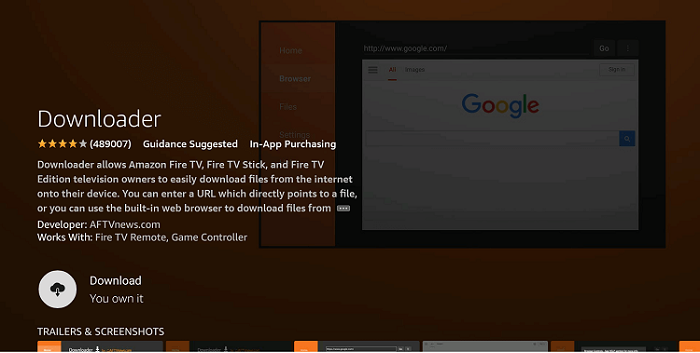
- Install the app by clicking on “Download.”

- After installation gets completed, click Open.
- Once the Downloader opens, click Allow.

- And then Click Ok for the prompt.

Get CyberFlix APK URL
For this process, you need an Internet Browser on your Firestick. If you do not have a Web Browser on Firestick, then use the USB Flash Drive and Copy the URL from the computer to Firestick.
- Launch the Web Browser app.
- Search for “CyberFlix Apk Download” in the search panel.
- Select the official Trusted website from the search result.
- Or, browse for “https://cyberflix.me/” in the browser.
- Scroll down on the page until you see the Download APK button.
- Now, click the Download APK button.
- It will redirect you to the next page.
- Again Scroll down and click the Download APK violet color tab.
- After clicking on the tab, the CyberFlix apk file gets started downloading.
- Wait until it gets downloaded.
- Now, locate the Downloads section on the browser.
- And, Copy the downloaded CyberFlix APK URL to the clipboard.
If you have downloaded the APK file on your computer or on your Laptop, connect the USB Drive to the system. And copy the APK File to the drive. Then, connect the USB Drive to your Smart TV. And, copy the URL to the clipboard. Now, move forward to the next procedure.
Also, check: SO Player on Firestick
Install CyberFlix on Firestick
- Go to the Firestick home page.
- Relaunch the Downlaoder app.
- You can now see a text box ( Enter URL ) on the right of the home page.
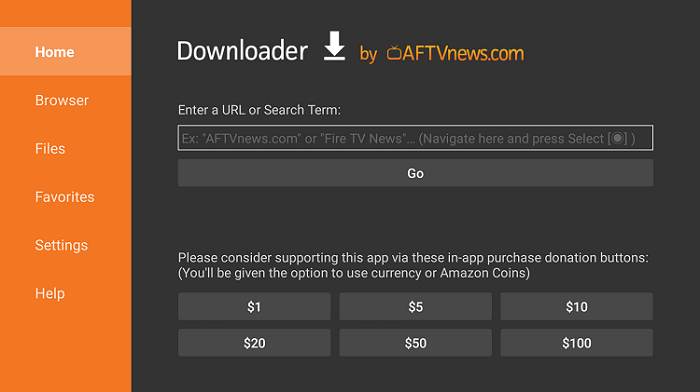
- Paste the URL for the app and click Go.

- The download gets started, and wait for it to complete.
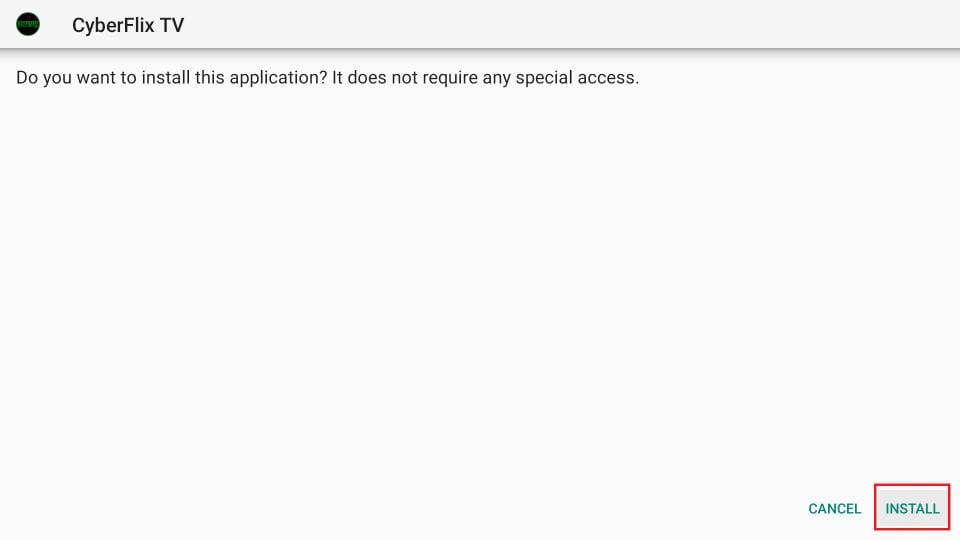
- Press Install.
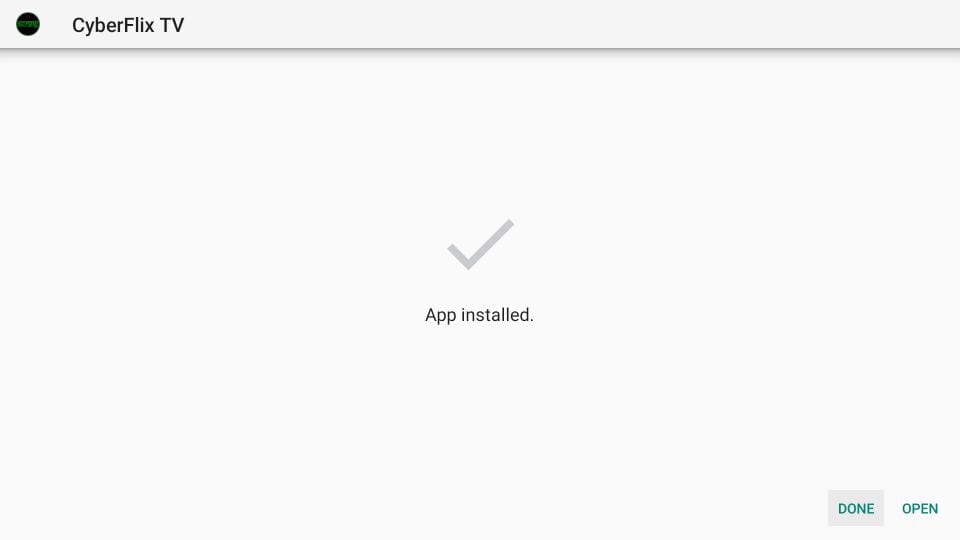
- Click Done after the installation is complete.
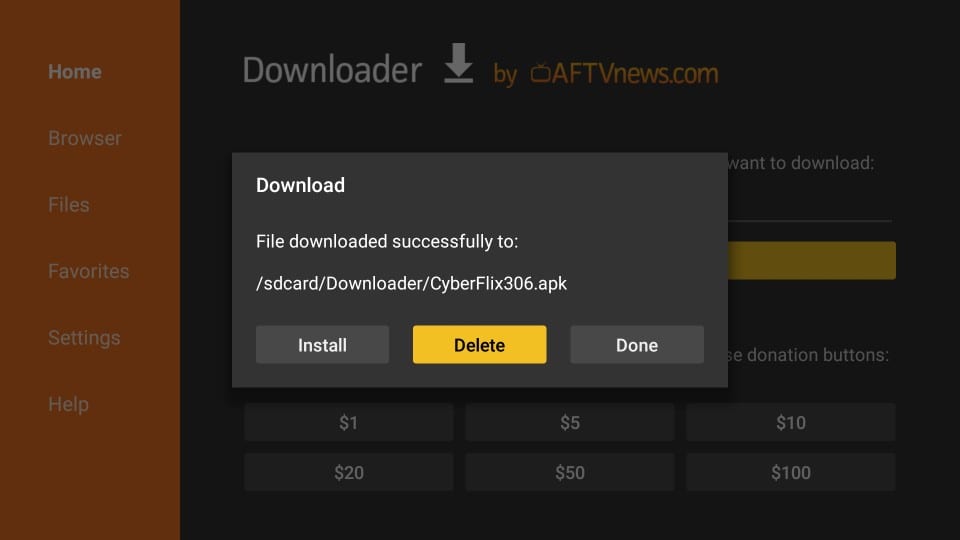
- Select and confirm “Delete”.
- Tap on Delete again.
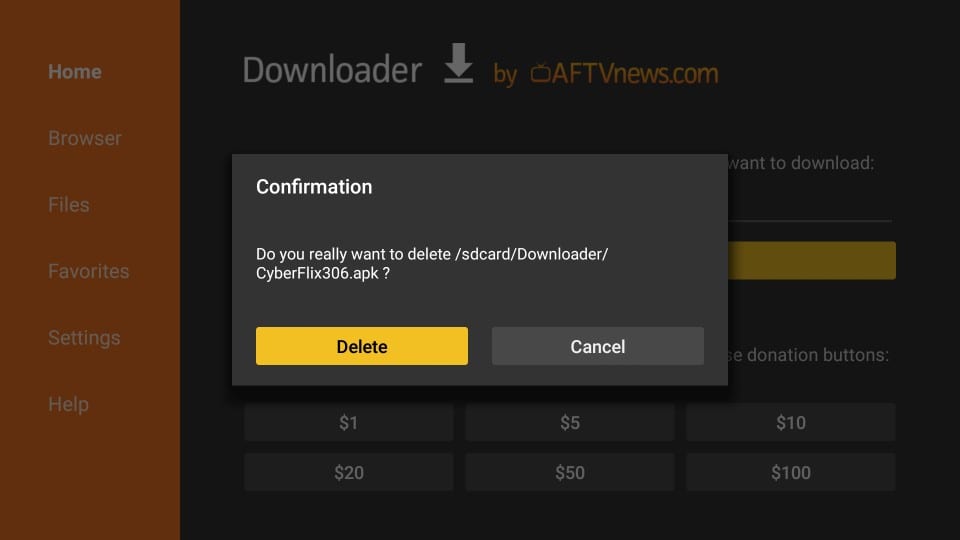 By deleting the CyberFlix Apk file, you can free up your Firestick space. After installing the CyberFlix on Firestick. Click Open on the Downlaoder app page. Or, launch the Apps and Games page on Firestick. There you can find the installed CyberFlix app. Launch and start streaming the content on your TV.
Download CyberFlix on Firestick using ( ES File Explorer )
With ES File Explorer, you can download any app on your Firestick. ES File Explorer only works on third-party apps, i.e. CyberFlix TV. Follow the steps to get the CyberFlix TV app on your Firestick.
- Install ES File Explorer on your Firestick.
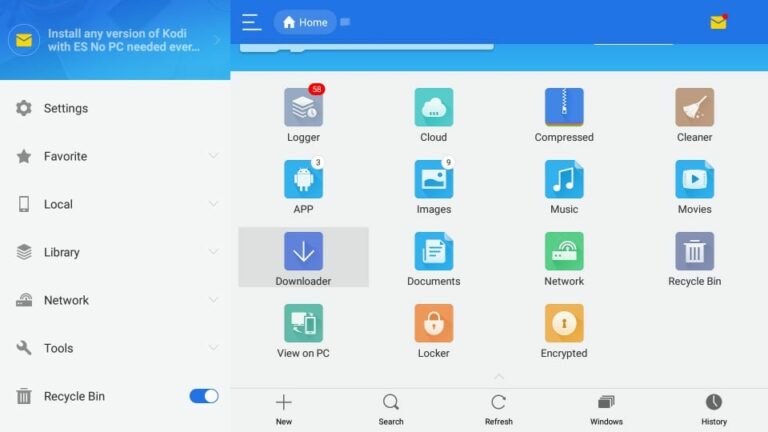
- Run the ES File Explorer. Enable “Developers Options”.
- On the right side, click Downloader.
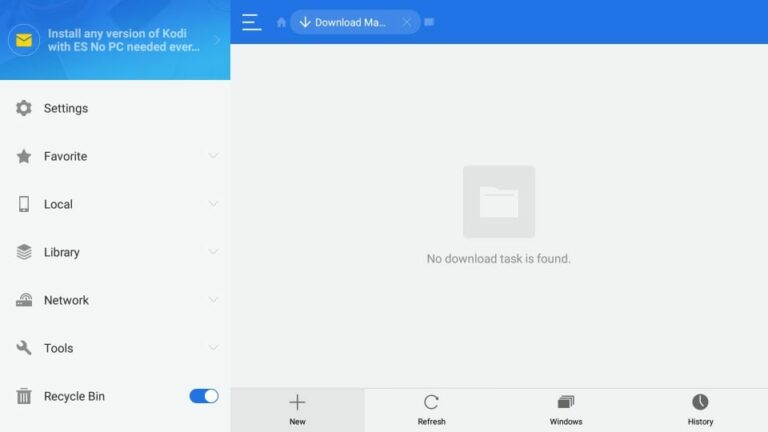
- Click the +New button.
- Enter the following Path: http://bit.ly/cybflix and Name: Cyber flix.
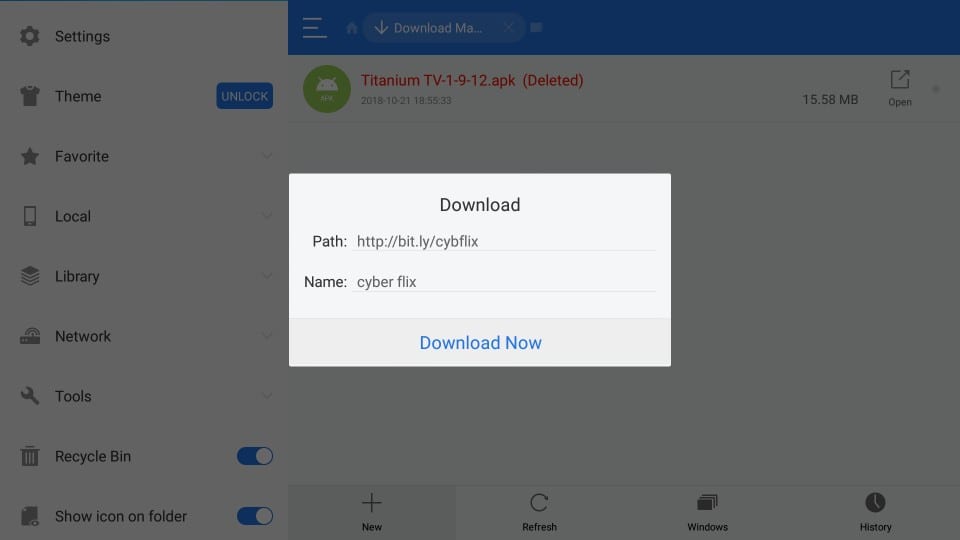
- Tap on Download Now.
- The CyberFlix TV app gets downloaded.
- Click Open file.
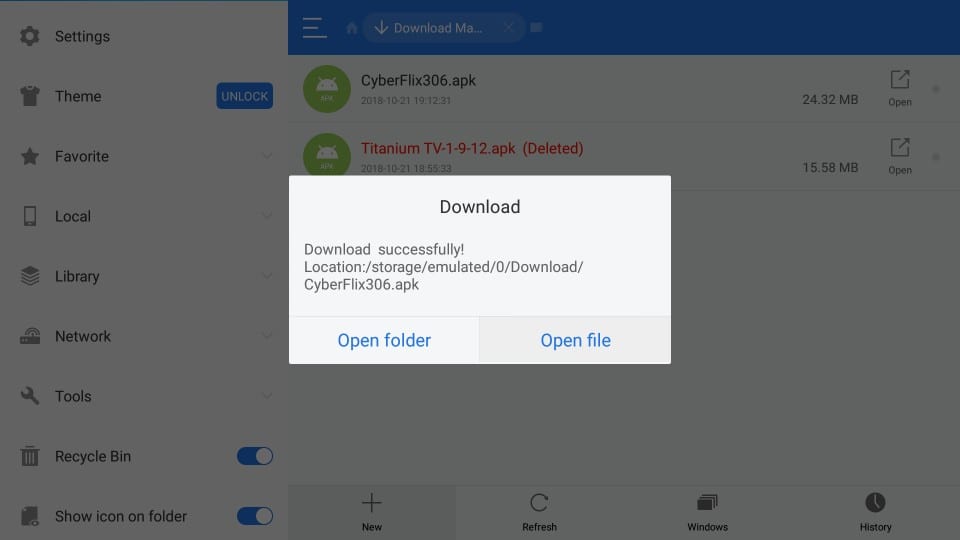
- Click Install.
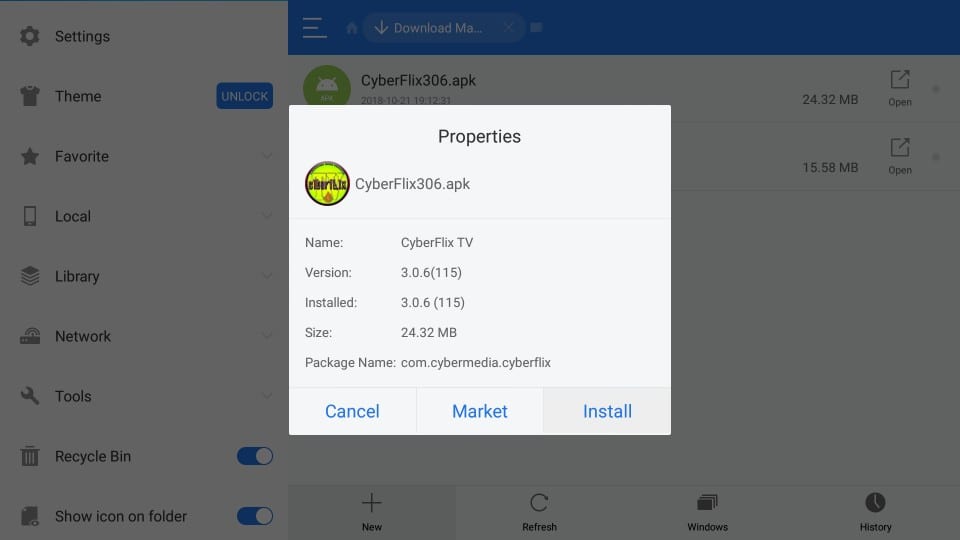
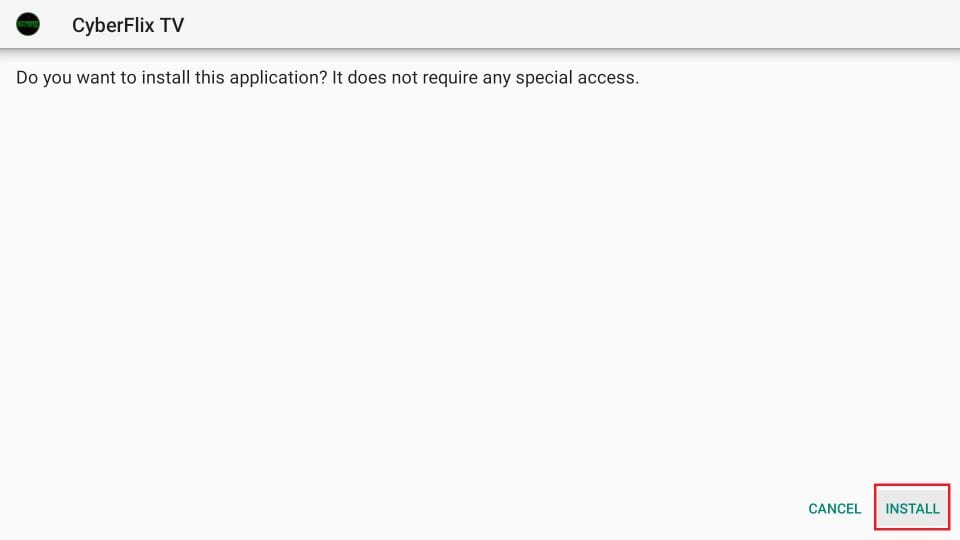
- It directs to APK installation; now click on Install.
- After the CyberFlix TV app is installed, click Done.
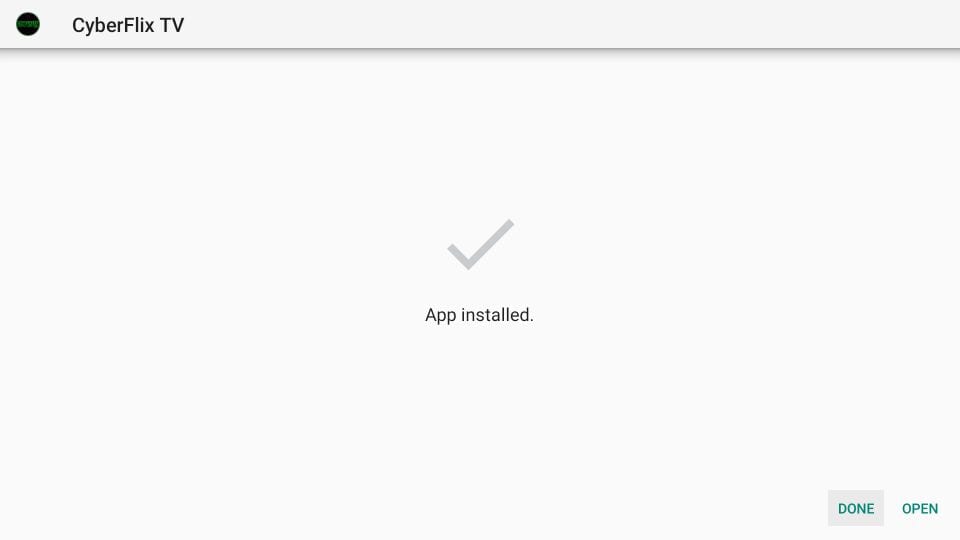
You can now install CyberFlix TV on Firestick using ES File Explorer by following these steps.
Install CyberFlix using ( Apps2Fire ) on Firestick
Apps2Fire is also the best app to watch the unavailable apps on Amazon App Store. To Install the CyberFilx app on Firestick, you need your Firestick IP Address. Check out the steps below to find the Firestick IP Address.
Get Firestick IP Address
- Turn On the Firestick and Smart TV.
- Then, Click the Home Button on the Firestick remote.
- Now, tap the Settings icon on the home screen.
- Next, head to the My Fire TV button.
- And, select the About option from the list.
- Scroll down and select the Network section.
- On the Network page, you can see the IP Address.
- Note down the IP Address.
Install CyberFlix on Android
To install CyberFlix on Firestick, you need its APK file or app on your Smartphone. It may be an Android or iOS device. Follow the procedure below;
- Launch the Google Chrome Browser.
- Or, Safari Browser, based on your Smart Device.
- Search for “https://cyberflix.me/” in the given search space.
- Then, Click the Download APK button.
- Again scroll down and click on the Download APK tab.
- Wait until the apk file gets downloaded.
- Then, extract the downloaded file on your Smart device.
- Or, keep the file on your device.
Next, you have to install the Apps2Fire app on your Smart device.
Install Apps2Fire on Smartphone
- First, launch the Google Play Store / Apple App Store.
- Then, search for the Apps2Fire app.
- Discover the Official Apps2Fire app from the search result.
- And, click the Install button.
- Launch the Apps2Fire app after it gets installed.
- And, allow all permission that it requires.
Also, check: IPTV Smarters Pro on FireStick
Install CyberFlix on Firestick
- Relaunch the Apps2Fire app on your Smartphone.
- Now, select the Setup page on Apps2Fire.
- Then, enter the Firestick IP Address in the given space.
- And, click the Save button nearby.
- Then, go back to the Apps2Fire home page.
- And, click on the Local Apps section.
- You can find the local files in the menu section.
- Search and click on the CyberFlix app.
- Now, Tap the Install option.
- Do not go back from the page.
- Or, do not try to Switch Off your mobile.
- Wait patiently until the CyberFlix app gets installed.
Once the installation gets completed, Go back to the Amazon Firestick device. Launch the Apps and Games section. There, you can see the installed CyberFlix on Firestick. Start streaming your favorite content on your TV.
How to access CyberFlix TV on Firestick?
You can now access your CyberFlix TV installed on your Firestick by following these simple steps. The steps are as follows,
- Long press the Home key on your Firestick remote.
- Click on Apps.
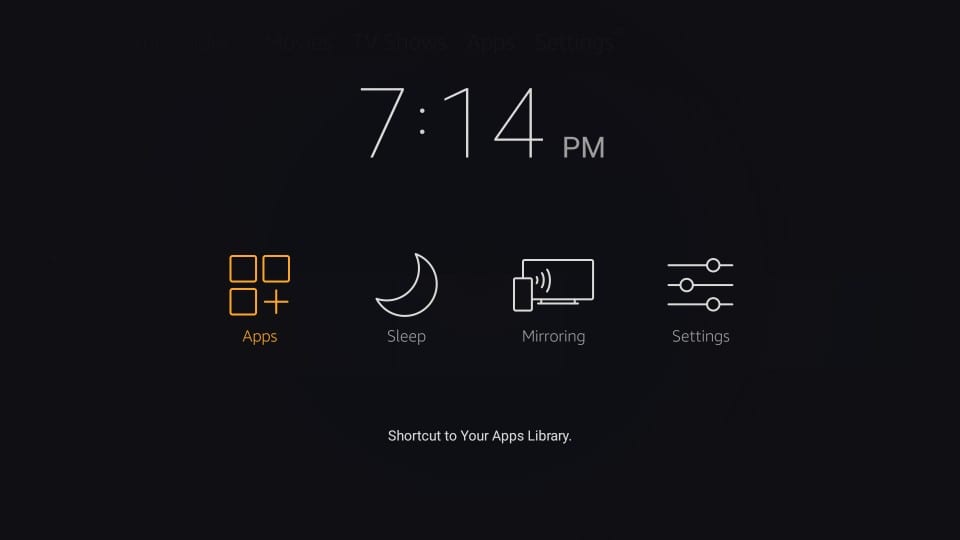
- Scroll down, and you can find the CyberFlix TV app.
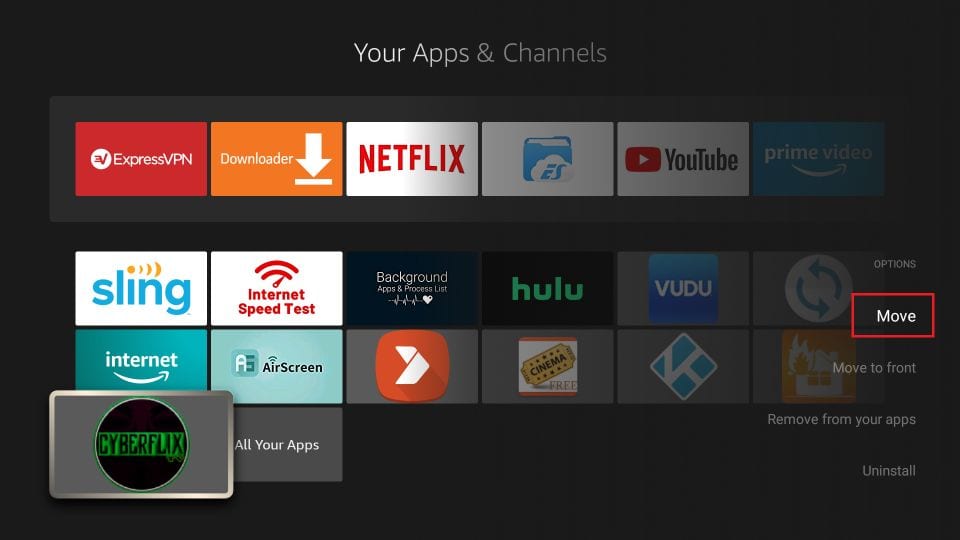
- Go back to Home and run the CyberFlix TV app.
- A Changelog window appears; click Ok.
- Choose the default player. Click on MX Player.
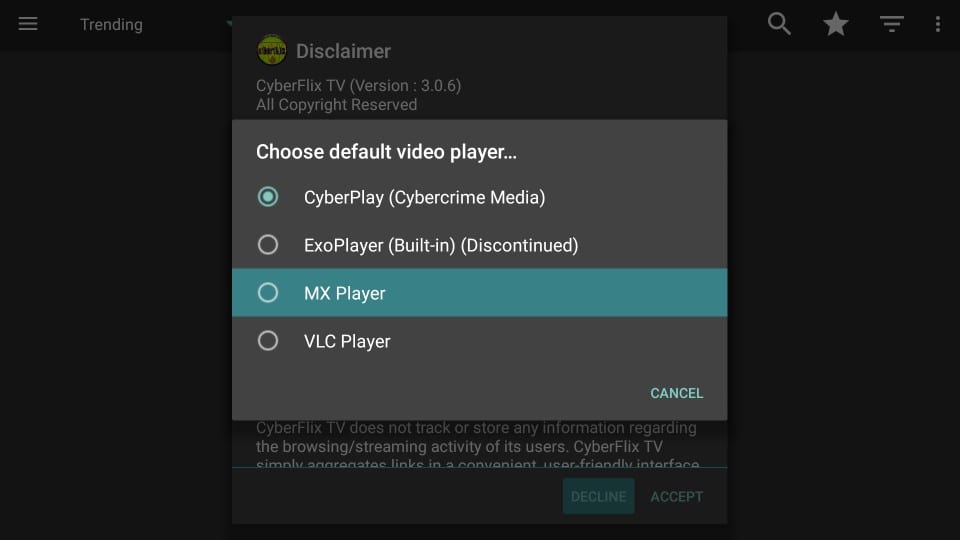
- On the Disclaimer window, click Accept.
- You get directed to the main screen of Cyberflix TV on your Firestick.
- Click on the Hamburger menu in the top left corner.
The drop-down menu shows a list of TV shows, movies, Favourites, TV Calander, Downloads, and Settings.
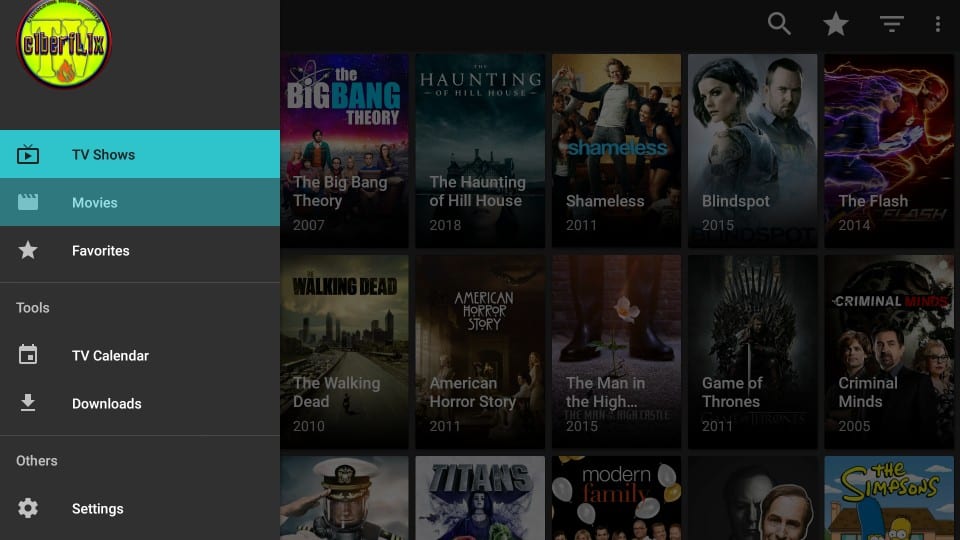
- You can sort content by clicking on the tiny inverted triangle.
Click it to sort the contents as Trending, Recently Updated, News Shows, Premieres, Airing today, etc.
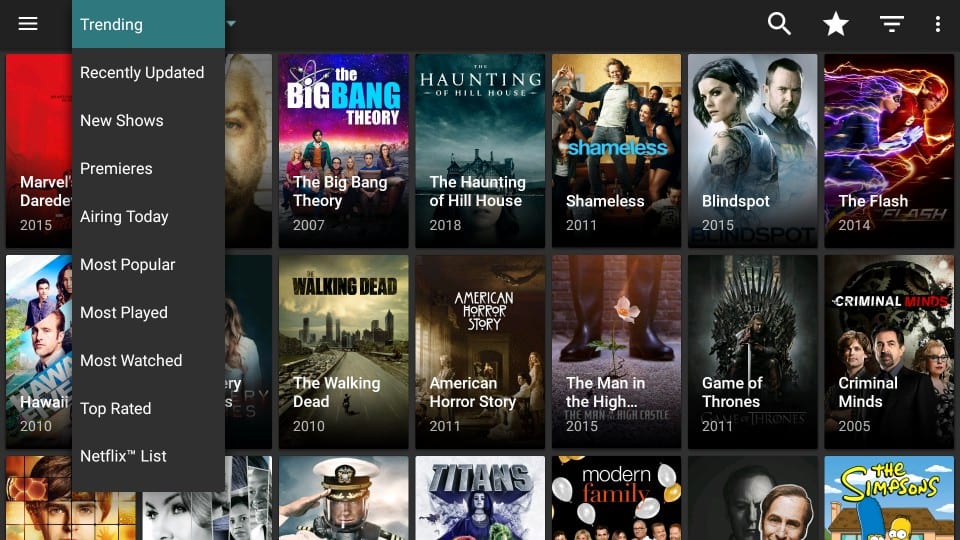
- On the right top corner, you can find the Search option.
- Use the search option to search for your favorite content.
- Another big triangle allows you to sort in years.
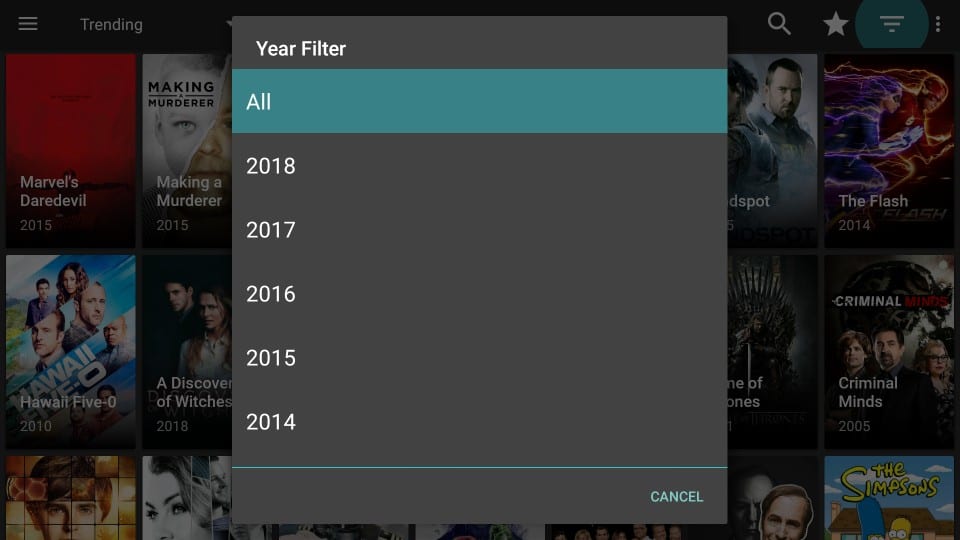
You are now fully able to access CyberFlix on Firestick.
Conclusion:
You can now download and use the CyberFlix TV on Firestick by following the steps and methods given in this article. If you have any doubts, you can ask them in the comment section. Thank you for your precious time on this article.