
Watching our favorite content on the big screen is a blessed moment, even if it is on HD quality screen and without any ad interruption. If you are looking for a way to stream Create TV content on your Roku screen, then we will let you know the possible ways to stream Create TV on Roku. Roku is a great streaming device with 4K resolution, and it can get and access more apps from its channel store. Let’s start the guide with a good vibe and get all your answers through this guide.
Table of Contents
Know About Create TV:
Create TV is the most common TV channel in the United States, and it priors to cooking, travel, painting, knitting, gardening, crafting, home improvement, etc. Since it is a public TV network of digital broadcasting that offers digital sub-channels from PBS member stations. Moreover, They provide life-oriented programs like guidance and learning instructions and also telecast 24×7 every day.
Can I Get Create TV Channel on Roku?
The answer to this question is NO. Regrettably, it is not available on your Roku Channel Store to get Create TV app since it is available as an OTA digital TV and digital cable TV provider over America. But Roku doesn’t include the app, but you can alternatively cast its content from your preferred web browser on Android SmartPhone and Windows.
How to Stream Create TV on Roku?

You can watch Create TV channel on your Roku using Android and Windows from the screencasting feature. So here we will show you a way to stream Create TV channel on Roku TV.
1. Cast Roku Using Android Web Browser:
To screen mirror your screen to Roku, you need to enable it from the settings. After that, you can able to cast your content on your Roku device. Move onto the steps to proceed.
- First of all, set your Android and Roku devices to the Same Wifi Internet access.
- Enter into the preferred browser from your Android SmartPhone.
- Further, go to Create TV’s official site and mention your Zipcode, Station, and Provider to Find your station.
- Now swipe down to get a notification panel and choose a Cast option from the menu.
- Choose your Roku TV device name, and your Android screen will be shown on the Roku TV screen.
- Now start to play any Create TV content on your Android device from its official page.
2. Cast from Windows Browser to Roku:
Also, you can cast Create TV content on the desktop browser to your Roku device. Kickstart your simple steps to screen mirror your screen on Roku-connected TV.
- Initially, you should set up your Roku and Desktop to a standard internet source.
- Further, head to the browser and visit the official site of Create TV.
- Next, tap on the Find Your Station key and provide the Zipcode, Station, and Provider.
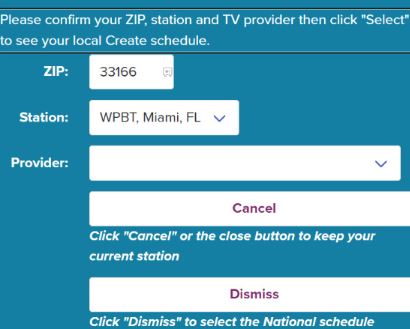
- Now choose the Select button, and it will show a local Create TV schedule.
- After that, move to the Settings option from your Windows.
- Again pick the System menu under the Windows Settings.
- Also, select the Display menu from your Home.
- Tap on the Connect to a Wireless Display under Multiple Displays.
- Now choose your Roku device name from the listed device.
- That’s it. Now you can start to play any content from your desktop, and it will cast on your Roku TV screen.
Closing Off:
To wrap up, we mentioned the required information about Create TV channel on Roku with various possible alternative ways to stream. This is the ultimate guide to streaming Create TV channel from your Roku-connected TV from your Windows and Android device. Suppose you have any queries regarding Create TV channel on your Roku TV let me know in the comment section.
FAQs:
1. Is Create TV on Firestick?
Nope. It is available as a website so that you can stream its content through the official site.