
![BeeTV on Firestick. [Install and watch Live TV for Free]](https://techthanos.com/wp-content/uploads/2023/03/BeeTV-on-Firestick.-Install-and-watch-Live-TV-for-Free.jpg)
Am a FireStick user, and when looking for an application to watch movies, TV shows, and more for free, I came across the Bee TV app. The Bee TV is a third-party app that can be easily sideloaded to your FireStick devices. It works well with my FireStick remote and the interface makes it easier to use. If you like to have the Bee TV app on your Fire TV devices, follow this article. You can also find simple tips and tricks to have a better live TV experience using Bee TV.

Table of Contents
Is Bee TV Safe and legal?
For this process, you have to scan the APK file of the Bee TV application with the Virus Total. And the tool does not detect any unsafe files or unwanted programs. For this reason, once you scan your files with the Virus Total, If the result is good then you have to proceed with the further steps.

How to Install BeeTV on Firestick?
BeeTV comes with Real-Devrid integration, which allows you to stream and download any videos you want. This app gets you links for movies and TV shows that you want to watch on the internet. This scraping tech gives you a large variety of content.
You can now get BeeTV on your FIreStick device with the help of the Downloader app. For sideloading third-party apps through the Downloader app, you need to enable the developer option and use a secure URL that directs you to the APK file of the app you want. Now steps are given here and get the Bee TV app on your Fire TV device.
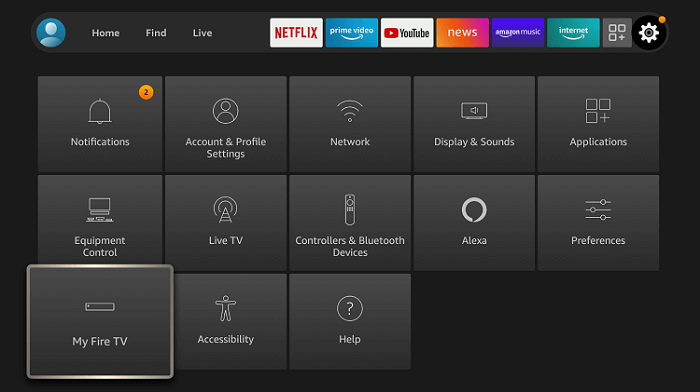
- Go to Firestick Home.

- Tap on the Settings icon.
- Select My Fire TV
- Tap on Developers Options
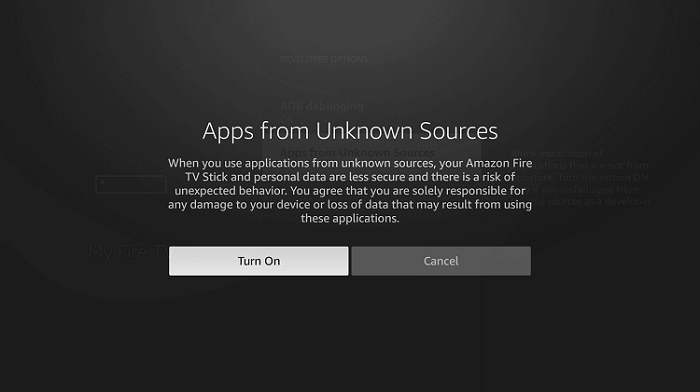
- Choose Apps from Unknown Sources
- “Turn On“ click on it.Go back to the home page.
- Select Find
- Click on the Search option.
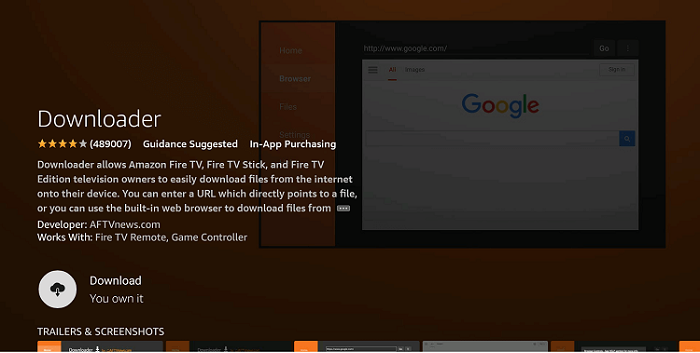
- Type “Downloader” using the on-screen keyboard and click on it.
- Select the Downloader icon.
- Install the app by clicking on “Download.”
- After installation gets completed, click Open.
- Once the Downloader opens, click Allow.
- And then Click Ok for the prompt.
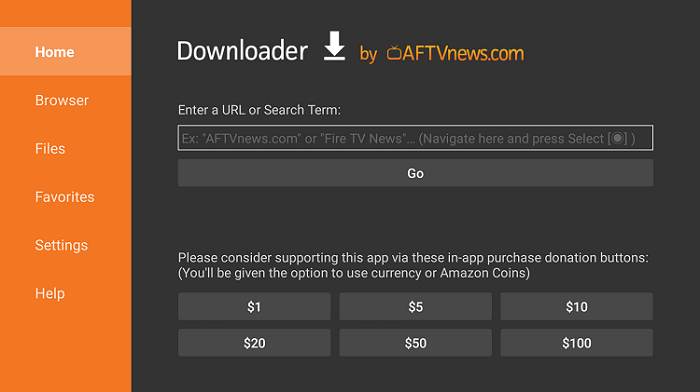
- You can now see a text box on the right of the home page.
- Type the URL https://beetvapk.org/apk and click Go.
- NowDownload starts and waits for it to complete.
- Press Install
- Click Done after the installation is complete.
- Select and confirm “Delete.”
- Tap on Delete again



 Go back to the home page.




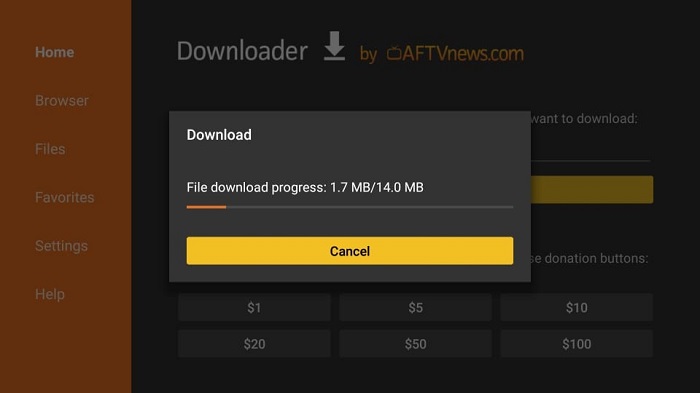
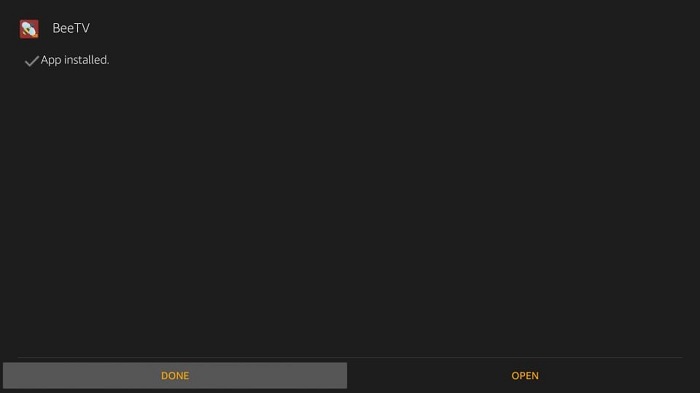
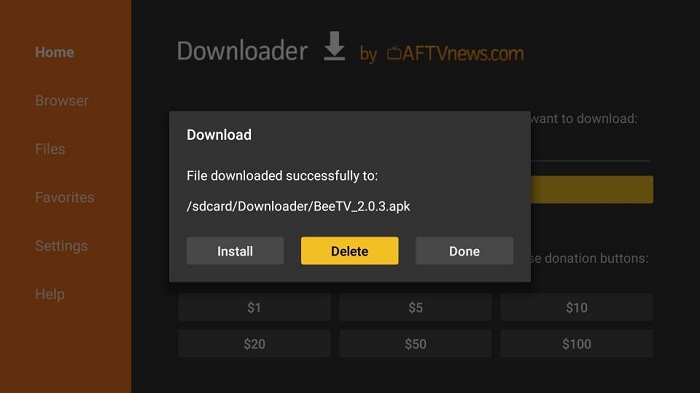
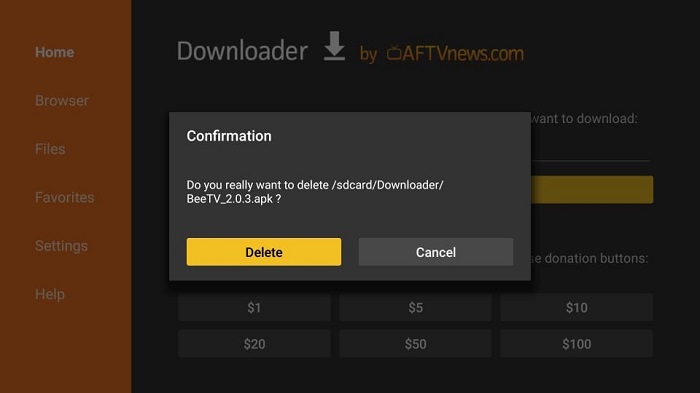
With these steps, BeeTV APK gets installed on your Firestick.
Wanna watch Bee TV on Roku Streaming Device? Check out the possible methods from How to Watch BeeTV on Roku?
How to use BeeTV on Firestick?
These steps will help you with “how to use BeeTV?”. Follow the instructions given below step by step without skipping any steps.
- Hold the Home button on your Firestick remote for five seconds and click on Apps.
- Tap on the BeeTV app.
- Once BeeTV opens, select the content from the left menu.
- Tap on “Trending”, which is at the top, to see the Category
Now you can select the content you want and start streaming.
Features of BeeTV on FireStick
- BeeTV telecast its content with both SD and HD Quality Videos and Shows.
- Also, it gives the option to track your history and collection by using a Trakt sign-in.
- And it gives many varieties of on-demand content and it includes your favorite movies, events, shows, and TV programs.
- Moreover, this application allows for integration with the Real-Debird for access to the higher Quality of Streaming links.
How to get Subtitles for BeeTV on FireStick?
You can get subtitles for the content you are watching on BeeTV by following this method; the steps are,
- Select the content you want to watch and get the stream source.
- Click on “Play with Subtitle”
- Now select your subtitle
- The content now plays with a subtitle.
By following this method, you can get subtitles for any content you watch on BeeTV.
Bee TV is one of the best Movie apps for FireStick devices. Wanna know about other apps similar to Bee TV, go to 15 Best Movie Apps on FireStick and learn more.
How to Fix Bee TV Not Working on FireStick?
Since Bee TV is a Third-Party app, you might face some issues while accessing Bee TV on your Fire TV Stick. With simple fix methods, you can make Bee TV work properly on your FireStick. Some of the sure methods to fix the Bee TV Not working issue are as follows,
- Reinstall the Bee TV app on FireStick
- Clear App Cache
- Check Internet Connection
If you want to dive more into the steps to fix Bee TV Not Working on FireStick issue, check out How to Fix BeeTV Not Working on FireStick?
Steps to Fix Real-Debrid on BeeTV
BeeTV application has this feature to add the Real-Debrid to get more high-quality service. Follow the upcoming steps.
- Press the Setting option from the upper-Left hand corner side of the screen.
- Swipe down and select the Login option for Real-Debird.
- Now you have to note down the code.
- Then move the real-Debird website by using any browser.
- You have to enter the activation code and press the continue option.
- After that, you have to receive the notification message.
- Now, The Real-Debird is added to BeeTV.