
Are you searching for the best Free Live TV Streaming service for your Amazon Firestick device? Here we have an AOS IPTV service to watch live Shows, Sports, On-demand, and more entertaining content. In this article, you can learn How to Install and Stream the AOS TV on Firestick.

If you have not heard about the AOS Television service before, check out the first topic given below to know the features and what you can watch on the App. Also, it is a third-party app. So, we have to check whether the app is available on the Amazon App Store or not. Move towards the article and grab all the required details…
Table of Contents
About AOS TV
AOS TV is a type of Internet Protocol Television service. And it has a Trendy and Plenty of content on its streaming service. It broadcasts Fascinating and Thrilling content on AOS TV. Now, in the year 2023, the AOS Television streaming service has updated its features.
Thereby Providing Easy and Friendly Interfaces on the AOS Streaming service. It’s a Multilingual app. Also, the AOS app supports Google Chromecast. And, it broadcasts the content in HD Video Quality. As well as the AOS TV allows its users to watch Live TV Channels and shows on its platform. The most important benefit is, that AOS TV is Entirely a Free Service.
And you can add your favorite tv channels to the Favorites section. Access major news tv channels on the AOS TV App. If you are a sports lover, you can watch Live Sports and PPV Events live on your streaming device. It supports Android, iOS, PC, Firestick, Smart TV, and more devices. If you wanna Install AOS TV on Firestick, check the upcoming section. Apollo Group TV on Firestick is also the best free streaming service. Click the link to learn how to get the app on Firestick.
Is AOS TV on Firestick?
Unfortunately, Not. Because AOS TV is a third-party streaming service. So, it is unavailable in the Amazon App Store. Not only in the Amazon Firestick but also you can not install the AOS TV app directly from the Official App Stores. Still, you need to watch this IPTV service on the Firestick device, go through the portion below.
How to Install AOS TV on Firestick?
As we have discussed in the above section, The AOS TV is not available on the Amazon App Store. But I told them that we have another way to access this streaming service on Firestick. It is Sideloading. yes, using the Downloader app, we are going to Sideload the AOS Television service on the Amazon Firestick device. Do the Steps below to learn how; Also, not only on your Smartphones, Laptops, and any smart devices but also you can stream Amazon Music on Firestick.
1). Turn On Unknown Sources on Firestick
Before the installation method, you have to complete some pre-requisition process on the Firestick device. The first process is Turning On the Apps from Unknown Sources.
Here are the Steps to Watch AOS TV on Firestick:
- Associate the Amazon Firestick with Smart TV.
- Turn On the Smart TV and Firestick.
- Click the Home Button on Firestick remote.

- Tap the Settings Icon on the home screen.
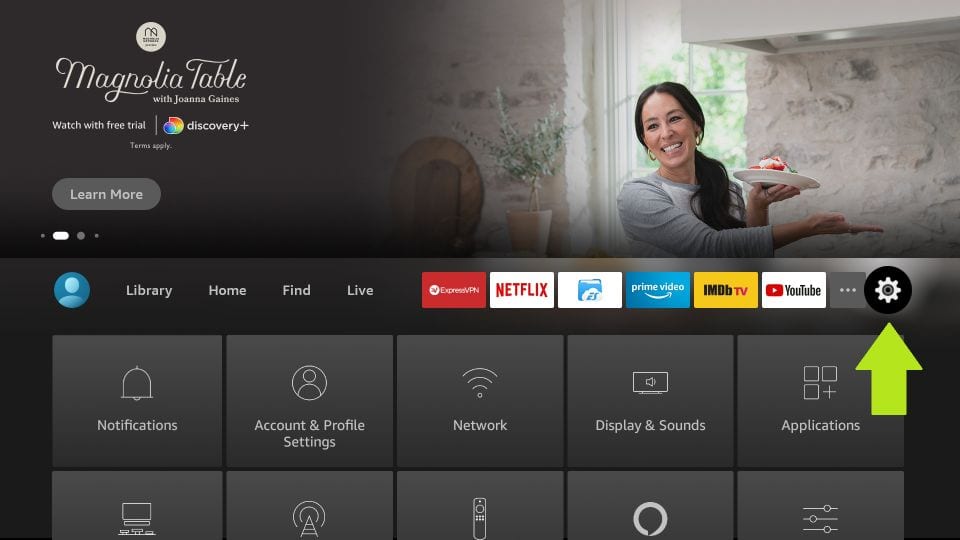
- Choose, the My Fire TV option from the menu.

- Click the Developer Options tab.

- Select, Apps from Unknown Sources from the list.
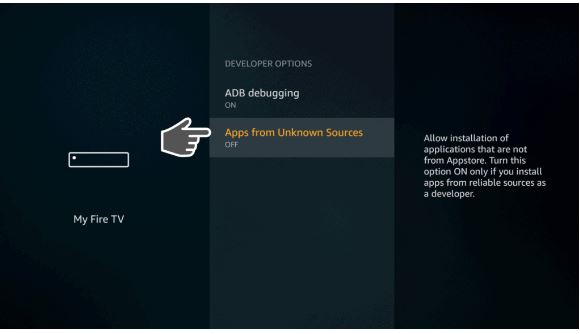
- Now, click on the Turn On option.

Check, the On option is showing under the Apps from Unknown Sources option on the Developer Options page. If done, move to the next process.
2). Get Downloader on Firestick
After turning on the Apps from Unknown Sources on the Firestick device, you have to Install the Downloader app on the device. If the Unknown sources are disabled, you can not be able to access the AOS TV on Firestick.
Steps to Install Downloader on Firestick:
- Click, the Home Button on Firestick remote.
- Tap the Settings button.

- Navigate to the Network tab.

- Firestick detects the Wi-Fi Networks near you.
- Select your Wi-Fi Network.

- And Enter the Valid Wi-Fi Password using the on-screen keyboard.

- Go back to the Firestick home screen.
- Click on the Find option in the menu toolbar.

- Type “Downloader” in the given search space.
- Select the official Downloader app from the Amazon App Store search result.

- Click the Download/ Get option to install the app.
Wait until the Downloader app gets installed on the Firestick device. Once, the app gets installed, do follow the third procedure.
3). Install AOS TV on Firestick
For this procedure, you can use the Internet app on Firestick or, do it on the Smartphone or any smart device with a browser app. Check the Steps mentioned here;
- Launch the Web Browser on Smart Device.
- Go straight to the search panel.
- Browse for “AOS TV Apk Download” in the search bar.
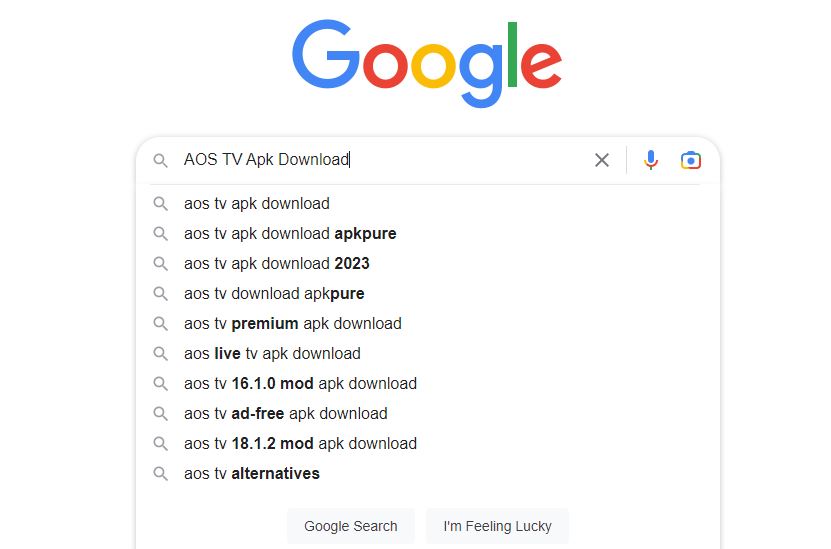
- Select the genuine and trusted website from the search lineup.
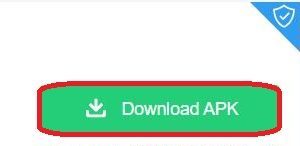
- Click, the Download Apk button.
- Go to the Downloads page on Browser.
- If you are using the browser on Firestick,
- Copy the AOS download URL to the clipboard.
- If you are using Smart Device, keep the device down.
- And Launch the Downloader App on Firestick.
- Go to the URL Section on the Downloader app.
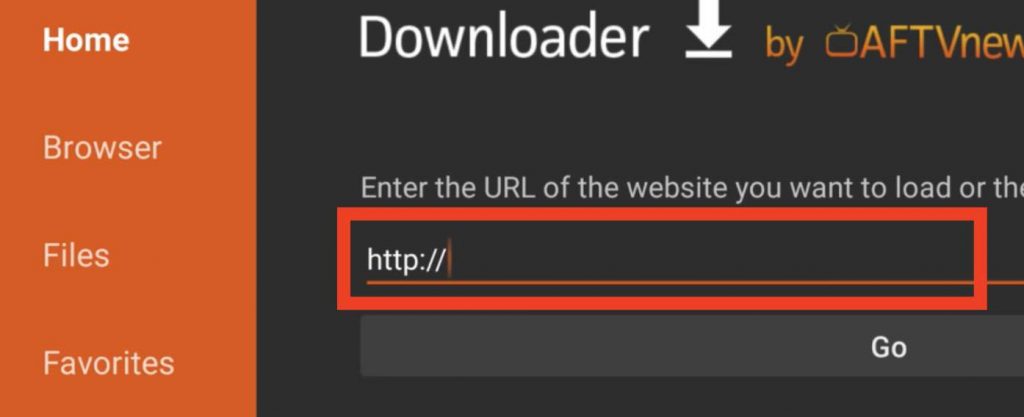
- And Enter the AOS Download URL in the given space.
- Then, click the Go button.
- AOS App is started downloading on the Firestick.
- Now, the pop-up screen is appearing on the display.
- Click the Install option.
- Wait Until the AOS App gets installed on the device.
Once, the AOS Television streaming service gets installed on the device., you will get the notification. Now, launch the Apps and Games page on Firestick. And launch the installed AOS TV on the Firestick device. And start watching Live TV, TV Shows, and all quality content on the TV. Bally Sports on Firestick is also the best app for Friestick to watch Live 2023 Regional Sports on your TV.
How to Watch AOS TV on Firestick?
If you don’t know, how to access the AOS Television service on the Firestick. Here, this section will let you know how to access and watch all tv shows and programs from AOS TV on Firestick.
- Visit the Apps and Games section on Firestick.
- Now, Launch the AOS TV app.
- Locate the Content Library of AOS.
- Select any Video from the list.
- Play the Video on a Firestick device.
- Also, take a look at the Left Side of the AOS TV App Home Page.
- There you can see the Categories.
The Categories such as UK TV, News, World IPTV, USA TV, and more. Select any categories and watch the content in HD Video Quality. Also, you can easily manage the Favorites on the AOS TV app.
Conclusion
The AOS TV is a third-party IPTV streaming service. So, you can not install AOS TV on Firestick directly from Amazon App Store. But you can Sideload the AOS Live Television streaming service on an Amazon Firestick device. Also, the AOS App supports Chromecast. So, you can Install the AOS App on your Smart device and Screen Mirror or Screencast it to your Firestick device.