
If you are looking for the best Sports platform on Samsung Smart TV. Then you can choose the sports content. Fox Sports application covers all the matches and tournaments all over the world. various sports events telecast on this network includes such as Football, basketball, soccer, and more events are air on this service. Live events, Highlights, recaps, and On-demand content are accessible. Here in this article, we are going to mention a step-by-step method to get the Fox Sports app on this Smart TV. Read this content on How to Install Fox Sports on Samsung Smart TV.

Table of Contents
How to Install Fox Sports on Samsung Smart TV?
Samsung Smart TV app store contains the Fox Sports Application officially on its list. Whereas if you have the latest and new version of Samsung Smart TV then you can easily download it on your devices. Must ensure that you have connected your smart TV with a Stable internet connection while downloading the Application.
The Steps are:
- From the Samsung Smart TV home page.
- Use your TV remote and Hold the Home or Smart Hub button.
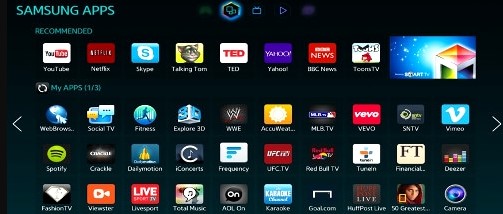
- Launch the App section.
- Press the Search Icon option on your Samsung Smart TV.
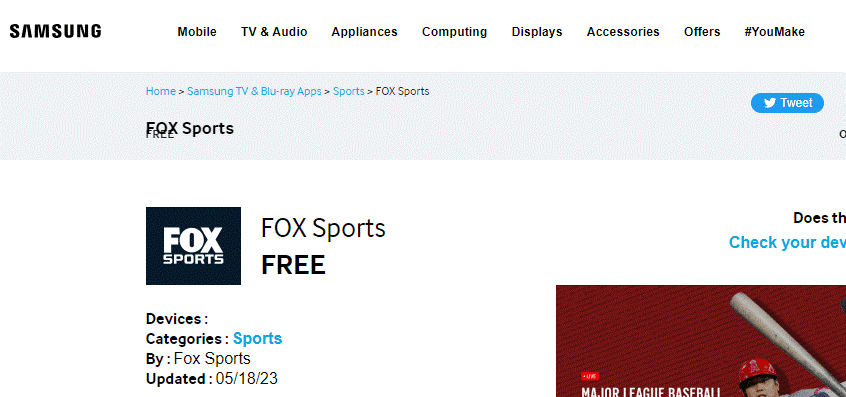
- Find the Application “Fox Sports”.
- Press the Install application.
Wait until the App is installed on your application and then activate your account to stream its content.
Also, Read How to Find Apps on Samsung Smart TV
How to Activate Fox Sports on Samsung Smart TV?
Activating the Application is a part of accessing the content on your device. It plays a major role in some of the Applications. Only you can get the sports events and Matches when you activate the application by entering the activation code.
As well sign in is one of the security lockers for your account. No one can access your account without knowing your Password.
The Steps are:
- Open the Application to see the activation code.
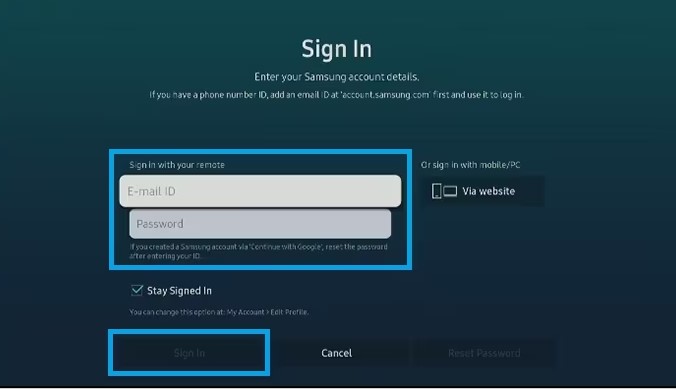
- If you can’t see the code then you can click the Sign in button.

- Now the activation code appears on the screen.
- After that, move to the browser on your Smartphone or PC.
- Visit the link “http://go.foxsports.com/”.
- Click the Submit button.
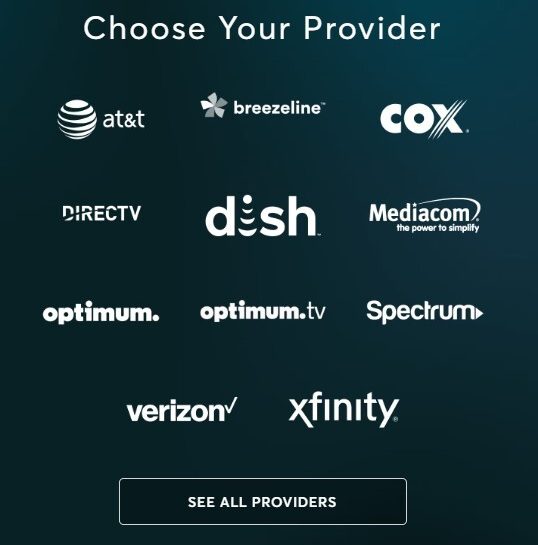
- That’s it, Now you have to enter all the information to Sign in with Your TV provider account to the application to access its content on your Samsung Smart TV.
Alternative Ways to get Fox Sports on Samsung Smart TV
You can get this Fox Sports application on your Samsung Smart TV. Other than that, you can use these methods as an Alternative way to get a Fox Sports Application officially, If you are an existing user of a Streaming device, You have already installed the Fox Sports App. That’s so simple to watch sports events, Just insert the device into your smart TV. But once check out you have a Compatible streaming device with the Samsung smart TV.
- Using Streaming Devices
- Screen mirroring method.
Watch Fox Sports on Samsung Smart TV- Using Streaming devices
Most importantly, Streaming devices are travel-friendly devices. You can carry the device from one place to somewhere, For example, If your are plan to spend time with your friend by watching sports matches on a Samsung smart TV. But at that time the Samsung Smart TV app was not working due to technical issues. Suddenly you remember that you have a Streaming stick. Then you can download the app go to your friend’s house and connect your device to Smart TV to stream all your favorite tournaments and enjoy your vacation.
Here we share some simple common steps to get this Fox Sports on your Streaming devices. Whereas the Fox Sports App is compatible with popular Devices including Apple TV, Firestick, and Roku.
The Steps are:
- Insert the Streaming device into the Samsung smart TV HDMI Port
- From the Home page of your streaming device.
- Navigate to the respective App Store.
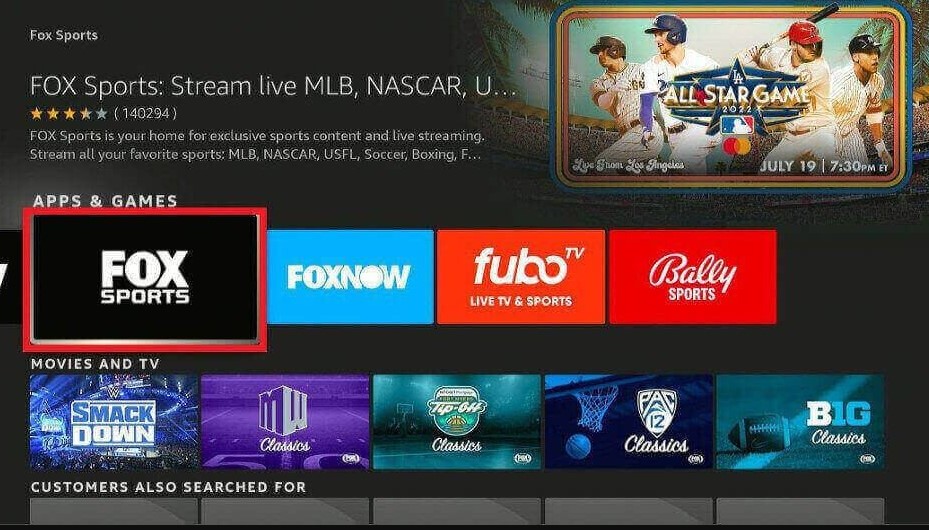
- Download the Fox Sports app.
- Sign in with your account.
- Choose your favorite Sports to stream its content.
Similar Post: How to Get Local Channels on Samsung Smart TV
Get Fox Sports on Samsung Smart TV-Screen Mirroring Method
If you have a Samsung Smart TV in the older version, then you can get the Fox Sports Application on the App Store. So you can use a Screen mirroring method to get the content on the Samsung smart TV. However, the Fox Sports application is supported on both Android and iOS devices.
Before entering into the procedure must ensure that connect your devices with the same Wi-Fi connection.
- Android device.
- iOS devices.
Steps for screen mirroring from an Android device
- First, you must download the Fox Sports app on your Smartphone.
- Login with your account and choose the content to start playing.

- Then Move to the Notification center and click the Cast icon.
- After that, you can device name as “Samsung Smart TV” from the list.
- Press the Allow option.
- Once both devices get connected you can watch your favorite sports on a Samsung Smart TV.
Steps for Screen Mirroring from iOS Devices
- Install the latest version of Fox Sports on your iOS device.
- Sign in with your account.
- Play the Sports events.

- Navigate to the Control Center and click the screen mirroring option.
- From the device list select the Samsung Smart TV.
- Once your both devices get paired you can watch the Sports event on a Samsung Smart TV.
Check the post: How to Get Tubi TV on Samsung Smart TV
How to Fix Fox Sports Not Working on Samsung Smart TV?
If your application or Samsung Smart TV is affected due to any technical issues then you can’t access any Sports content from the Fox Sports app on Smart TV. You must fix the bugs, errors, and Glitches on your device to get back the devices on your Smart TV.
- Check the Internet connection.
- Check the App Server Status.
- Update your Fox Sports App.
- Restart your Samsung Smart TV.
- Reset Smart TV.
- Uninstall and reinstall the application.
- Clear Cache.
- If the error is not clear when you try all these methods then you can contact Customer Service Support.
The Final Words
From this article, you guys know that the Fox Sports Application is available on the Samsung Smart TV app Store. Various possible solutions are presented to get the Fox Sports app on your Samsung Smart TV. Once you get the Application must activate your account. Other than that, you can use a Streaming device or screen mirroring method to watch its content. keep in mind to use a streaming device that is compatible with the Samsung Smart TV. Thank You!