
Fortnite is an Online Video Game and it is released in 2017. Available on all Gaming Consoles. Now, we are going to know, How to Play Fortnite on Firestick. If you have an Amazon Firestick device, this whole article is for you.
Boot up your device and install the latest Software version if required. And then check how to play the Fortnite game on your Amazon Firestick device. Before that, we have to know whether the Fire TV Stick supports playing this game on its platform. Learn everything in the upcoming section…
Table of Contents
Can I Play Fortnite on Firestick?
Yes, You can Play Fortnite on Firestick. But you can not download the Fortnite Video game directly from the Amazon App Store on Firestick. I know what you asking now. You can play by using the App which is available on the Amazon App Store. Want to know, which app is this, move forward to the next topic.
How to Play Fortnite on Firestick?
As we have discussed, Fire TV Stick allows us to Play Fortnite on Firestick. But the Game is not available for price or rent on Amazon App Store. Do you know about Amazon Luna? It is a Gaming app for Amazon Streaming devices. The following Amazon Devices are all compatible. They are;
- Fire TV Stick ( 1st Generation ) ( Newer )
- ( 2nd Generation ) Fire TV Stick ( Newer )
- Fire TV Stick ( 3rd Generation )
- Insignia Fire TV Edition
- Toshiba Fire TV Edition
- Fire TV 2-Series
- Fire TV 4-Series
- ( 2018 ) ( Newer ) Fire TV Edition
- Fire TV Omni
- QLED Series Fire TV Omni
- Fire 7 ) 2019 ) ( Newer )
- ( 2018 ) ( Newer ) Fire HD 8
- Fire HD 10 ( 2019 ) ( Newer )
These 13 Amazon Streaming Devices are all compatible with the Amazon Luna Gaming App. Now, let us get into the installation and activation process.
Also, read: Lime Player on Firestick
Install Amazon Luna and Play Fortnite on Firestick
Amazon has the one and only simple procedure to Install the apps on Fire TV Stick devices. Do you know that? then do the same procedure to install the Luna app. Or, do the same procedure I have mentioned below;
- Set the Amazon Firestick device with Smart TV.
- Switch On the device.
- Click the Home Button on the Firestick remote.

- Go to Settings Page.

- Select Network.
- Choose your Wi-Fi network.
- Connect the Firestick with a high-speed Internet connection.
- Again Press the Home Button on the Firestick remote.
- Select the Find option.

- Navigate to the search panel.
- Type “Luna” in the required space.
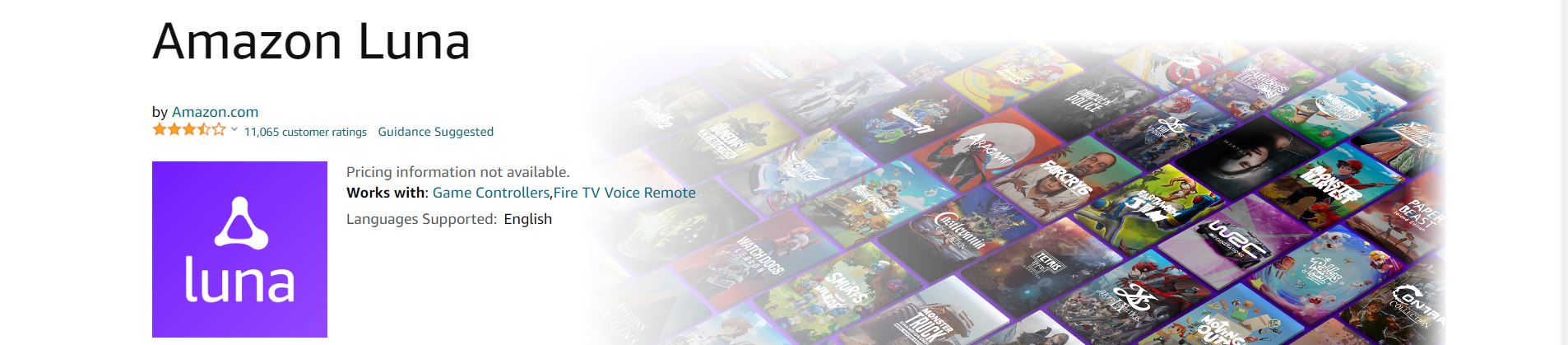
- Select the official Luna app from the search result.
- Click, Download/ Get button.
- Wait for a while.
- Launch the Luna App once it gets installed.
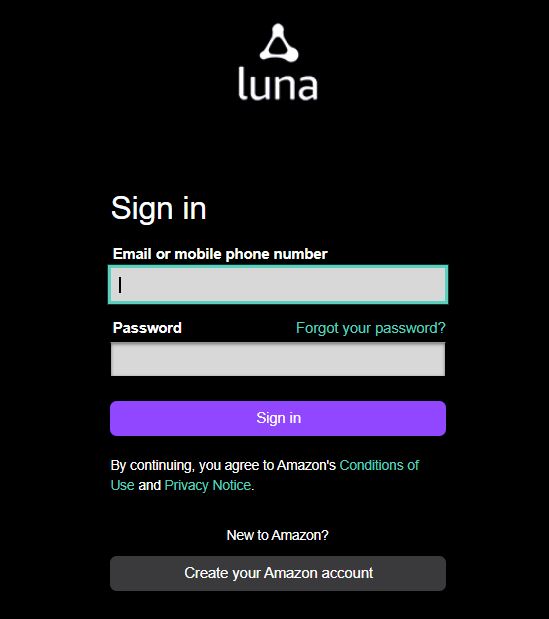
- Sign In with your Amazon Account Credentials.
- Search for “Fortnite” in the Luna app.
- And, tap on Play Now button.
- Enjoy Playing.
Or, you can Create a new account on Amazon Luna. If you have an account on the Amazon Prime Video app, then enter the Username and Password in the Luna app. It is a Subscription-Based game, you have to pay for the Game. Let us learn detailly about this in the upcoming section.
How to Sign Up for Fortnite?
If you do not have User Account on Amazon Prime Video or on Luna, then you can freely create a new account on it. Just keep following the steps given here;
Here I have given the Sign-Up procedure with Web Browser. Also, you can follow the same on Luna App.
- Launch the Web Browser app on your device.
- You can use any Smart device you have with internet access.
- Browse for “Amazon Luna” in-browser app.
- You can see “Amazon Luna – Cloud Gaming Service.”
- Click on it.
- Tap on the Play Now With Prime option.
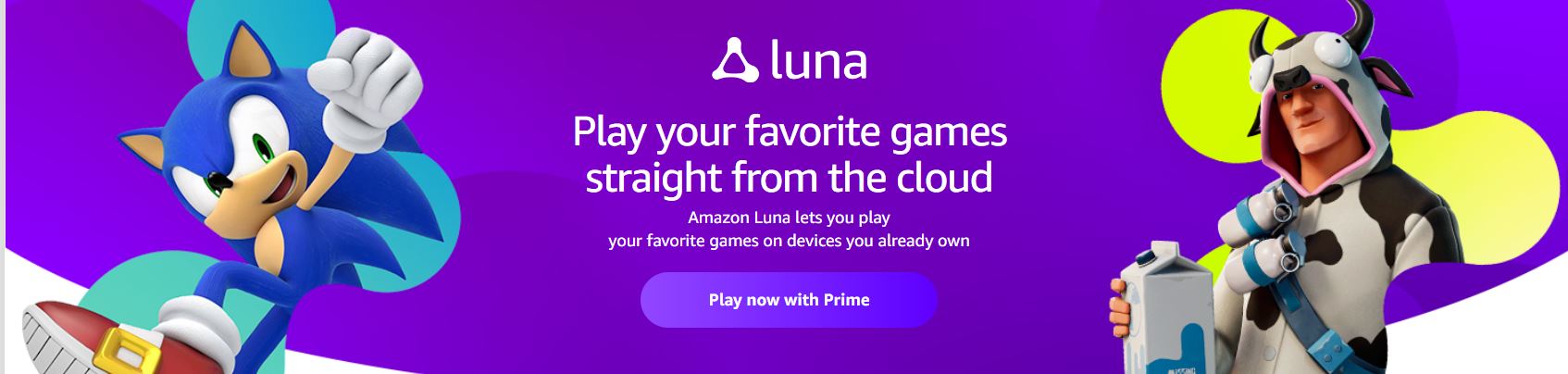
- And, select Open Luna Web Page button.

- You will find it in the top-right corner.
- Click on it.
- The Learn More banners are rolling on the homepage.
- Select the Play Over 100 Games on Luna+ with 7 Day Free Trial banner.
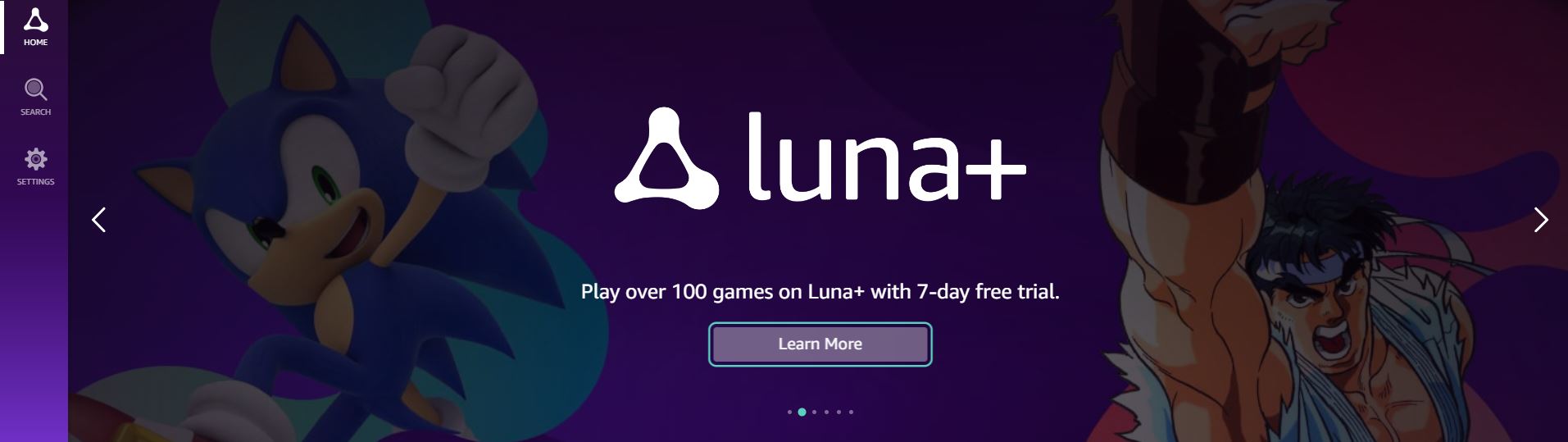
- And click Learn More.
- Now, you can see the Subscription Cost on the screen.
- Tap on the Start your 7-day Free Trial button.
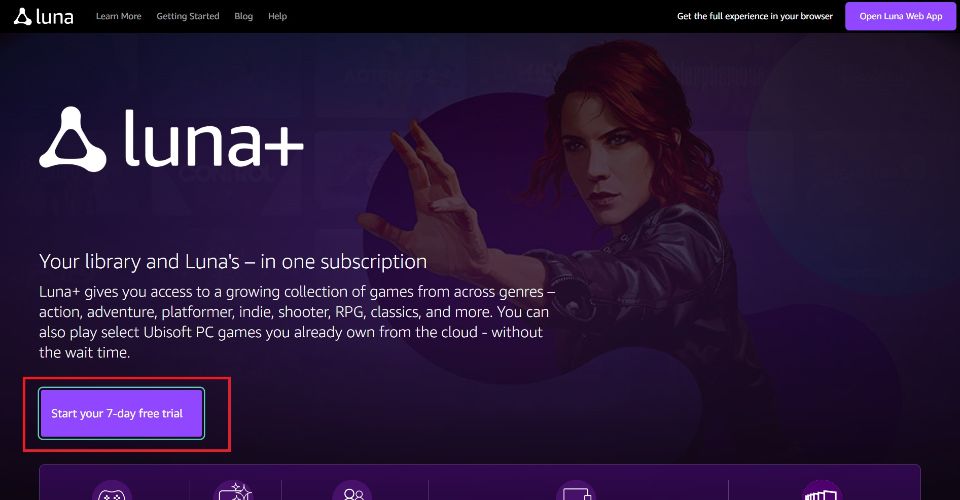
- Select Create your Amazon Account option at the bottom.
- Enter Your Name, Email Address, and Password.
- Then, click Create your Amazon Account.
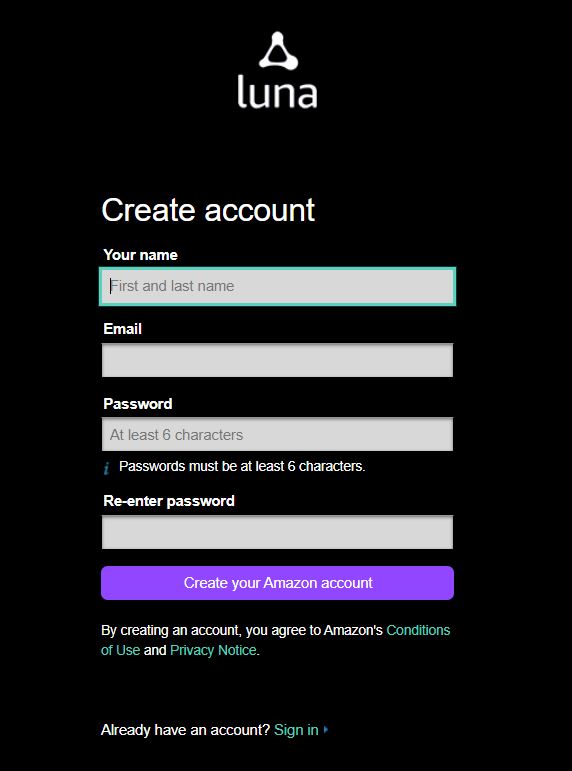
Now, the Luna Account gets created. Enter the Payment Details. And purchase the subscription plan. Do you want to know, How much it costs to play Fortnite on Firestick, then check the next topic.
Also, check: How to Install SO Player on Firestick?
How much is Fortnite on Firestick?
We have three ways to play the Fortnite Video game on Amazon Firestick. They are Amazon Luna, Amazon Prime, and Ubisoft+. If you have an active subscription from these platforms, then you can use the User Credentials of it and play Fortnite on Firestick.
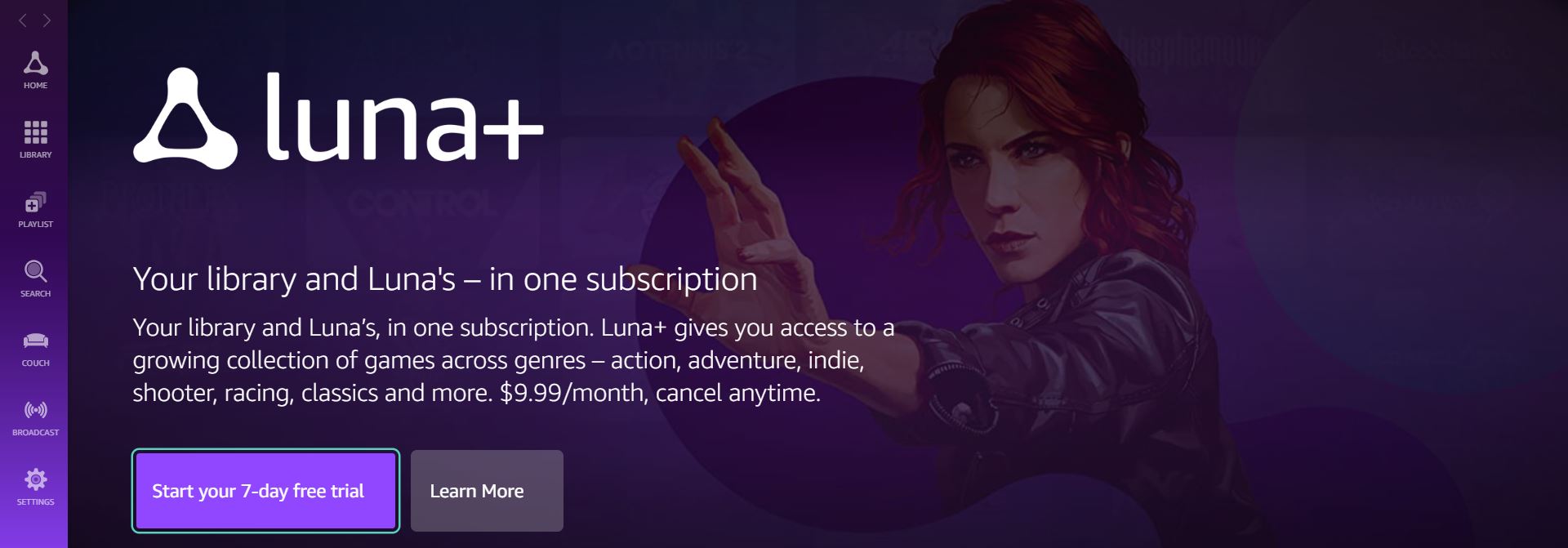
You can play Fortnite on Amazon Firestick with any subscription plan given above. For the First Subscription user on Luna+, you can get the 7-Day Free Trial option. As well as in Amazon Prime also.
Finally…
You can Play Fortnite on Firestick with Luna Gaming App. Also, with the Amazon Prime Subscription. Also, the Fortnite Game is compatible with the devices such as Android, iOS, Windows PC, Xbox Series X/S, MacOS, Xbox One, Nintendo Switch, Play Station 4, and Play Station 5. You can go to the Amazon Luna Official website on your System and start playing the Fortnite Game on your PC. Fortnite has been released in two versions, they are Fortnite Save the World ( 2017 ) and Fortnite Creative ( 2018 ). You can play both on Amazon Firestick devices with Luna.