
“All for Reason,” “All for a good sign,” and some other quotes denote every happening in our life. Like the same, we have the All for digitally called All 4. It is a television channel, and you can get all content on this network. And download it on all devices. Even you can get All 4 on Xbox.
Xbox is the gaming console. But it is possible to download television apps and watch movies and series on your console screen. Join me and install the All 4 (all television content streaming service) on your Xbox gaming console. The methods and the other information are mentioned in the following topics.
Table of Contents
About All 4 Channels:
Channel 4 is a popular television channel which is popular and based in the United Kingdom. The television broadcasts Video On-Demand content on its platform. And this tv network has 4 channels such as Channel 4, E4, More 4, and E4 Extra.
All 4 channel is entirely Free Streaming Service. If you want to stream content without ads, you can Upgrade with Two subscriptions for Ad-Free streaming. Some programs, movies, and series are not available on Al 4 due to the Copyrights issue.
E4 and More 4 Catchup with the required television channel, and its reaches over Thousands of Hours of broadcasting.
You can Stream All 4 streaming services on Roku, Amazon Firestick, Play Stations, iOS Devices, Smart TVs, Apple TV, Google Chromecast, Freesat, Windows PC, Smartphones, Xbox One, Xbox Series, Xbox Series X/S, and Now TV.
Is All 4 available on Xbox?
We are lucky to have All 4 on Xbox. Now it is available on Xbox One/ Xbox 360 Microsoft Store. Download it directly from the store and enjoy watching the On-Demand videos, movies, and shows on your Xbox gaming console Window.
If you do not know how to download the app on your console, please check the following topic to get the installation methods. I have given one direct method and two alternative methods to get the All 4 on Xbox.
Methods to Watch All 4 on Xbox:
Xbox has five kinds of consoles which is Xbox One, Xbox 360, Xbox Series, Xbox One S, and Xbox Series X. Like types in the consoles, and we have methods to get All 4 on Xbox gaming console.
- Get All4 on Xbox One/ Xbox Series
- All 4 on Xbox One/ Xbox Series by Xbox SmartGlass App
- Screen Cast the All 4 on Xbox One/ Xbox Series
These three simple methods help us to watch the chosen free Television streaming service on your Xbox gaming console. Grant to proceed with the instructions one by one in the following. You can also use the world’s top social media network Instagram on the Xbox One gaming console. Tap the link to know the process.
1)→ Download All 4 on Xbox One/ Xbox Series:
The All 4 streaming service is now on our Xbox gaming console. You can download it straight from the App Store.
Steps to Get All 4 on Xbox:
- Initially, set the primary need for the Internet to your Xbox and TV.
- Then, Trespass to the Microsoft Store on your Xbox console.
- Now, you have to Window-shop the All 4 App on the given search field.
- For the Present, Click the Install button to push the app to download.
- Move to the Apps section on your Xbox gaming console.
- Click on the All 4 app icon to launch the app on your console screen.
- Select the Sign In section and enter the credentials to unlock the contents.
- Choose your favorite content from the list of categories on the required channel.
So, our first and easy method of installing and streaming All 4 on the Xbox video gaming console. Download the app on your Xbox One console.
2)→All 4 on Xbox by Xbox SmartGlass App:
Now, you have learned how to get the All 4 streaming service directly on your Xbox console. Now, you need a Smartphone for this process of Screencasting. Let us proceed to the instructions.
Steps to Screenshare All 4 on Xbox:
- Set your Smartphone and Xbox with the same Wi-Fi connection.
- And, Open the App Store on your Smartphone.
- Browse for All 4 apps on your mobile.
- Select All 4 apps from the search result.
- Click the Install tab to initiate downloading the app.
- Open the installed the required streaming app and Enter the required details to log in.
- Provide your Xbox One credentials on your Xbox Smartglass App on your device.
- And Connect it with your Xbox One console.
- Move to your Mobile Settings.
- Turn On the Personal Hotspot.
- And also, Enable the Bluetooth connection on your mobile.
Now, your Smartphone screen is mirroring your Xbox gaming console screen. Choose the exclusive shows, movies, or any content and stream All 4 on the Xbox gaming console.
3)→ Screencast All 4 on Xbox One/ Xbox Series:
The above section is also mainly like the Screencasting. The same Screencasting method we are going to use on this third method but with a different procedure.
Steps to Screencast All 4 on Xbox:
- Bindup your Xbox and Smartphone with a similar Wi-Fi connection.
- Then, open the App Store on your Smartphone device.
- Click on the Search field and enter the All 4 keyword.
- Highlight the app from the search result and click Install.
- Launch the Apps section on your Xbox console.
- Open the owned All 4 app on your Xbox screen.
- Sign In using the credentials on the All 4 app.
- Then, move to the Control Panel of your device.
- And Tap the Cast icon on your Smartphone.
- Select your Xbox name on the mobile screen.
- If your Xbox console asks you to permit screencasting, click the Connect tab to merge the devices.
Now, your Android device is mirroring on your Xbox device screen. Play Remembering Queen Elizabeth II, Baking Shows, or any other exclusive content from All 4 on Xbox. You can access Social media such as Twitter on Xbox 360.
How much do All 4 on Xbox?
Here is a surprise for you. You can watch in All 4 on Xbox for FREE. It provides all On-Demand content for free of cost. And let you watch in good video quality. But all contents are available with Ads.
If you want to watch All 4 without Ads, you have to Upgrade. You can get all device access by upgrading the chosen free streaming service. To upgrade, you have two plans such as:
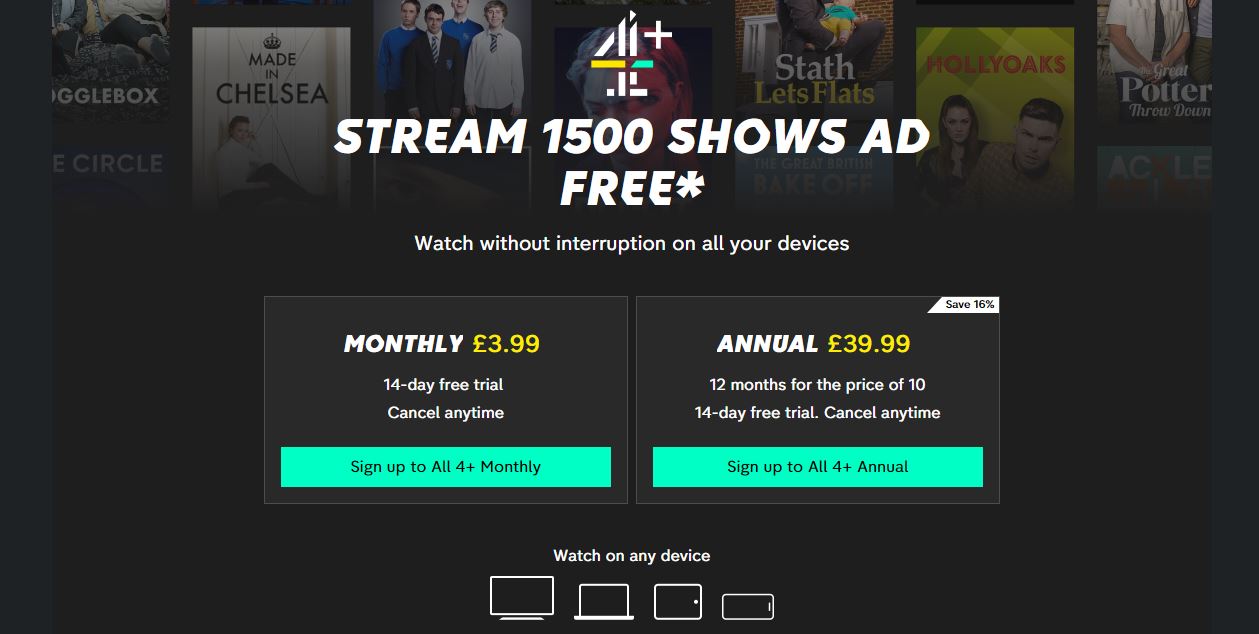
Install the All 4 app on your console and watch all you need on your device. The methods and the installation instructions are given above topic.
All 4 on Xbox Features:
After initiating the installation process of the required mobile apps on your device, you may want to know the features of the streaming service. I know; that’s why I provided the maximum features of the app for this topic. Here you go.
- Watch Live TV on All 4.
- Remembering Queen Elizabeth II special show.
- New Series is also available on this platform.
- Stream Adventurous content on this service.
- And it telecasts Reality and Entertainment shows.
- Access 4 Channels of All 4.
- Upgrade to watch content with Ad-Free.
- Parental Control is included in this app.
- You can watch content over 15 Categories.
- It lets you keep your Search History by signing into the app.
I hope these features are more than enough to get free television content streaming service. Install All 4 on Xbox and obtain all these features on your device.
Categories on All4:
So, will you want to know the categories of this service? Here is the section for you to let you know the various categories on the required mobile app.
- Comedy,
- Documentaries,
- Drama,
- Entertainment,
- Film,
- Lifestyle,
- News,
- Current Affairs,
- Sports,
- World Drama,
- On TV: Yesterday,
- On TV: Last 7 Days,
- Box Sets,
- Vice,
- Adult Swim,
- Walter Presents,
- E4.
You can watch all these categories on All 4 on Xbox gaming console. Install the App right now, make hot popcorn, and Watch the new series on TV. To watch the live sports content, get the NBA on Xbox 360 device and stream your favorite team’s live match.
Our Final Notes:
Download All 4 on Xbox and watch exclusive content free of cost. You can Install All 4 apps from Xbox Microsoft Store. Sometimes, the app is not working on your TV; in that time, you can try the alternative method to stream the All 4 on Xbox.
I have given all three installation and streaming methods in the above section. Not only the All 4 channels, but also you can get more streaming services and cross-platform on your Xbox device. To know more about it, click on the Xbox category above.