
The article will show you How to Install Magic Dragon on Firestick using the Kodi app. Since all the Kodi interfaces carry out the same process on all devices, surely the upcoming steps will work well on Firestick, Android TV, and Nvidia Shield. The Magic Dragon on Kodi Addon will present you a whole video content that includes TV Shows, Documentaries, Movies, and so on. Hence refer to this quality content carefully to know How to Install Magic Dragon on Firestick?
Table of Contents
Some of the Exciting Categories that Systematize the Video Content:
- BlueRay Movies RD Only
- People Watching
- 4K Movies
- New Cams or HDTS Releases
- Catch Up TV
- Documentary
- Kodi Channels
- Kids
- Radio
- Music
- Movies
- Sports
- Entertainment
From this, you can know that the Magic Dragon is not associated with other on-demand add-ons.
- Apart from the video categories also has utility categories:
- Real Debrid Authorize Here
- Pair with services- Openload and a lot more
All the above contents are widely used sources in the Kodi community.
Also, refer – How to Install and Watch Lepto Sports on Firestick?
How to Install Magic Dragon on Firestick?
Using the three broad steps, you can easily break down this installation process. And this will probably make the steps easier, here is how it goes.
Step 1: Enable Unknown Sources
Before entering into the installation of Magic Dragon on Firestick, as a first step, you need to allow the third-party Kodi addons and use the given guide to enable them.
1. Settings>> Open the Kodi application on your Firestick and head over to the settings option.
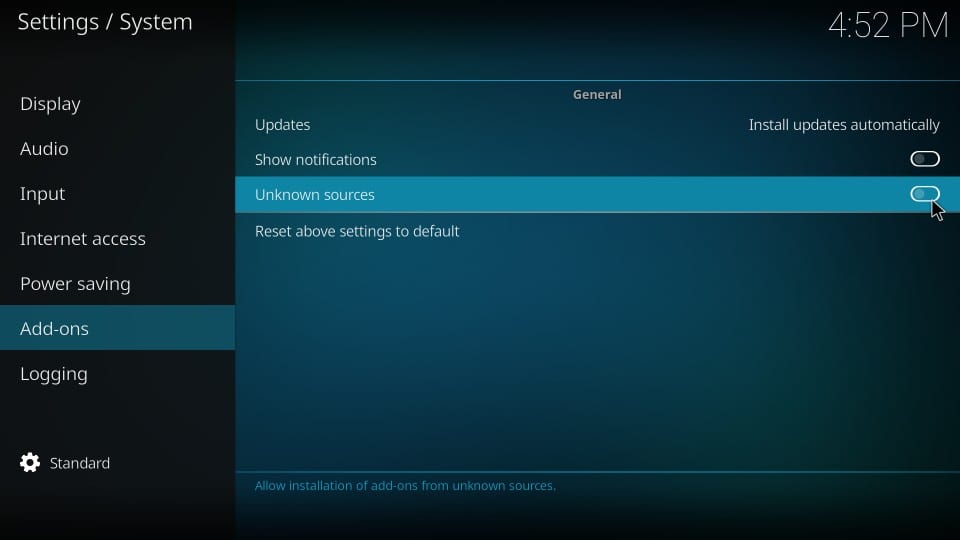
2. System Settings>> From the Settings, move on to the System Settings and select the Add-ons, which are located on the left side of your menu.
3. Unknown Sources>> Now, you can see the option Unknown Sources on the right side of your window screen.
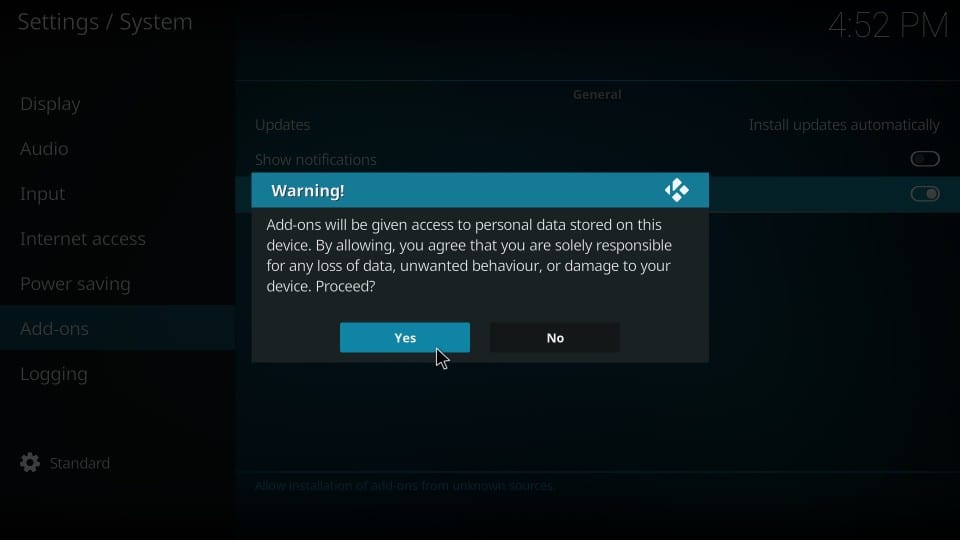
4. Prompt to install addon>> When it prompts, then you can go ahead and press Yes. Finally, download the Magic Dragon addon on Firestick using the Kodi application.
Step 2: Install EzzerMacs Wizard Repository – How to Install Magic Dragon on Firestick
Do the steps to download the addon on Kodi:
1. Settings>> Move on to the Kodi app and select the settings once again and select the File Manager.
2. Add source>> Now select the option Add source from the displayed list and click the box where it shows <None>
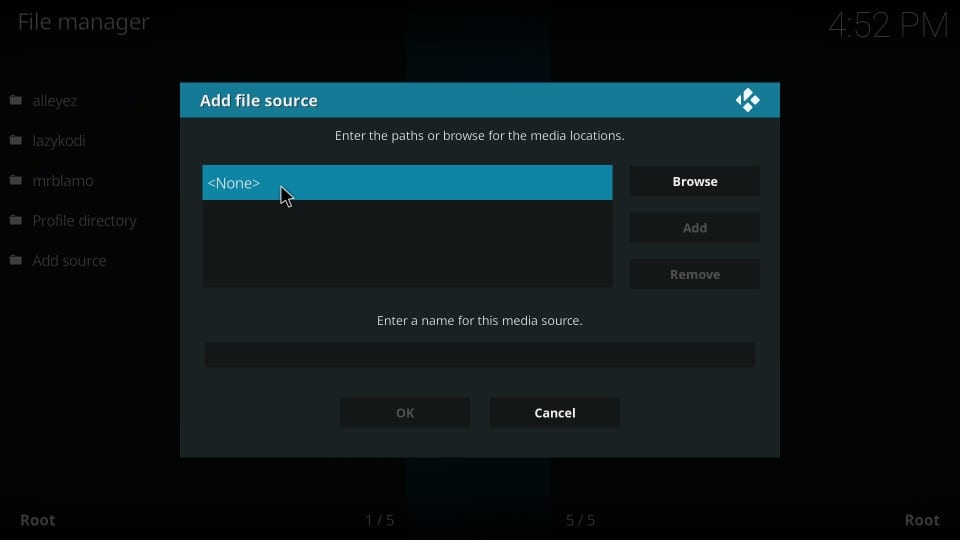
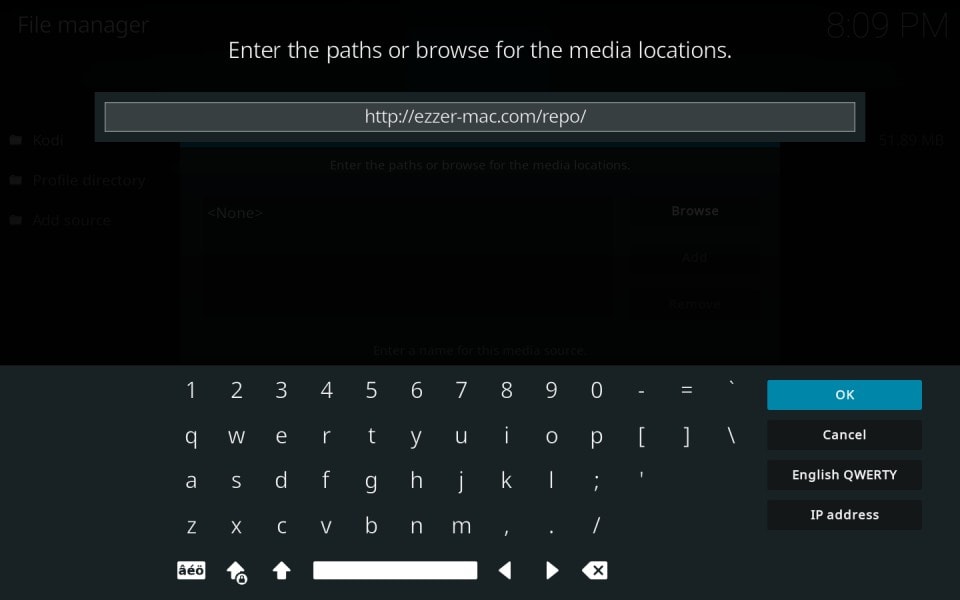
3. Type the URL>> Now fill the box typing this URL http://ezzer-mac.com/repo/ and click OK
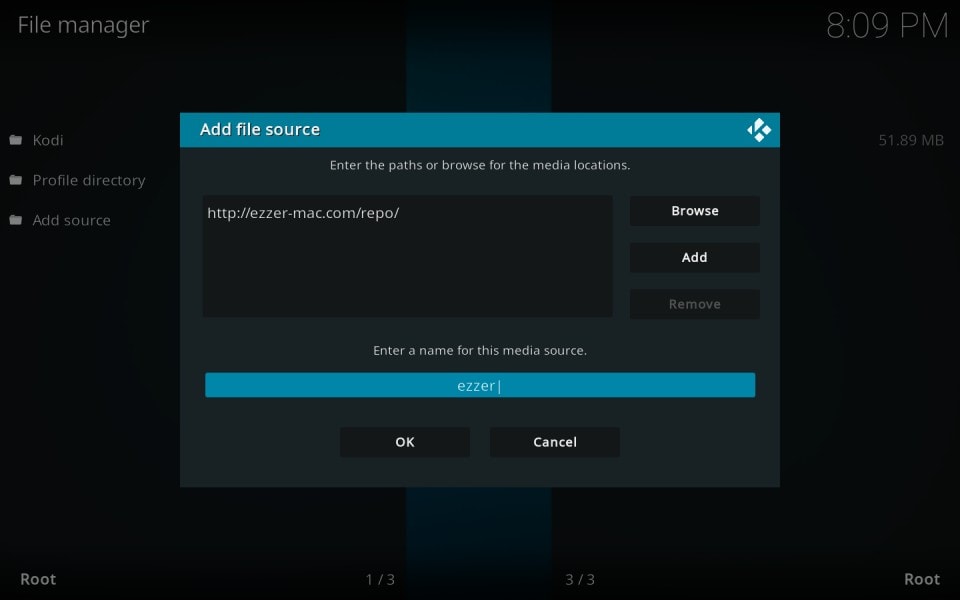
4. Enter the name>> Now add a name for this media source and start typing any name that you want to add for the source. Here we have chosen the name ezzer. Finally, click OK once you get this window. Try pressing the back or ESC button till you get the Kodi home screen.
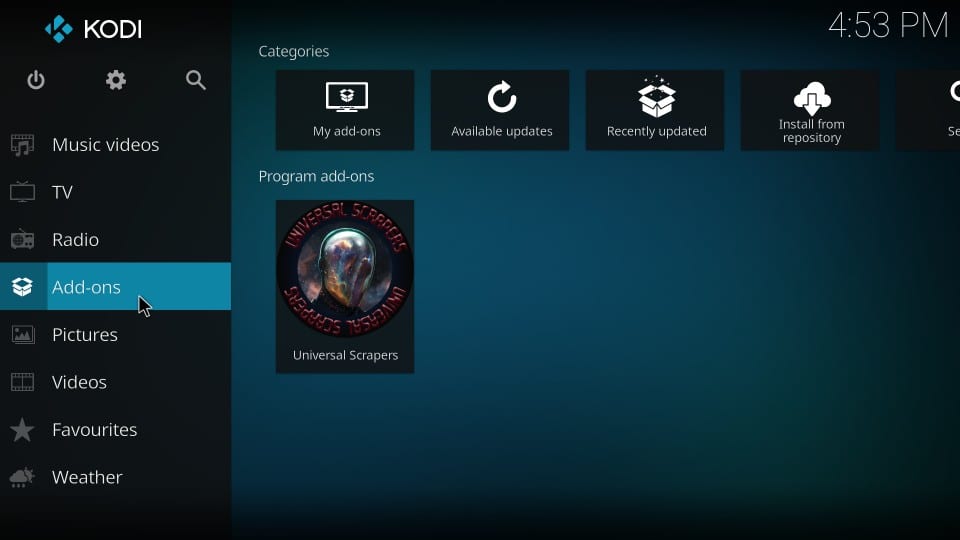
5. Click Add-ons>> Now press the Add-ons option placed on the left side and then press and open the Package Installer icon near the Kodi screen. Now prompt to select the install button from the Zip file.
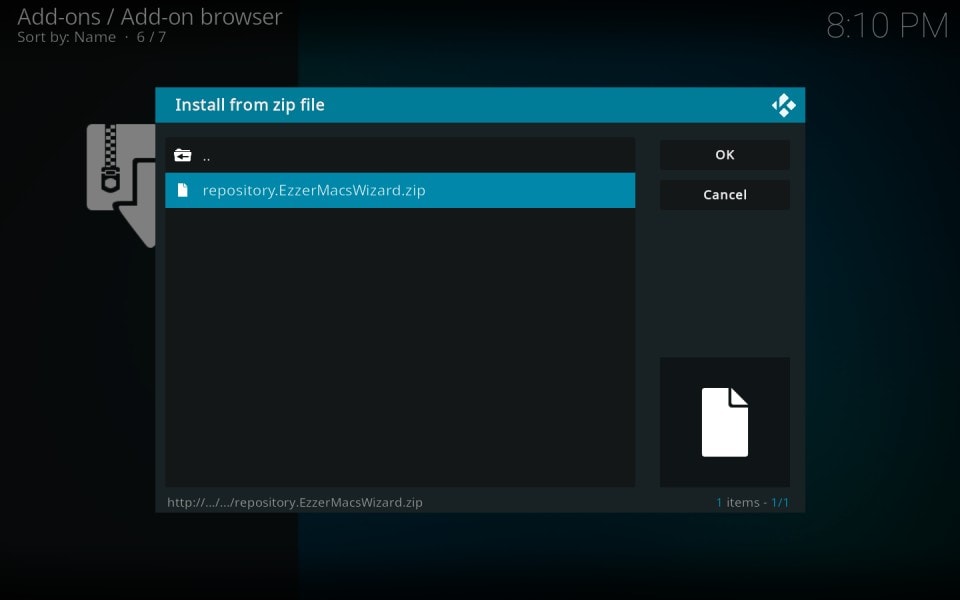
6. Open the source>> Click the ezzer file source and open the respository.EzzerMacsWizard.zip. Then wait for the confirmation that displays in the upper right corner.
Step 3: Procedure to Install the Magic Dragon Kodi Addon
1. Install EzzerMacs Wizard Repository>> Now install, press the option Install from Repository, and then select EzzerMacs Wizard Repository.
2. Select the Magic Dragon>> Open the Video addons, and that takes you to the next page to click The Magic Dragon from the list of other add-ons.
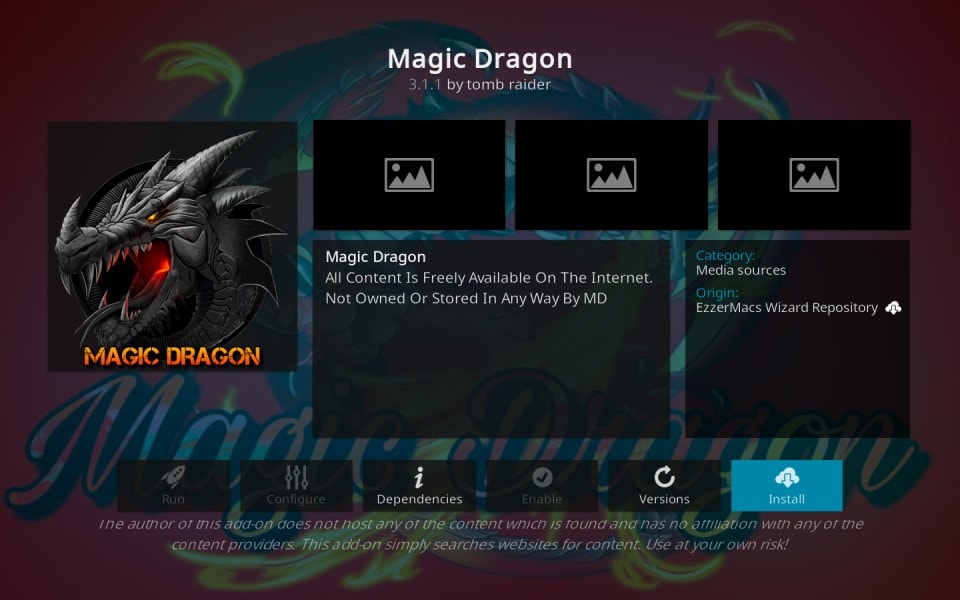
3. Install the Magic Dragon Add-on>> Now proceed to click the install option and wait for the confirmation message. Finally, once you get the message, you can get them on your Firestick. This is the proper way to Install Magic Dragon on Firestick.
Note>> We warn you that whatever you do to stream anything on Kodi, it can be viewed by the ISP and Government. This means watching any copyrighted content is illegal. So using a proper VPN is strongly advisable as it saves you from trouble.
At the same time, we don’t support or encourage any copyright laws. We recommend that if you end up in trouble unintentionally. Hence before starting up with Kodi, here are the few VPN production steps that should be followed.
Also, refer – How to Install Freeview App on Firestick
Steps to Install VPN – How to Install Magic Dragon on Firestick?
Step 1>> Visit the VPN subscription pack for Free, which gives you a guarantee of a 30-day of money return. That means you can use the VPN for free for the first month, and in case you feel unsatisfied, then you can claim a refund.
Step 2>> Now download and launch the VPN application on your streaming device. The Firestick user should navigate to the Home screen to find the search option and then type for VPN.
Step 3>> Once you get the VPN app then, download them on your firestick and then open the corresponding VPN app.
Step 4>> Now, the app automatically takes you to the login page that you have created while subscribing.
Step 5>> To connect to the server, you must click the Power icon. Finally, your Firestick device is secured with the VPN.
The Magic Dragon Makes you Access Quality Links.
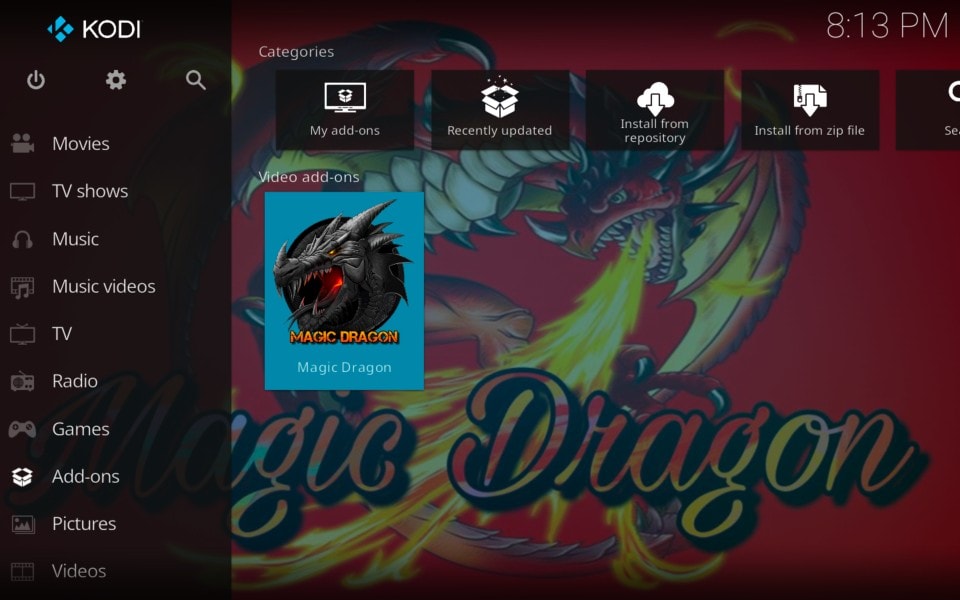
You know what? The Magic Dragon is one of the fasten add-ons in recent days as the navigation works so quickly, smoothly, and effortlessly. Thus from your preferred stream, you can quickly playback the video, and at the same time, the speed varies across every continent.
The Magic Dragon Addons give you quality content, not like pulling hundreds of links. Moreover, if you have a Real-Debrid account, then you might be getting even higher quality links without buffering. Therefore explore everything using the Magic Dragon Kodi Addon.
Also, refer – How to Watch House of the Dragon on Firestick?
The End
I remind you that in recent days the quality of video-addons has been massively declining. And those expecting to gather quality content with top-notch performance hence the Magic Dragon perfectly suits all platforms. Refer to the above article How to Install Magic Dragon on Firestick carefully. Thank You.